
In the default design, you have the option to create and implement your own Bootstrap style to largely adapt the iFrame's color and appearance to your corporate identity. Modifying styles with Bootstrap requires knowledge of HTML, CSS & Bootstrap and is intended only for experts. Support for this can be found online: Bootstrap Docs.
Basic adjustments such as background and text color, font type and size, and the colors of individual buttons can be made by yourself with just a few clicks. If you have further requirements, we would be pleased to offer you a custom style based on your template. Simply send us an email at: support@edoobox.com.
Create or Modify Bootstrap Style
To create your own Bootstrap style or modify an existing one, first go to the Design Manager and select the default design. To edit existing styles, simply click on one of the existing Bootstrap styles. If you want to create a new style, click the “Add ” button located below the “Bootstrap Styles” heading.

Initially, you should name your Bootstrap style, ideally something easily recognizable and memorable, such as your company's name. In our example, the style could be named edoobox-style .
Colors
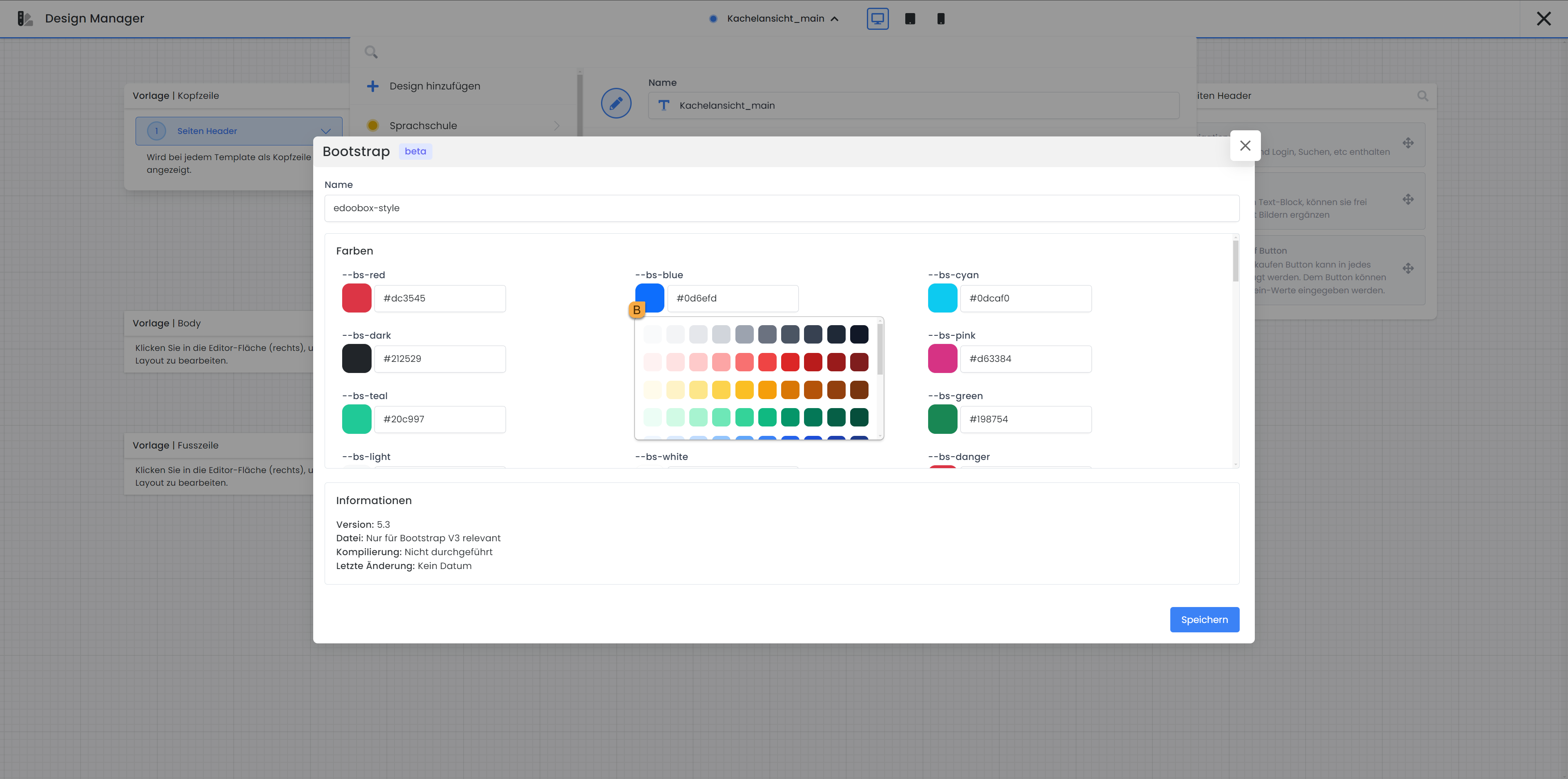
Colors can be easily adjusted by either using the Color Picker B or selecting the hex code with the help of Adobe Color CC. The main components for which you can customize colors are:
--bs-primary ="Buy Voucher Now"button and link color
--bs-success =Sign-upbutton
--bs-info =Detailsbutton
--bs-warning =Waiting listbutton
--bs-danger =Error messages / Cancel bookingbutton
--bs-white = Background colorof the iFrame
--bs-gray-900 = Globaltext colorof the iFrame
--bs-black = Navigation text color
Dimensions
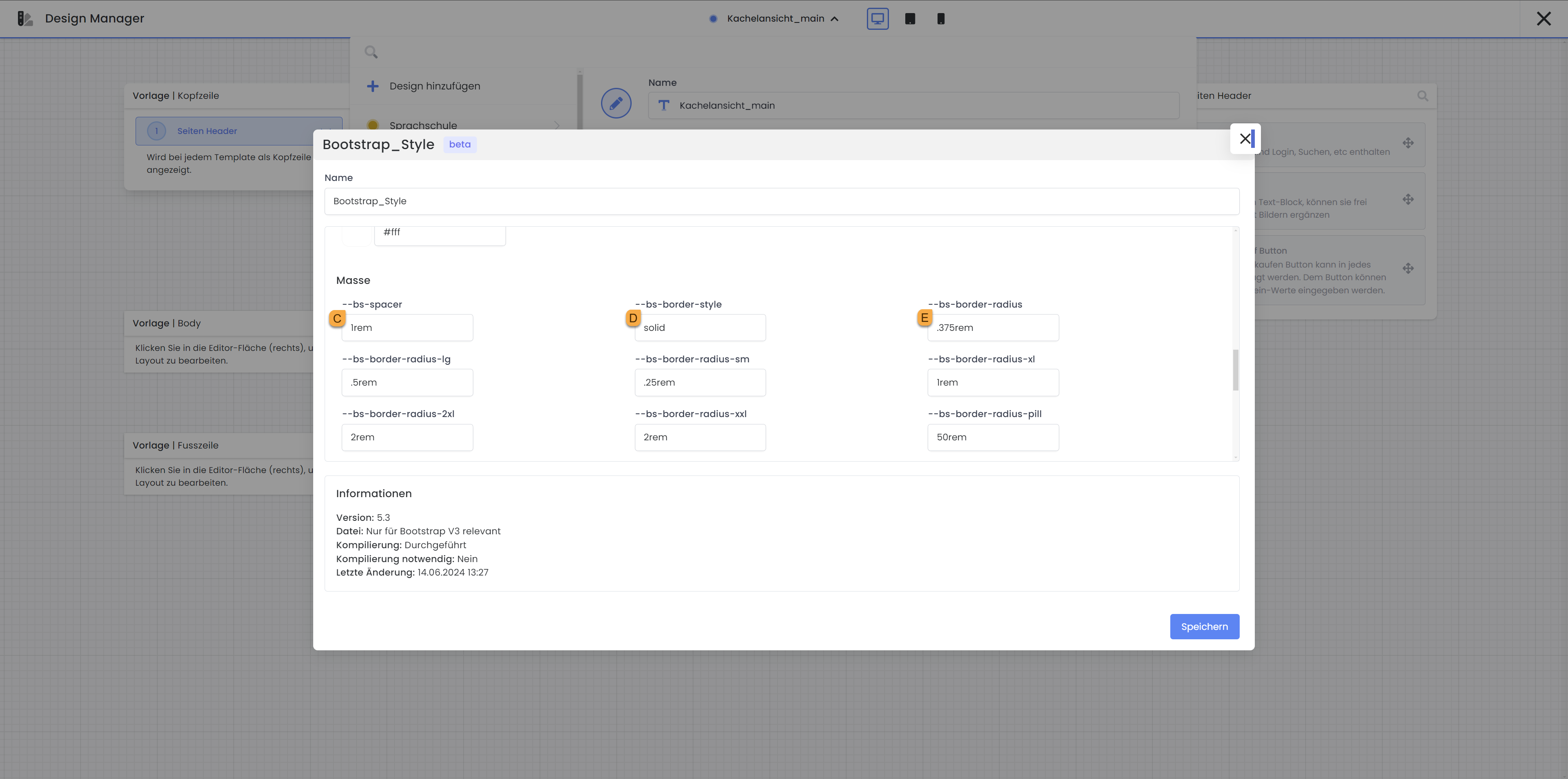
Here you can set the default spacing (padding and margin) for the components (--bs-spacer c ) and specify the default border style (--bs-border-style d ). You can also define the radius of the button corners (--bs-border-radius e ). You can find more information about the different screen sizes here: Bootstrap 5.3 Documentation
Additional Settings
These Bootstrap variables are configuration options that enable or disable specific features and behaviors of Bootstrap. Here is an explanation for each of these variables:
|
Variables |
Description |
|---|---|
|
|
Enables Responsive Font Sizing (RFS), which automatically adjusts font size based on viewport dimensions. |
|
|
Enables the caret symbol (small arrow), which is often displayed in dropdowns. |
|
|
Enables CSS Grid support in Bootstrap. |
|
|
Enables rounded corners for elements. |
|
|
Enables shadow effects for Bootstrap components. |
|
|
Enables Dark Mode in Bootstrap. |
|
|
Enables gradients in Bootstrap components. |
|
|
Enables CSS transition effects in Bootstrap. |
|
|
Enables grid classes in Bootstrap. |
|
|
Enables smooth scrolling on the webpage. |
|
|
Enables reduced motion for users who wish to minimize motion effects (e.g., for accessibility). |
|
|
Enables pointer (cursor) for buttons. |
|
|
Enables negative margin classes in Bootstrap. |
|
|
Enables validation icons for forms. |
|
|
Enables container classes in Bootstrap. |
|
|
Enables the use of |
|
|
Enables warning messages for deprecated features in Bootstrap. |
Customize Font
To customize the font in the preview, you can easily do so under the Font section:
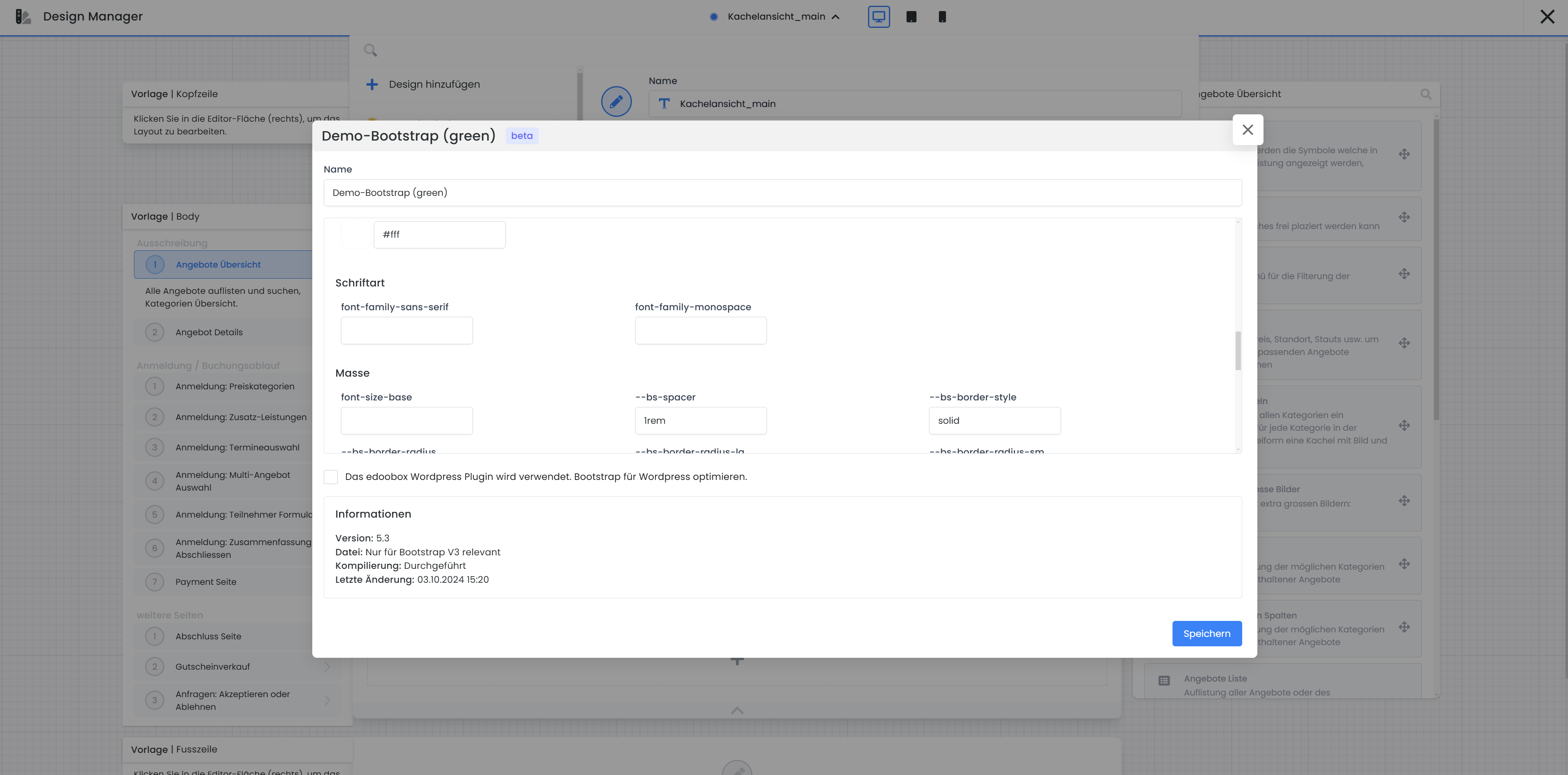
The first field with font-family-sans-serif is intended for sans-serif fonts, such as Arial, Helvetica, or Comic Sans. The second field with font-family-monospace is designated for monospaced (non-proportional) fonts. This means that each character has the same width. Examples of such fonts include Courier or Consolas.
Example: Comic Sans
If you wish to use the Comic Sans font, enter for font-family-sans-serif the following:
"Comic Sans MS", "Comic Sans"
Select a suitable font from Google Fonts (https://fonts.google.com/) and insert it.
For edoobox to actually use this new font, you can now insert this CSS code into a Code Widget within the Page Footer template in the Design Manager and adjust the value after family to your font name:
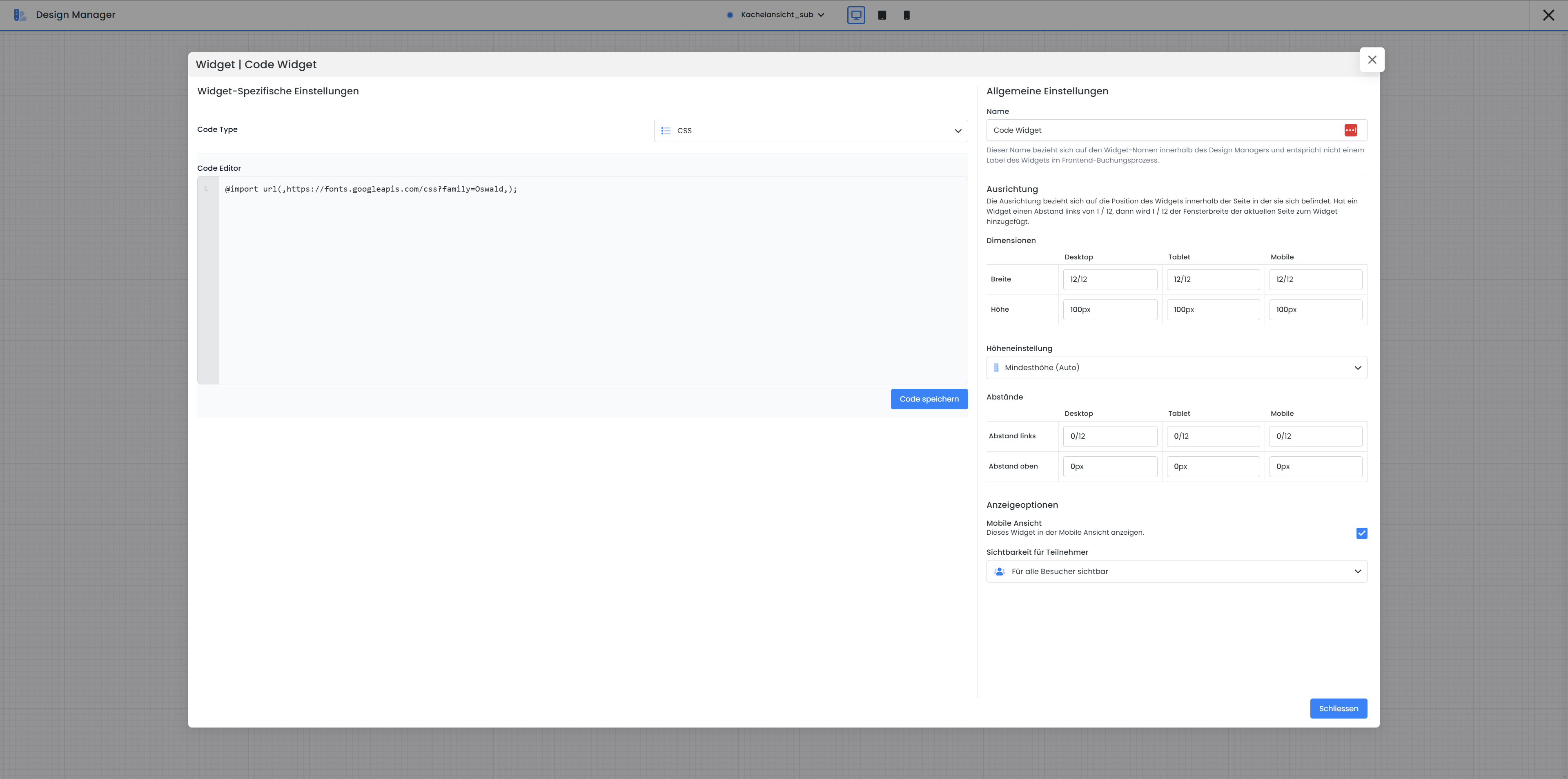
Here is the code you can copy:
@import url(‚https://fonts.googleapis.com/css?family=Oswald‚);
You can then replace "Oswald" with your font name.
Related Guides
Keywords for this guide
Bootstrap | CSS Code | Design Style | Design Manager