
Do you have questions about our features and services, or would you simply like to get acquainted with edoobox without obligation? We warmly invite you to a personalized online meeting. Our dedicated support team will gladly demonstrate how edoobox can optimize your event planning.
Customized Online Training with Direct Expert Contact
During our personalized online training sessions, you will be in direct contact with one of our edoobox experts. Together, you will develop solutions to plan and manage your events as effectively as possible. Benefit from valuable insights and practical tips from our experienced support team. Seize this opportunity to clarify all your questions and discover customized solutions perfectly tailored to your needs.
Before Your Training Session
How to Book Your Training Session
Book your appointment conveniently via our website at https://www.edoobox.com/kurse or send us a brief email with proposed dates to support@edoobox.com. Once the appointment is confirmed, you will receive a confirmation email from us with an access link.
Our training sessions are typically conducted in German but are also available in English upon request.
Preparing for Your Appointment
For optimal participation, we recommend having an internet-enabled device with audio input and output (e.g., speakers or a headset and microphone), as well as a sufficiently large monitor for a clear view of the screen sharing. Consultation calls without screen sharing can also be easily conducted via a smartphone.
Please consider in advance which topics you would like to discuss and make a note of any important questions you wish to clarify.
What are the Costs?
Two personalized online meetings are already included in your edoobox subscription, allowing you to rely on our support even during the trial phase. These two training sessions typically cover most needs. Should you require additional support, we are happy to provide a training package specifically tailored to your requirements.
Our goal is to make the online meetings as effective as possible. Therefore, we recommend that as many team members as possible who will be working with edoobox in the future participate in the training sessions. There is no limit to the number of participants from our side – all interested parties are welcome.
During Your Training Session
Logging into Your Personalized Online Introduction
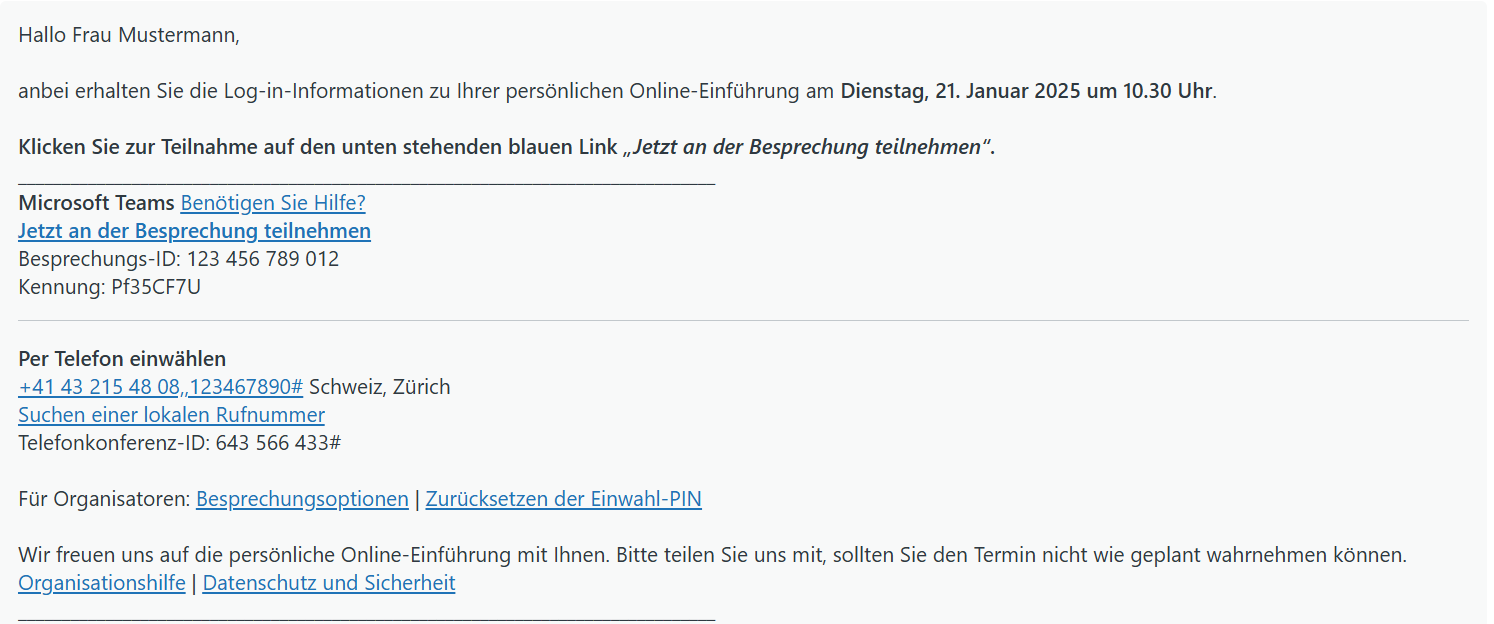
After reserving your appointment, you will receive a definitive booking confirmation email from us. Before the training session, open this email to join the online meeting via the access link.
Content of a Personalized Online Introduction
You determine the content of the online meeting. Inform us of the topics you wish to discuss when booking, send us a list of questions in advance, or decide spontaneously during the training session which topics should be covered.
The online meeting lasts approximately 30 minutes and can be recorded upon request.
Procedure
-
Introduction and Goal Definition: At the beginning of the meeting, we will briefly introduce ourselves and discuss the meeting's objectives and any existing prior knowledge.
-
Interactive Introduction: The session content will be tailored to your specific needs. Potential focus areas include:
-
Product Presentation: Introduction to the basic functions of edoobox, creation of offers, and the user interface.
-
Alignment of Requirements and Capabilities: Discussion of your booking system requirements, planned applications, and an overview of the capabilities offered by edoobox.
-
Clarification of Specific Questions or Challenges: You present your questions or describe challenges, and we collaboratively develop solutions.
-
Detailed Training on a Specific Functional Area: Upon request, we will provide a detailed introduction to a specific functional area of edoobox. For such training sessions, we recommend informing us of the desired topic in advance so that a suitable expert can be available and optimally prepared.
-
-
Joint Conclusion: At the end of the approximately 30-minute session, we will address any remaining questions and jointly determine the next steps.
Instructions for Opening the Access Link with Teams
-
Open Access Link: Click on the link "Join meeting now". Microsoft Teams will then open in your default browser.
-
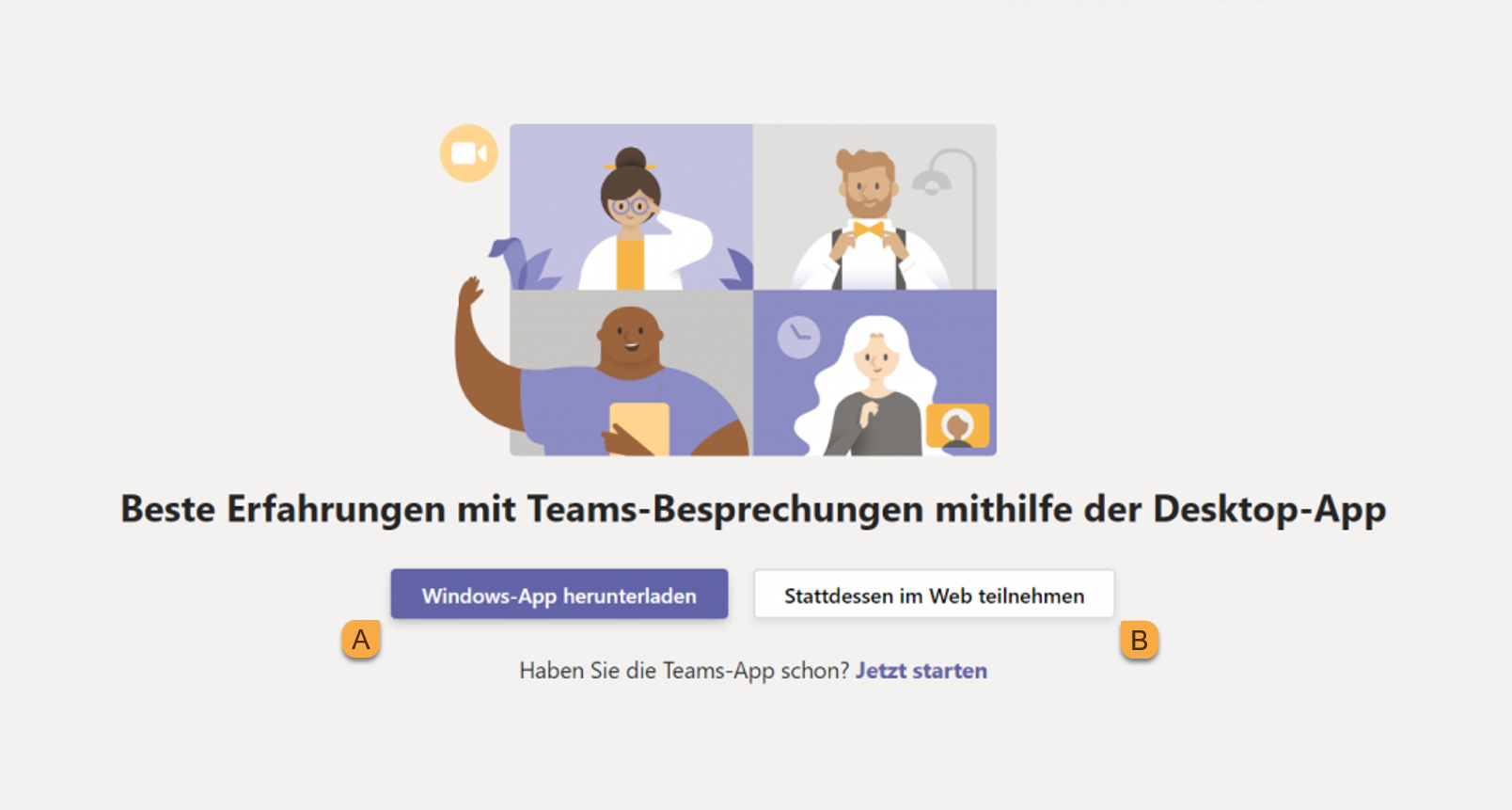
Select a participation option: Choose whether you want to join the meeting via the Microsoft Teams app (download required if not already installed) or directly through your browser (no download required ).
-
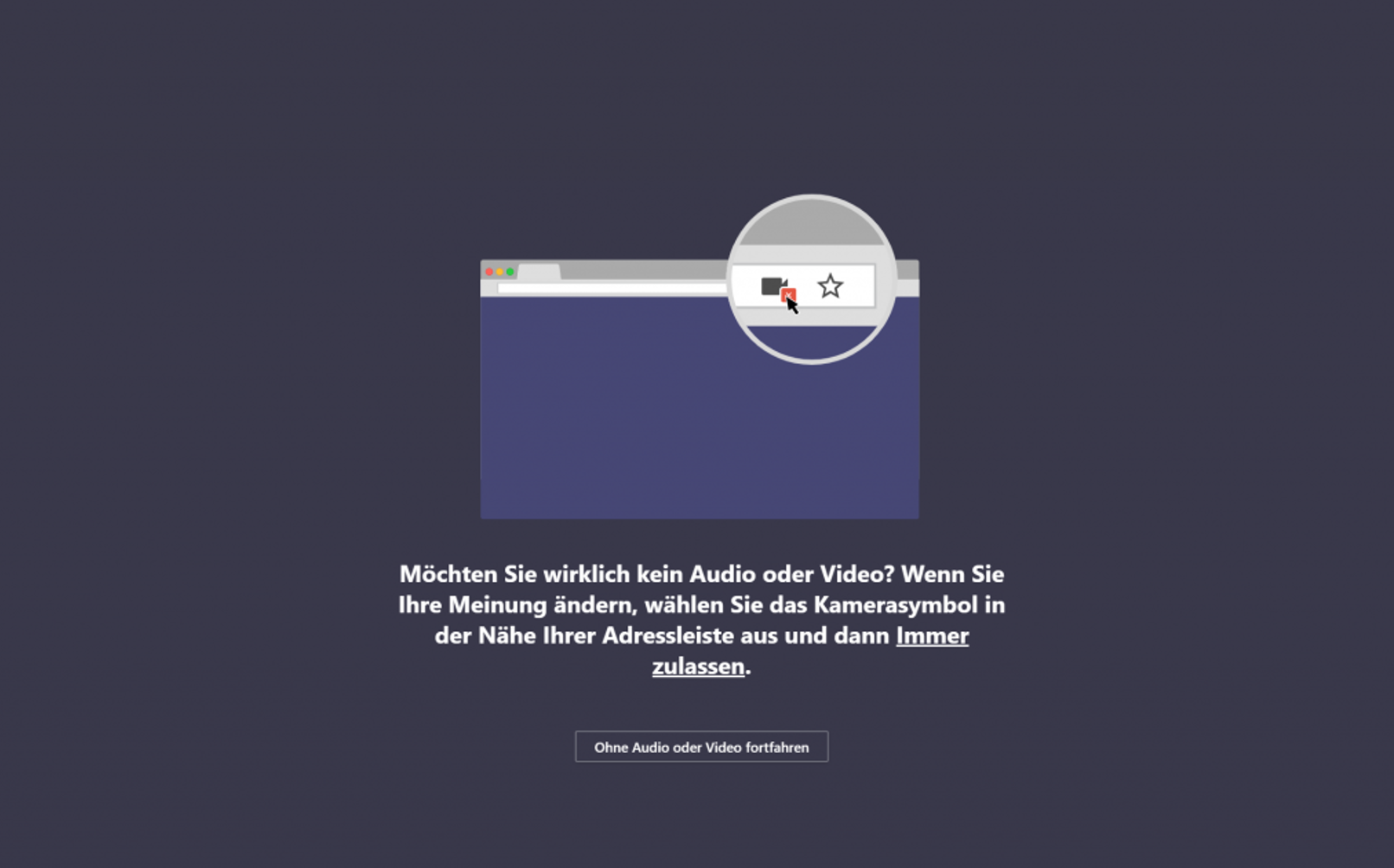
Camera and Microphone Settings: Your browser will ask if you want to grant access to your camera and microphone. We recommend activating the microphone so you can communicate with us in the meeting. For the camera, you are free to decide whether you wish to use it.
-
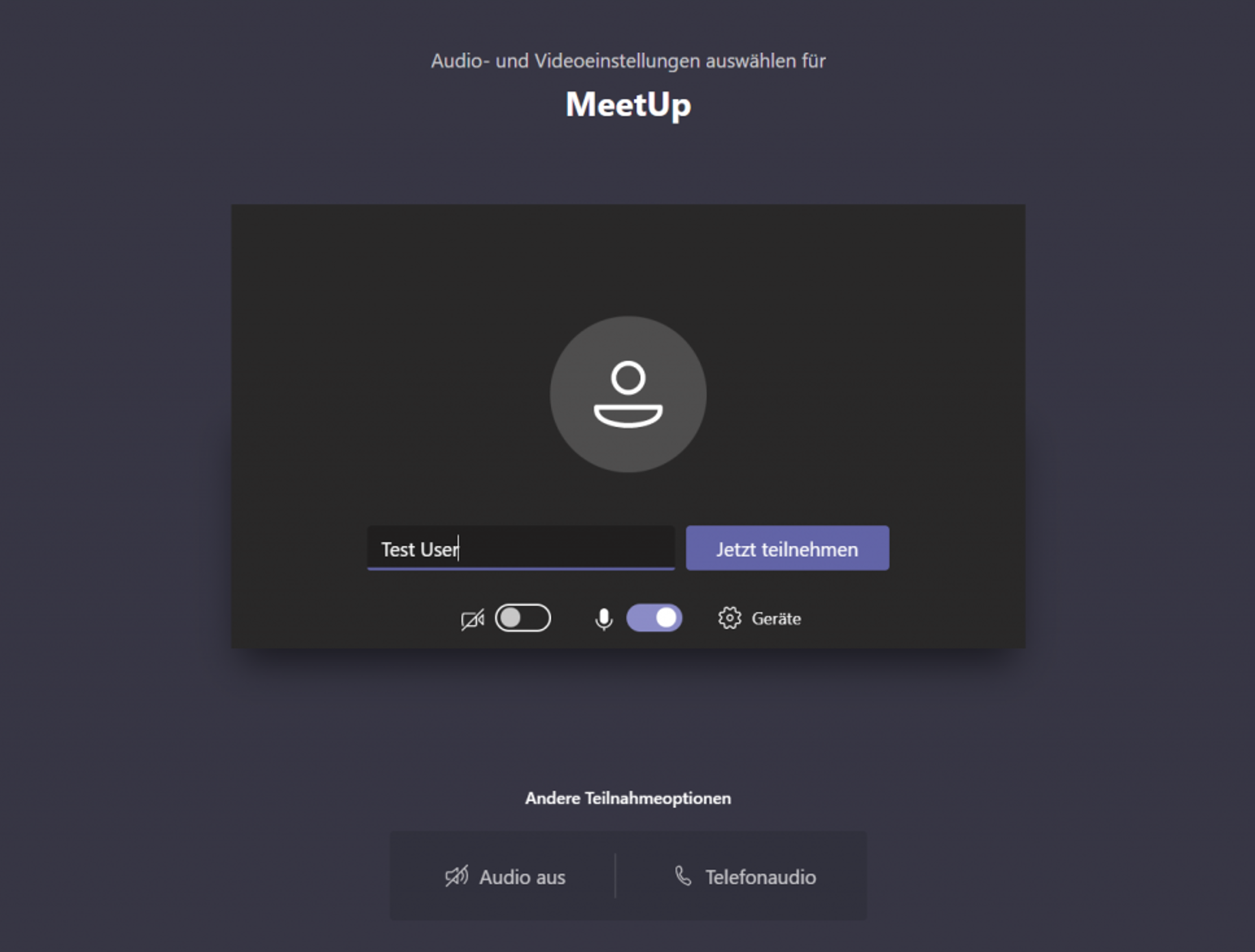
Enter Name: Enter your name.
-
Alternative Audio Connection: If your device does not have a microphone function, you can join by phone for audio playback. To do this, dial the local number provided in your invitation and enter the conference ID listed there. Costs may be incurred for participation via phone – we therefore recommend a device with a microphone function for free participation.
-
Start of Training: Once you have successfully logged in, the meeting can begin! You can activate or deactivate your camera and microphone at any time by clicking on the respective icons.
We look forward to seeing you!
Related Guides
Keywords for this guide
Introduction ¦ Personal ¦ Training ¦ Microsoft Teams ¦ Meeting