
For each offering, additional materials can be stored using the "Documents & Files" function. A distinction is made between internal and external files: Internal files are only visible after logging into edoobox. External files, however, can be made available to participants, displayed in their participant account, and provided for download.
Storing Files in an Offer
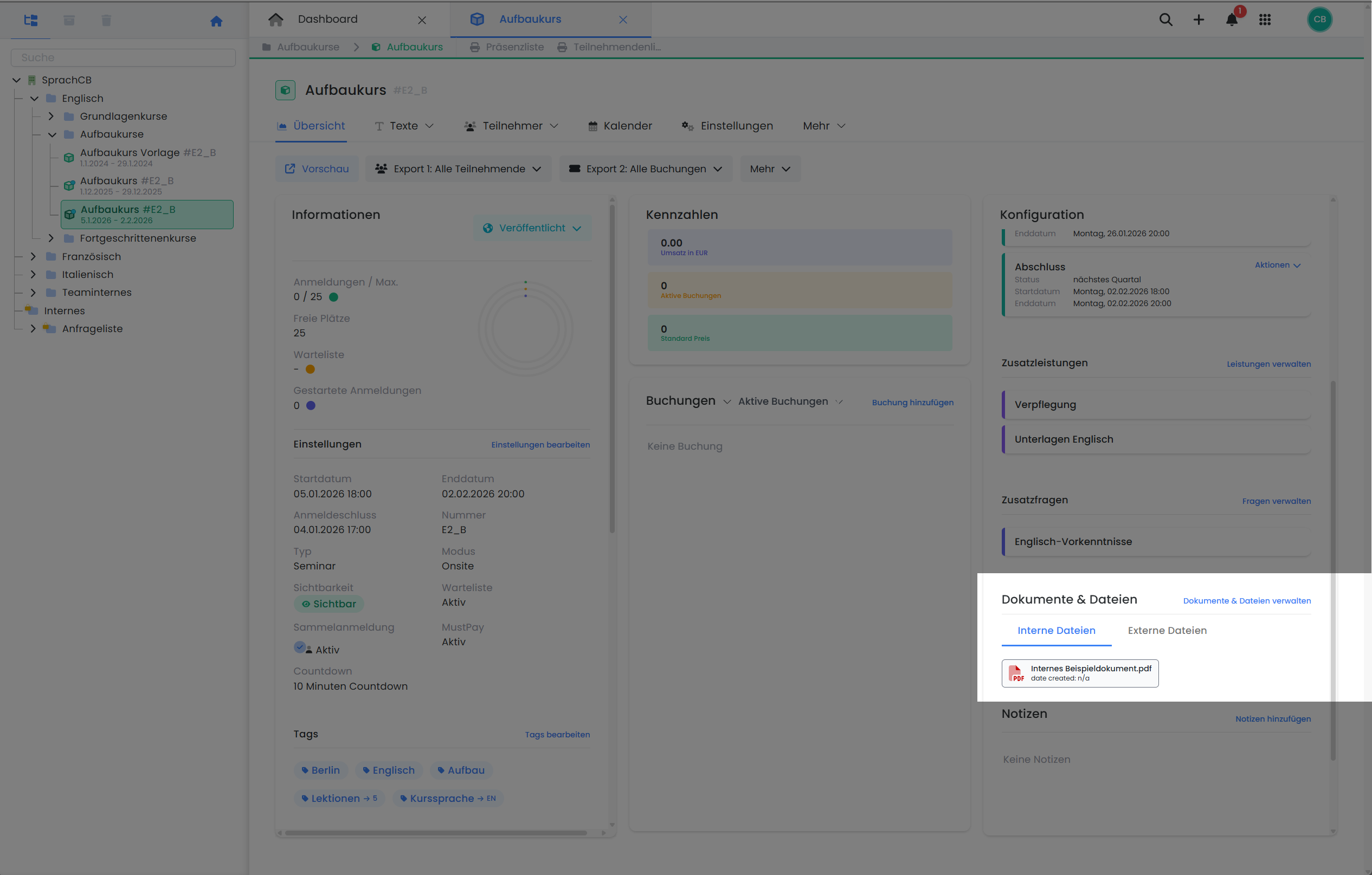
Admins can upload files in the «Documents & Files» tab within an offer. File management is performed directly on the detail page of the respective offer.
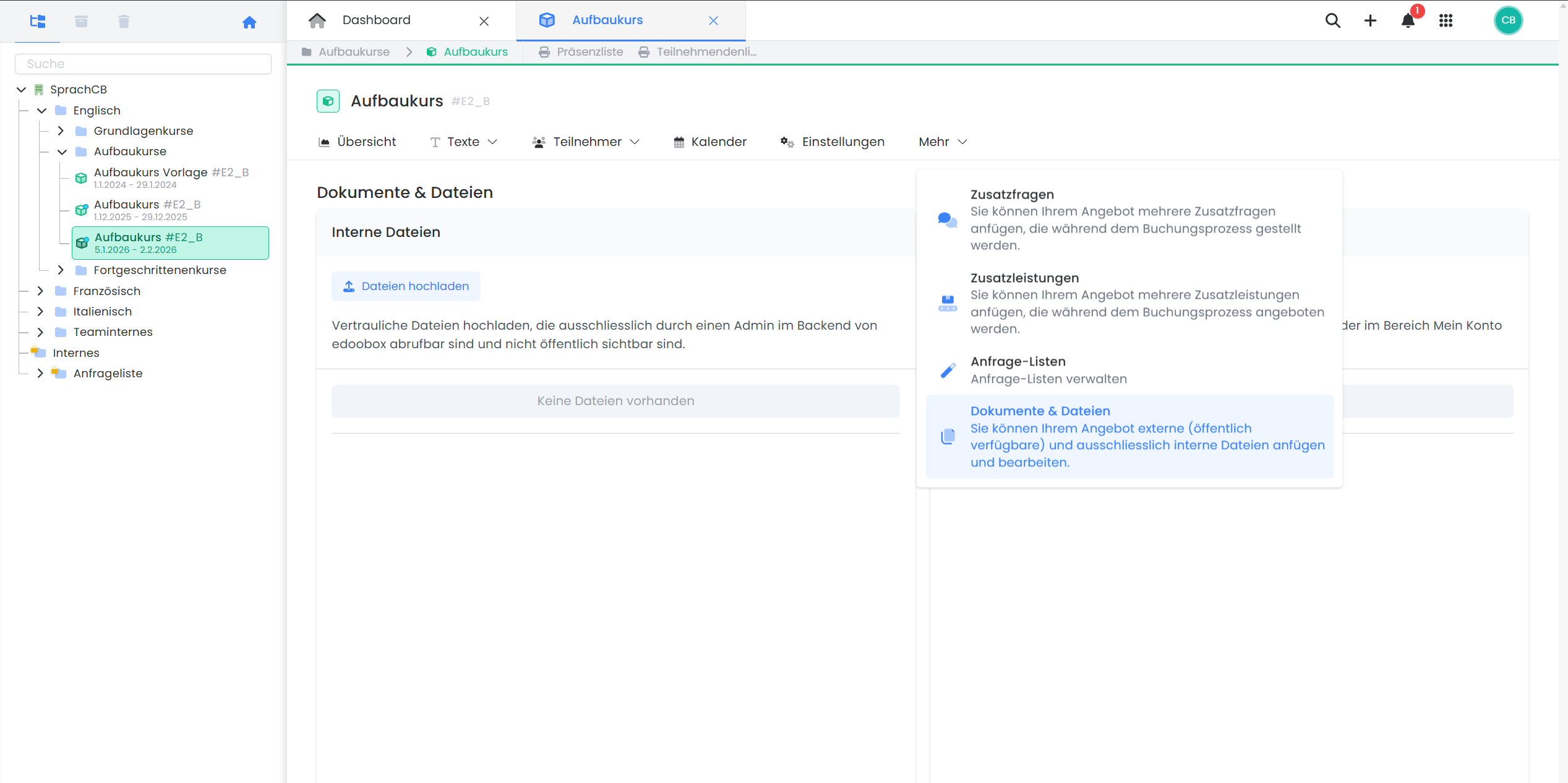
Files can be classified into two categories:
-
Internal Files: Visible only to admins, e.g., for course concepts or internal documents.
-
External Files: Visible to participants after booking, e.g., training materials or information sheets. These can be made available via the participant account.
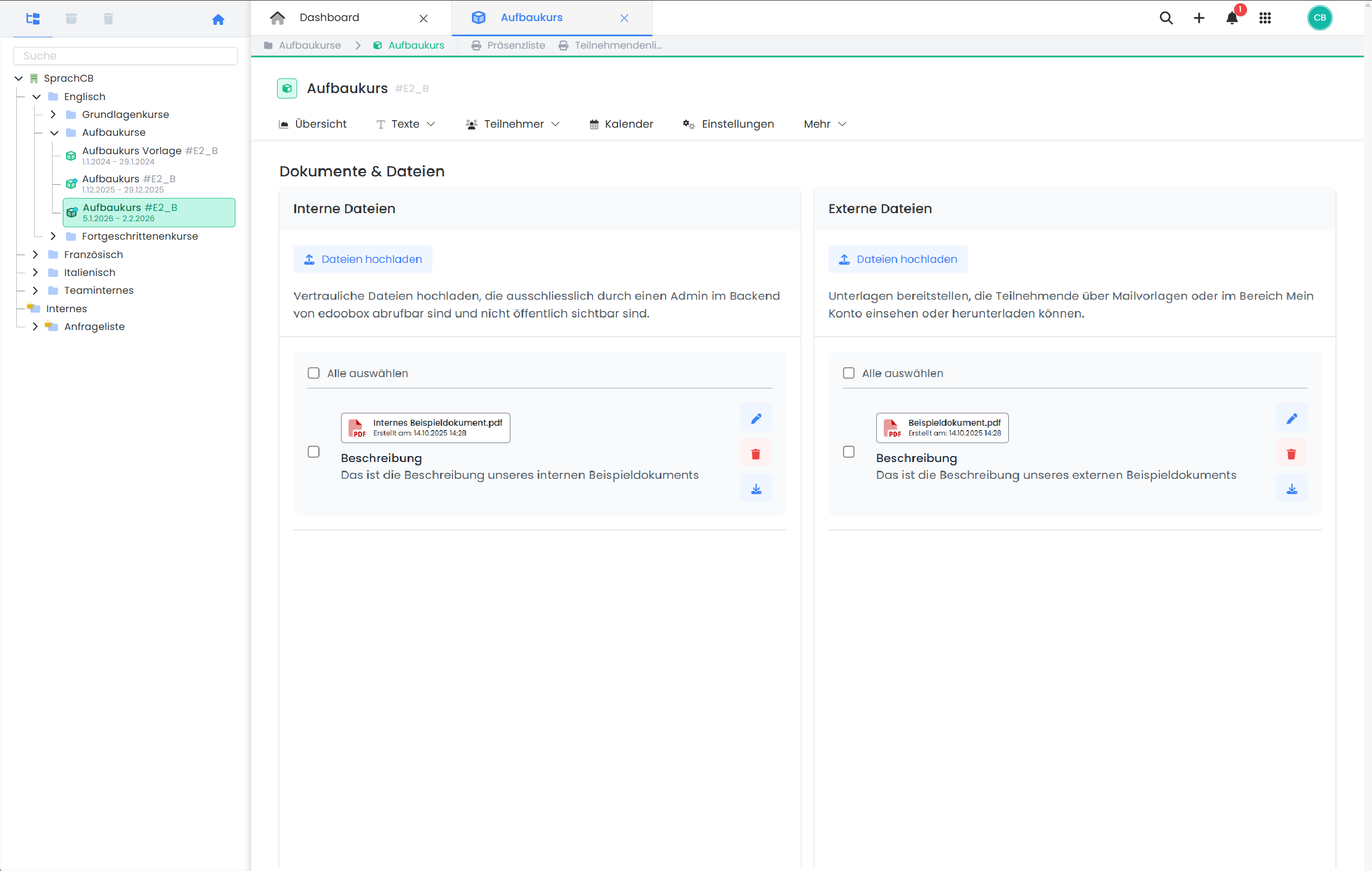
Both sections feature their own upload functionalities, description fields, and editing options. A document once uploaded can be deleted or its description edited at any time.
Internal Files
Internal files are exclusively available to edoobox admins within the user interface. This feature is suitable for documents not intended for participants, such as course concepts, schedules, or internal forms.
-
Storage Location: Open Offer → «More» → «Documents & Files» → «Internal Files» Section
-
Access: Visible only to admins after login
-
Display: Filename and optional description
-
Management: Admins can upload, describe, delete, and download documents.
External Files
External files are intended for booked participants and may include, for example, course materials, information sheets, or additional resources. These documents can be displayed in the participant area or provided via email templates.
-
Storage Location: Open Offer → «More» → «Documents & Files» → «External Files» Section
-
Access: Visible to admins after login and to participants in the «My Account» section, if activated in the standard design.
-
Display: Filename and optional description
-
Management: Admins can upload, describe, delete, and download documents. Participants can download documents.
Activate Visibility in the Participant Area
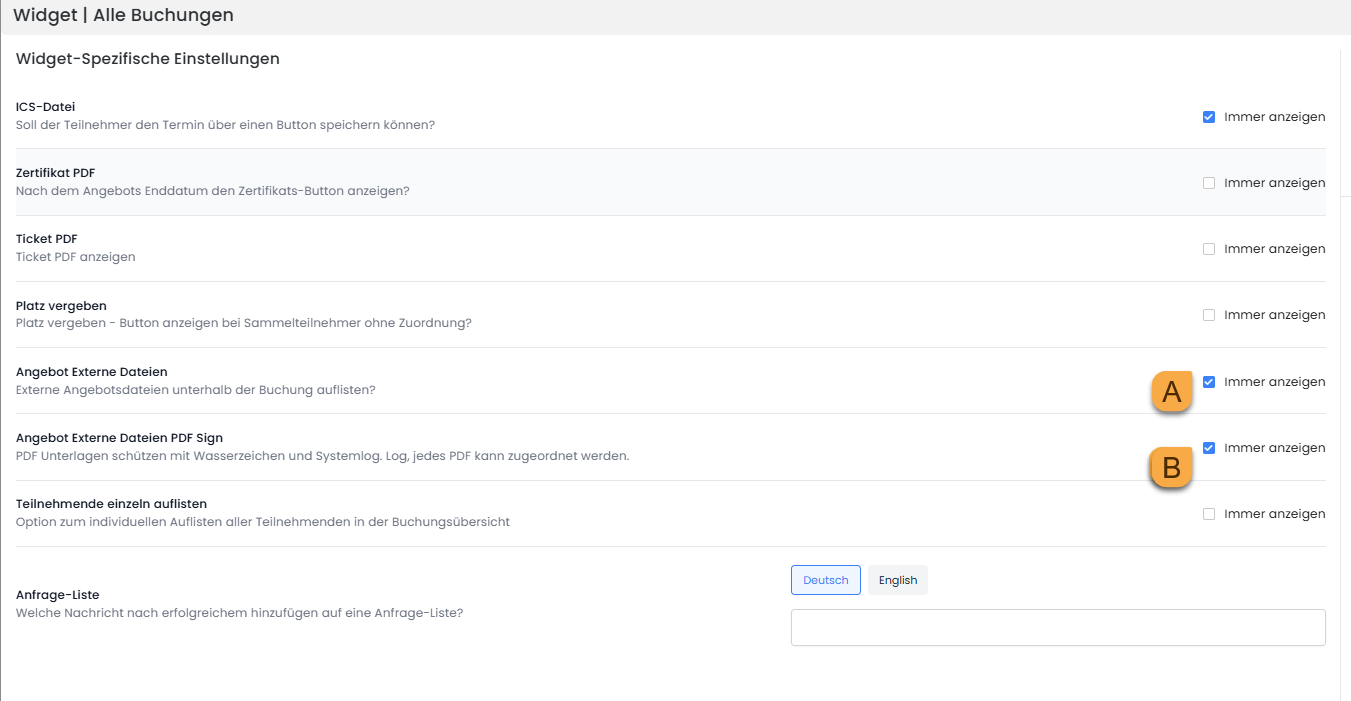
To display external files in the participants' booking area, the corresponding widget in the Standard Design must be adjusted within the Design Manager:
-
Widget «All Bookings»
-
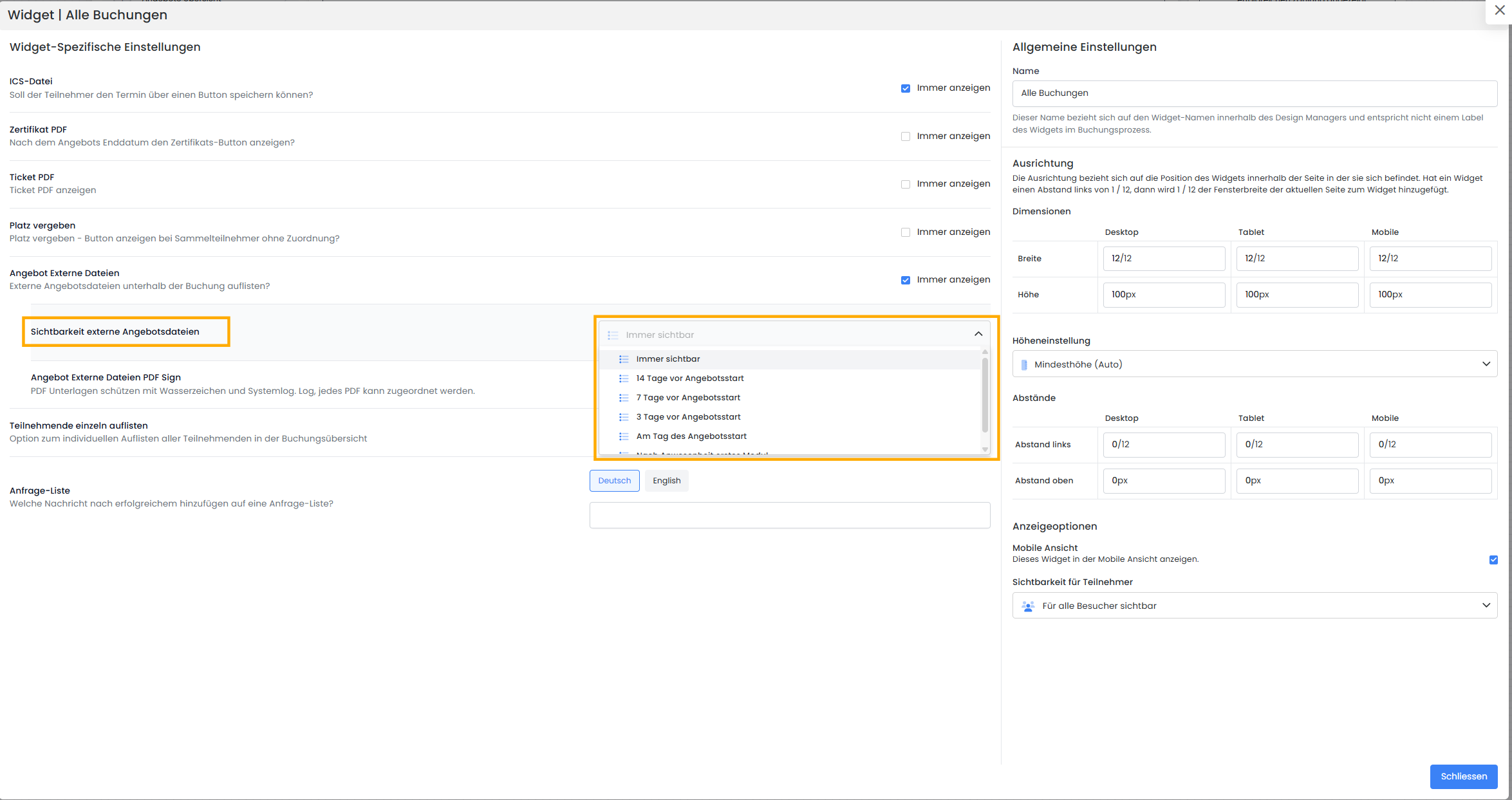
Activate the checkbox for "Offer External Files" A
External files will only appear in the participant account if this option is active.
Note: External Files in Email Templates
You can insert the placeholder ##UserAccessURL## (preferably as a hyperlink) into some email templates (e.g., booking confirmation email and reminder email). Participants can then click the link to directly access their participant account and the files. If you no longer wish to make the files available, they can be removed from the offering, thereby preventing participants from downloading them.
Display external files on a schedule
The visibility of external files in a quote can be scheduled. This determines when these files become visible to customers.
This setting is configured in the "Design Manager " on the "Checkout Page" in the "All Bookings" widget. There, you can select the point at which external files are displayed to customers.
The following options are available for displaying external files:
-
Always visible
-
14 days before the offer begins
-
7 days before the offer begins
-
3 days before the offer begins
-
On the day the offer launches
-
Based on attendance in the first module
Activate PDF Sign protection for external files
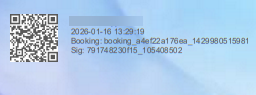
In the "All Bookings" booking widget, you can specify that external files made available for download to participants should be marked with a PDF Sign watermark B.
This protection ensures that documents can be uniquely assigned to the respective participant and are simultaneously safeguarded against unauthorized copying or distribution.
Additional Note: PDF Protection
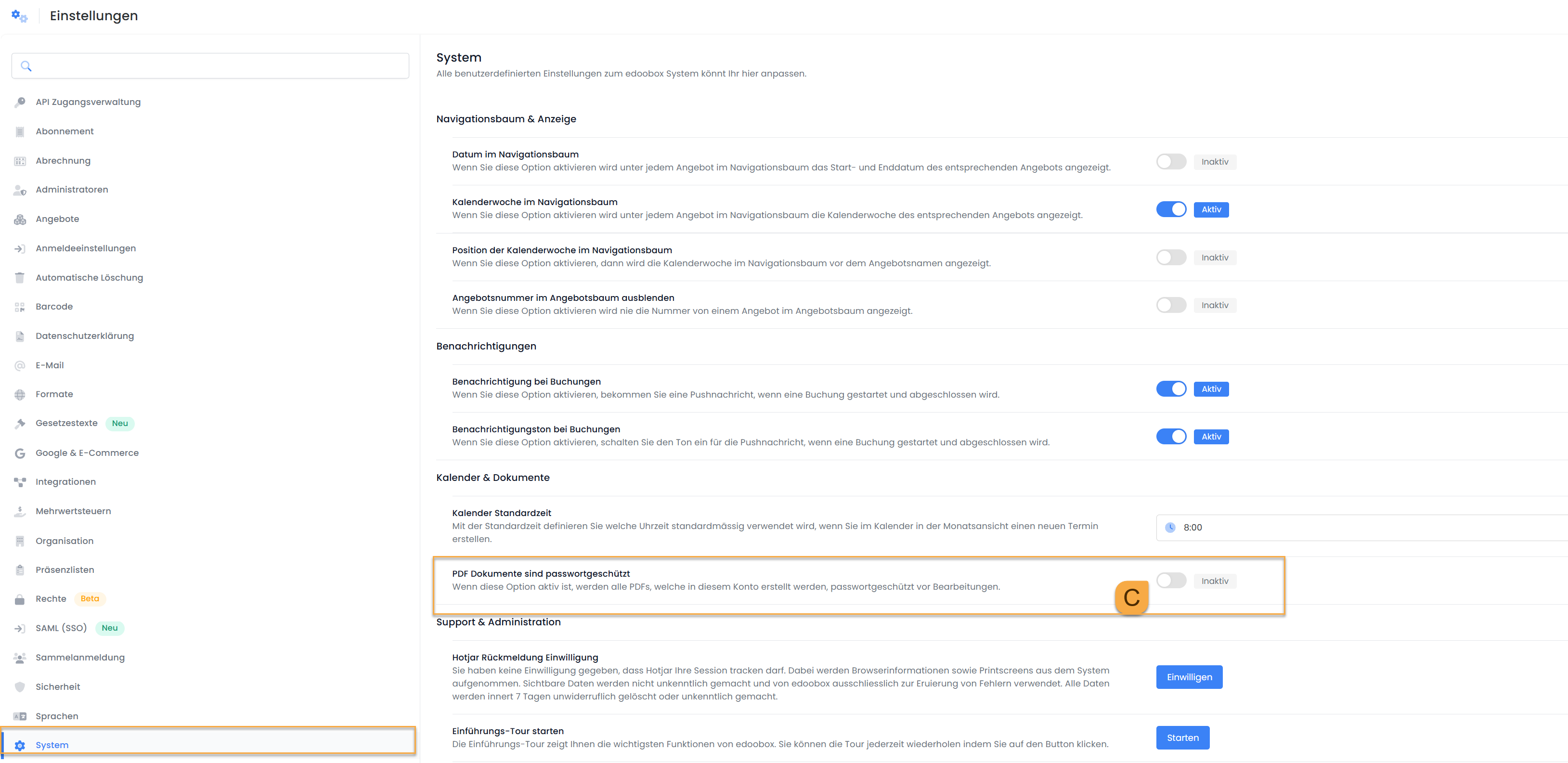
In addition to PDF Sign protection, you can enable or disable the " PDF documents are password-protected " option in the global settings under System.
If this setting is enabled, all PDF documents generated by edoobox are password-protected.
Related Guides
Keywords for this guide
File Management ¦ Internal Files ¦ Course Materials ¦ External Documents ¦ Participant Area ¦ Upload ¦ Training Materials ¦ Instructor Permissions ¦ File Access ¦ My Account