
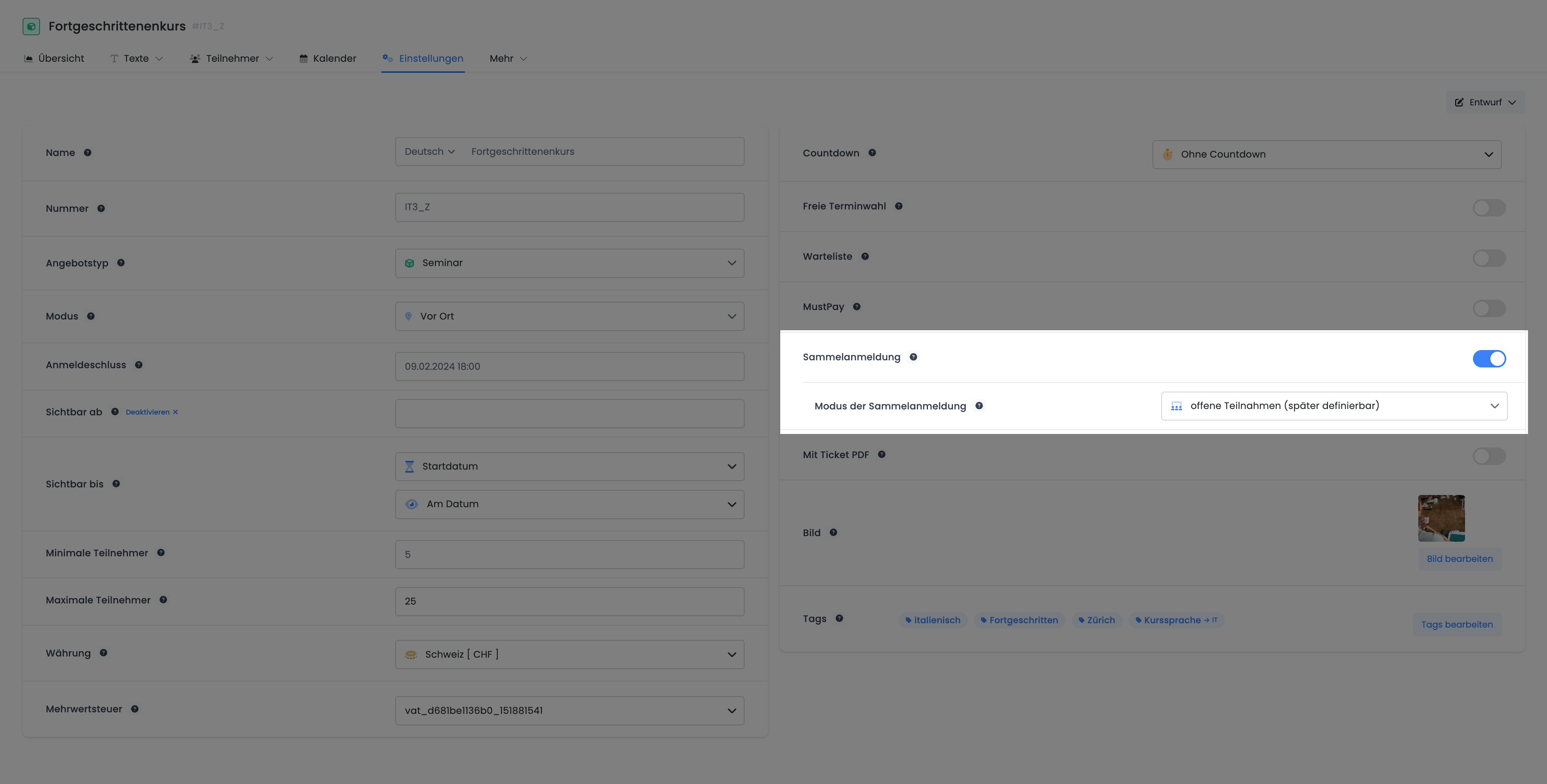
The 'Open Enrollment for Group Bookings' option allows bookings to be made without requiring participant data to be entered directly at the time of registration.
This enables the contact person to initially book the desired number of slots and then supplement the participant data at a later stage.
This option is activated within the settings of the respective offering. To enable it, select the 'Open Enrollment for Group Bookings' setting.
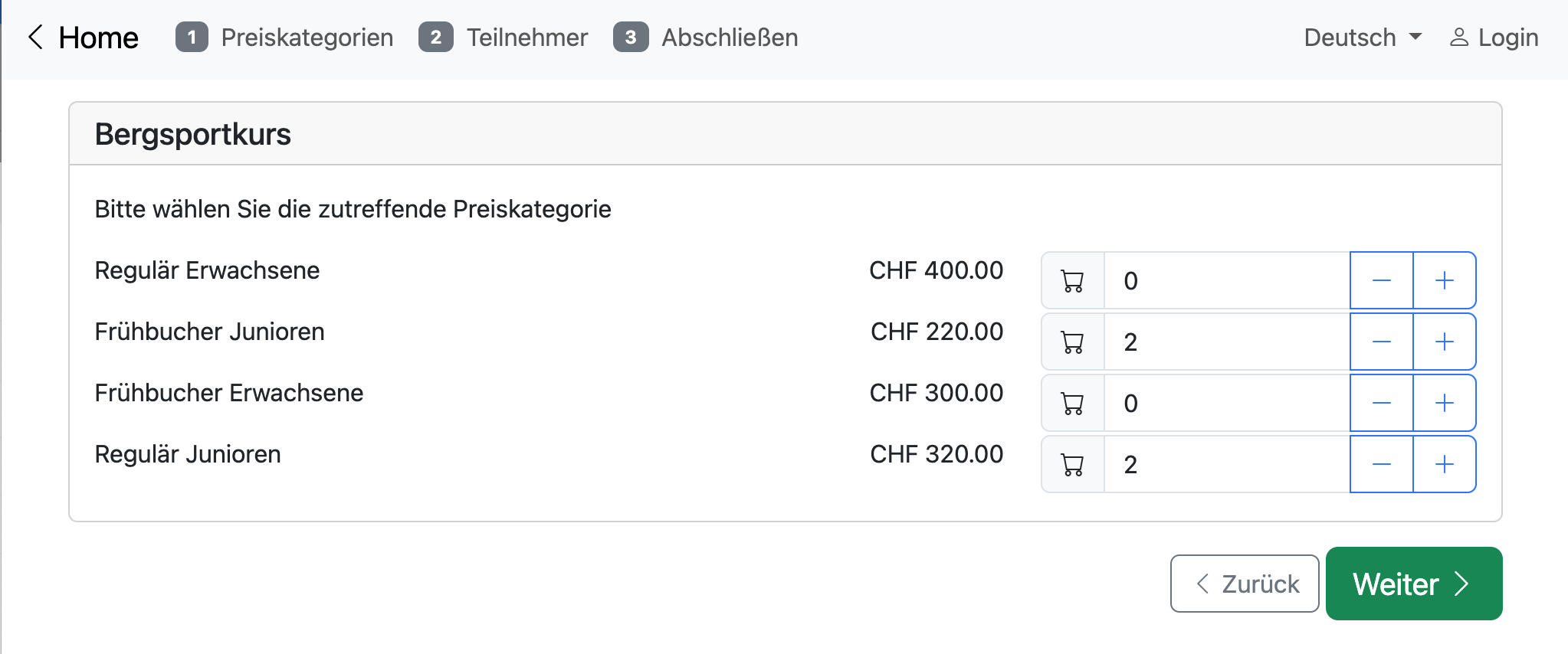
Booking Process with Flexible Number of Slots
During the booking process, only the price category page is displayed, allowing for the selection of any desired number of tickets. The booking person's data is captured in the form, and additional participants can be added at a later time.
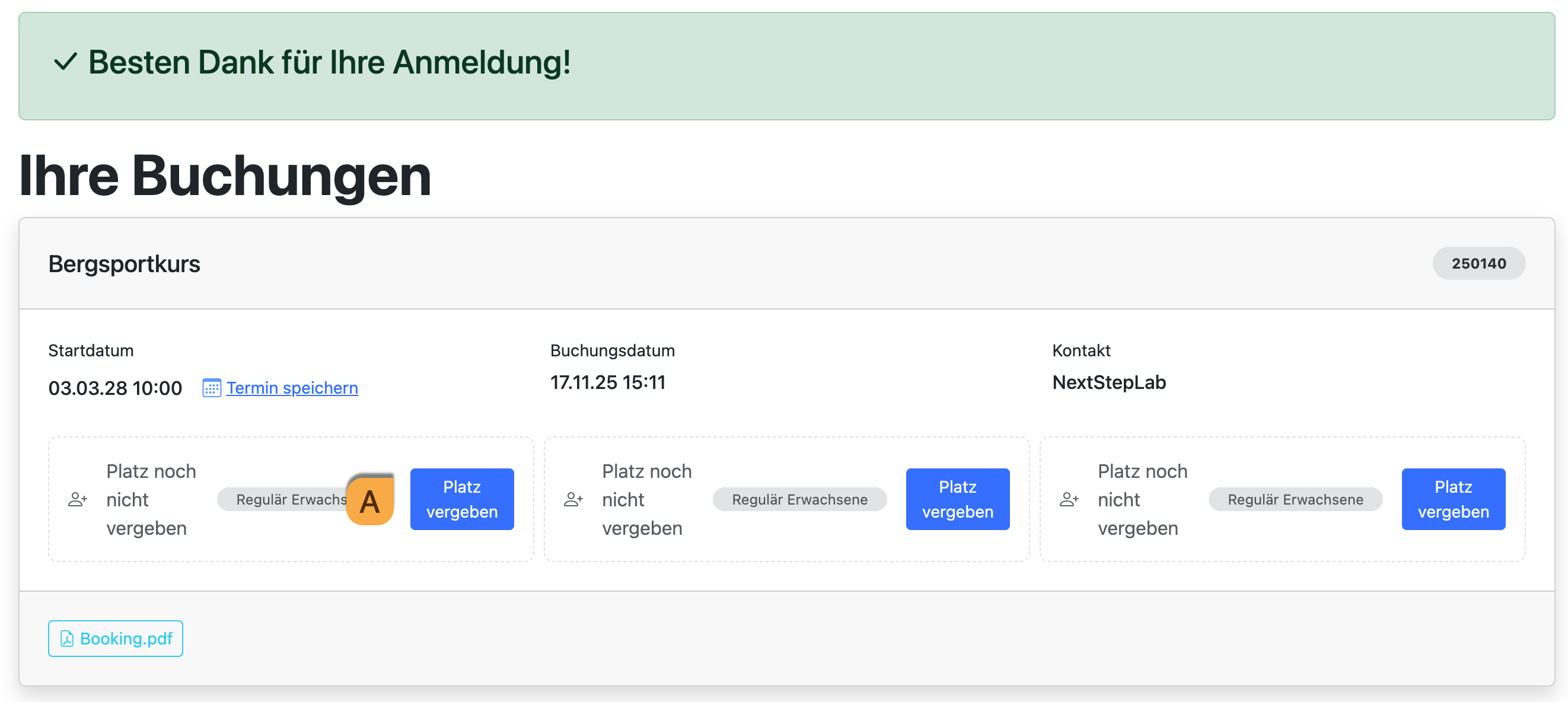
During the booking process, the booking person's data is collected first. The booked slots A can then be assigned to individual persons by entering their names. This intermediate step assists the booking person in distributing the slots and is not considered an entry in the participant list. This intermediate step can be disabled within the booking widget.
Option: Hide "Assign Spot" Field on the Confirmation Page
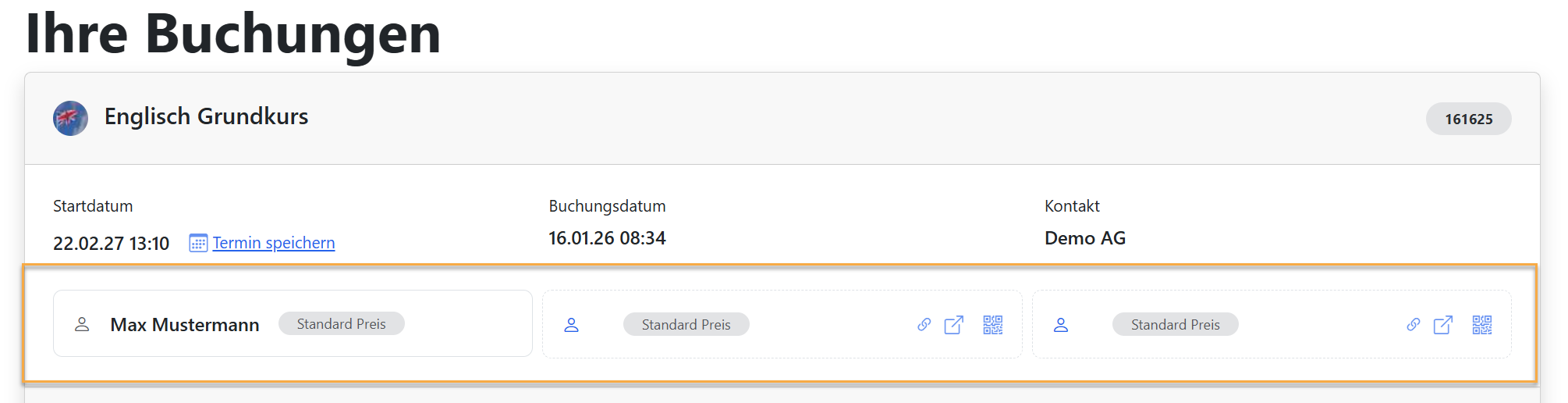
If you have enabled group registrations where only the total number of participants is relevant, you can hide the "Assign Spot" field A on the booking confirmation page. This streamlines the registration process for use cases that do not require individual participant data collection.
-
In the Design Manager, navigate to the confirmation page D and open the "All Bookings" widget E
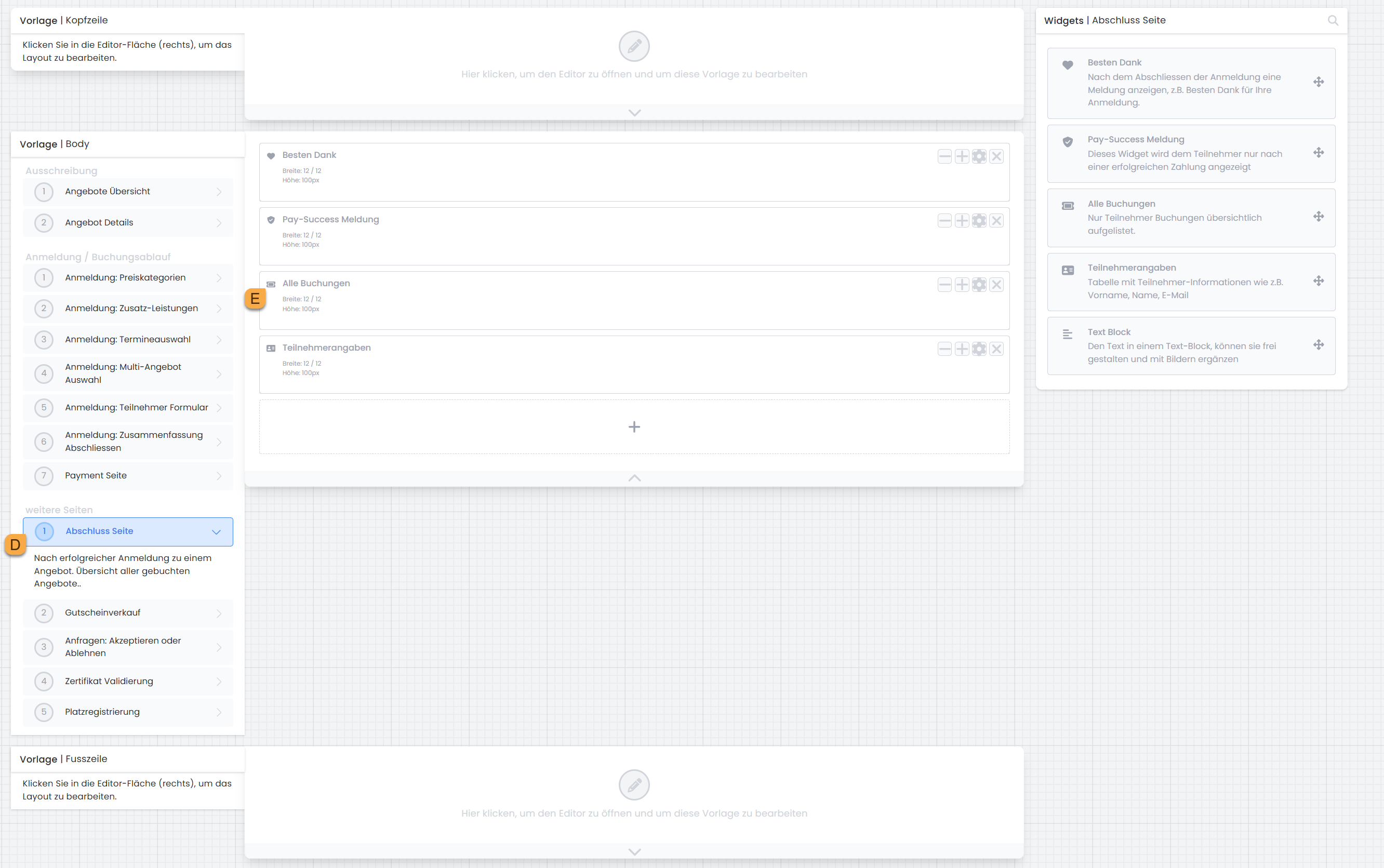
Design Manager: Confirmation Page, "All Bookings" Widget
-
Determine whether the "Assign Spot" field F should be displayed or hidden.
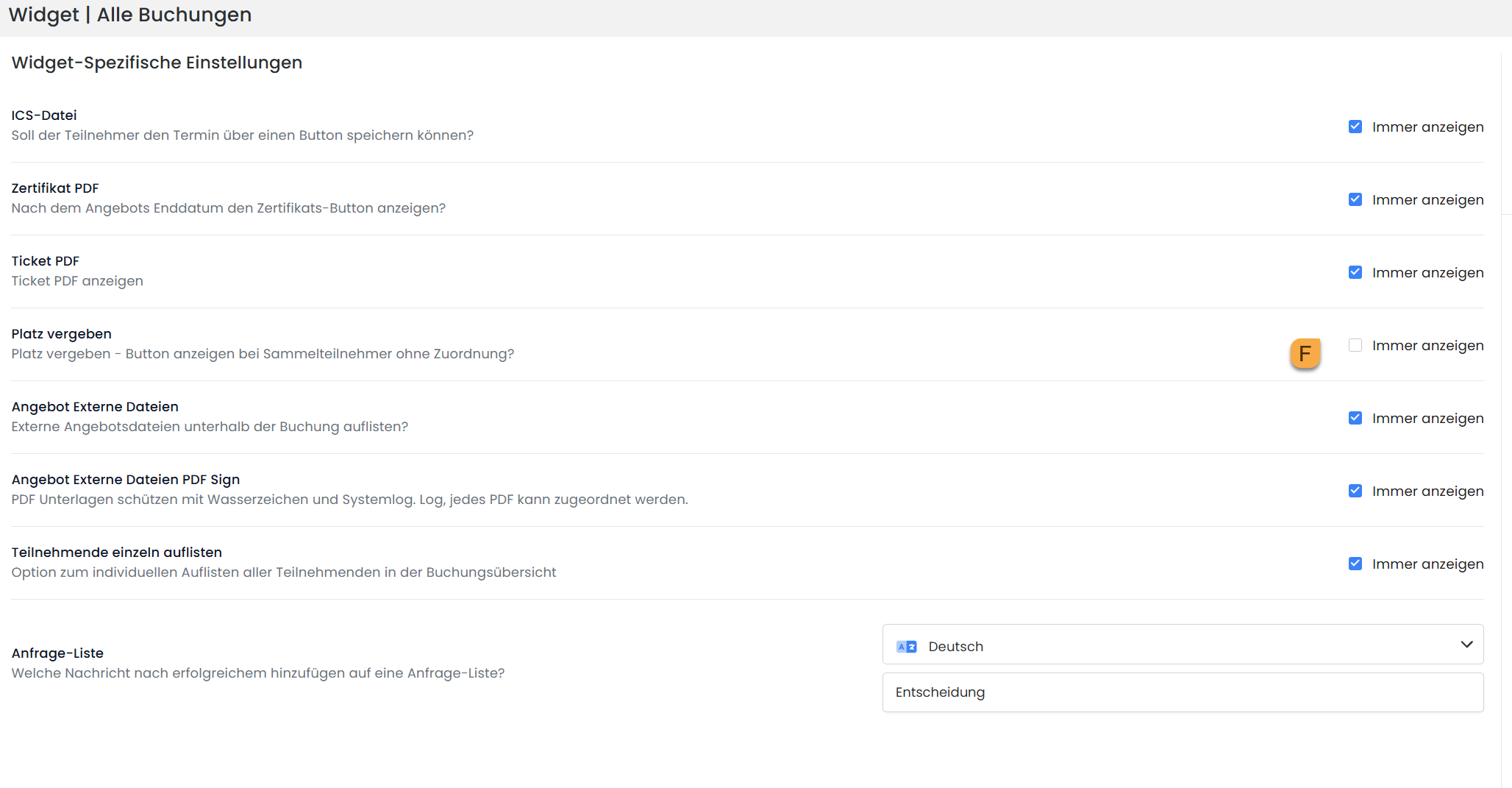
Settings in the "All Bookings" Widget
Using the "All Bookings " widget, you can specifically control which information is displayed to the customer on the confirmation page and tailor the booking process to your specific use case.
Independently Supplementing Participant Data (by Contact Person)
The contact person can subsequently invite participants. Three options are available for this purpose: A a direct link, B the invitation page, and C a QR code. These can be copied or displayed and shared, for instance, via email. Invited individuals enter their own data and are automatically assigned to the course upon registration.
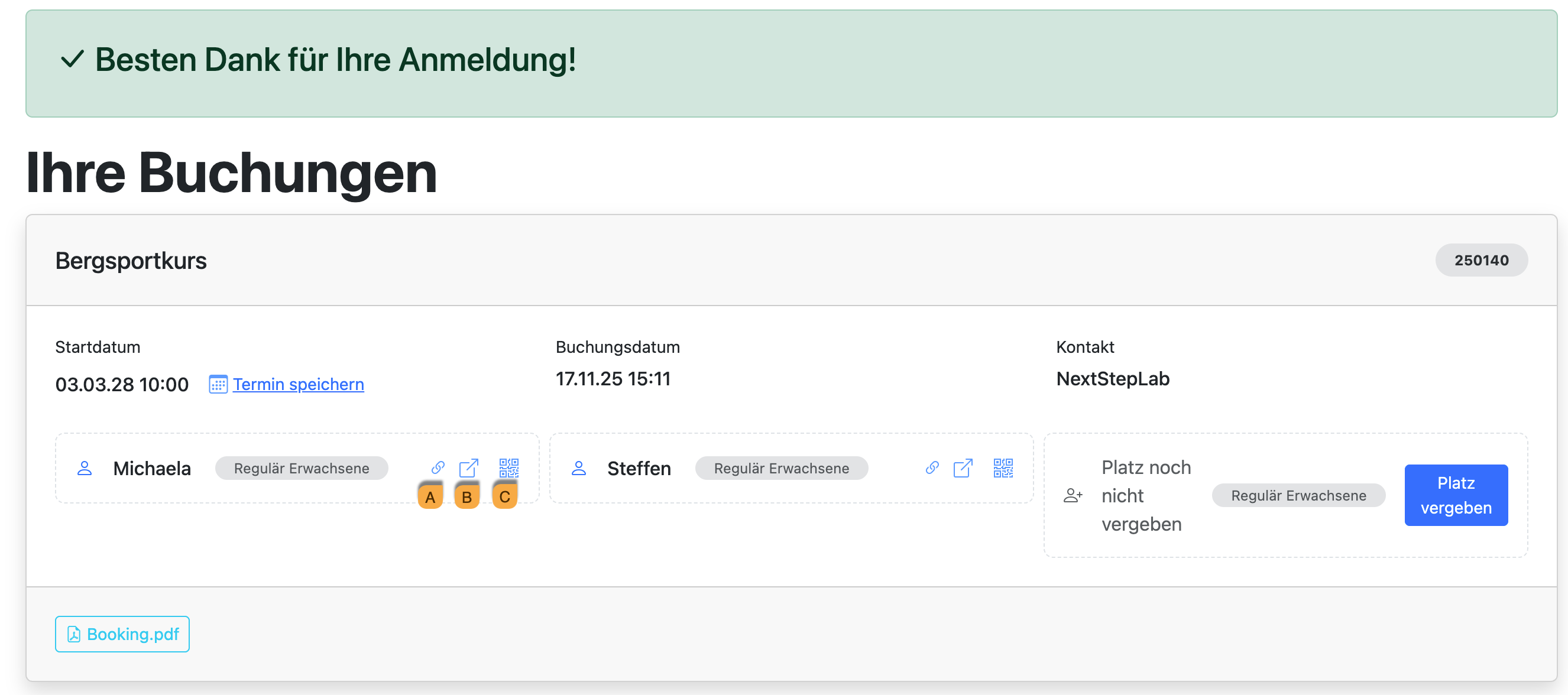
Backend Management
After booking, participant data can be added or edited in the backend under the respective group registration. Available spots can also be managed. Clicking button A, “Assign Participant,” adds a person to an available spot. The relevant data is entered and saved in input window B.
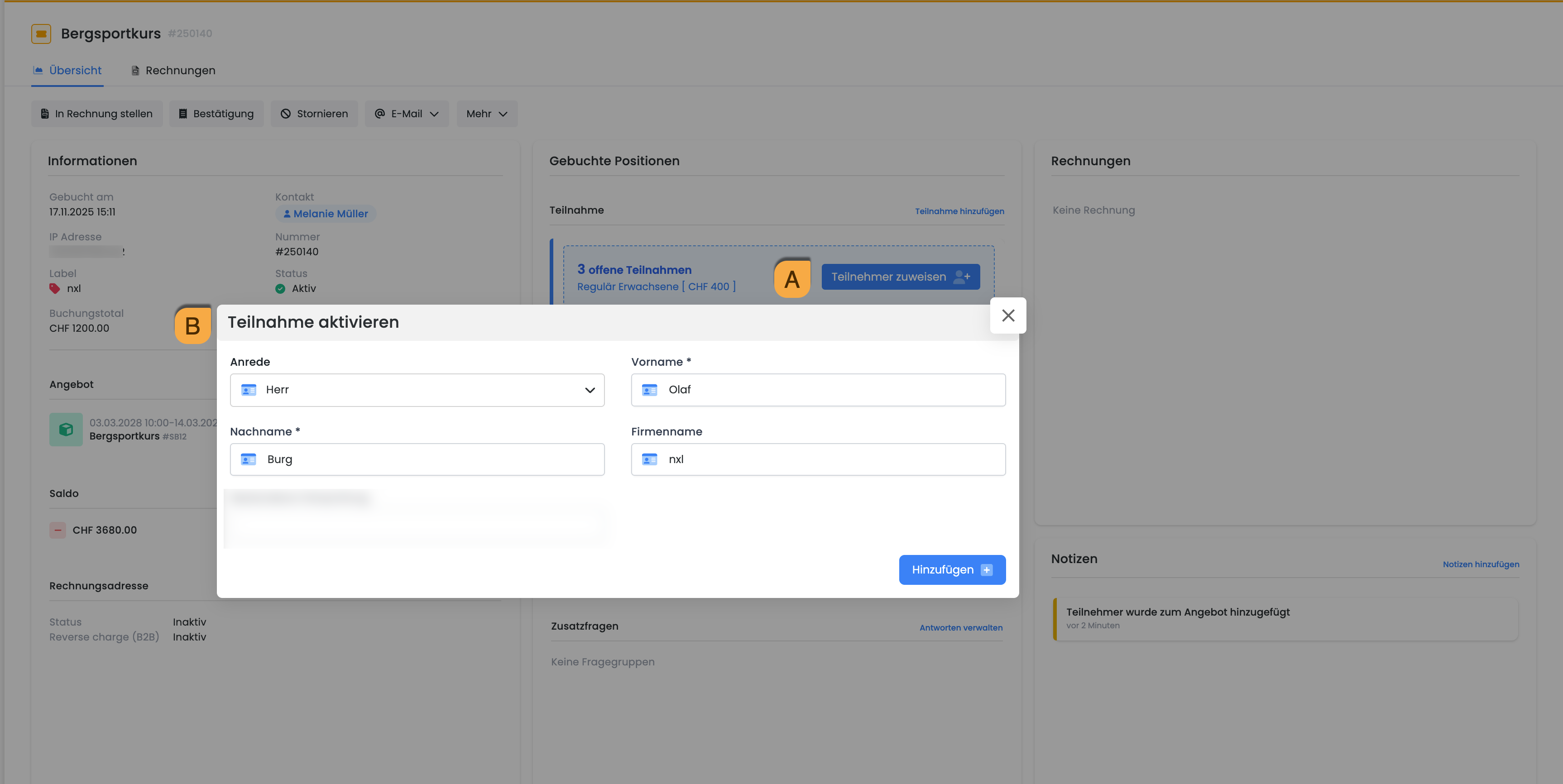
Additional Feature on the Booking Summary
Depending on the activated modules, various additional options are available in the dashboard. These functions include, but are not limited to:
-
Perform/Request Cancellation
-
View Booking PDF
-
Print Invoices
-
Print Ticket PDF
-
Print Participant Certificate
Related Guides
Keywords for this guide
Group Booking § Master § Emails § Group Participants § Assign Spot