
You want to integrate additional questions and services into your offers to provide them to the customer during the booking process. Then this additional feature might be exactly what you need!
The additional questions and additional services are:
-
stored for your entire edoobox account, so you can use the same information for all your booking processes to access the relevant questions and services.
-
now also translatable into multiple languages, so they can be used in bilingual or multilingual booking processes.
Info: Enable Additional Feature
The Additional Questions and Services feature is not enabled by default in your edoobox account. To enable it for your account, simply call or email support@edoobox.com.
Additional Questions
If you wish to allow your customers to ask or answer additional questions during the booking process, you can define these supplementary questions in the dedicated section for your entire edoobox account.
Create Supplementary Questions
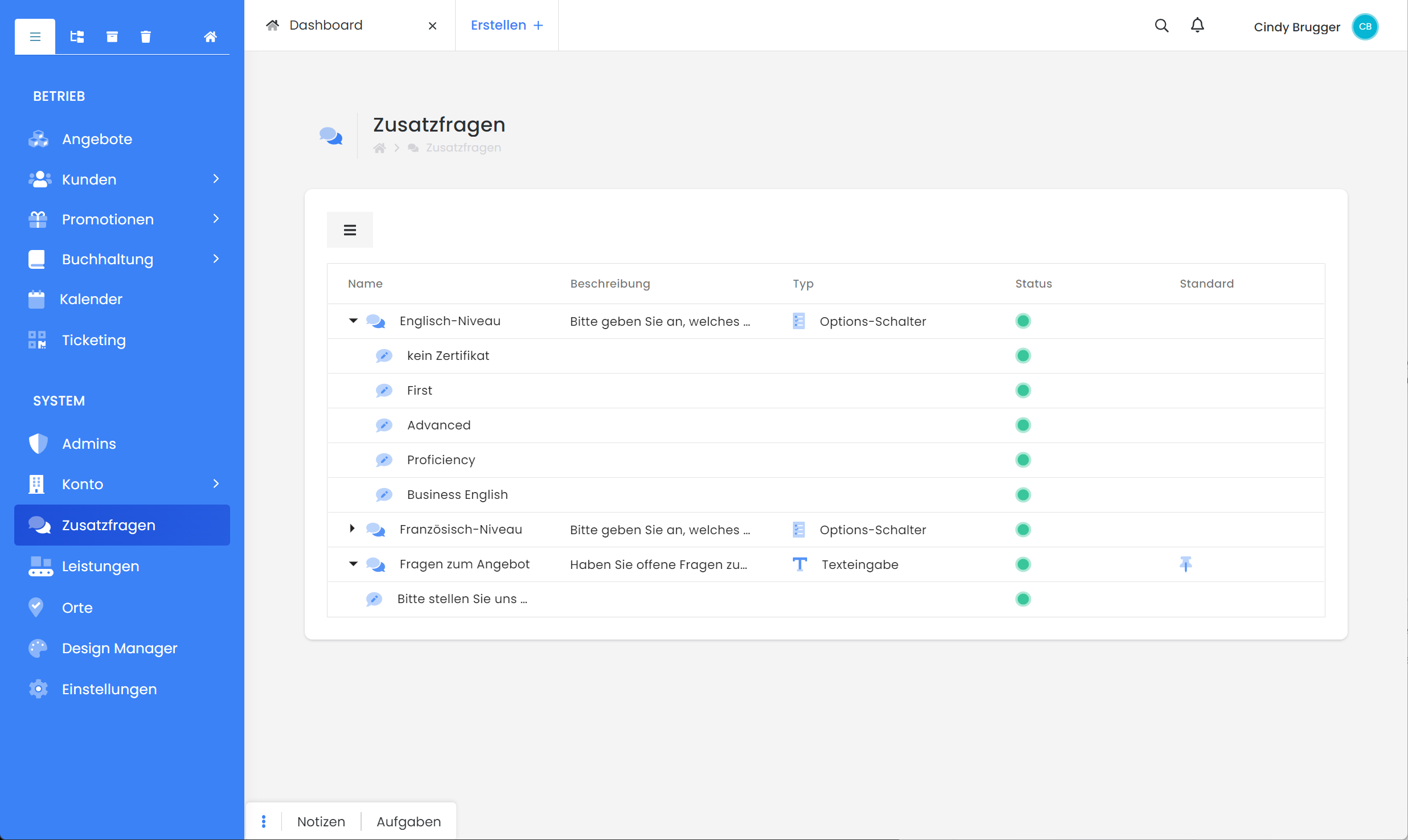
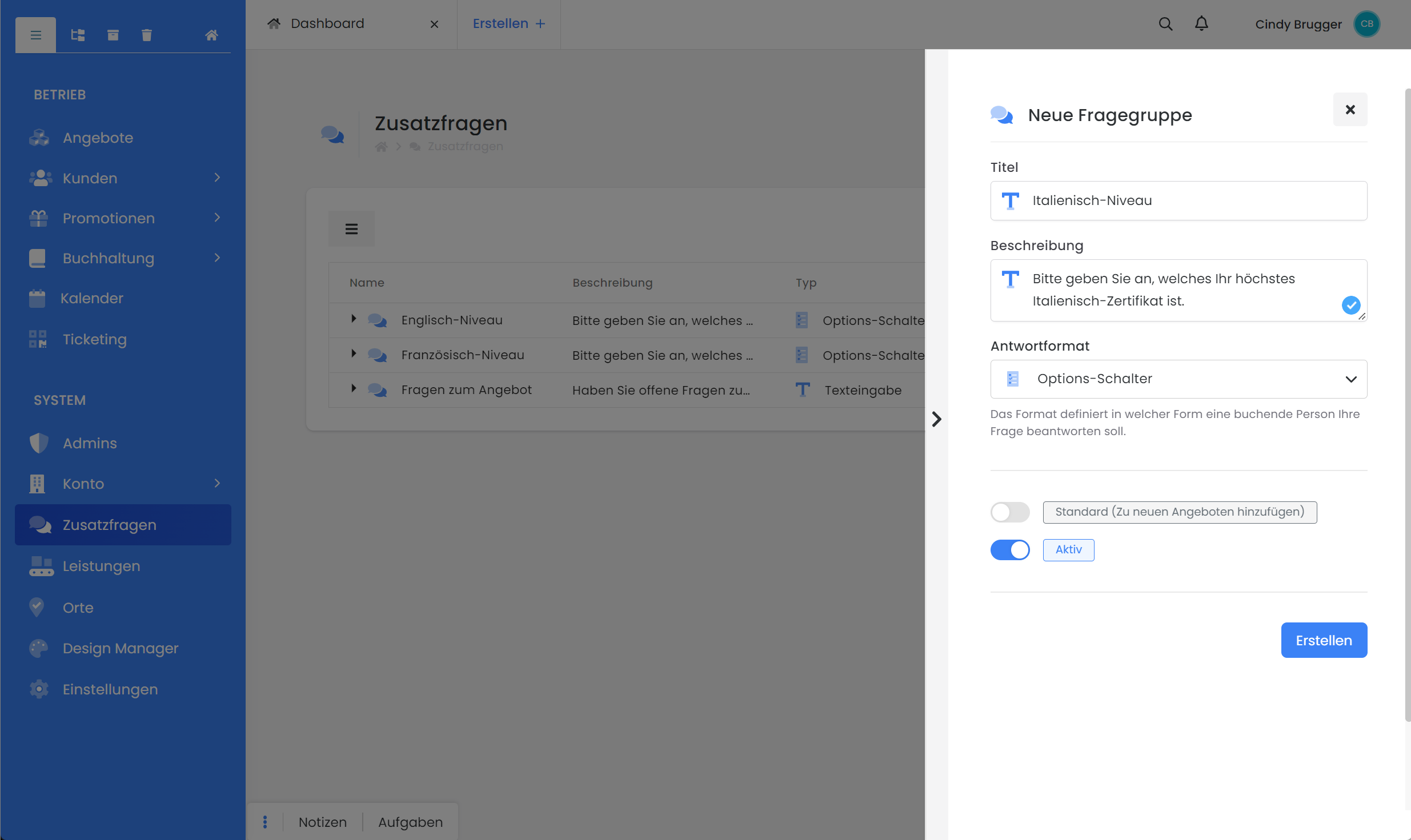
To create a new supplementary question, navigate to the «Supplementary Questions» menu item in the main navigation and click the menu icon to create a «new question group». Subsequently, the dynamic sidebar will open, allowing you to enter the required information.
-
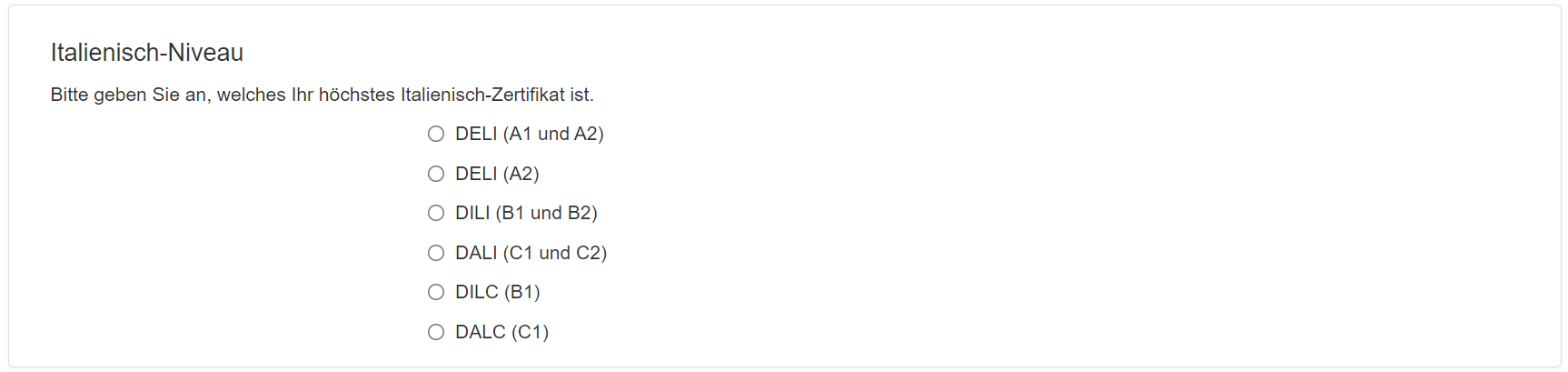
Select a title for the question group; this will also be displayed as the title in the frontend.
-
Provide a description, for instance, by inserting a question here.
-
Please remember to translate your supplementary questions into all active languages.
-
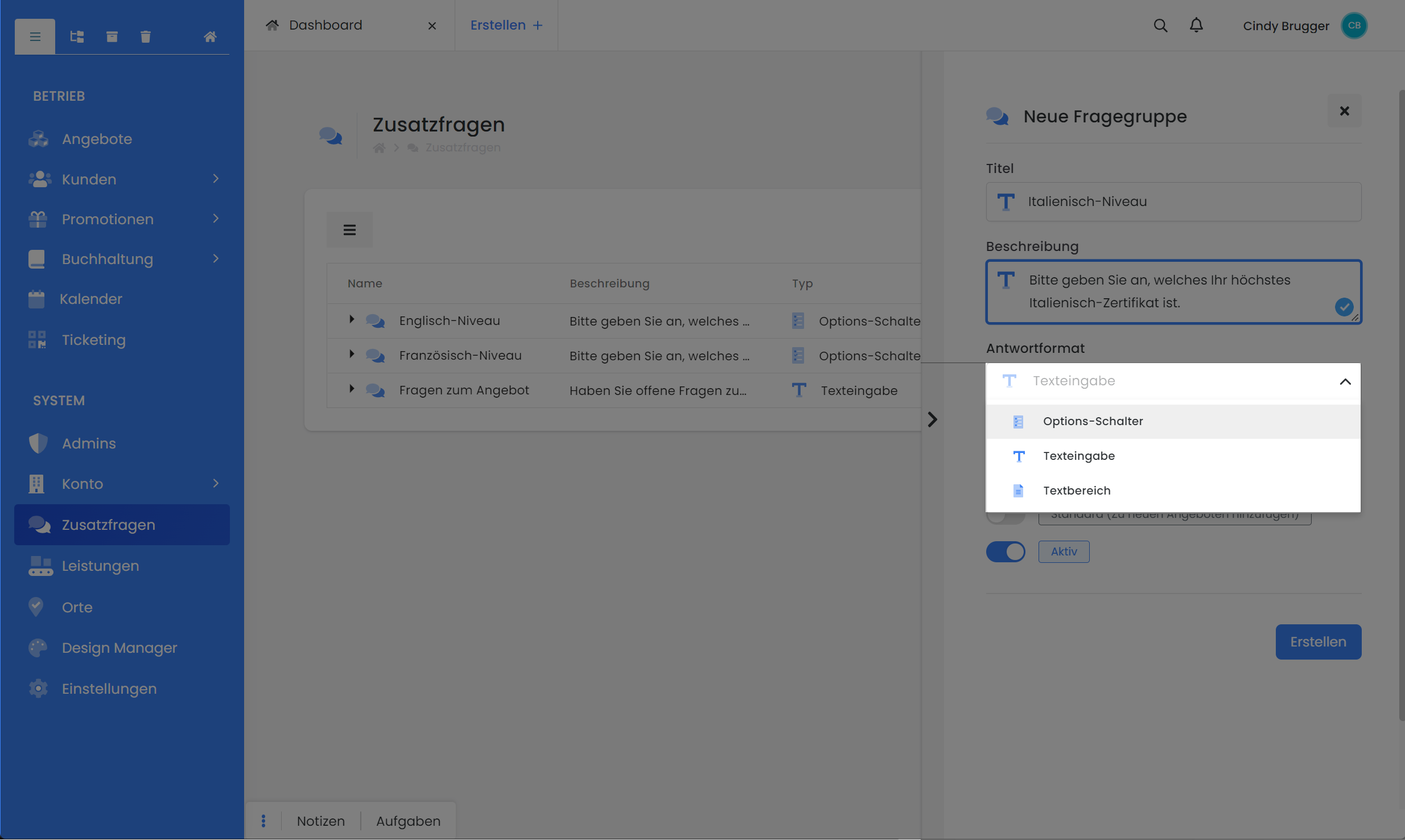
Choose an answer format: radio buttons, text input, or text area.


-
Select whether you want to include this question group by default with every new offering.
-
Activate or deactivate a question group. Once a question group is deactivated, it will no longer be displayed in the registration process.
-
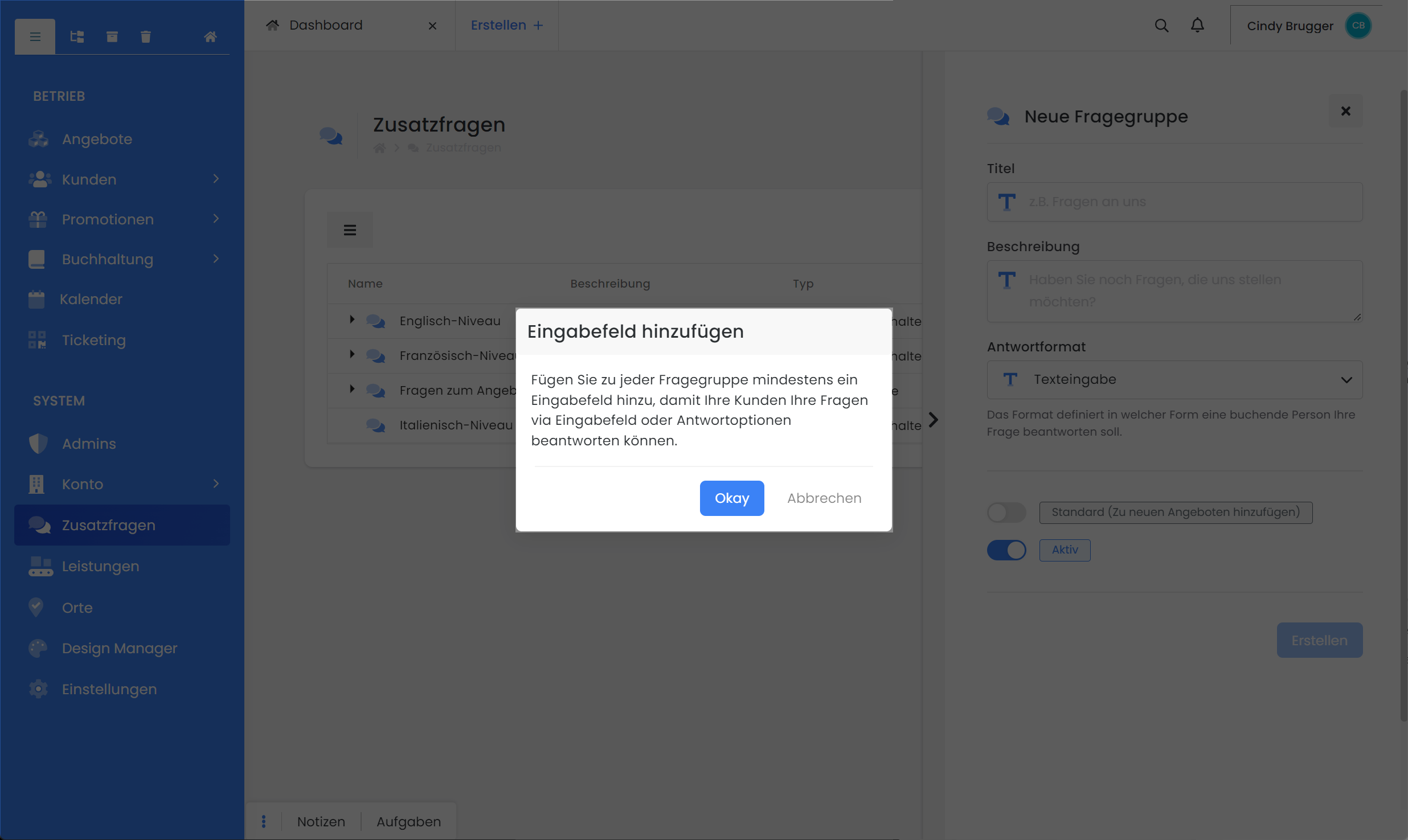
Clicking 'Create' will display a reminder that each question group requires an input field or answer options to be answerable. Clicking 'Okay' will immediately open a new dynamic sidebar where you can define the answer fields.
-
Use the label to name the input field. Please remember to translate your input fields into all active languages as well.
-
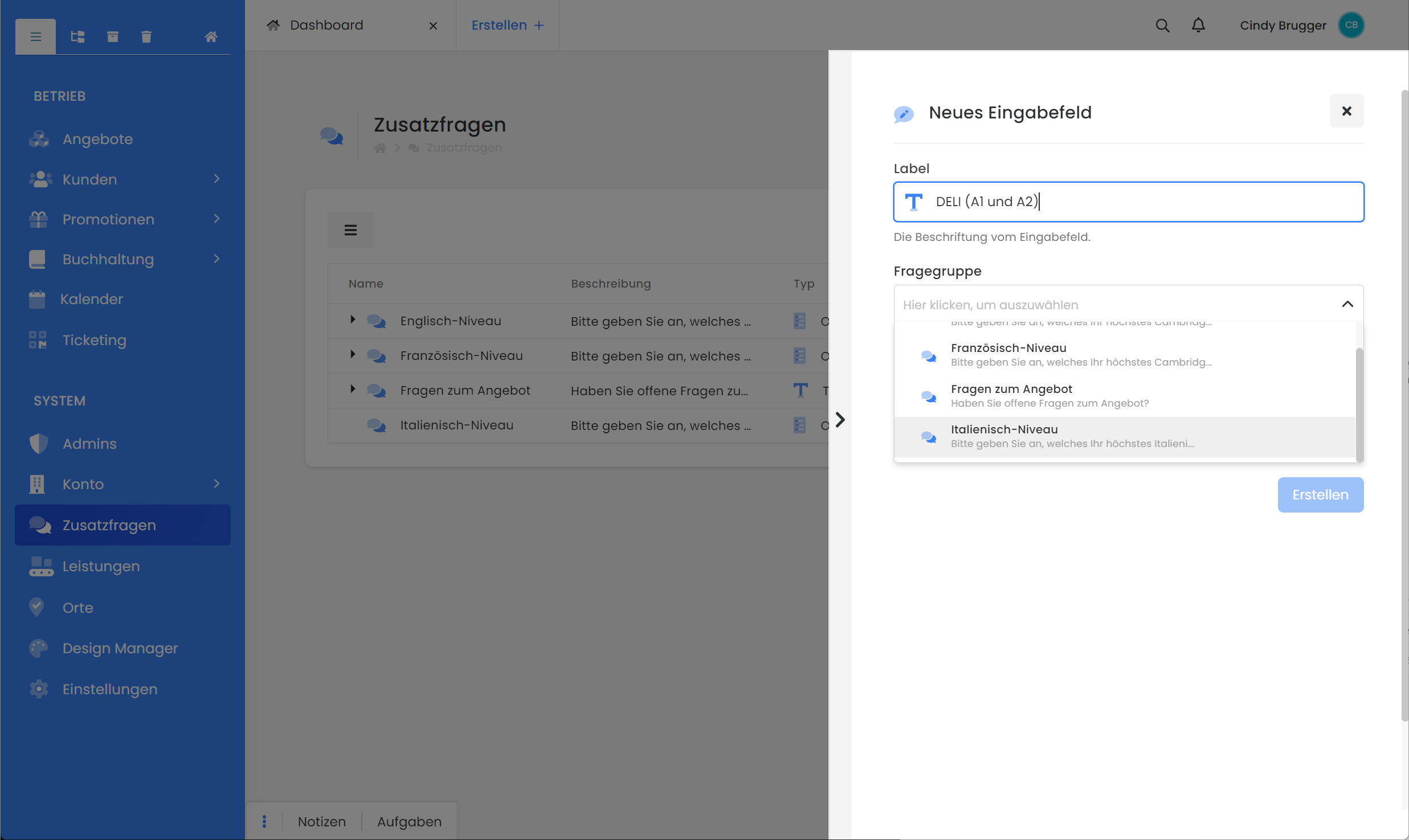
Next, specify which question group the input field belongs to.
-
Here too, remember to activate the desired input fields if they are to be visible to your customers as answer options.
-
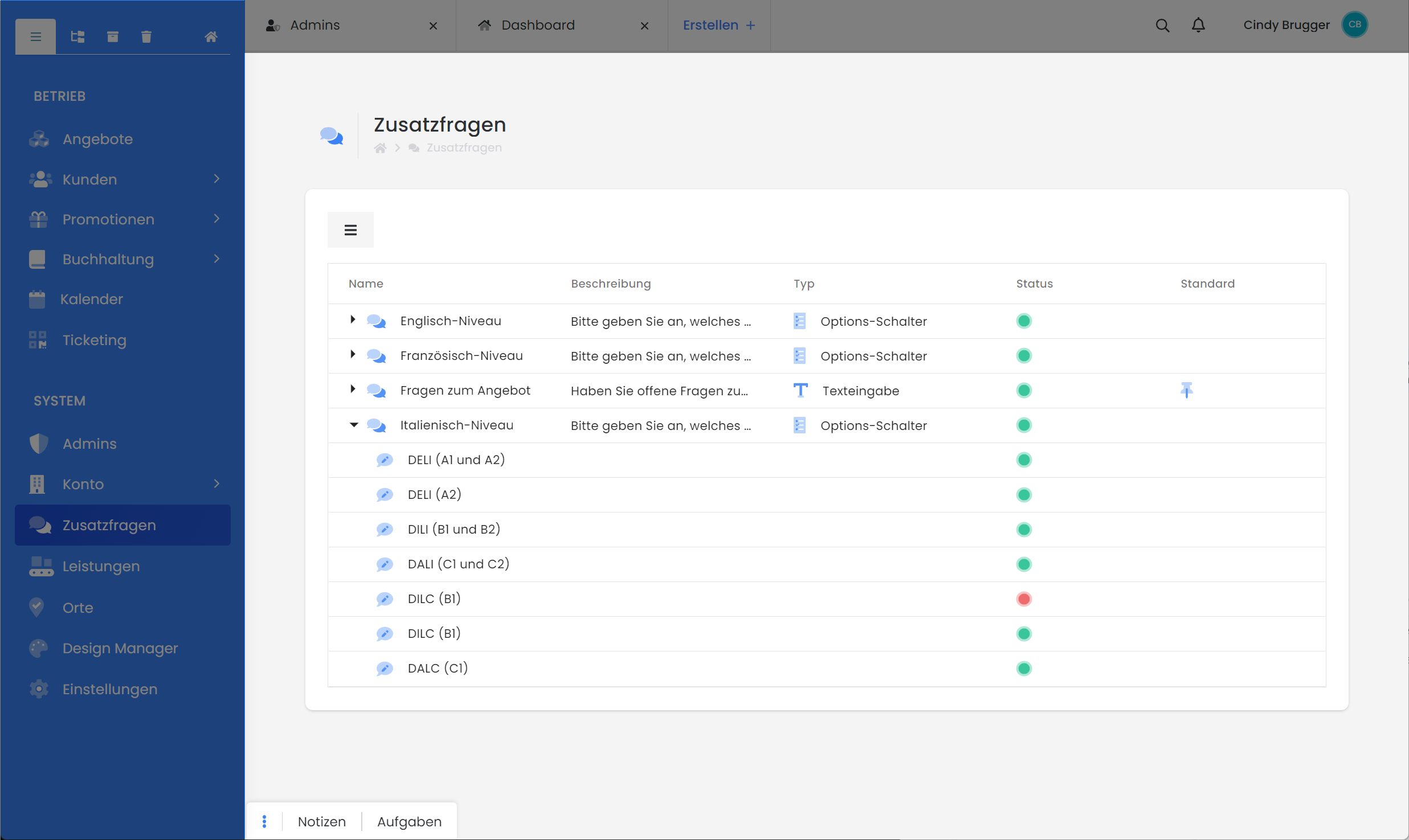
Clicking 'Create' will subordinate the input field to the question group. You will immediately have the option to create another input field.
|
|
|
|
|
|
Add a Supplementary Question to the Offering
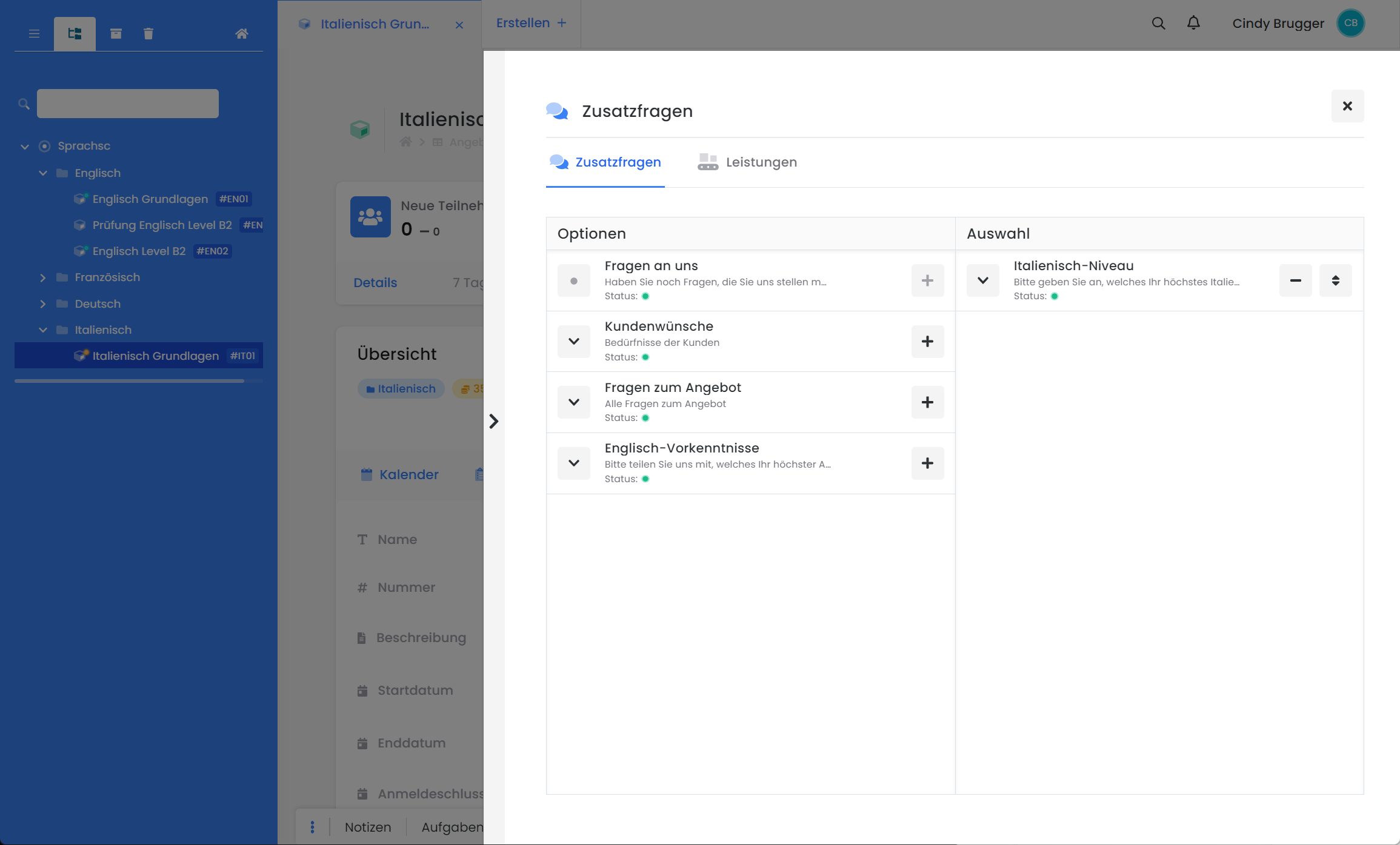
Once you have created the desired supplementary question, it can be quickly added to an offering. To do this, navigate to the desired (published) offering and locate the «Supplementary Questions» box. Here, you can select the appropriate supplementary questions for the current offering from all those created. Clicking the arrow allows you to review the answer fields, and clicking the plus (+) icon adds the respective supplementary question to the offering.
Frontend View
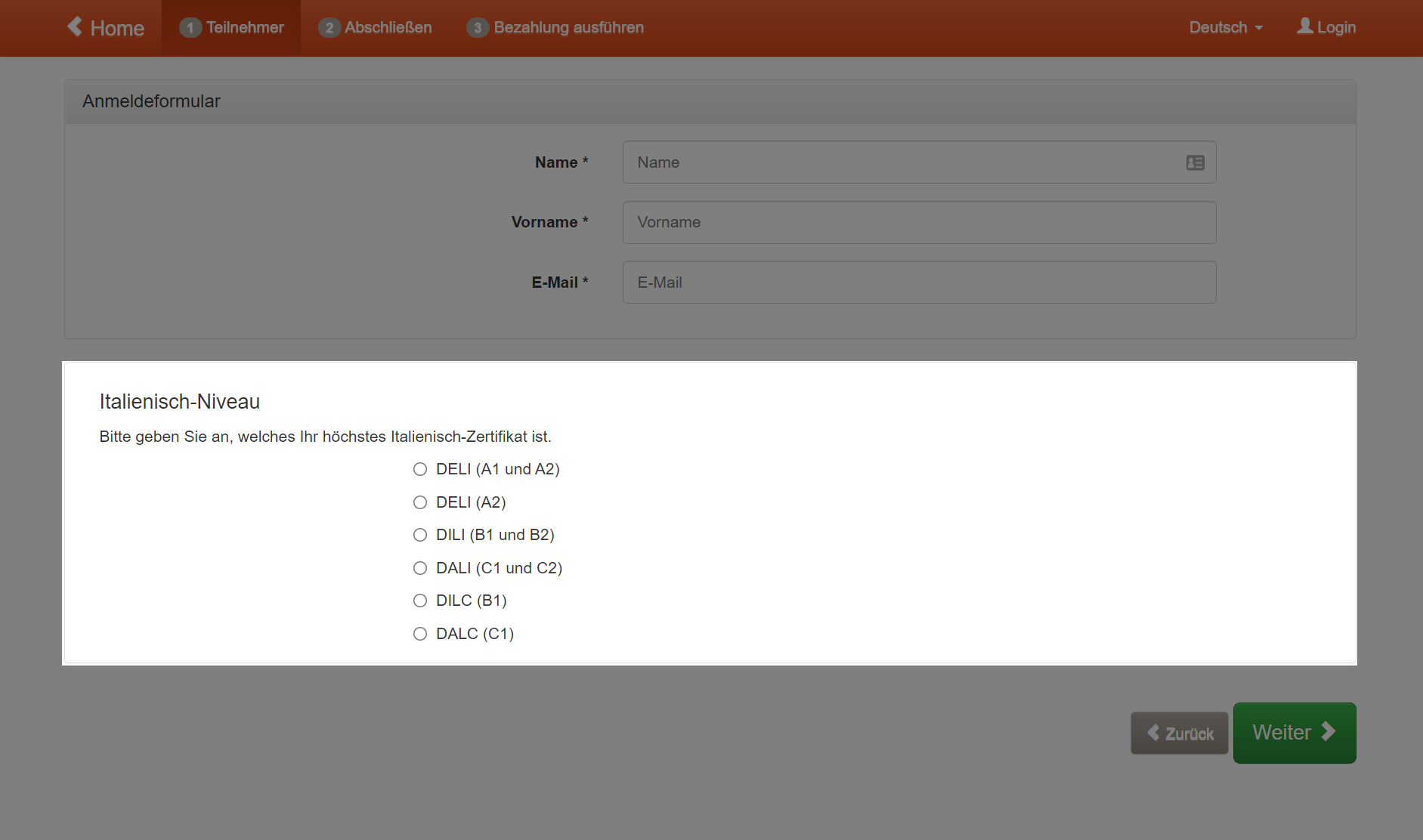
If you have added one or more supplementary questions to an offer, they will be placed below the registration form, ready for your customers to answer.
Additional Services
If you wish to offer your customers additional services during the booking process that can be added to or subtracted from the offer price, you can define these services in the identically named section within the main navigation. This feature is ideal for selling supplementary equipment, catering, accommodation, travel options, etc.
Create Services
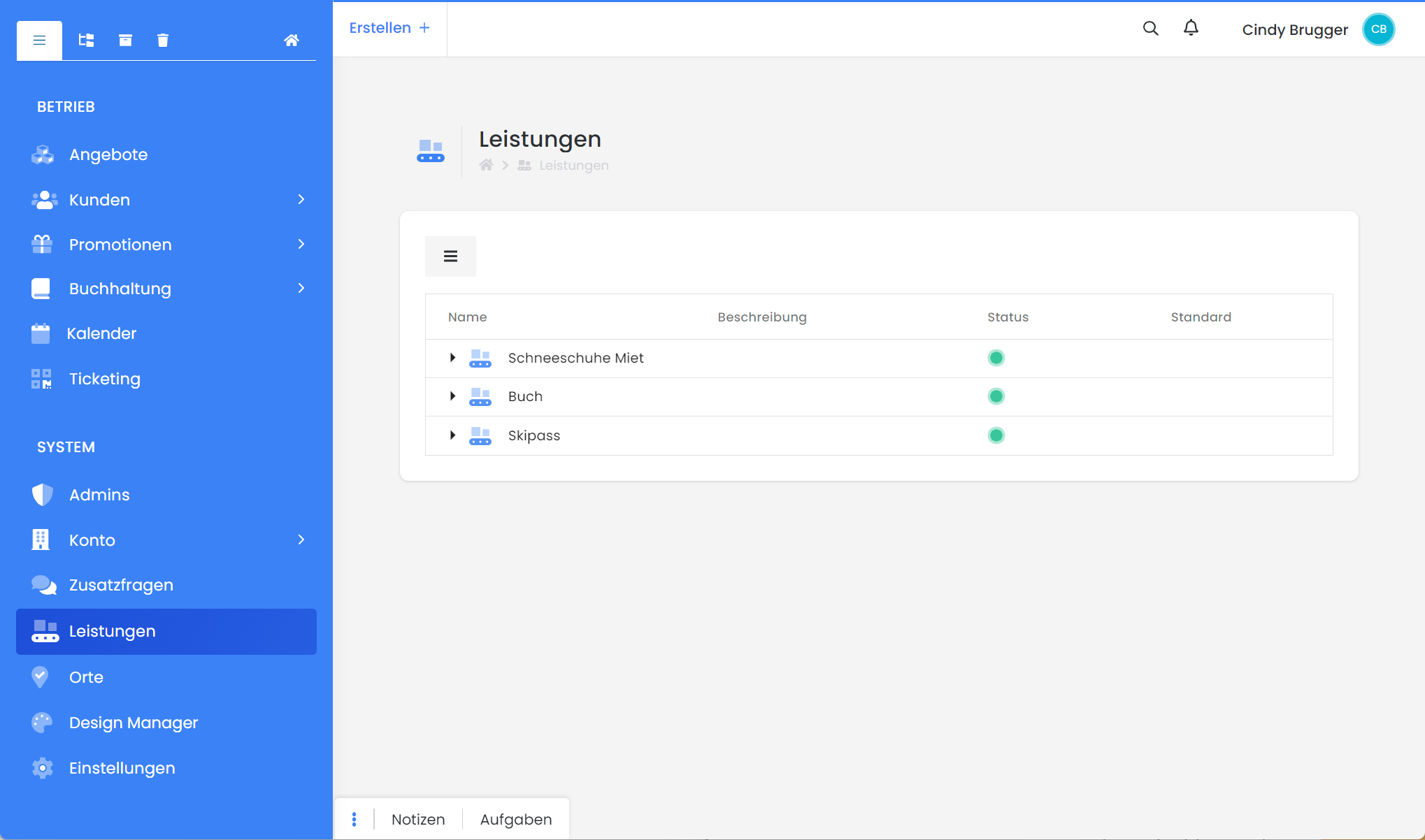
To create a new service, navigate to the «Services» menu item in the main navigation and click the menu icon to create a «new service group». The dynamic sidebar will then open, allowing you to enter the required information.
-
Select a title for the service group; this will also be displayed as the title in the frontend.
-
Provide a description
-
Please do not forget to translate your services into all active languages.
-
Select the currency for the service group – this must match the currency of the offer!
-
Define the VAT rate
-
Choose whether you want to include this service group by default with every new offer.
-
Activate or deactivate a service group. Once a service group is deactivated, it will no longer be displayed in the registration process.
-
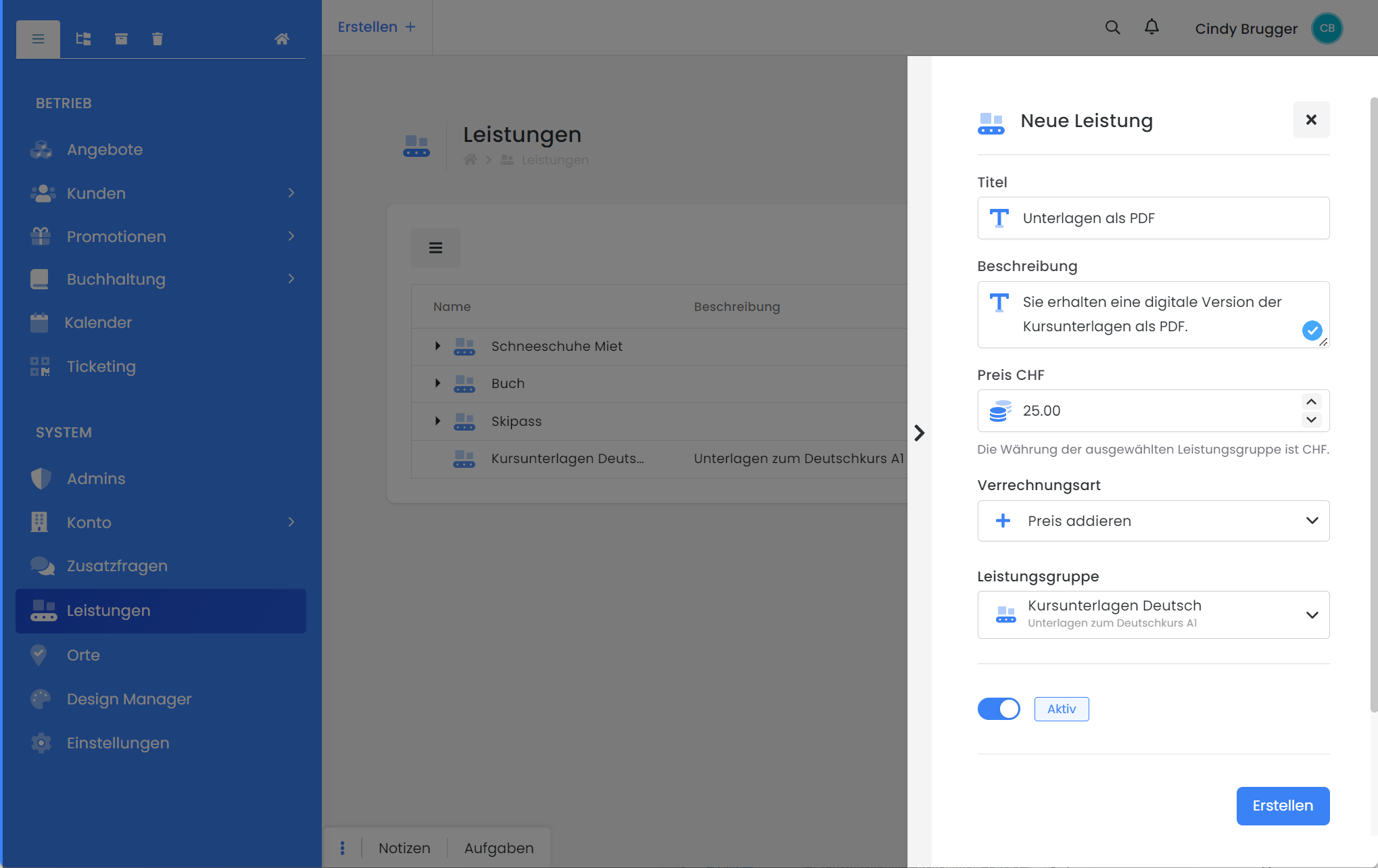
Clicking «Create» establishes the service group, and you then have the option to record the associated services via the menu icon. Each service group requires at least one service to be bookable. Clicking «New Service» opens a new dynamic sidebar where you can define the service.
-
You name the service with its title.
-
After that, you have the option to provide a description.
-
Again, please do not forget to translate your services into all active languages.
-
Define the price
-
Select a billing method: Should the service be added to or subtracted from the offer price?
-
Finally, you specify which service group the service belongs to.
-
Again, do not forget to activate the service if it is to be made visible to your customers as a booking option.
-
Upon clicking «Create», the service is subordinated to the service group. You immediately have the option to create another service.
|
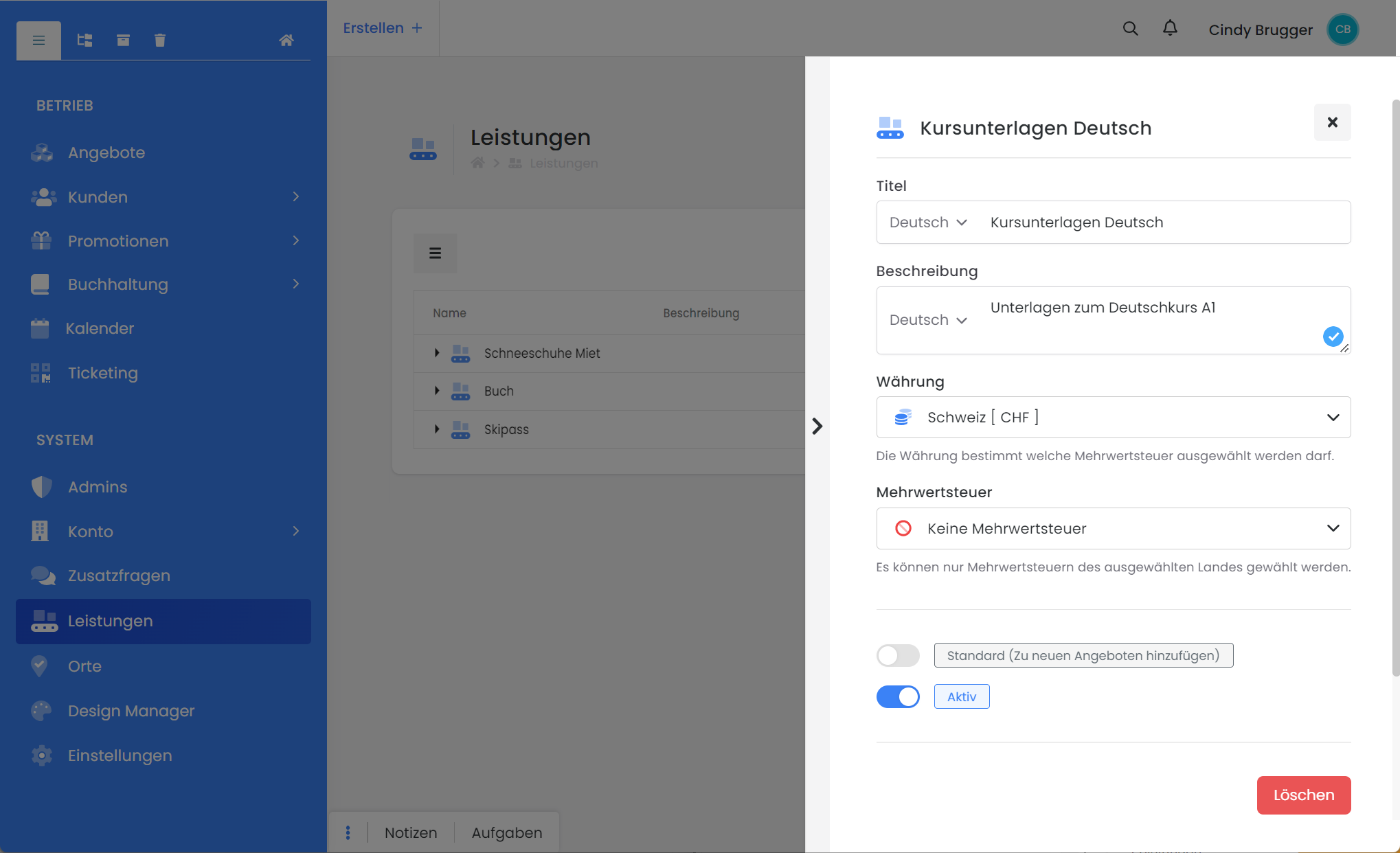
Dynamic Sidebar: Create a new service group |
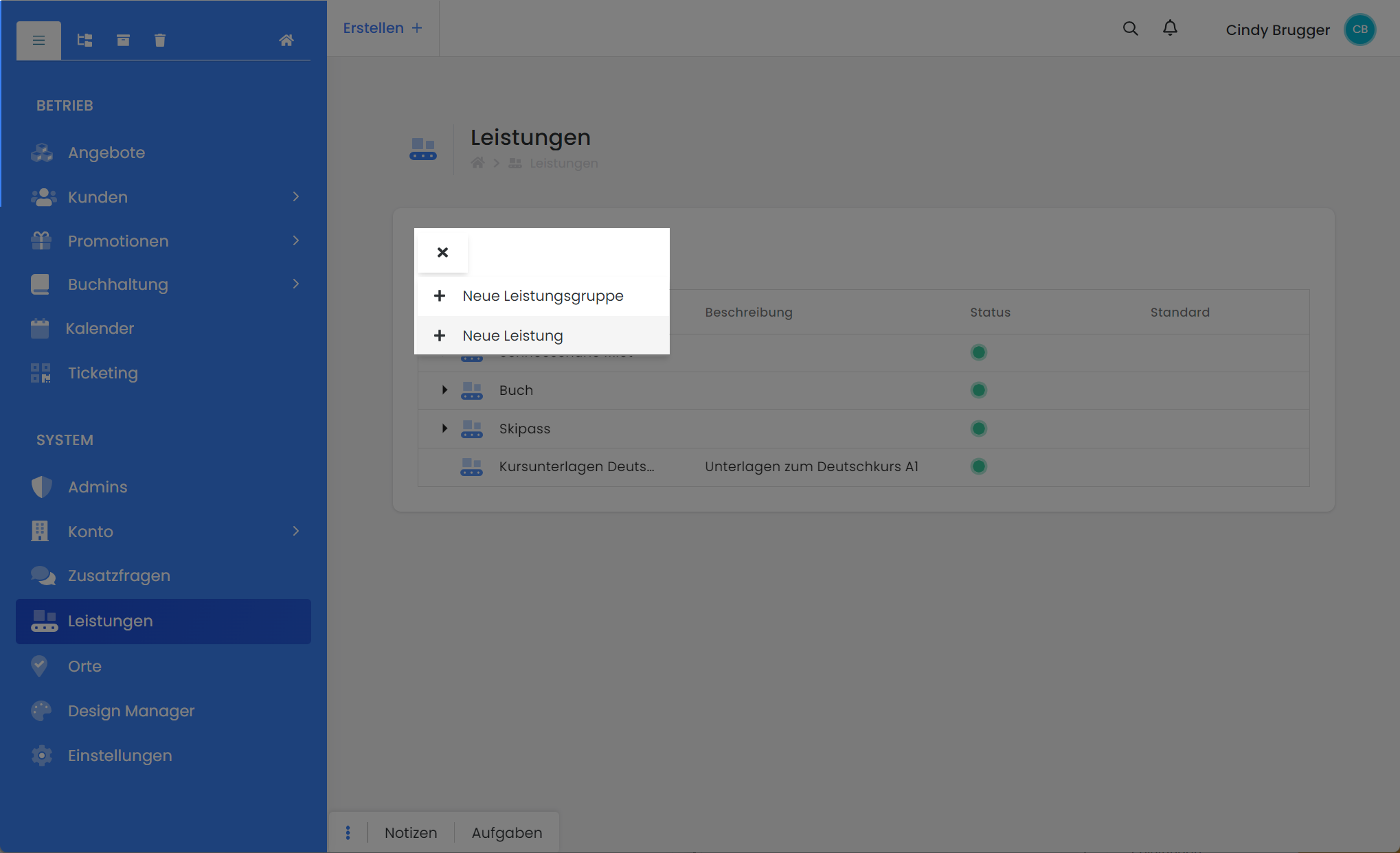
New Service: Each new service group is associated with a new service |
|
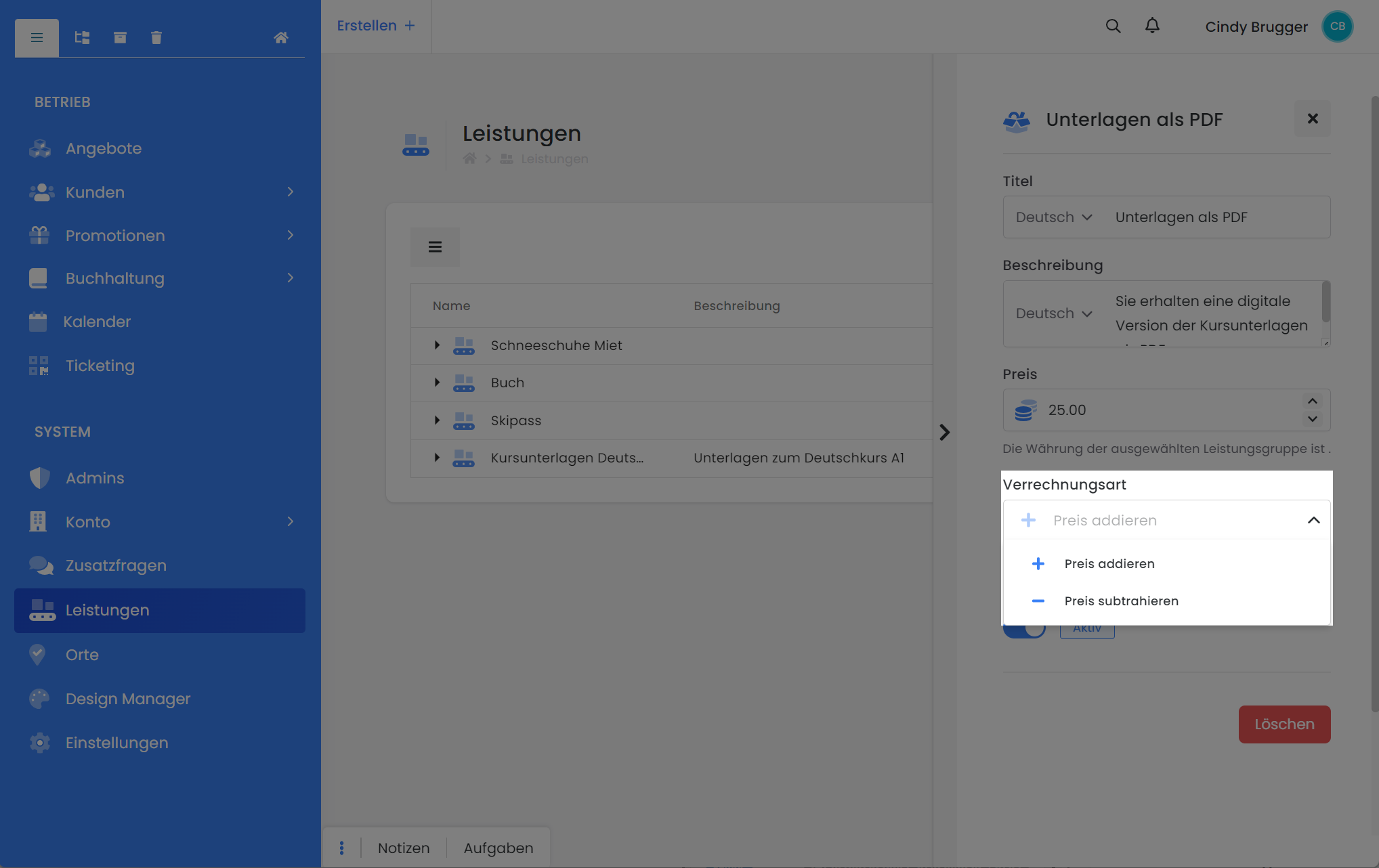
Service: Define billing method |
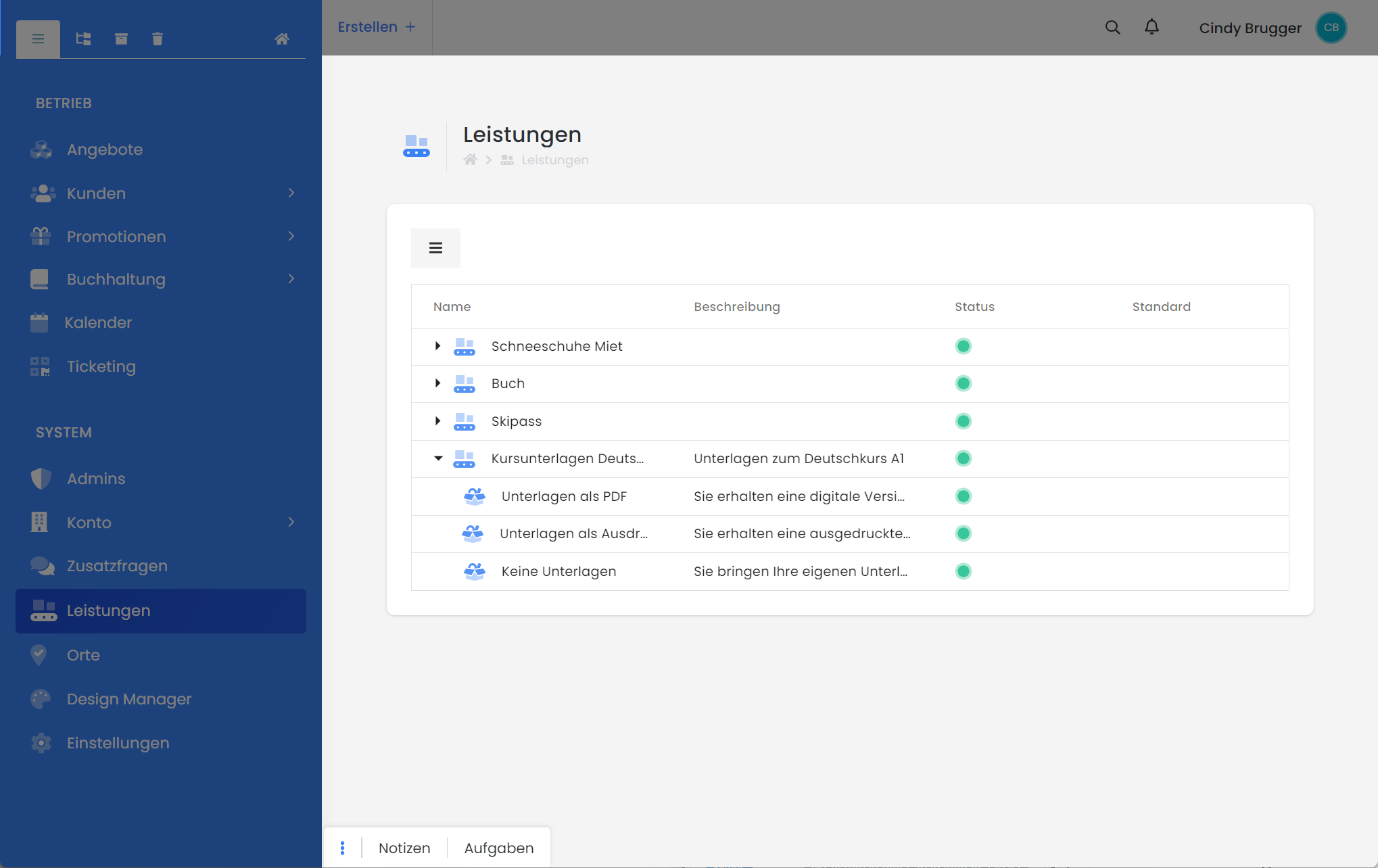
|
Add a service to the offering
Once you have created the desired service, it can be quickly added to an offering. To do this, navigate to the desired (published) offering and locate the 'Services' box. There, you can now select the appropriate service groups from all those created for the current offering. Clicking the arrow allows you to review the services, and clicking the plus (+) adds the corresponding service group to the offering.
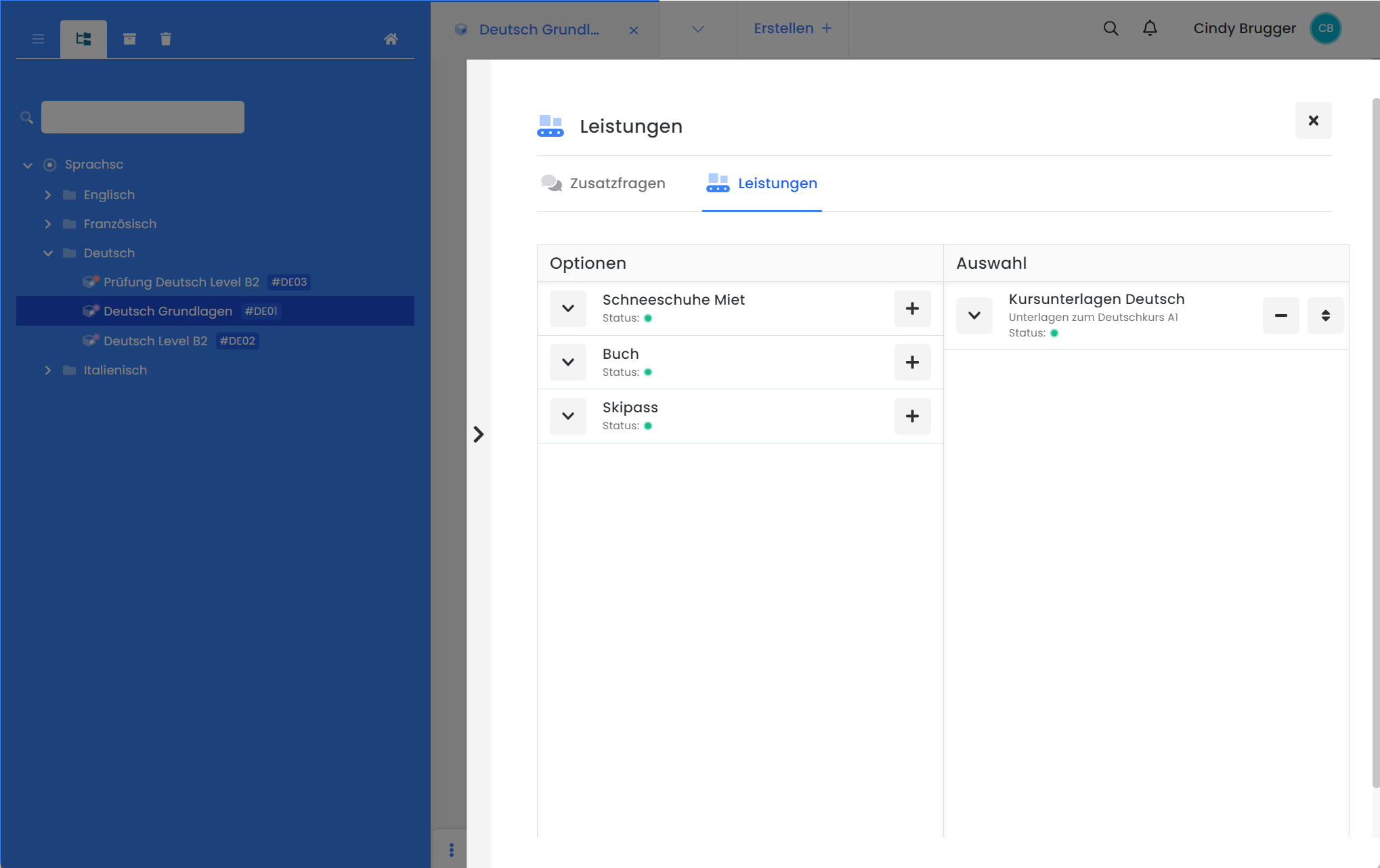
Frontend View
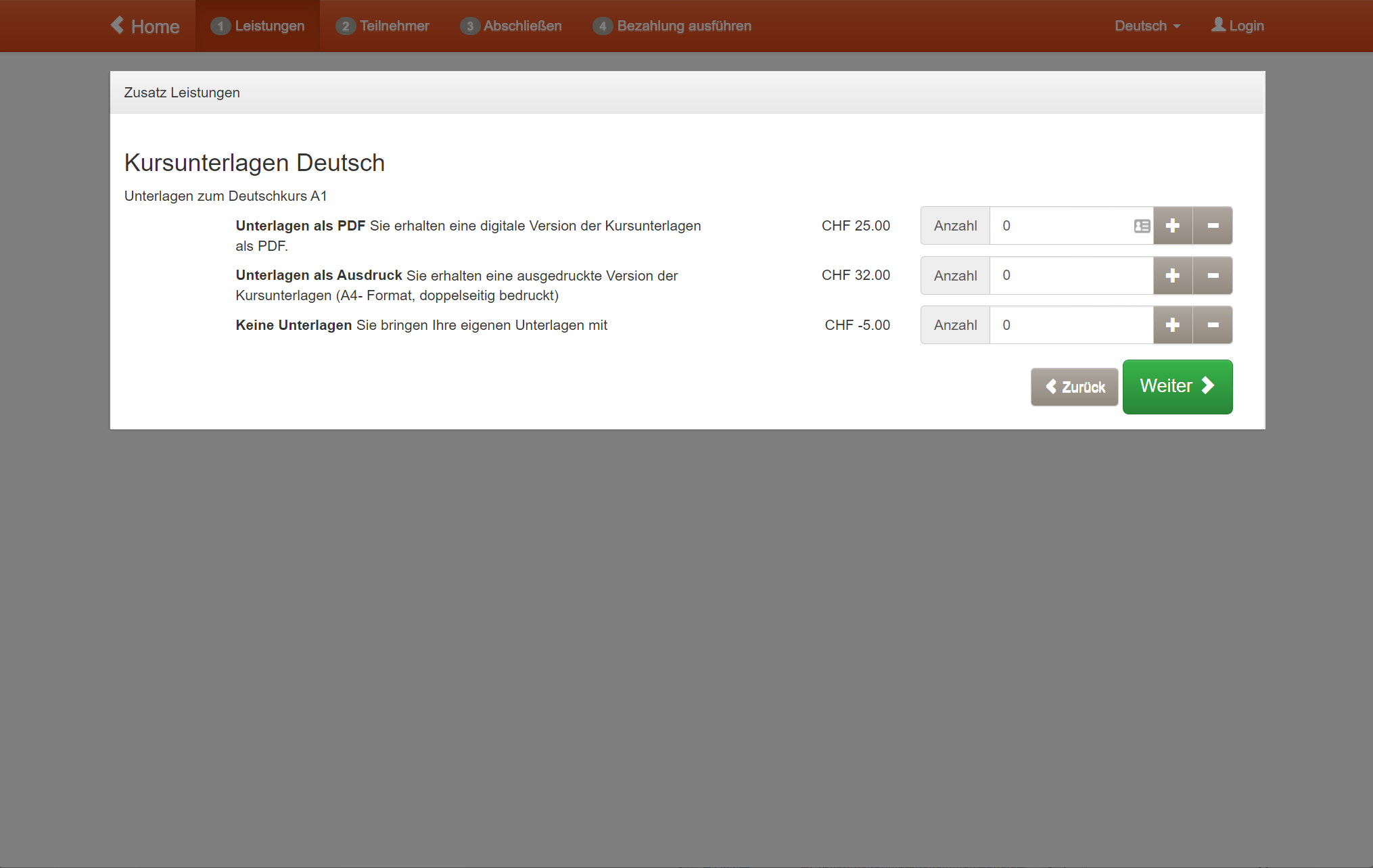
If you have added one or more services to an offering, they will be displayed on a dedicated page during the registration process, appearing after the price category selection and before the registration form, allowing your customers to book them.

Tip: Environmental Protection at Your Fingertips with Travel & Tree
Would you like your customers to be able to contribute to environmental and climate protection with a single click? Then the Travel & Tree offering is exactly what you need! You can enable each of your customers to plant a tree in the future while purchasing a ticket from you. This supports reforestation in Germany, and everyone reduces their CO₂ footprint.
Procedure:
Create a service group
-
Title: e.g., 'Environmental Protection Surcharge' or 'Climate Protection Contribution'
-
Description: e.g., 'With your booking, you support the reforestation of our native forests. Your contribution enables us to plant a tree for you in Germany.'
-
Currency and VAT rate
Create the services
-
Title: e.g., '1 Tree - Location: Germany'
-
Price: e.g., 8 Euros
-
Billing method: Additive
-
Association with the service group 'Climate Protection Contribution'
Contact Travel & Tree now to receive your individual Tree Package or Tree Subscription and integrate a tree counter on your website! This allows your customers to see how many trees have been newly planted through your efforts. Every tree counts!
Please note: Questions and services related to the Flexible scheduling
If a question is answered or a service is booked within an offering that has the Flexible Date Selection setting enabled, these cannot be assigned to a lesson. This also applies when booking multiple services or answering multiple questions; an assignment to a lesson is not possible.
Related Guides
Keywords for this guide
Climate Protection Contribution ¦ CO₂ Compensation ¦ Additional Costs ¦ Rental ¦ Rent