
Utilizing the description feature is ideal for making your offers informative and engaging, and for comprehensively informing potential participants about their content and key details. You have the flexibility to design these description texts as desired, integrating not only text but also images, videos, PDF documents, and links.
Furthermore, if you offer your booking process in multiple languages, you have the option to compose description texts in various languages. This ensures that your information is accessible to participants regardless of their language.
Here are some tips for utilizing descriptions:
-
Standard Description: CategoryDescription
If you want all listings within a category to have the same description, you can use the category description exclusively. This saves you time when making changes, as you only need to update the description in one place, and it will appear both in the listing overview and in the listing details. -
Common Elements: Category and Offer Descriptions
If part of the descriptions for offers within a category is identical (e.g., the introductory text), this can be included in the category description. This general section can then be displayed in both the offer overview and the offer details. The specific section that differs between offers can then be entered in the individual offer and displayed in the offer details. In this case, the description consists of both the category description and the offer description. -
Custom Descriptions: ListingDescription
If your listings have different descriptions and you don't want to highlight the category, use custom descriptions exclusively for each listing. -
For details on integrating description texts into the offer overview and offer details, please refer to this section of the current guide.
Category Description
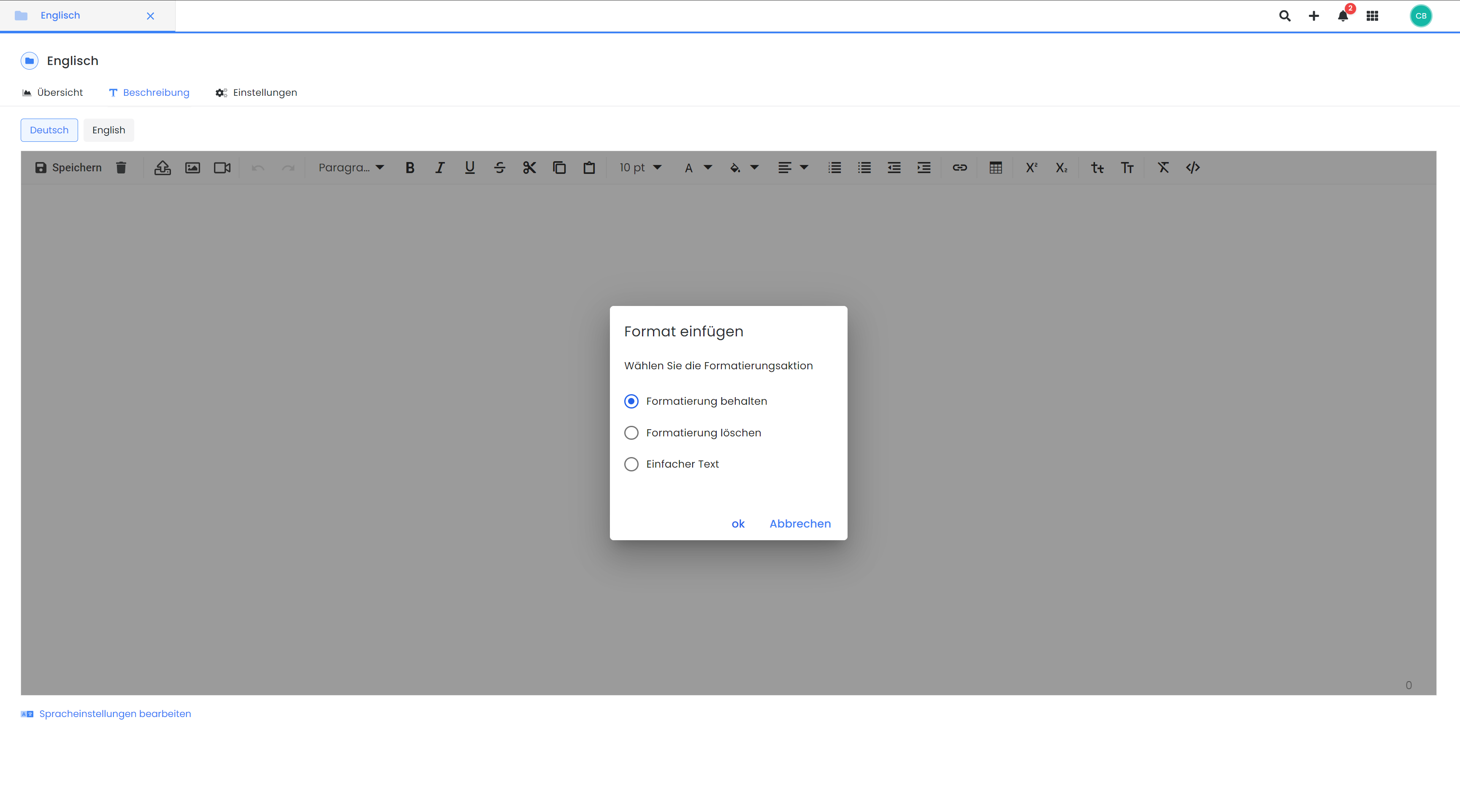
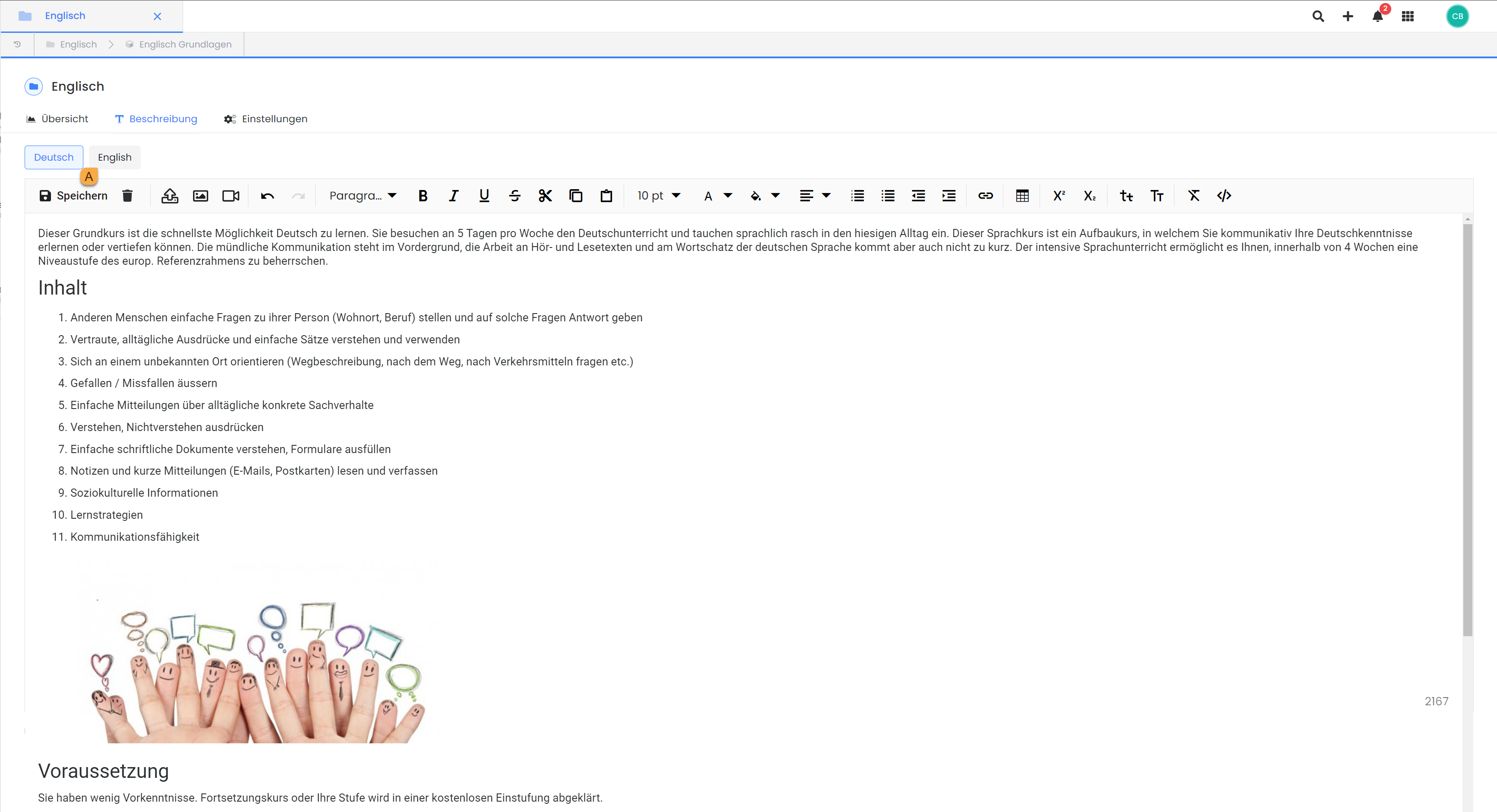
To create a description for a selected category, navigate to the 'Description' tab for that category. A custom description can then be created and formatted using the provided editor.
If you have an existing description that you wish to copy into this field, three options are available for text insertion. We consistently recommend inserting the text into the description using the «Clear Formatting» option and subsequently formatting it with the edoobox editor. Texts pre-formatted in external applications, such as Microsoft Word, are often incompatible with edoobox, potentially causing display issues or even booking errors for an offer.
Once the description text has been edited, it is crucial to save the changes.
Please note: Tables
Do not use tables in the description if you intend for your iFrame to adapt to the width of the output device (responsive behavior).
Offer Description
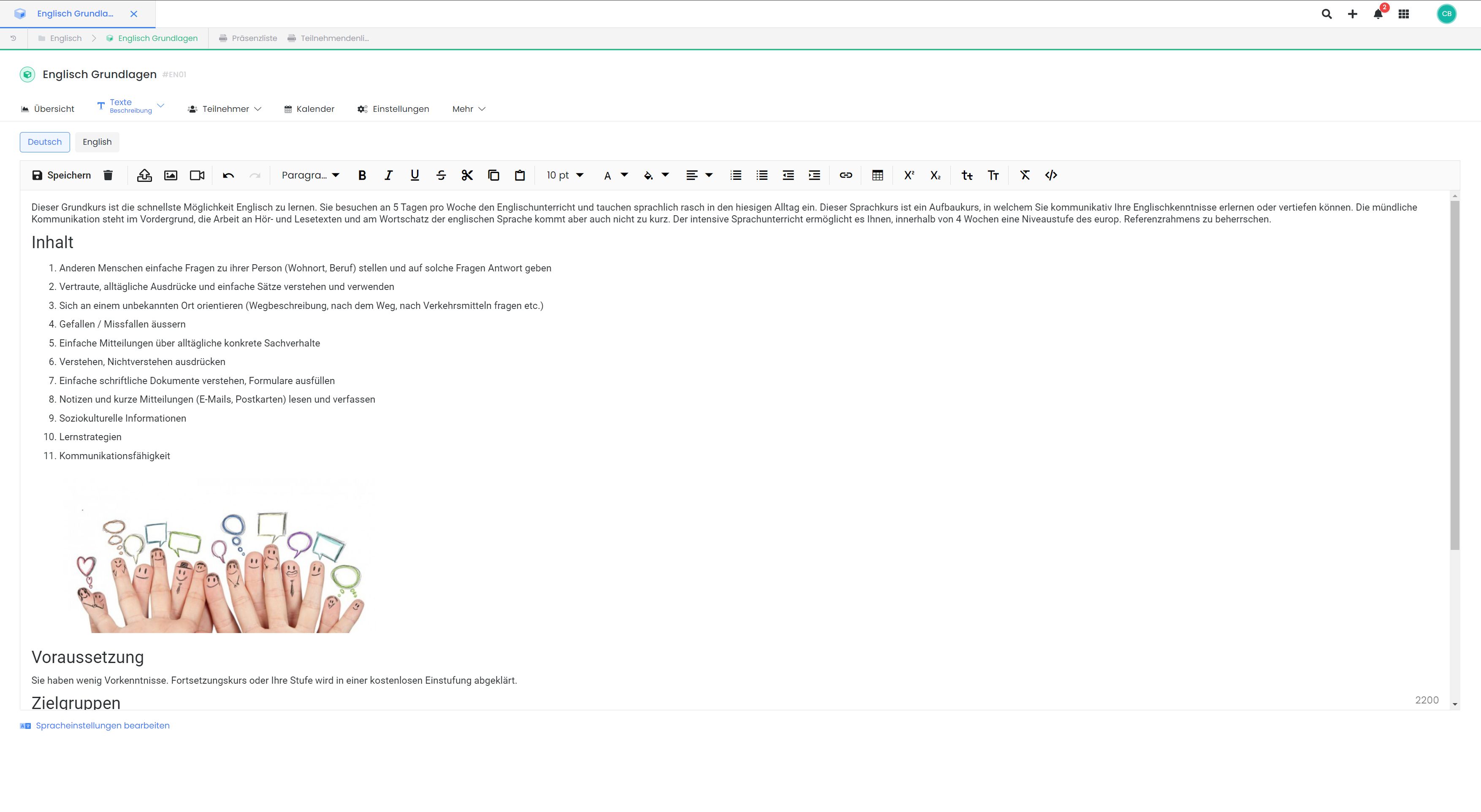
To create a description for a selected offer, navigate to the 'Texts' tab and access the offer's description field. A custom description can be composed and formatted using the integrated editor. The functionalities and process for creating this description are identical to those for category descriptions.
Multiple Languages
If the registration process is offered in multiple languages, all description texts can be translated into those languages. The languages enabled in the system are displayed above the editor. This ensures that the information is available to participants in different languages.
To ensure an iFrame consistently displays in a specific language, the edoobox iFrame can be embedded into your website with the desired language parameter. For more details, refer to the iFrame Integration documentation.
Please Note: Automatic Text Translation Plugins
Automatic text translation plugins, such as Translight, translate text within input fields as it is entered. Therefore, we recommend excluding the URLs app1.edoobox.com and app2.edoobox.com from automatic translation.
Display Description via Design Manager
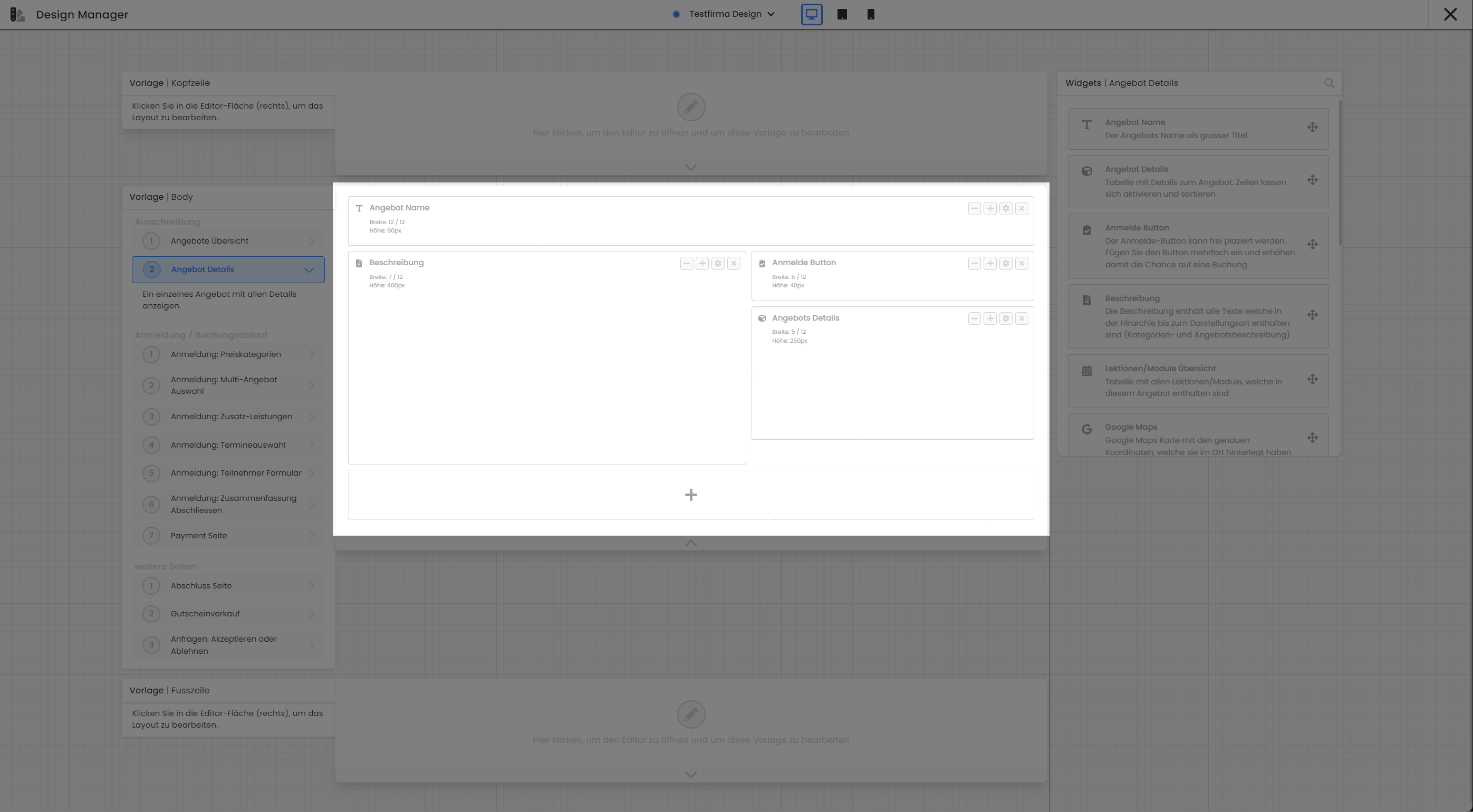
Within the Design Manager, the 'Description' widget is accessible for both the 'Offer Overview' and 'Offer Details' templates.
Offer Overview
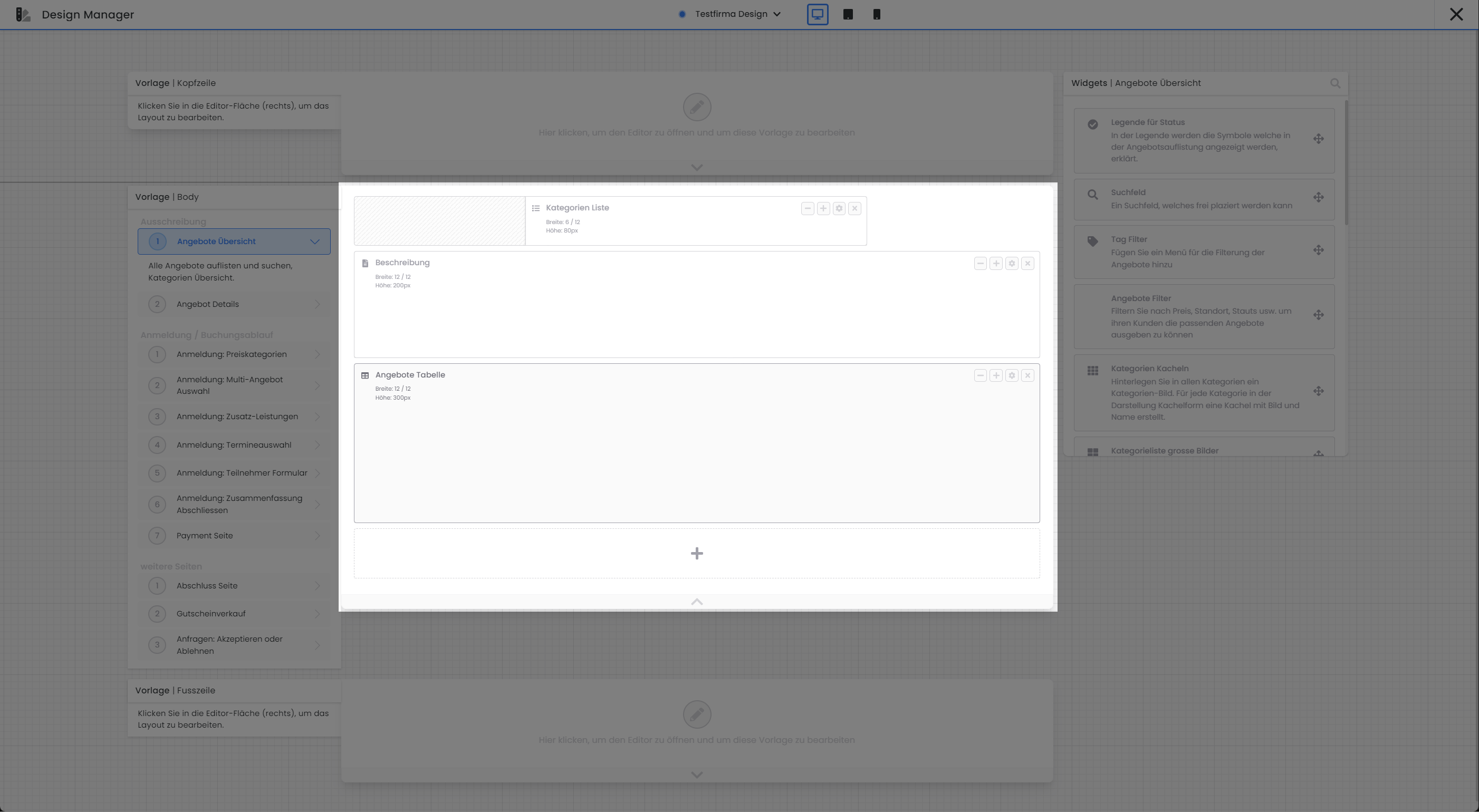
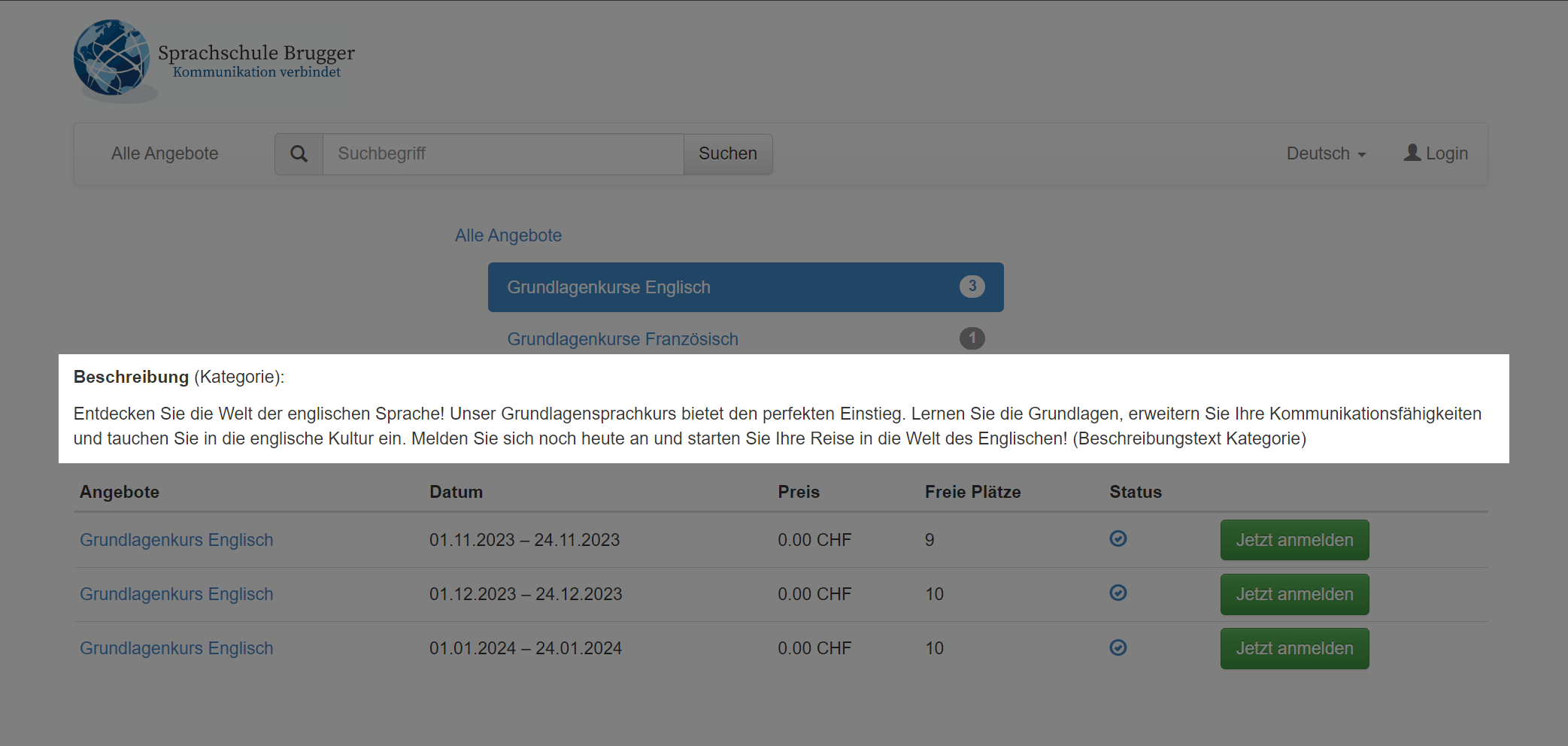
If a category description is present, it can be positioned within the 'Offer Overview' template, above the designated offers widget. This configuration ensures that upon selecting a category, its description is displayed, followed by the relevant offers. Offer-specific descriptions are not rendered in this section.
|
|
Offer Details
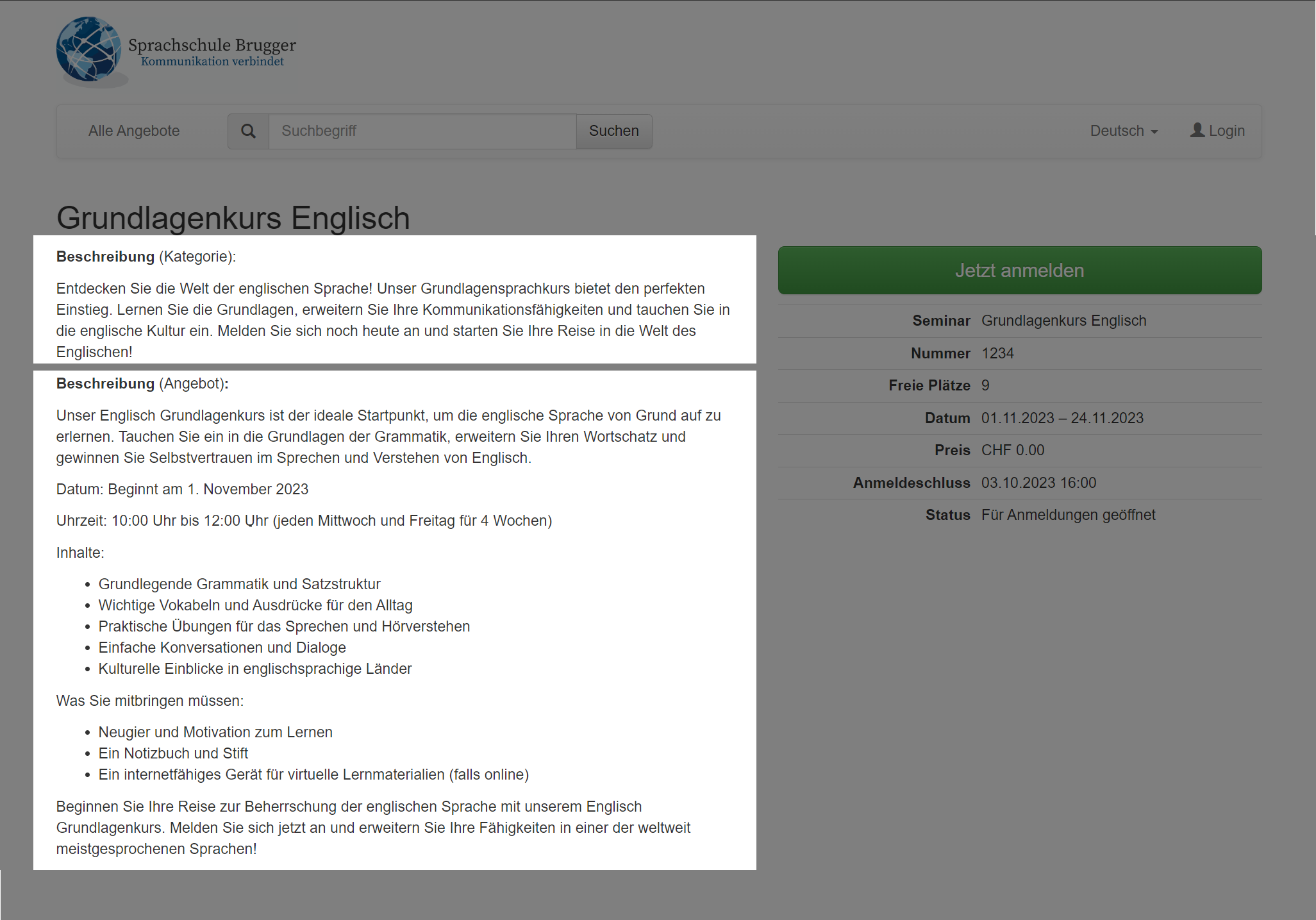
When the 'Description' widget is utilized within the 'Offer Details' template, both the category and offer descriptions will be displayed sequentially at the designated location.
|
|
Tip: Rich Snippets and SEO
All offer pages are equipped with a Rich Snippet (JSON) to facilitate indexing by search engines such as Google. To ensure search engines can effectively utilize the Rich Snippet, critical fields like offer name, offer image, location, and price must be diligently maintained within edoobox.
Related Guides
Keywords for this guide
Description ¦ Images ¦ Languages ¦ Design Manager ¦ Rich Snippets ¦ Search Engine Optimization ¦ Info ¦ Booking Flow