
The offer settings determine how an offer appears on the website, which booking functions are available, and which rules apply to bookability, participant numbers, or billing. Each offer can be configured individually.
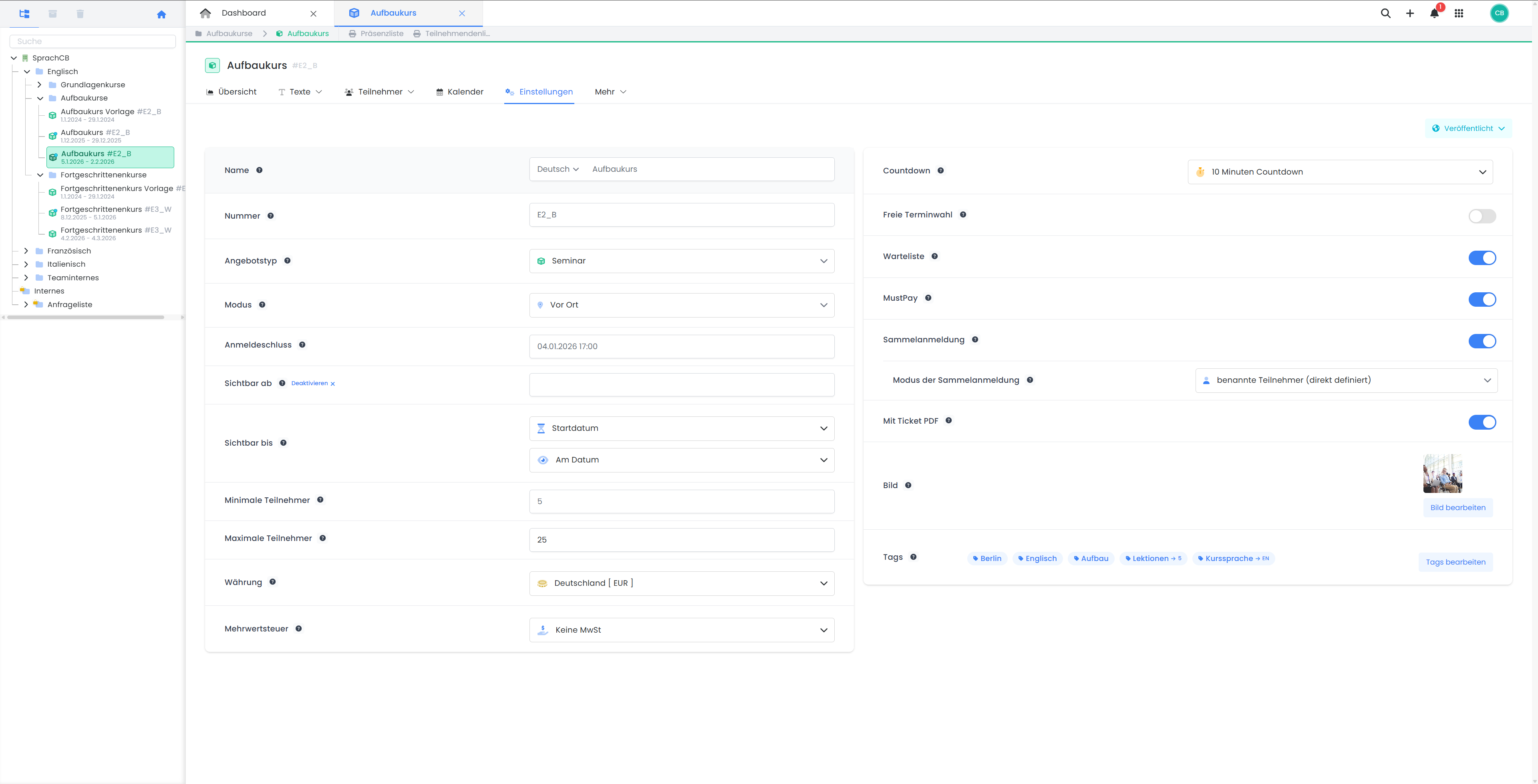
Name
The title of the offer. It is displayed in all central locations: during the booking process, on confirmations, invoices, and other email templates (if the corresponding placeholder is used). Choose a clear and understandable name that is self-explanatory for customers. This name can be translated into all active languages.
👉 Language Settings: Offering the Booking Process in Multiple Languages
👉 Editing Email Templates in edoobox
Number
Optional field for uniquely identifying an offer. The offer number can be integrated into the booking process and email templates, provided the appropriate placeholder is used. It is suitable for internal organization, reconciliation with external systems, or identification during customer inquiries.
Offer Type
Categorization of the offer (e.g., Course, Event, Workshop). This type has no direct technical impact but is displayed in several central locations: on confirmations, invoices, and other email templates (if the corresponding placeholder is used).
Mode
Determines whether the offer is conducted on-site, online, or hybrid. This selection influences search engine indexing.
Registration Deadline
Specifies the deadline for participants to register for this offer. After this time, the offer can no longer be booked for a confirmed spot. In the frontend, the booking button is automatically deactivated. If a waiting list is active, the waiting list button becomes active.
Visible From
This setting is deactivated by default. When deactivated, an offer set to 'Published' status becomes immediately publicly bookable.
If a date is set here, it determines when the offer will be displayed and become bookable on the website.
Prerequisite:
-
Offer status must be set to 'Published'
-
The date must be at least 24 hours before the registration deadline
Visibility End Date
Defines the date until which the offer remains visible on the website. This setting allows offers to continue being displayed on the website even after transitioning to a 'Closed' status.
Minimum Participants
Defines the minimum number of bookings required for the offer to proceed. This number can influence the offer's status, causing it to change to 'Guaranteed Execution' once the minimum number of participants is reached.
Maximum Participants
Sets the maximum number of available slots for the offer. Once this limit is reached, no further bookings are possible unless a waiting list is activated.
Currency
Defines the currency in which this offer will be billed. This setting impacts all pricing, invoicing, and payment processes.
Value Added Tax (VAT)
Here, you select the applicable tax rate. This is based on the global VAT settings within the system. Depending on the business case, the GeoDynamic module can also be utilized.
Countdown
When activated, a countdown (e.g., 20 minutes) begins upon opening the booking form. During this period, the slot is reserved for the person making the booking. If the countdown expires without completion, the slot is released, and the booking process is canceled.
Flexible Date Selection
Allows participants to select individual dates for an offer themselves, rather than automatically booking all of them.
Waitlist
If the maximum number of participants is reached, interested individuals can join a waiting list. Available slots can then be assigned manually or automatically.
MustPay
Requires participants to pay for the booking immediately before a slot is definitively assigned. Without successful payment, only a waiting list slot will be booked.
Group Registration
Allows the registration of multiple participants within a single booking process. The group registration mode controls whether group participants must be booked with complete data immediately or if the booking person can reserve multiple slots without providing individual participant details.
Ticket PDF Enabled
If this option is active, a ticket in PDF format will be generated and sent after a successful booking. This ticket includes a barcode that can be scanned at entry.
Image
Graphic or photo displayed for this offer in the offer overview.
Tags
Tags are used for categorization, controlling visibility (on the website), filtering (in the booking process), or other automations.
👉 Add Tags
Related Guides
Keywords for this guide
Settings ¦ Offer Settings ¦ Course ¦ Set up offer ¦ Event ¦ Event ¦ New offer ¦ Configuration ¦ Configure ¦ Set up