
The ticket is designed for entry and exit control. Additionally, for ongoing events, it can be utilized for attendance tracking. Standard commercial scanners, a webcam, or a smartphone can be used to scan ticket barcodes.
For your ticketing, various barcode options are available in the main navigation under the «Settings» menu item, specifically under «Barcode».
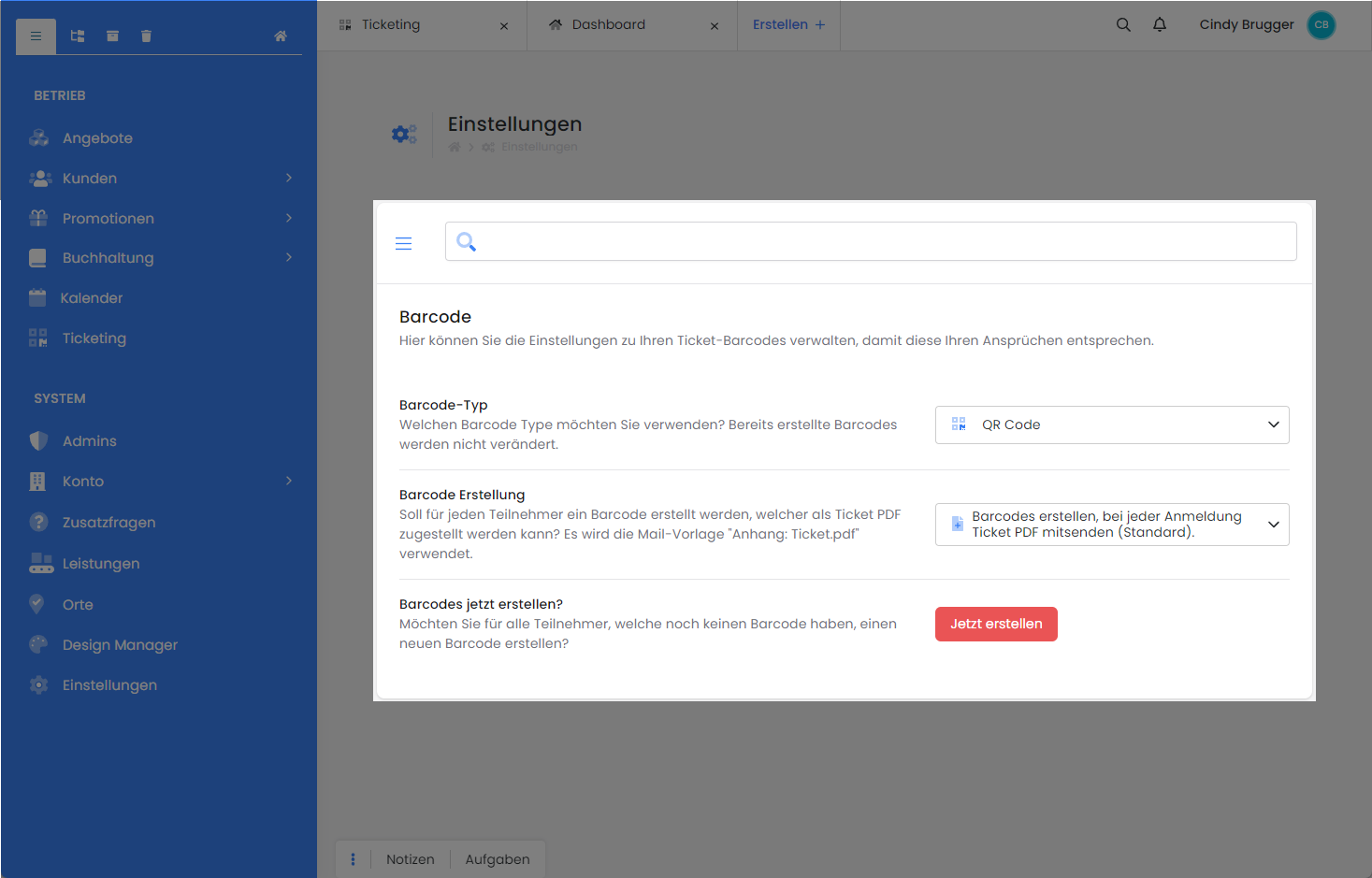
Barcode Type
This setting allows you to define which code type should be used for your tickets. We recommend verifying which codes your code reader can interpret and selecting a code accordingly. Available options are:
-
PDF417
-
QR Code
-
Data Matrix
Tip: Which Scanner?
For instance, we can recommend using the QuickScan QBT2400. This model is available, for example, on Amazon. You are free to choose any brand and scanner type. It is crucial that the scanner supports the barcode types you implement.
Barcode Generation
Here you can specify whether a barcode should be generated for each participant and delivered via Ticket.pdf. The email template «Attachment: Ticket.pdf» will be used.
Barcode Disabled
-
If you do not wish to send tickets with the booking confirmation email, then select the setting: «Do not create barcodes, do not send Ticket PDF.»
Create Barcode
-
If you wish to send the ticket with each booking confirmation email, then select the setting: «Create barcodes, send Ticket PDF with every registration.»
-
If you wish to individually decide for each offer whether the Ticket.pdf should be sent, then select the setting: «Activate Ticket PDF per offer.»
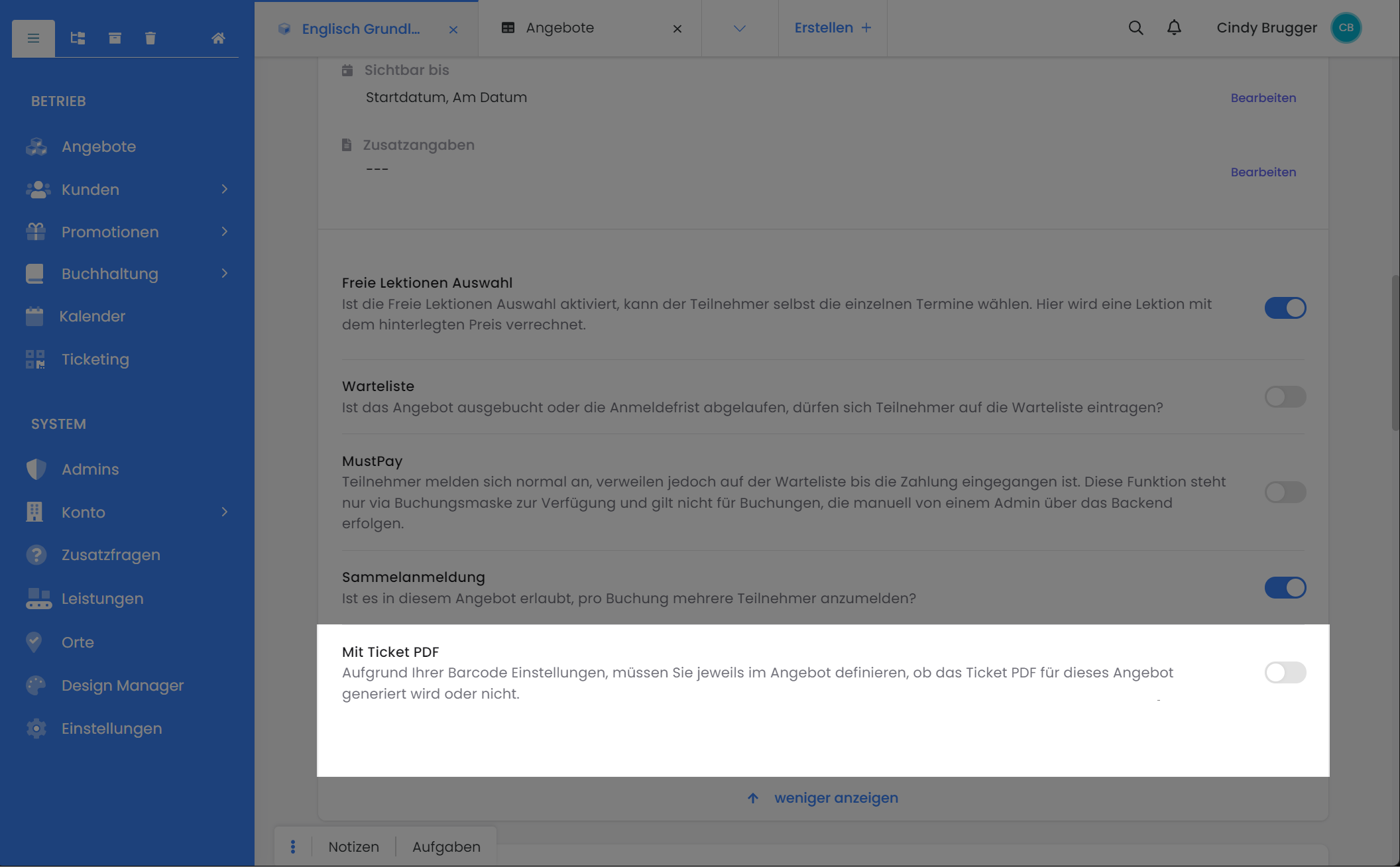
Generate Barcodes Now
If you activate barcode generation at a later point and also wish to create barcodes for existing participants, you can do so quickly by clicking on «Generate Now».
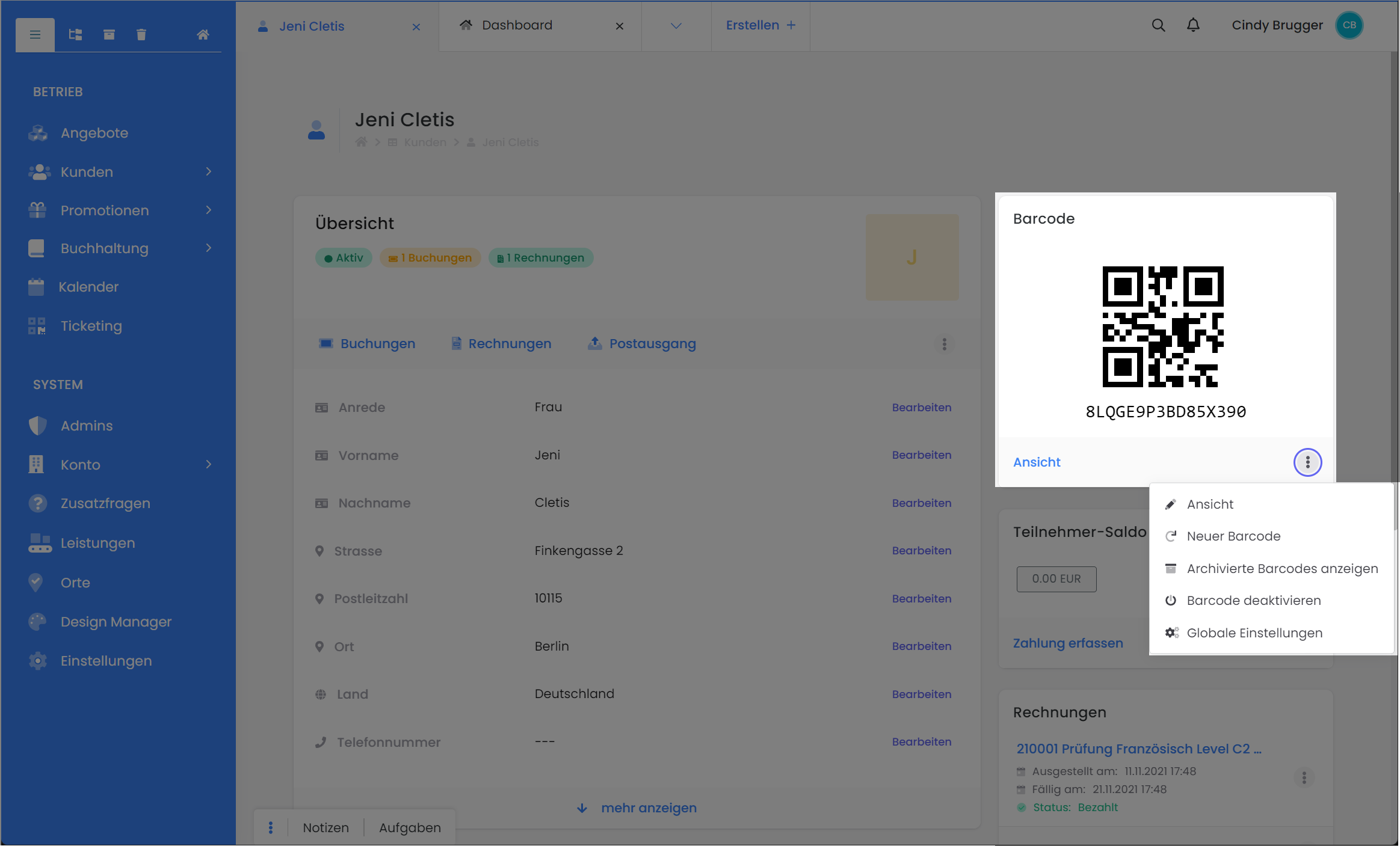
Replace Individual Barcodes
Do you wish to create a new barcode for a participant, for example, because their ticket was stolen or you suspect misuse? You then have the option to generate a new barcode for the respective participant with just a few clicks. Afterwards, you can deliver the new ticket to the participant by resending the booking confirmation.
Related Guides
Keywords for this guide
Admission Ticket ¦ Barcode ¦ Access Control