
In the main navigation, under the "Settings" menu item, you can click on "Offers" A to change and define the automatic processes for your entire edoobox account.
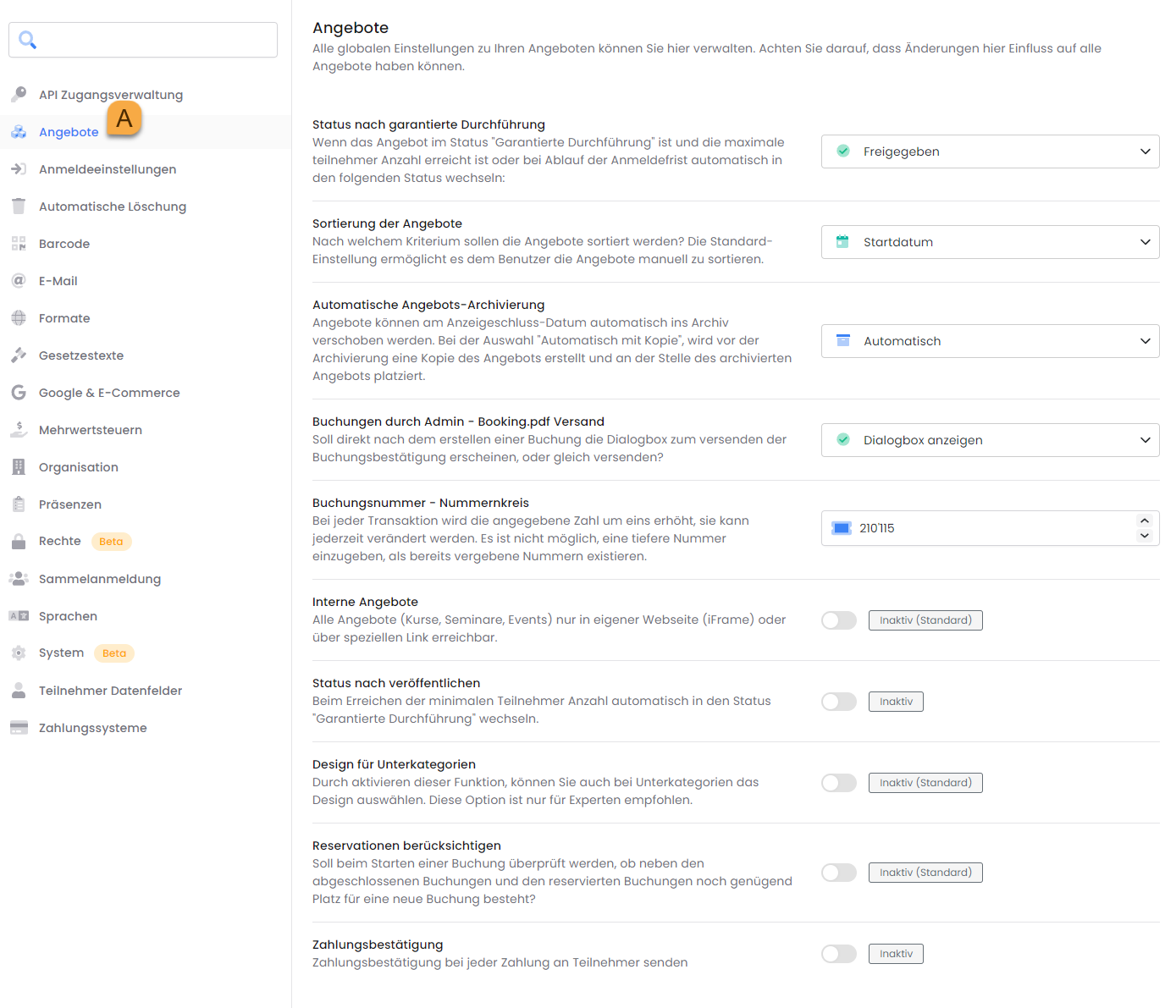
Status 'Guaranteed Execution'
When the offer is in the Guaranteed Execution status, the maximum participant count has been reached, or the registration deadline has expired, the system should automatically transition to the following status:
-
Closed – You now determine whether to release the offer for execution, which involves manually setting its status to 'Released'.
-
Release – it automatically switches to Release
Tip: Offer Status
Refer to the guide for available offer statuses in edoobox and their functionalities.
Offer Sorting
Define the display order of your offers to the booking individual – either by the offer's start date or according to their arrangement in the backend (offer tree).
Automatic Offer Archiving
Specify whether an offer should be archived and a corresponding copy generated after its display end date. Four options are available: no archiving, automatic archiving after one day, automatic archiving after 30 minutes, and automatic archiving with a copy.
Please Note: Archiving Rules
For an offer to be automatically archived, the following conditions must be met:
-
Automatic archiving enabled in settings
-
The display end date must be in the past (Display End Date = Offer End Date + Defined Display Delay)
-
The offer's status must be Closed, Released, or Canceled.
-
Naturally, the offer must not already be deleted, archived, or a sub-offer of a multi-offer.
Admin Bookings – Booking.pdf Dispatch
Specify whether the booking confirmation, including the “Booking.pdf” file, should be sent automatically when a manual participant booking is made in the backend. Alternatively, you can choose to display a dialog box so that you can decide on a case-by-case basis for each manual participant booking whether to send the booking confirmation email.
As a third option, you can completely disable the sending of booking confirmations for manual participant bookings.
To send the invoice when adding participants manually, you must first create it manually and then trigger the sending of the booking confirmation via the dialog box.
Booking Number - Number Sequence
The specified number is incremented by one with each transaction and can be modified at any time. It is not possible to enter a number lower than the highest existing assigned number.
Internal Offers
Activate the «Internal Offers» function to make the courses/events/events associated with this edoobox account accessible exclusively via a dedicated link. This prevents your offers from being indexed by search engines and allows them to be utilized for internal corporate events.
Automatically Guaranteed Execution
Specify whether the course status automatically transitions from 'Published' to 'Guaranteed Execution' once the minimum participant count is met. Booking participants can immediately identify this if a progress bar is enabled in the Design Manager.
Design for Subcategories
Activating this function allows you to create and assign a custom design for subcategories as well.
Please Note: Recommendation
This option is recommended for experts only.
Consider Reservations
When you activate this feature, edoobox considers not only completed bookings but also pending bookings. The system reserves the desired slots for participants currently in the booking process for 10-20 minutes. This prevents slots in pending bookings from being taken by participants completing their bookings quickly, especially if insufficient slots remain for both parties.
As an administrator, you can check for existing reservations by opening the relevant price category within the offer.
Please note: Consider reservations
If you have activated the 'consider reservations' function, slots are only bookable if the maximum participant count – number of bookings – reservations ≥ 1. (Waitlist bookings and flexible date bookings are not considered).
Display Promotions in the Booking Process
The input field for promotional codes in the booking process can be shown or hidden. If required, it must be activated in the global 'Settings'. Additionally, the label for promotional codes can be customized. This label can have a maximum length of 100 characters.
Related Guides
Keywords for this guide
Registration | Reservation | Booking Number | Design | Status | Backend Booking