
If you publish paid offers in edoobox, you have the option to set the desired prices per offer. Depending on your edoobox subscription, you can define up to 10 different price categories. In addition to the always-available standard price, you can also set other price categories that are limited by time or quantity.
Overview in the Offer Dashboard
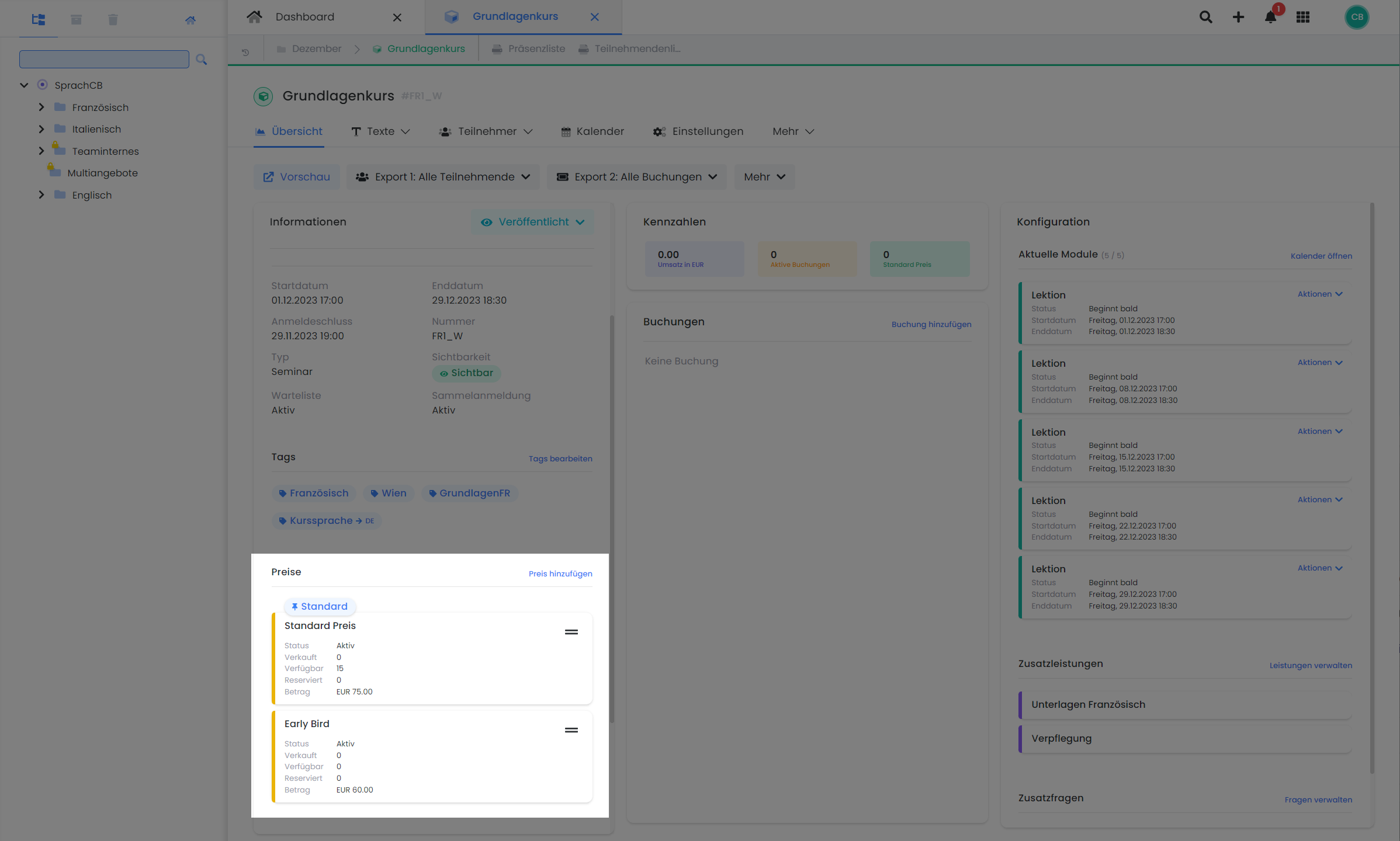
In the 'Prices' section of the offer dashboard, you will find a list of all created price categories. Here you can view both active and inactive price categories and determine their display order in the frontend using drag-and-drop.
The Standard Price
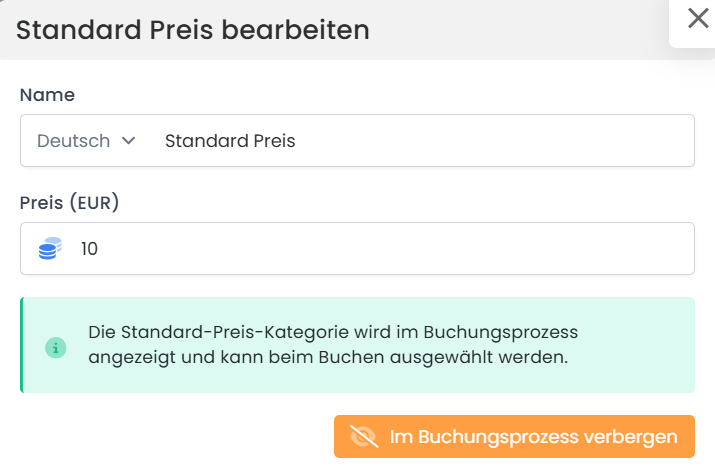
The default price of an offer is always present system-side and serves as the base price. It cannot be deleted, but it can optionally be hidden during the booking process. This allows you to control which price categories are displayed to participants. For example, it is possible to make only an early bird or last-minute price visible.
To edit the default price, click on the default price in the offer dashboard. In the opened editing window, you can adjust the designation, price, and – if additional system languages are enabled – the corresponding translations. The number of bookable spots at the default price is limited by the offer's maximum participant capacity.
Hide Default Price
If you hide the default price, always ensure that at least one active price category with sufficient availability is present for each booking period. Otherwise, the offer cannot be booked in the booking process because no valid price is available for selection.
Adding New Price Categories
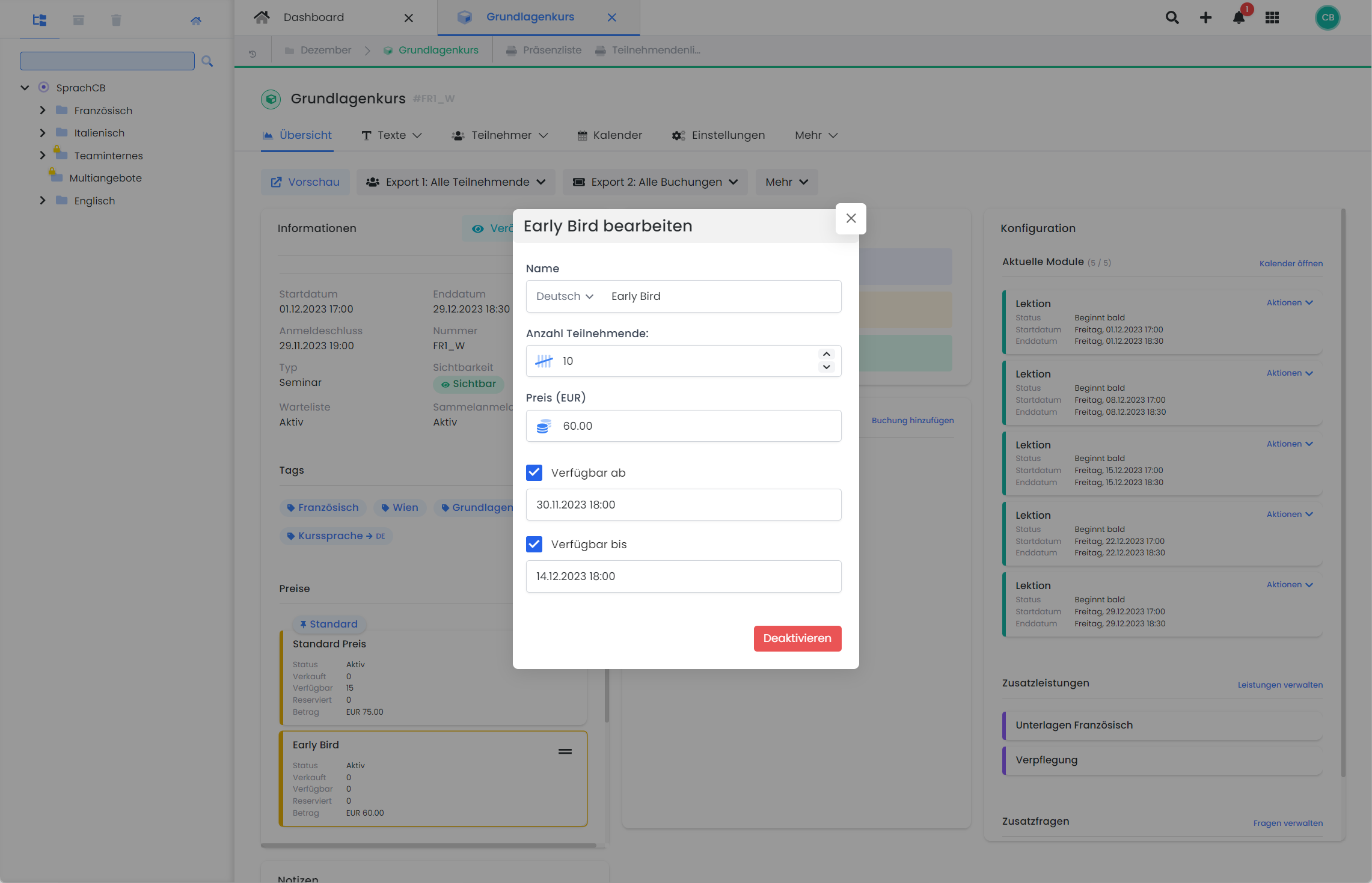
If you wish to offer additional price categories beyond the standard price, this can be done with just a few clicks. Additional price categories can be limited by quantity and period. To do this, click on 'Add Price' to define a new price category with a designation, price, availability, and validity period. As an admin, you can always choose whether an additional price category should be displayed or hidden during the booking process. Deactivated price categories can still be used by admins, for example, to adjust the price of a booking retrospectively.
Please note that price categories cannot be deleted. However, they can be edited, overwritten, or hidden at any time.
Tip: Early Bird Price
For example, use this option to create an early bird price with limited availability and a defined expiration date. This price category will be marked as 'sold out' once the date or availability limit is reached.
Editing Existing Price Categories
The offer dashboard displays a list of all existing price categories for this offer. You’ll see an overview with information about each price category, such as the price and the number of “tickets” sold, reserved, and available. To change the settings for a price category, simply click on a price category and the edit window will open. Here, you can modify all available settings at any time.
Please Note: Changing Booked Price Categories
We generally recommend not modifying already booked price categories. Instead, create new price categories and assign existing bookings to them, or, if necessary, work with promotional campaigns.
Currency and Value Added Tax (VAT)
For each offer, select the currency and VAT rate within the offer settings.
Info: Default VAT Rate
When a new offering is created, edoobox checks whether the country of the default tax rate matches the country of the organization (configured under "Settings → Organization"). If this is the case, the default VAT rate is automatically applied as the tax rate for the offering. Otherwise, no VAT rate is assigned to the offering.
The GeoDynamic VAT function is particularly useful if you anticipate international bookings that require the application of varying VAT rates.
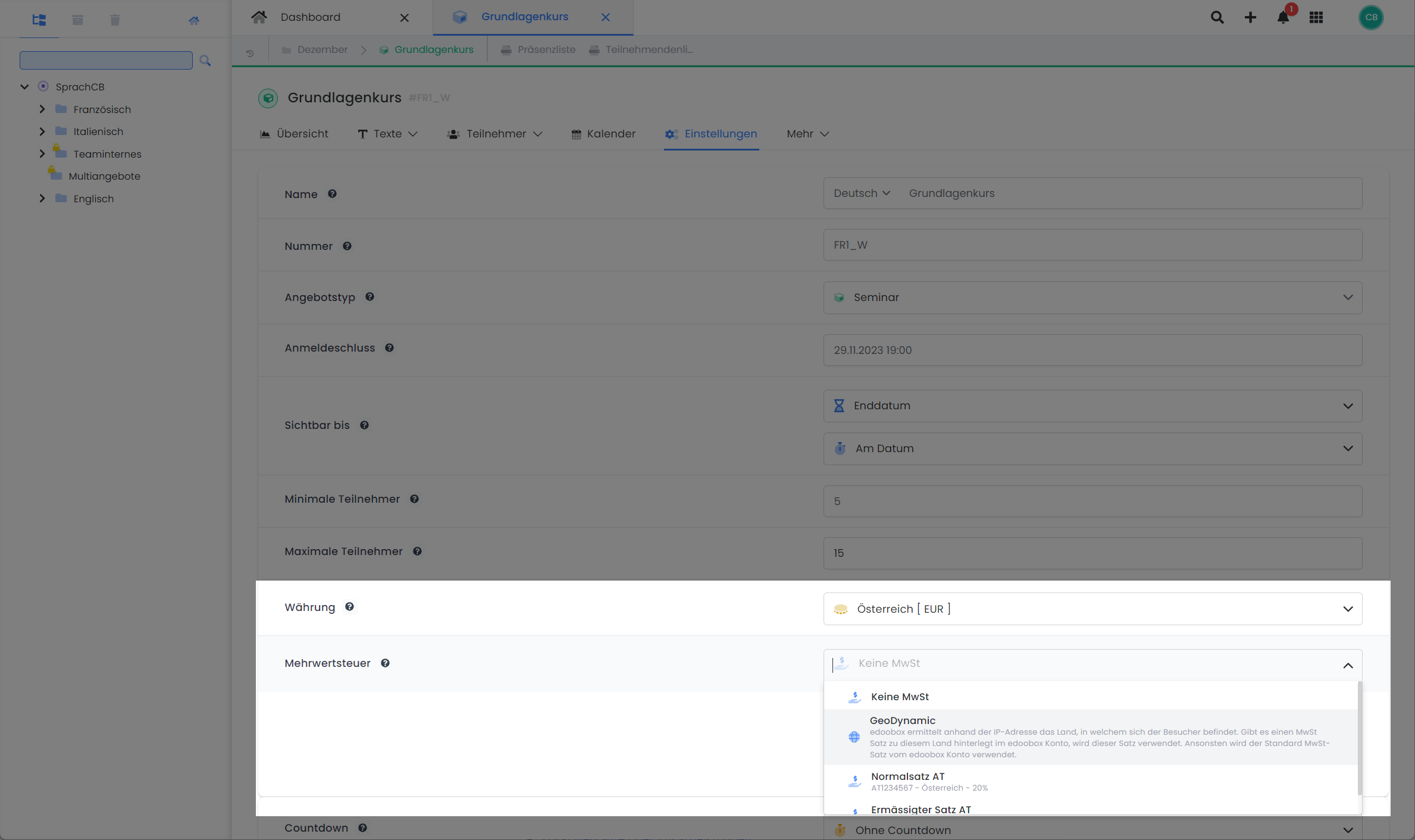
If no VAT rates are available for the offer at this stage, you can add them in the global account settings. This documentation explains how to do so: Globally Configure VAT Rates.
Tip: Displaying Prices in Offer Details
Within the Design Manager, you can integrate additional widgets on the detail page of your offer to display prices inclusive of VAT.
Related Guides
Keywords for this guide
Price Category ¦ Price ¦ VAT ¦ VAT ¦ Currency ¦