
The edoobox multi-offer feature allows for the creation of multiple sub-offers within a single main offer. This is particularly suitable for multi-day seminars, congresses, conferences, or trips where participants can customize and book individual program items.
Typical Application Examples
-
Congresses and Symposia: Participants select from various lectures, panels, or workshops.
-
Trips and Events: Participants compile their own program from multiple activities or options (e.g., excursions or additional packages).
Info: Activating the Multi-Offer Feature
The multi-offer feature must be activated once by edoobox. To do this, please contact our support team by phone or email at support@edoobox.com.
Creating a Multi-Offer
To create a multi-offer, please follow these step-by-step instructions after the feature has been activated:
-
Create a new category or select an existing category in the offer tree.
-
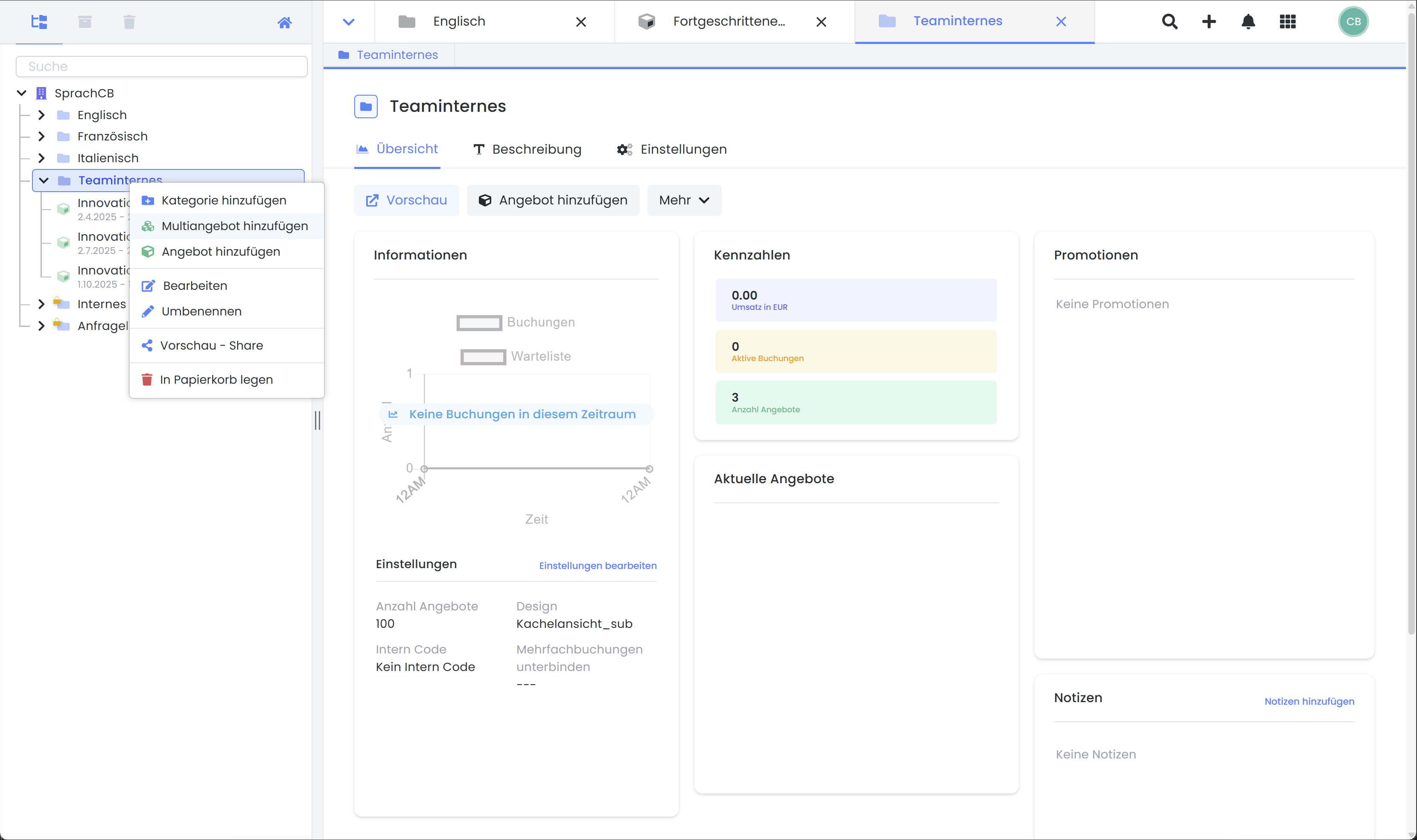
Right-click to open the category's context menu and add a new multi-offer.
-
In the main offer, you can, for example, store the general description and, if applicable, a participation fee.
-
By right-clicking again, this time on the multi-offer, you can open the context menu and add the desired sub-offers.
-
Each sub-offer is structured like a classic offer. Individual descriptions, various price categories, location/instructor, and the number of available slots can be defined for each sub-offer.
Example: A Multi-Day Trip
Here is an example of a multi-day trip to Sharm El Sheikh with various sub-offers. On day 2, for instance, a quad tour for a maximum of 5 people at a specific price, etc.
The booking person can now select and book the main offer and individual sub-offers from the entire package. The maximum number of participants and the price can be set for both the main offer and each sub-offer.
Features and Limitations
|
|
Main Offer
|
Sub-Offer
|
|
Participant Minimum/Maximum |
|
|
|
|
Automatically active when enabled for the main offer |
|
|
|
|
|
|
|
|
|
|
|
Automatically active when enabled for the main offer |
|
|
|
Automatically active when enabled for the main offer |
|
|
|
|
|
|
|
|
|
|
|
|
|
|
|
|
|
|
Copying Offers |
|
|
|
|
|
Supplementary Texts for Sub-Offers
Three supplementary text blocks are also available for sub-offers. These can be rendered in email templates using the following placeholders:
-
##OfferConfirmationTextMultiOffers1##
-
##OfferConfirmationTextMultiOffers2##
-
##OfferConfirmationTextMultiOffers3##
Integration in Design Manager
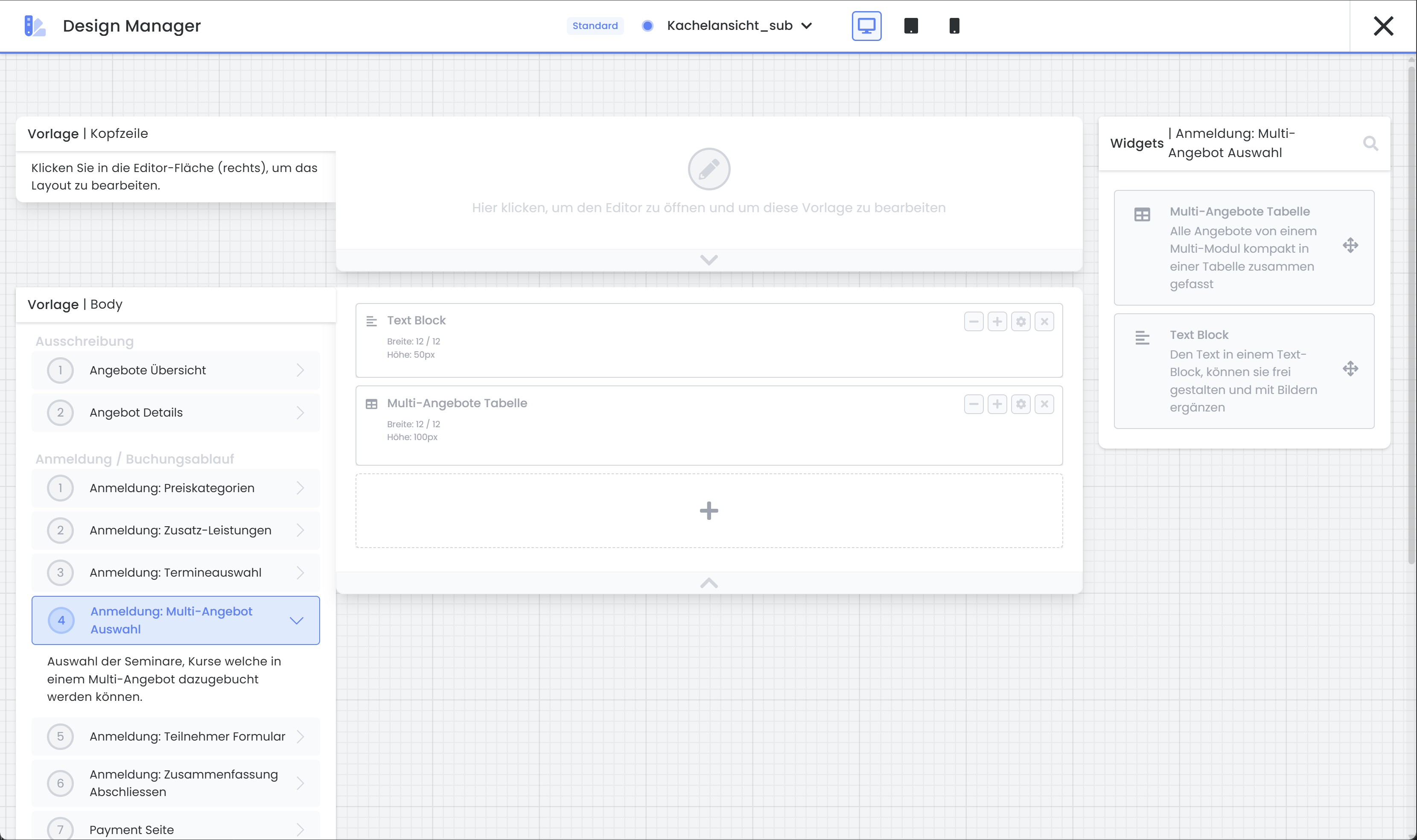
The "Registration: Multi-Offer Selection" template is available in the Design Manager. The "Multi-Offer Table" widget can be placed here, enabling participants to make their selections directly on the website. This same widget can also be utilized within the "Offer Details" template.
Related Guides
Keywords for this guide
Multi-Offer ¦ MustPay ¦ Group Registration ¦ Supplementary Information ¦ Design Manager ¦ Conferences ¦ Travel