
Invoicing
Outstanding invoices can be settled by participants via bank transfer or through an activated payment system. Additionally, participants can be issued an invoice as a PDF, regardless of the payment method.
Bank transfer payments can be automatically reconciled with an invoice using the payment matching via CAMT file. Manually, you have the option to record the received amount for an invoice in the participant's account, within the outstanding invoice, by clicking the «Record Payment» button. In the «Account» tab, you can also record incoming payments via a manual transaction – these transactions are not automatically assigned to an invoice.
Invoice Settings
Enter the necessary invoicing data, such as your bank details, invoice number, and due date, in the main navigation under «Settings» within «Payment Systems».
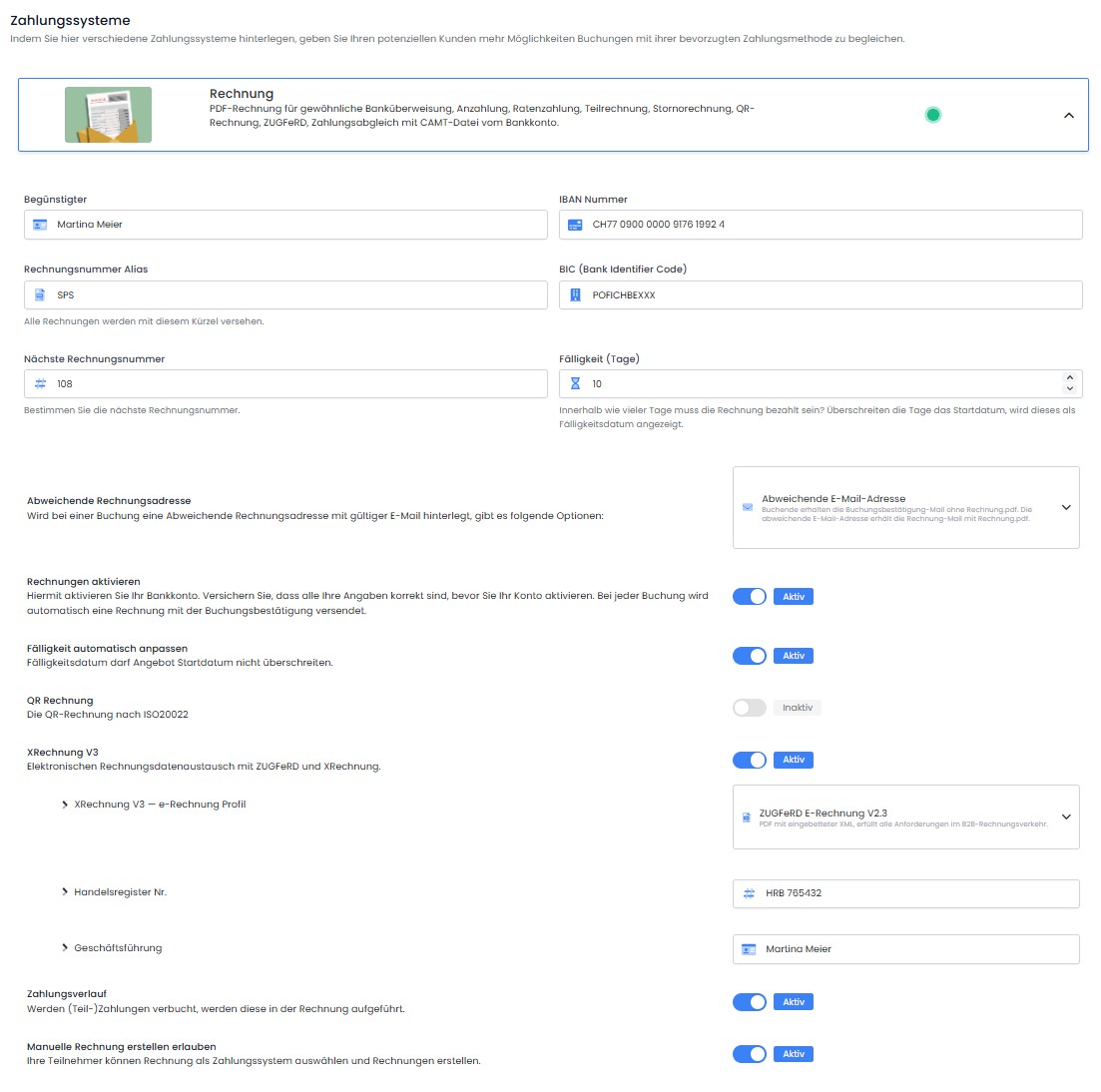
Your Bank Details
Enter the bank information for incoming payments here. Provide the name, IBAN, and BIC/SWIFT code of the beneficiary individual or company.
Your VAT does not need to be stored here. You can directly enter it into the email template «Invoice.pdf» and/or in the global settings.
Invoice Number Alias and Next Invoice Number
Here you can define the alias and the invoice number range. You have the option to reset the starting invoice number each year.
Info: Maximum Possible Invoice Number
The maximum possible invoice number is: 2147483648; after this, a new alias must be defined.
Due Date (Days)
Here you specify the number of days within which an invoice must be settled.
Alternative Billing Address
Here you can define which option you wish to use in the event of a different billing address in a participant booking:
-
Customer: In this case, the booking person receives the booking confirmation email with Invoice.pdf attached. The alternative email address does not receive an email.
-
Customer and Alternative Email Address: In this case, the booking person receives the booking confirmation email with Invoice.pdf attached. The alternative email address receives the invoice email with Invoice.pdf attached.
-
Alternative Email Address: With this option, the booking person receives the booking confirmation email without Invoice.pdf. The alternative email address receives the invoice email with Invoice.pdf attached.
Activate invoices Our recommendation
This setting activates your bank account. Ensure all your details are correct before activating your account. For every booking, edoobox automatically generates an invoice and sends it via email to the participant (or the alternative invoice email address) along with the booking confirmation.
Automatically Adjust Due Date
If the 'Automatically Adjust Due Date' option is not selected, the chosen payment term will always be displayed on your email template 'Invoice.pdf'.
If you have selected the 'Automatically Adjust Due Date' option, the invoice due date, using the ##InvoicePayableDays## placeholder in the email template 'Invoice.pdf', will adapt to the start date of your offering.
If you create an invoice for an offering that has already concluded, the selected payment term will be displayed on the 'Invoice.pdf'.
Example: Due Date
If you set the due date to 15 days and your offer starts in 15 days or more, the due date shown on the invoice.pdf will be 15 days.
However, if your offer starts in just 5 days and participants register today, the payment deadline shown will be only 5 days.
QR Invoice
Swiss edoobox customers have the option to activate the QR Invoice here, which will generate all new invoices as QR invoices.
Note: Participant Data Fields
To correctly generate the QR invoice for individual participants, the participant's name, street, postal code, and city data are mandatory.
ZUGFeRD E-Invoice
Activating this option will generate an additional XML file for every invoice and cancellation invoice, which will be saved within the respective Invoice.pdf or CancellationInvoice.pdf. This file can be imported by accounting software such as DATEV.
Prerequisites for using E-Invoicing (ZUGFeRD/XRechnung):
-
Correct entry of VAT number and VAT rate
-
Precise assignment of the VAT rate per offering
-
Entry of the Commercial Register No. and management details in the invoice settings
-
Complete participant data: Name, Street, Postal Code, and City
-
Invoice Address (Option with Routing ID)
-
No positive manual transactions in the invoice
After this setup, please verify one or more invoices using a validation service.
Technical Details – ZUGFeRD E-Invoice Version 2.3
-
Hybrid format: PDF/A-3 with embedded XML file
-
Complies with EN 16931 for B2B invoicing (e.g., in Germany and the EU)
-
Machine-readable XML according to ZUGFeRD 'BASIC' profile
-
Human-readable PDF is retained
-
Compatible with accounting software
-
Ideal for companies with mixed requirements for visual and data formats
Technical Details – XRechnung Version 3.0 (E-Invoicing Profile)
-
Pure XML format without PDF component
-
Fully EN 16931 compliant
-
Mandatory for invoices to public sector clients in Germany (B2G)
-
Optimal for automated processing and digital audit processes
-
Structured data enables seamless integration into administrative systems
-
No visual format included – purely for machine processing
Payment History
Here you specify whether partial payments should be listed on the invoice.
Allow manual creation
If you do not wish to send an invoice with every booking, but want to allow participants to create the invoice themselves, then select this option. This enables participants to choose the offline invoice as a payment method on the payment page and generate invoices independently within their participant account.
As an admin, you always have the option to create and send an invoice. For this, the necessary data must be stored in the 'Invoice Settings'.
Down Payment, Installment Payment, and Partial Invoice
Do you require a down payment from your customers upon registration? Would your customers prefer to pay in installments or request a partial invoice? Here we demonstrate how you can implement these options.
-
Different Payment Options for Your Offers: In the relevant offer, create an additional text block and enter the conditions for the down payment (or installment payment or partial invoice) there.
-
Identical Payment Options for All Your Offers: Enter the conditions for the down payment (or installment payment or partial invoice) directly into an email template.
Suggested Wording
-
“To finalize the booking, we kindly request a down payment of EUR 100.00 within two business days”
-
“We accept installment payments for bookings totaling EUR 400.00 or more. To arrange an installment payment, please contact us at +41 43 434 65 91”
-
“Seminar fee: CHF 2,415.00
CHF 15.00 administration fee for four installments
10% down payment of CHF 241.50 within two business days
Financed amount CHF 2,173.50
Payable in four monthly installments of CHF 543.38 each”
Dunning
If, when checking your payment receipts, you determine that a customer needs to be reminded, we recommend creating a custom email template in edoobox for this purpose, which you can send to the relevant customers with just a few clicks.
Related Guides
Keywords for this guide
Invoices ¦ Down Payment ¦ Installment Payment ¦ Partial Invoice