
Would you like to send your invoices as QR invoices to your participants (in Switzerland and Liechtenstein) in the future? You can now find the option to enable QR invoices in the invoice settings.
Frequently Asked Questions about QR-Invoices:
Using QR-Invoices in edoobox
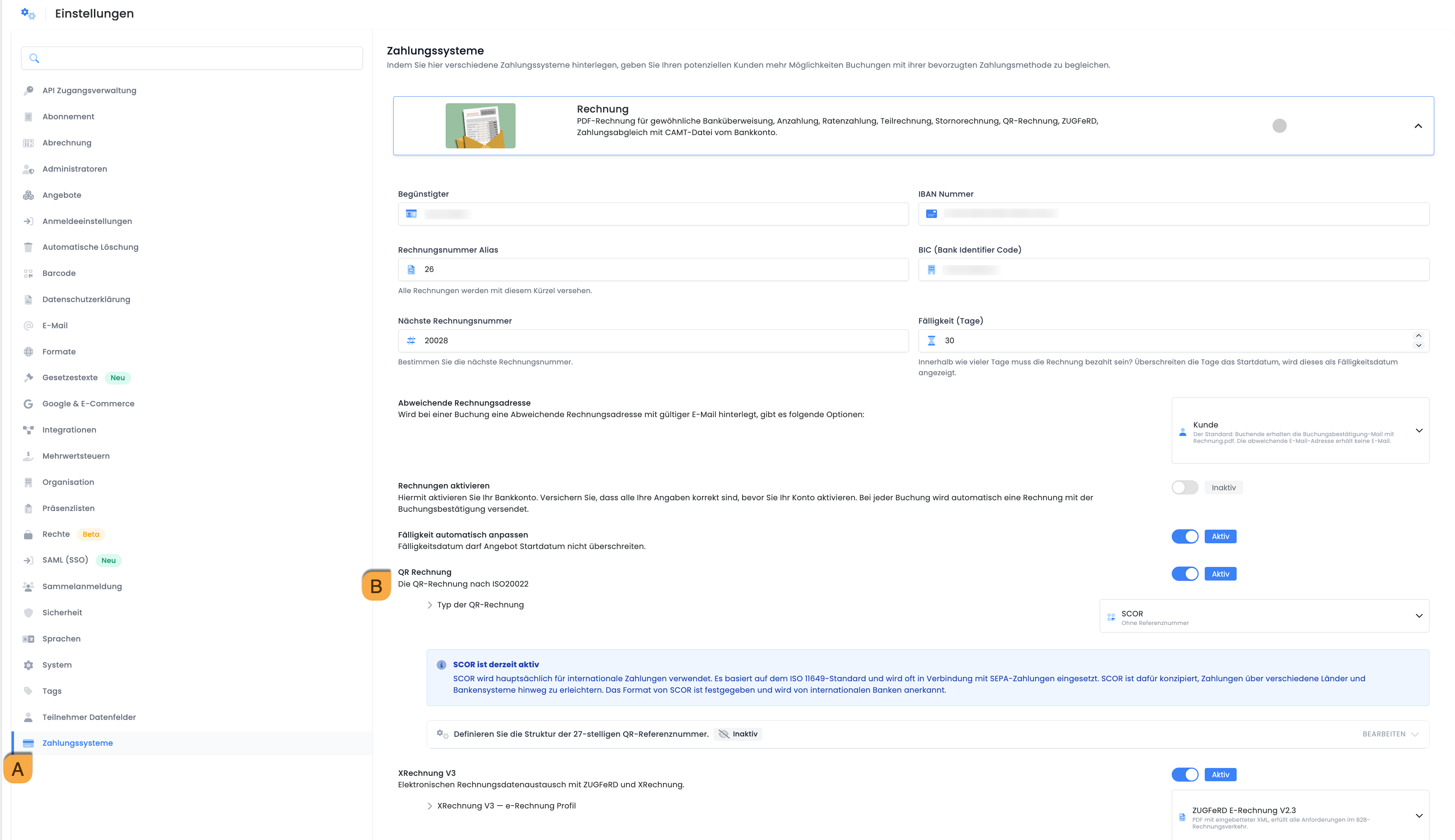
You can enable QR invoices in the global edoobox settings under the Payment Systems tab A. A new option, “QR Invoice according to ISO 20022,” will now appear there B. Important: You must first enter valid account details; the IBAN will be validated!
Please note: Mandatory Fields
To correctly generate QR-invoices for individual participants, data for Name, Street, Postal Code and City are mandatory. Please ensure that these data and form fields are configured in your registration forms and that you collect this information from your participants. If an alternative billing address is active for a booking, it will be used for the QR-invoice.
edoobox generates Creditor Reference QR-invoices according to the ISO-11649 standard. The check digit of the Creditor Reference is calculated using Modulo 97-10. A QR-IBAN cannot be stored with a Creditor Reference. Invoices paid by participants via QR-invoice with Creditor Reference can be automatically booked in edoobox using the same Camt import process as before.
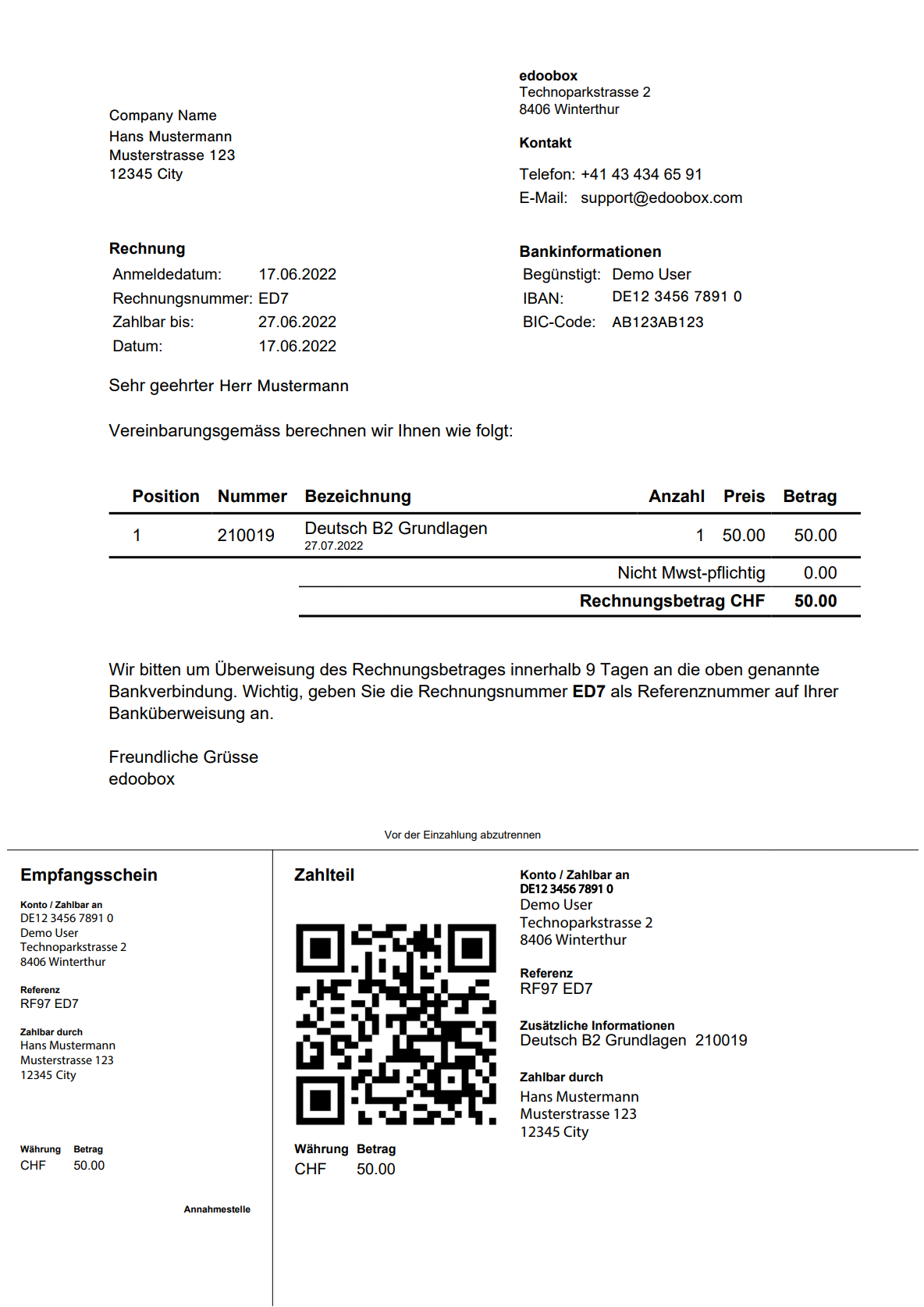
Invoice.pdf
The QR-invoice is always displayed in the lower third of the page on the Invoice.pdf. If the invoice table is too large, the QR-invoice will be moved to the next page.
Please note: No Special Characters in the Invoice Number
If the QR invoice number is used, please change the invoice number to alphanumeric characters in the edoobox settings. QR codes cannot be generated with special characters such as –.
Info: edoobox Subscription
Upon activation of QR-invoicing, your edoobox subscription invoices will also be updated. Existing standing orders do not require adjustment.
Tip: Importing Bank Account Transactions into the edoobox System
The CAMT file import enables the reconciliation of your bank account transactions with your edoobox account. Deposits in your bank account are matched against bookings in edoobox. Should the invoice numbers correspond, the payment will be credited to the customer's account in the edoobox booking system.
If your bank does not provide a CAMT.053 file, third-party products are available that can convert your files into a CAMT.053 file. E.g., https://www.bank2swift.de/
Tip: Integrate Twint Business Payment Link into edoobox Invoices
Copy the payment link from TWINT Business Manager and add the edoobox placeholders for the invoice number and amount. This allows your customers to pay the invoice with a single click via TWINT.
An automatic payment confirmation is not sent back to edoobox . This feature is only available with online payment service providers such as Worldline or Stripe.
For example: https://go.twint.ch/1/e/tw?tw=acq.YOUR-TWINT-URL.&trxInfo=##InvoiceNumber##&amount=##BookingAmountPositive##
Related Guides
-
CAMT File for Payment Reconciliation
Keywords for this guide
QR-Invoices § Invoices § PDF Invoice