
Do you wish to embed offering-specific information into your email templates, such as the booking confirmation, reminder email, or invoice.pdf, that should only be visible to registered participants? This information could include, for instance, links to essential documents, PDFs, e-learning platforms, preparation guidelines for your offering, or promotional codes for future offerings.
Create a Supplementary Text
For each offering, you have the option to include up to three supplementary details. These «Supplementary Texts» are located in the header section of the offering under «Texts». Here, you can add specific information that will then be displayed in emails and/or their attachments, depending on the offering booked.
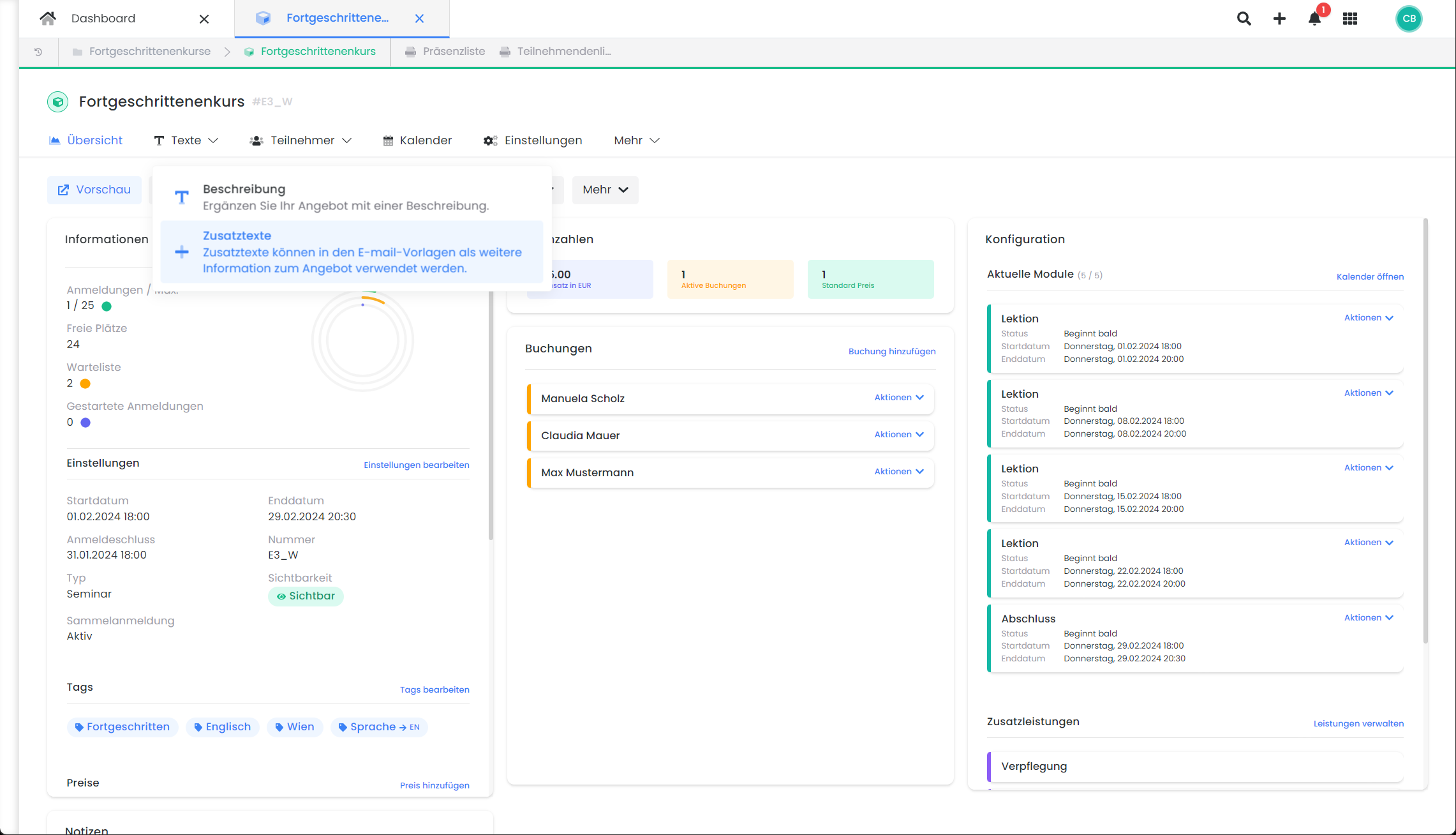
From the dropdown menu, select which supplementary text (1, 2, or 3) you wish to define. Then, populate the text area with your supplementary details and save your entry.
Subsequently, insert the placeholder ##OfferConfirmationText1##, ##OfferConfirmationText2## and/or ##OfferConfirmationText3## into the desired email template at the location where the supplementary details should appear. These supplementary details can be utilized in any email template where the corresponding placeholder is available in the placeholder list menu.
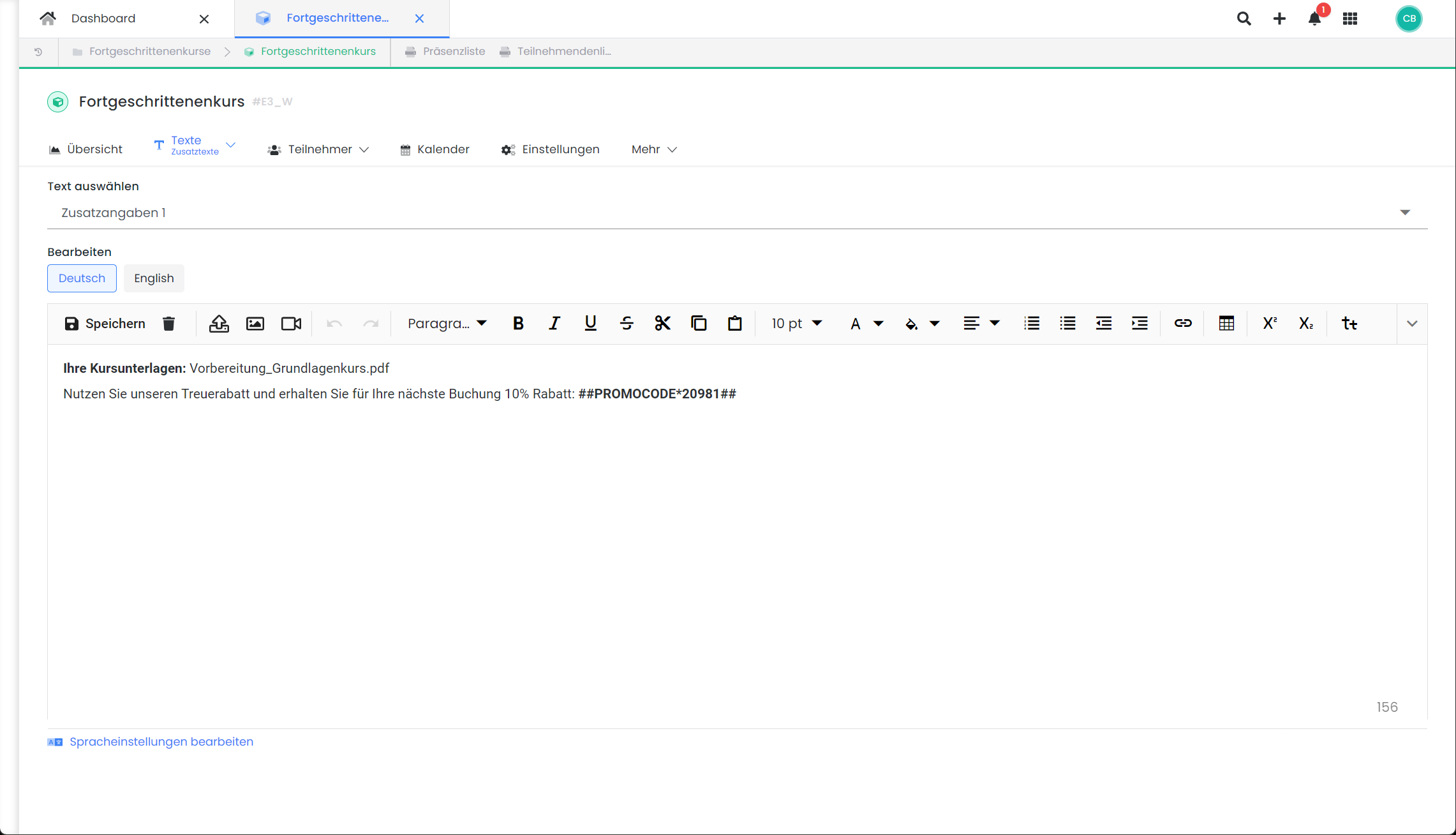
By the way: You can find the placeholder for a specific promo code in the corresponding promotional campaign.
Tip: Dedicated Use of Additional Texts
We recommend assigning a specific purpose to each additional text and using it consistently for similar content. For example, always store the access link to the e-learning platform in the same additional text to ensure it is reliably sent with the desired emails.
Example: Usage of Additional Text Blocks
Use one additional text block per email template.
-
Booking Confirmation Email – ##OfferConfirmationText1##
Content: Information on what the participant needs to do to prepare. -
Reminder email – ##OfferConfirmationText2##
Content: Directions and a Google Maps location or a link to join the Teams meeting. -
Certificate.pdf – ##OfferConfirmationText3##
Contents: Information about the course content and the topics covered.
Additional Texts for Multi-Offers
In the sub-offers of multi-offers, you also have the option to define and store up to three additional texts. These can then be output in the booking confirmation emails or reminder emails via the placeholders ##OfferConfirmationTextMultiOffers1##, ##OfferConfirmationTextMultiOffers2##, and ##OfferConfirmationTextMultiOffers3##, analogous to the process described above.
Related Guides
Keywords for this guide
Additional Details § Hidden Additional Information § Additional Text Blocks § Offer-Specific Certificates § Additional Text Blocks § Webinar § Directions § Zoom Link § Teams Link § Access Link § Custom Text