
The edoobox iFrame can be easily integrated into a Typo3 website.
Create Page in Typo3
-
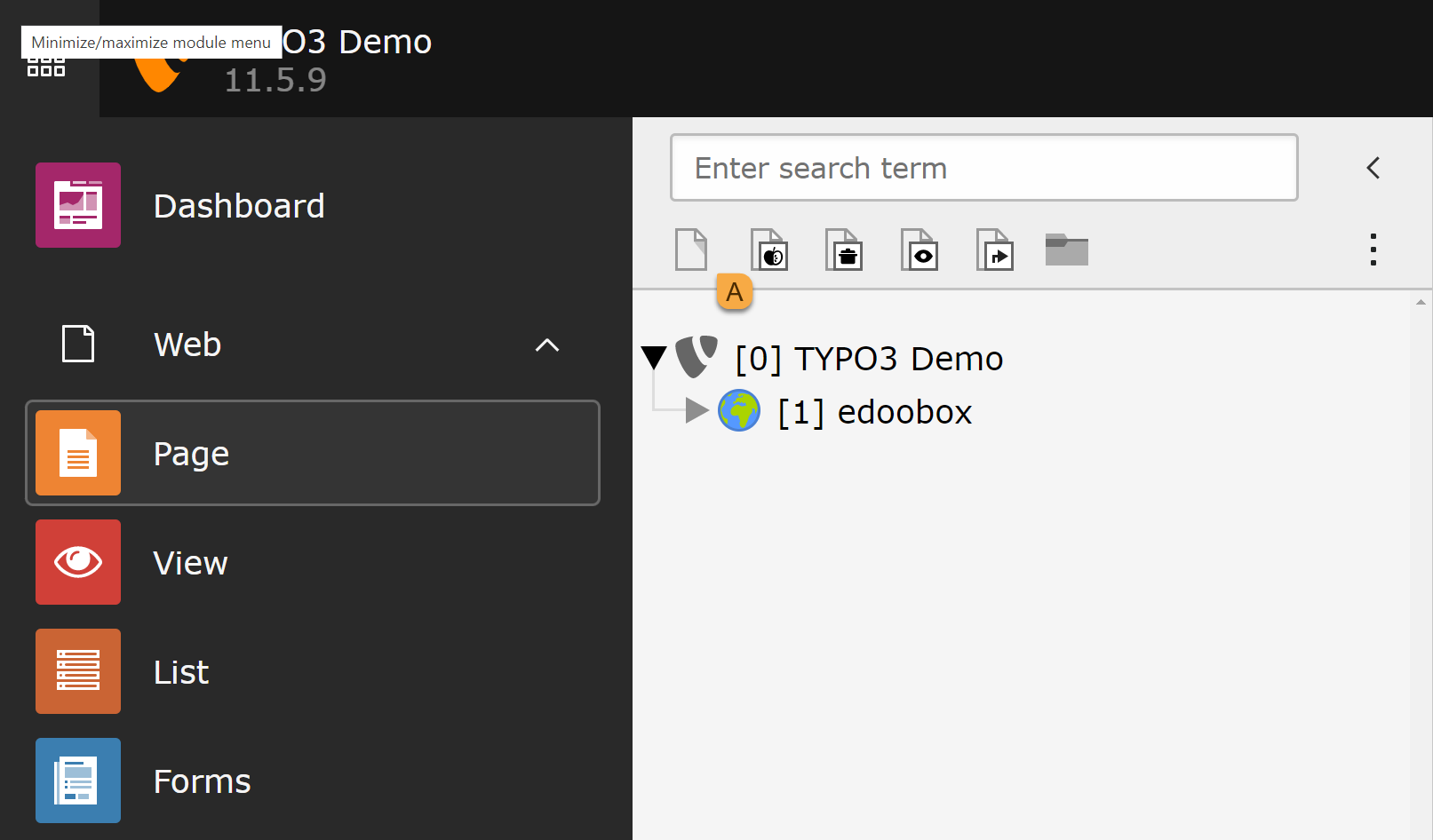
First, create a new page. Drag Page A to the desired position.
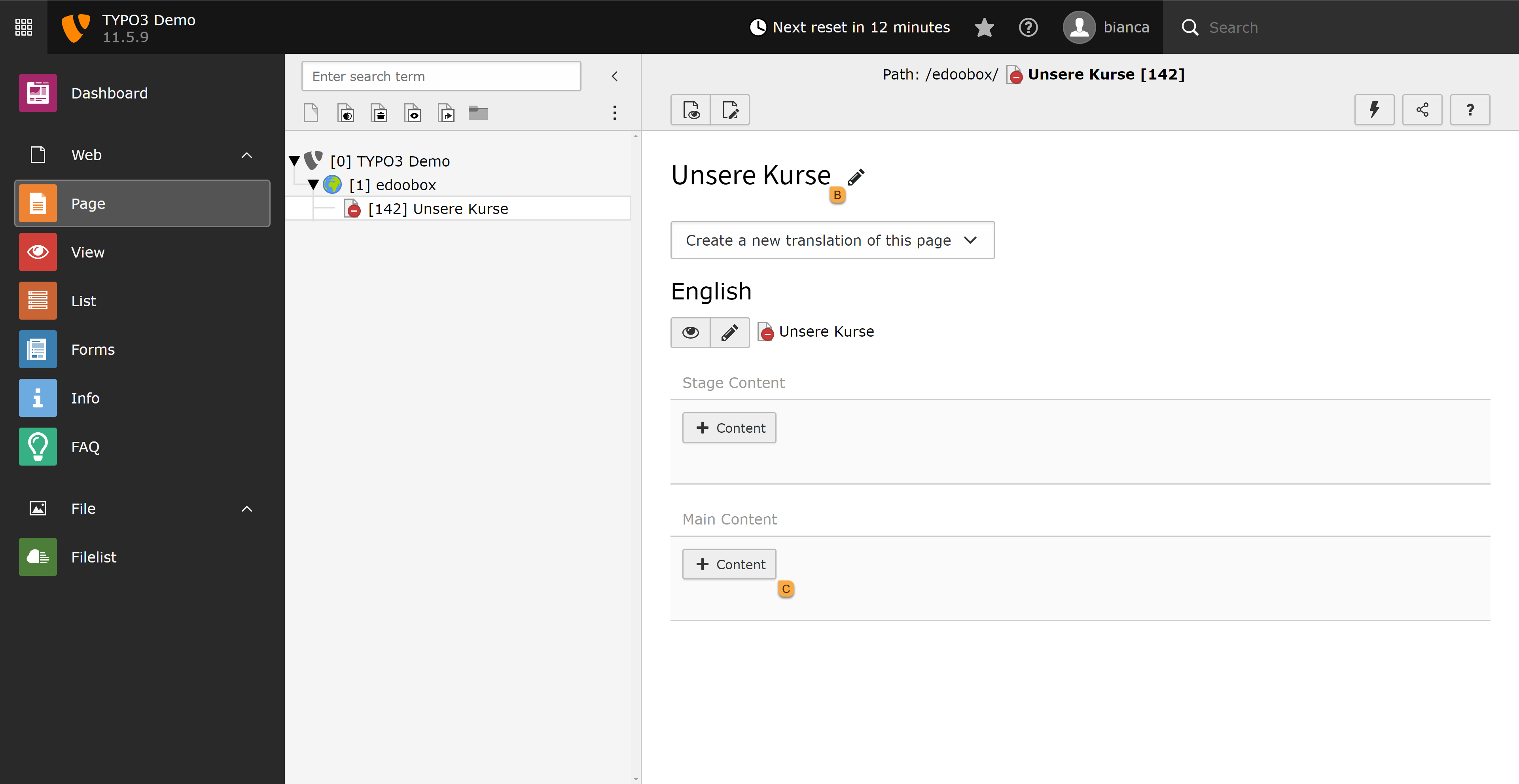
2. Enter a page title, such as "Our Courses B," and click " C Content" under " Main Content."
Generate iFrame Code in edoobox
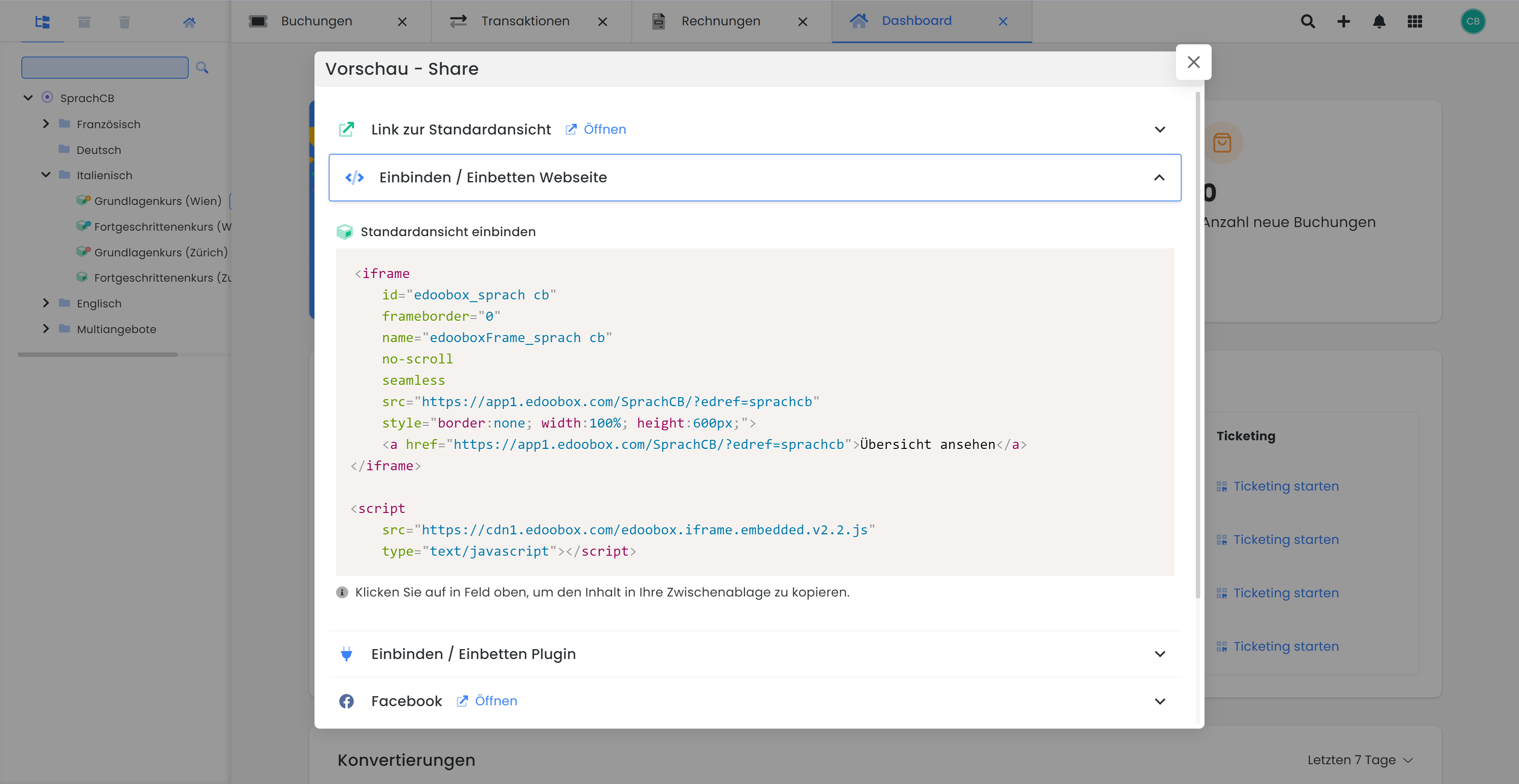
3. In your edoobox account, right-click on the shortcut or the desired category and select Preview – Share E.

4.Click "Embed" and copy the code.
(For explanations of the settings, see the general iFrame embedding guide)
Embed iFrame Code into the Typo3 Page
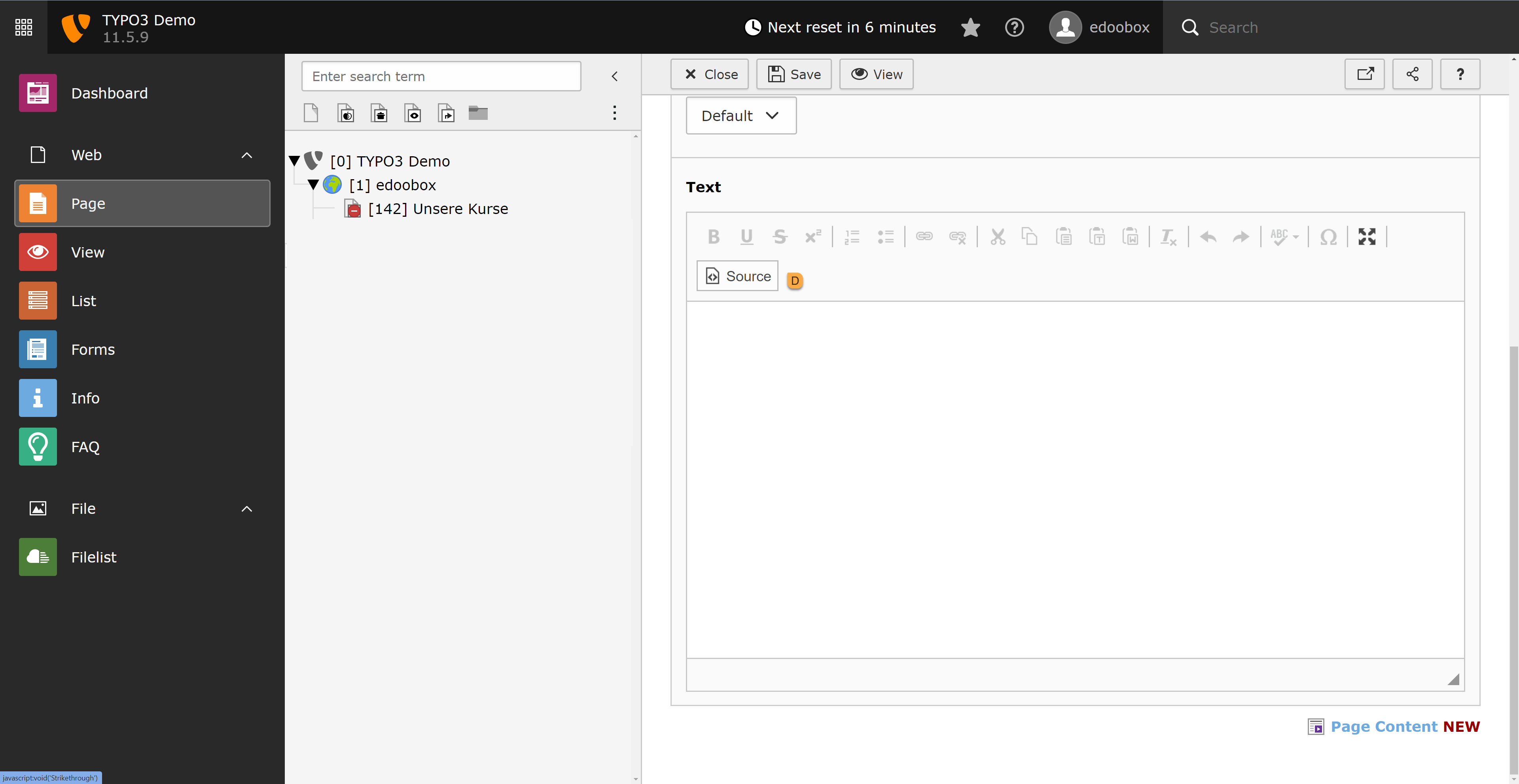
5. Paste the iFrame code into the text field under Source D, then click Save.
Related Guides
Keywords for this guide
iFrame ¦ Embedding ¦ Typo3