
As edoobox is an official Microsoft Partner, you have the option to connect your Microsoft 365 Work or School account with your edoobox account. This means automated emails from edoobox will not be sent via noreply@edoobox.email but directly in your name via the latest Microsoft API.
Info: Version 2 must be active
The connection to your Microsoft account can only be activated via Version 2 (V2) of edoobox. In V1, the connection is visible once activated but cannot be edited. If V2 still needs to be activated for your account, please send us an email at support@edoobox.com.
Link the Microsoft Account with edoobox
-
Use the app menu to navigate to the global settings A in your edoobox account.
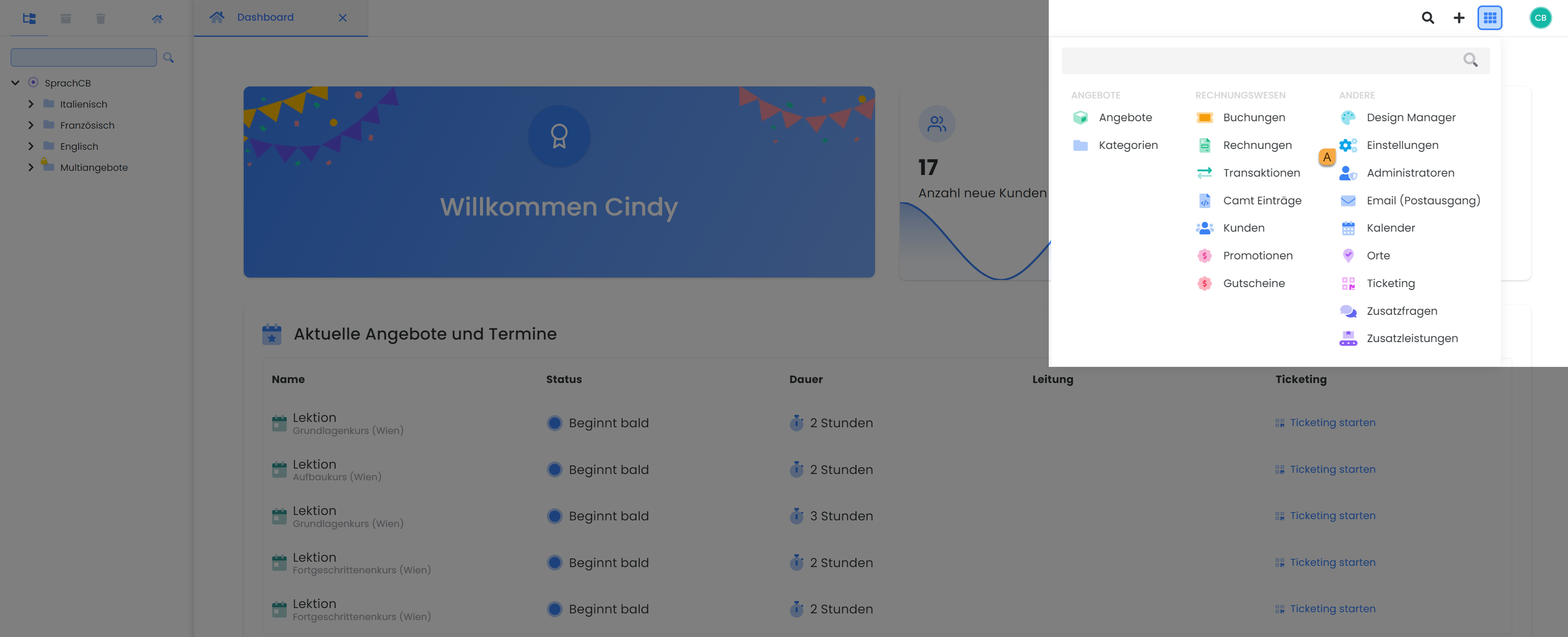
App Menu V2: Global Settings -
Under "Email" B in the "Server" tab C, you'll find the section for Microsoft 365; to the right of it is the "Connect" button D. Click "Connect" to start the process.
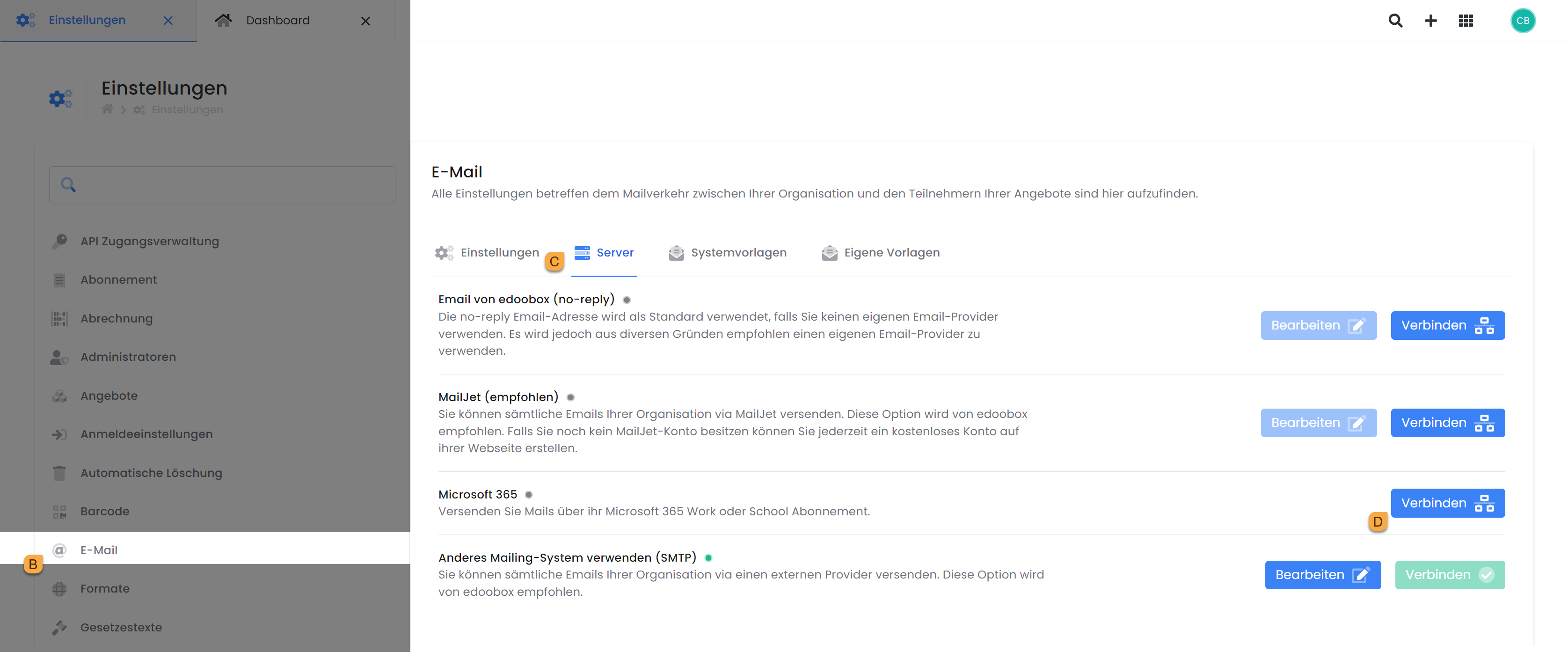
Global Settings: Connect Microsoft 365 for Email Dispatch -
Before your accounts can be connected, you must authenticate with Microsoft. You will be redirected to Microsoft and prompted to log in to the Microsoft account you wish to link. If you are already logged into Microsoft on your device, clicking «Authenticate» E will immediately register you as logged in and automatically redirect you back to edoobox.
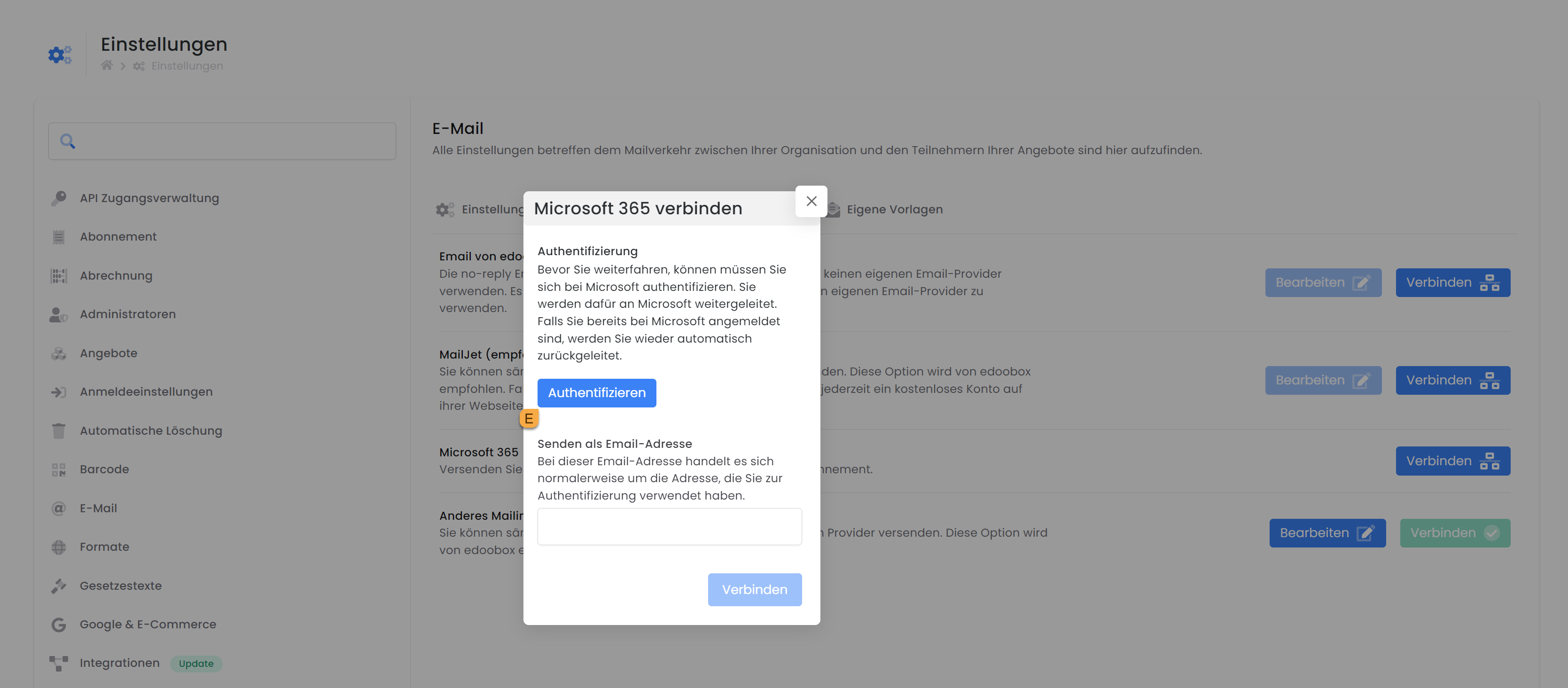
Email Settings V2: Authenticate the Microsoft Account
Tip: Logged in with the wrong Microsoft account
If you are logged into a Microsoft account on your device that you do not wish to link with edoobox and have already clicked «Authenticate», the authentication cannot be renewed in the current session. The easiest way to renew authentication is to open edoobox V2 in an incognito window of your browser and click «Authenticate» there. You can then manually log into the desired Microsoft account.
-
Once authentication is successful, the desired sender email address can be entered into the empty field F and «Connect» clicked. This can be either the primary email address of the recently authenticated Microsoft account or the email address of a delegated mailbox.
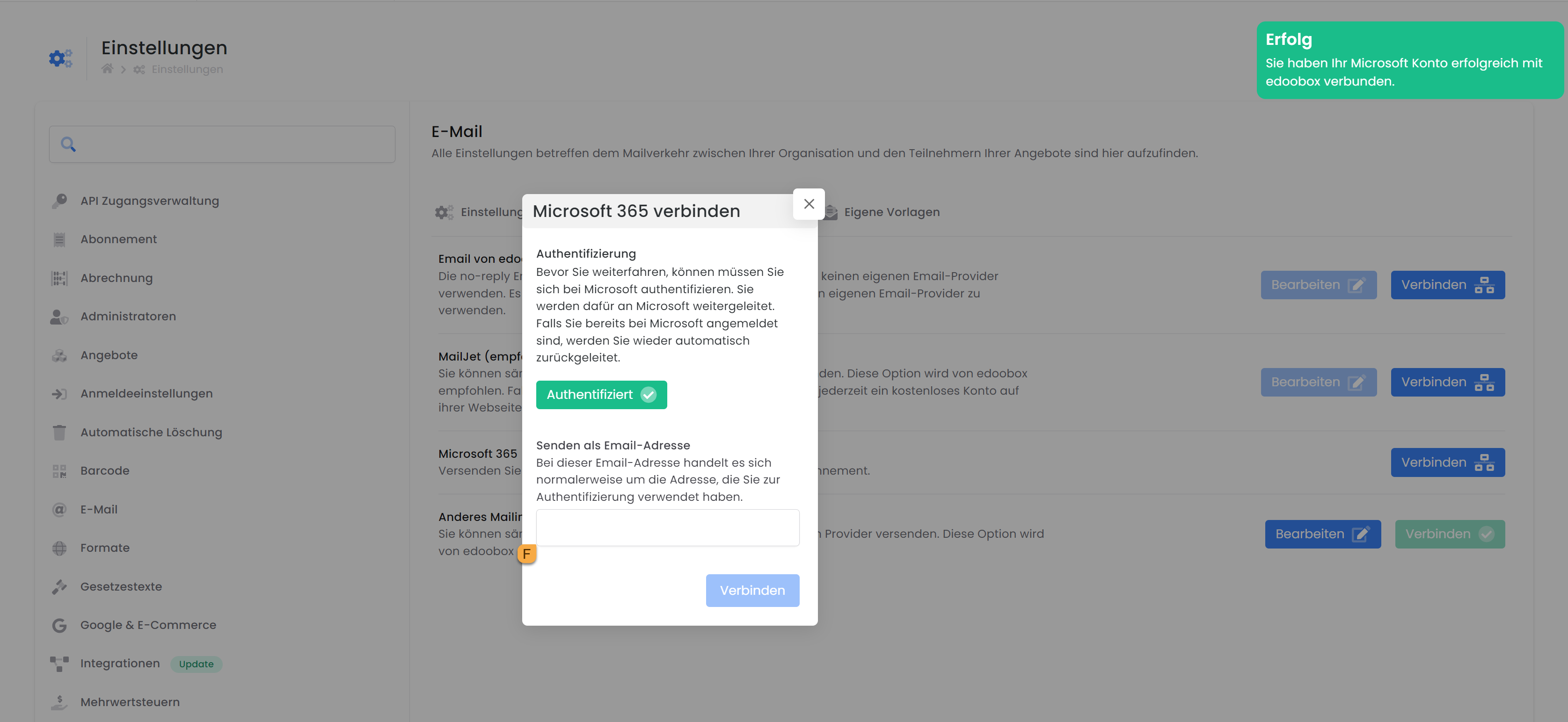
Connect Microsoft 365: Perform Authentication -
Congratulations, the connection activation was successful G and your participants will now receive all emails from edoobox from your (specified) Microsoft email address.
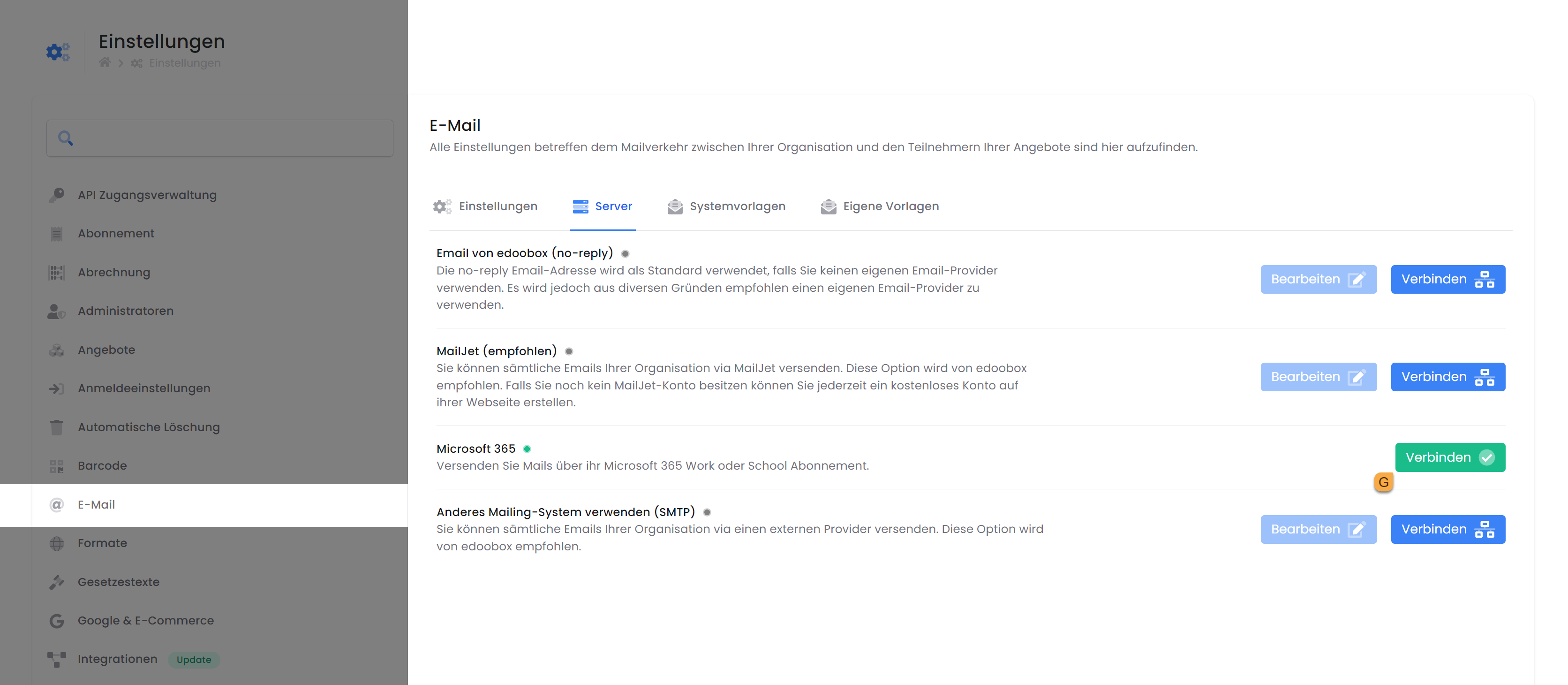
Microsoft 365: The connection was successful
Send emails via delegated/shared mailbox
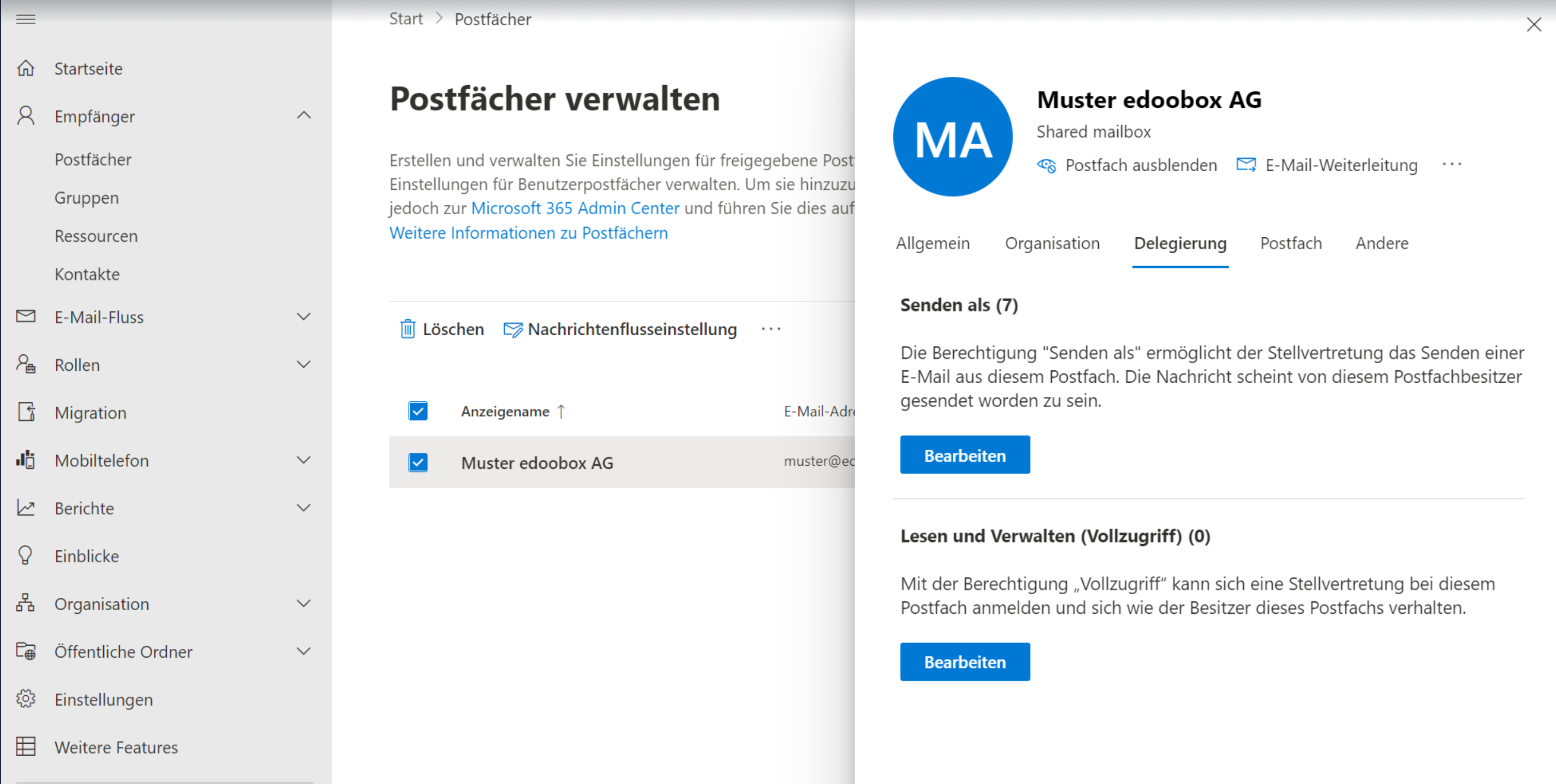
If you wish to use a delegated mailbox for sending your edoobox emails, you can create one in your Microsoft account (e.g., booking@domain.com).
The Microsoft account authenticated with edoobox requires 'Send As' permission for this mailbox. Such a 'delegation' must be performed by the Microsoft administrator (see screenshot).
Your Microsoft mailboxes can be managed via the link https://admin.cloud.microsoft/exchange#/mailboxes. If you do not have administrator rights in Microsoft, please forward this documentation to the responsible person for setup.
Related Guides
Keywords for this guide
Mail | Email | Settings | SMTP | Alternative to MailJet | Cloud Mailing | Shared Mailbox | Delegated Mailbox | Shared Mailbox