
The E-Mail Magic Login feature allows existing customer profiles to be automatically recognized and adopted. This enhancement is based on active E-Mail Code Validation. If a customer enters their first name and email address, and a customer account already exists for this combination, they will be prompted to instantly adopt their existing data after successful email confirmation. This simplifies the booking process and prevents duplicate entries.
Design Manager Settings
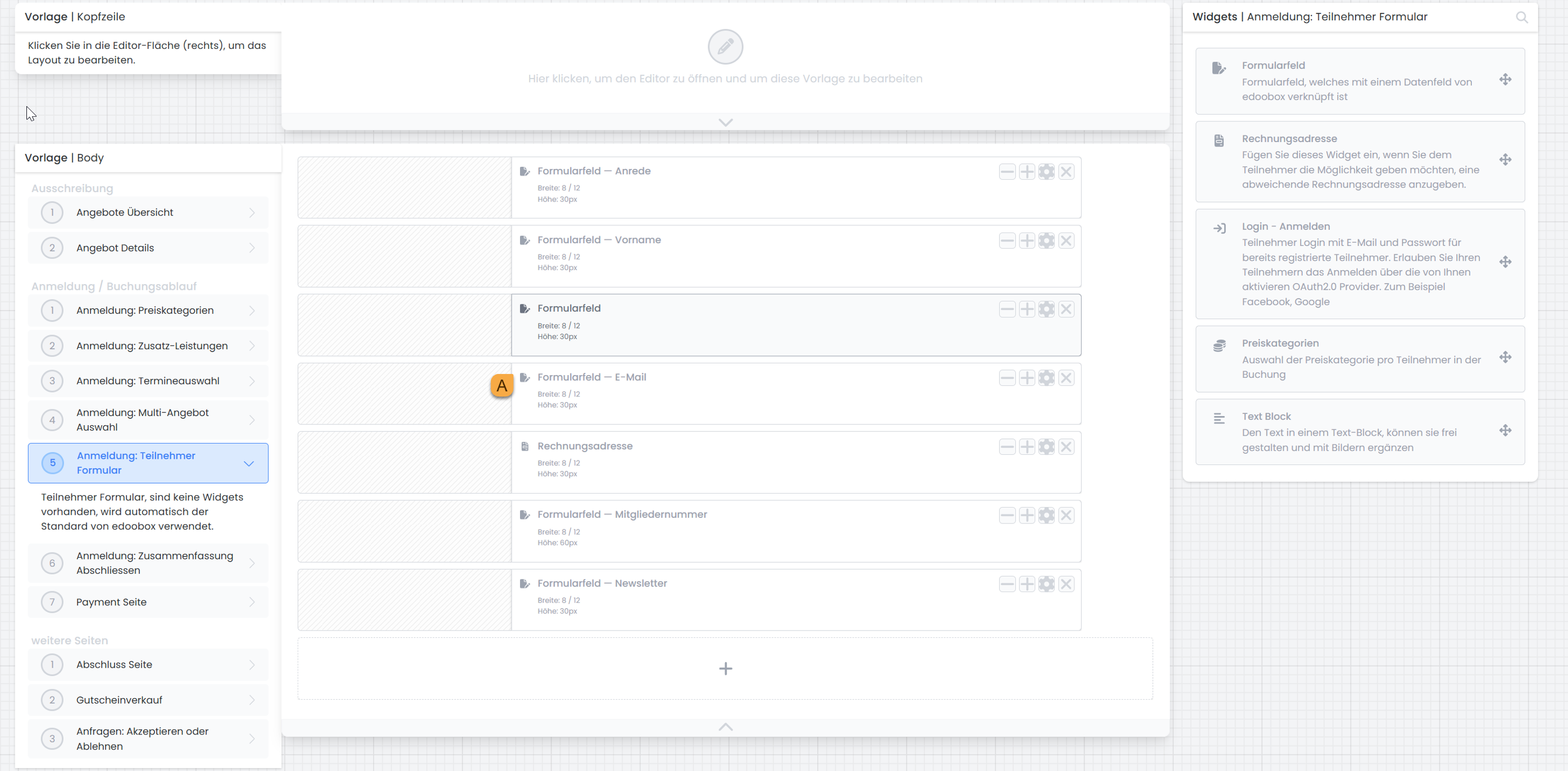
In Design Manager, open the "Registration: Participant Form" and select the " Email A " field.
Activate Features
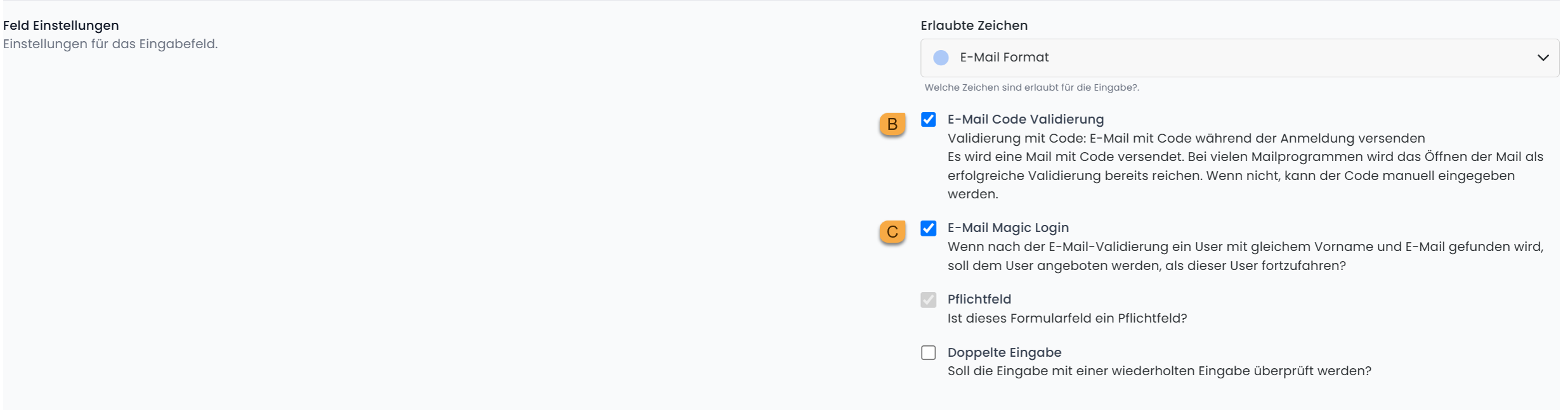
In the settings window, you can enable the " Email Code Validation B " and " Email Magic Login C " options. The " Email Magic Login can only be enabled if Email Code Validation has been activated beforehand.
Validate E-Mail
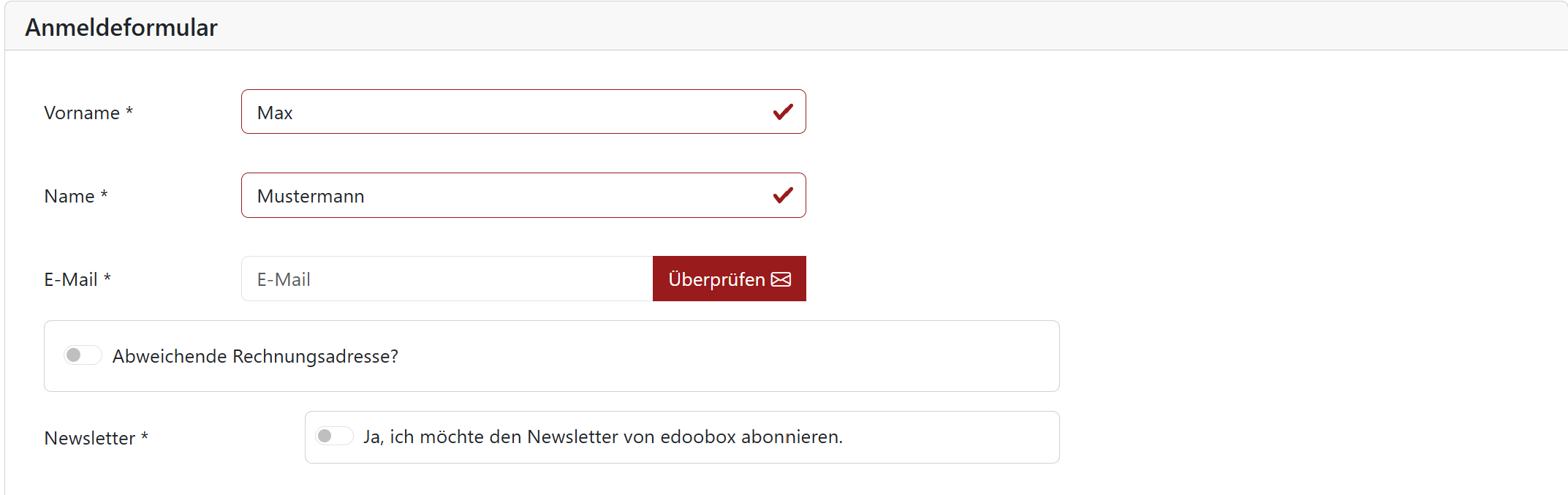
After entering their email address, the customer receives a code. This code is then entered into the form to confirm the email address.
Adopt Data
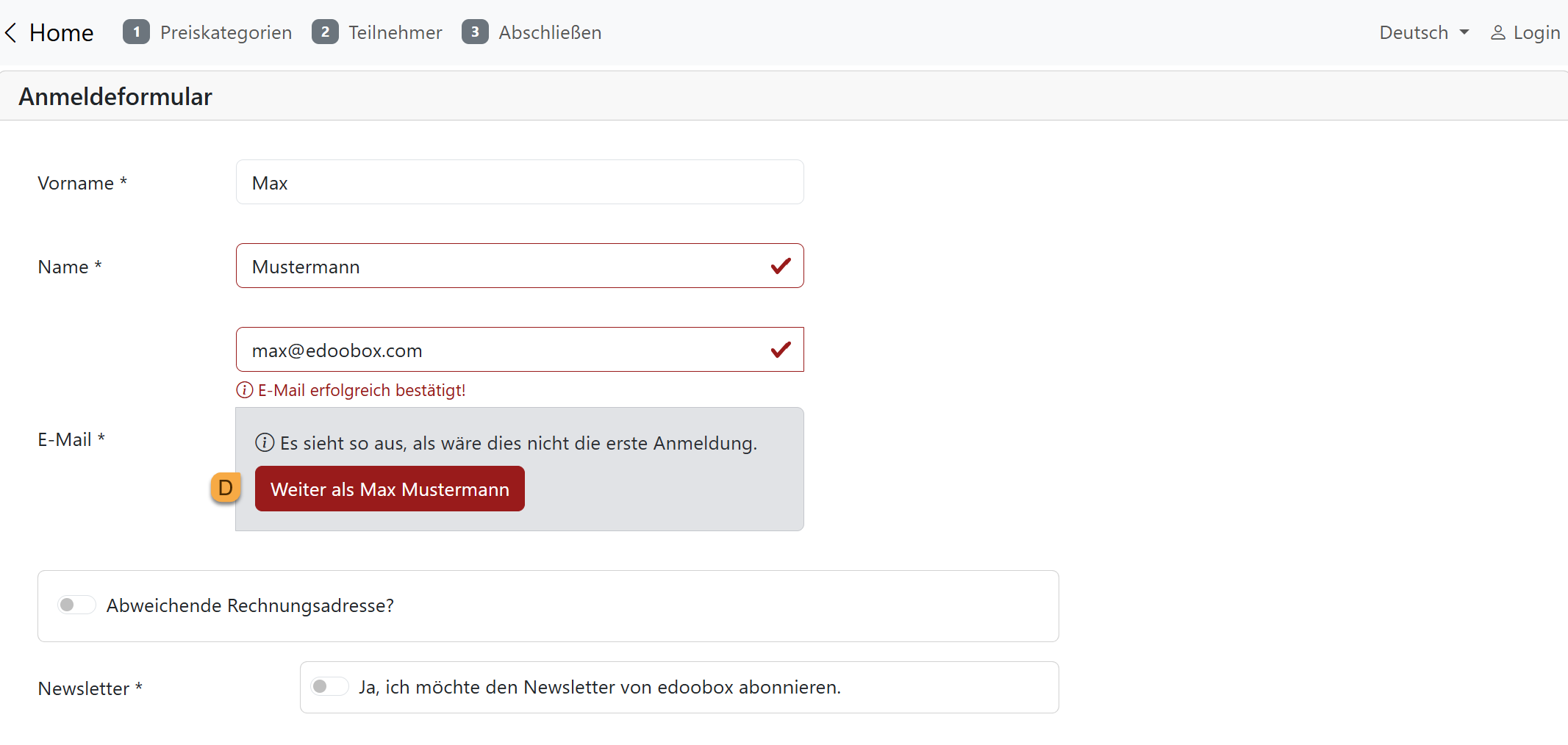
After successful validation, edoobox automatically checks whether a customer with the same combination of first name and email address has already made a booking. If so, the existing profile can be imported with a single click. All form fields are then automatically filled in, which makes the registration process much easier.
Tip: Simplify the User Flow with Magic Login
Place the email field at the top of the registration form and add a brief informational text, for example:
Have you booked with us before? Simply enter your first name and email address. After confirming your email, edoobox will automatically recognize your data.
Related Guides
Keywords for this guide
Automatic Profile Recognition ¦ Email Magic Login ¦ Duplicate Prevention ¦ Participant Form ¦ Email Validation ¦ Customer Recognition