
Do you wish to cancel or rebook only some participants from a group booking? Follow these step-by-step instructions.
Info: Cancel or rebook an entire registration:
If you would like to cancel or rebook all participants in a registration, you can do so by following the instructions in the guide " Cancel or rebook participants in a registration."
Cancel Group Participants
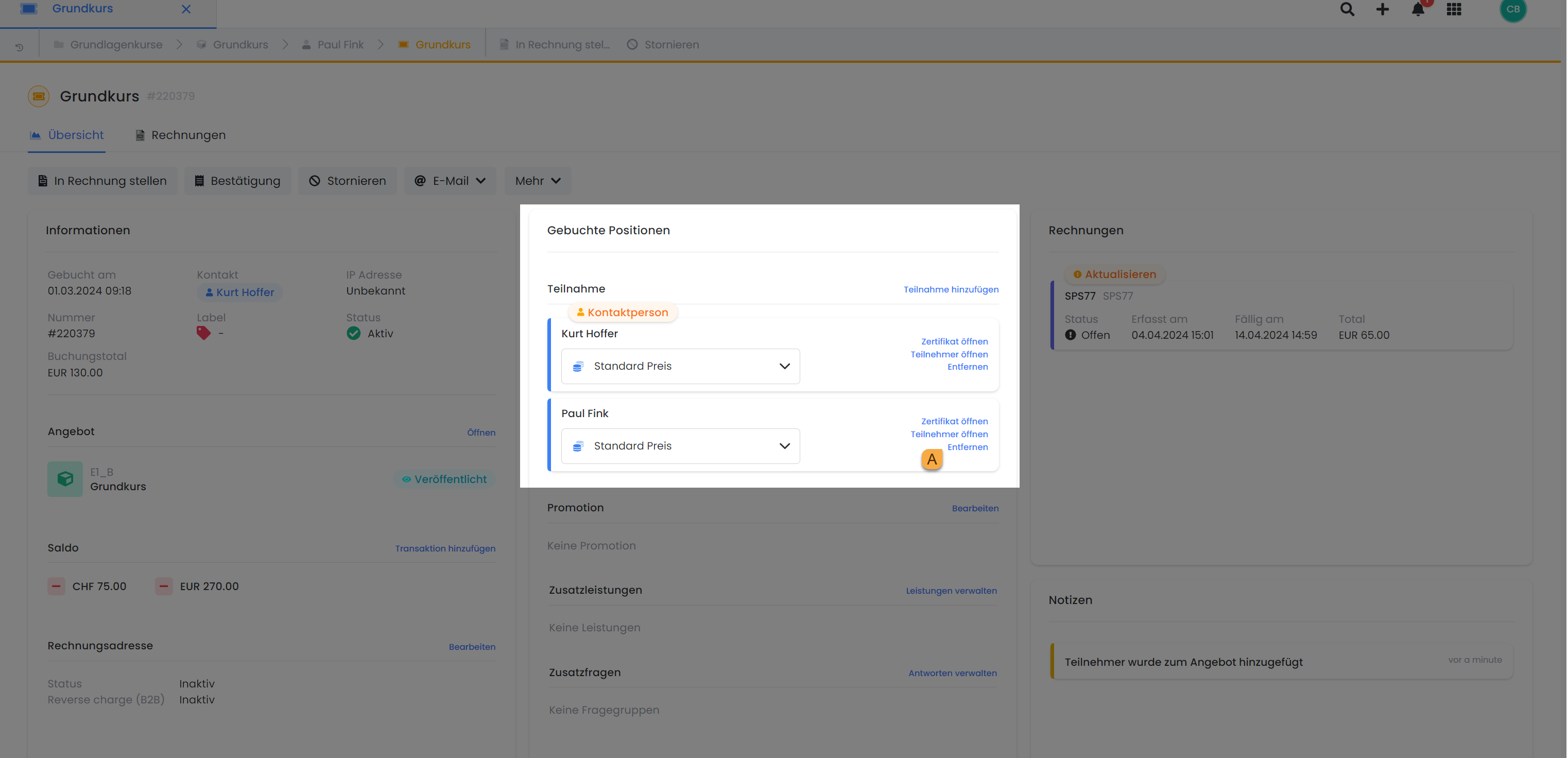
To remove a group participant from a booking, first go to the relevant offer. Open the participant table and select the booking for the participant you wish to cancel or rebook. In the booking, click "Remove" A for the participant you wish to cancel.
Rebook Group Participants
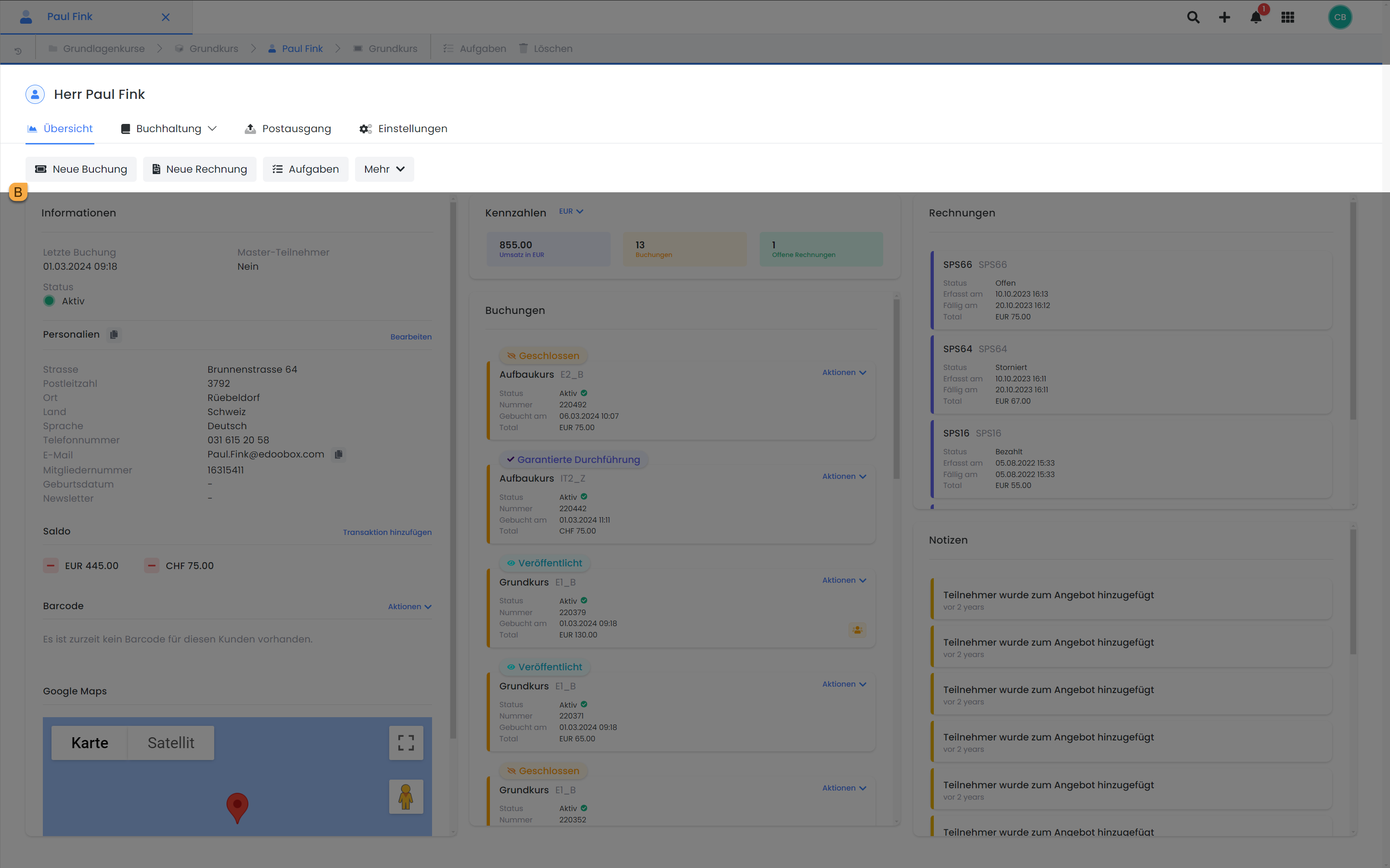
The cancelled participant will be marked as «Removed» in the booking. Open the participant account of the recently removed participant via «Open Participant» in the box on the right. The participant account will now appear. Create a new booking using the «New Booking» B button, then select the offer into which you wish to book the participant.
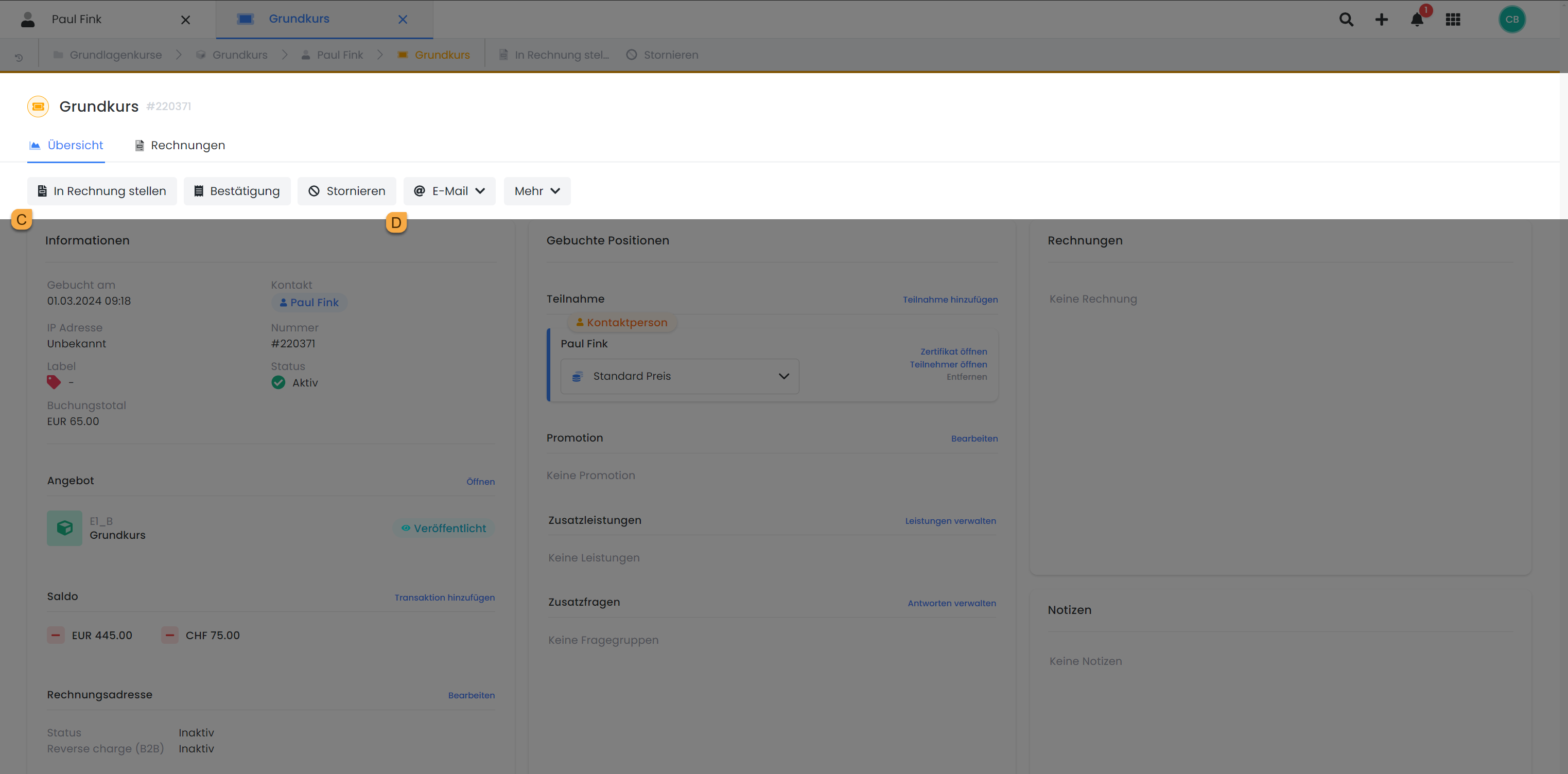
You may also wish to «Create Invoice» C or send the «Confirmation Email» D for the new booking to the participant. Ensure that an email address is on file for the customer.
Related Guides
Keywords for this guide
Participant ¦ Group Participant ¦ Cancel ¦ Rebook ¦ Booking ¦ Group Registration