
In the main navigation, under the menu item «Settings», you can influence the registration behavior by clicking on «Registration Settings».
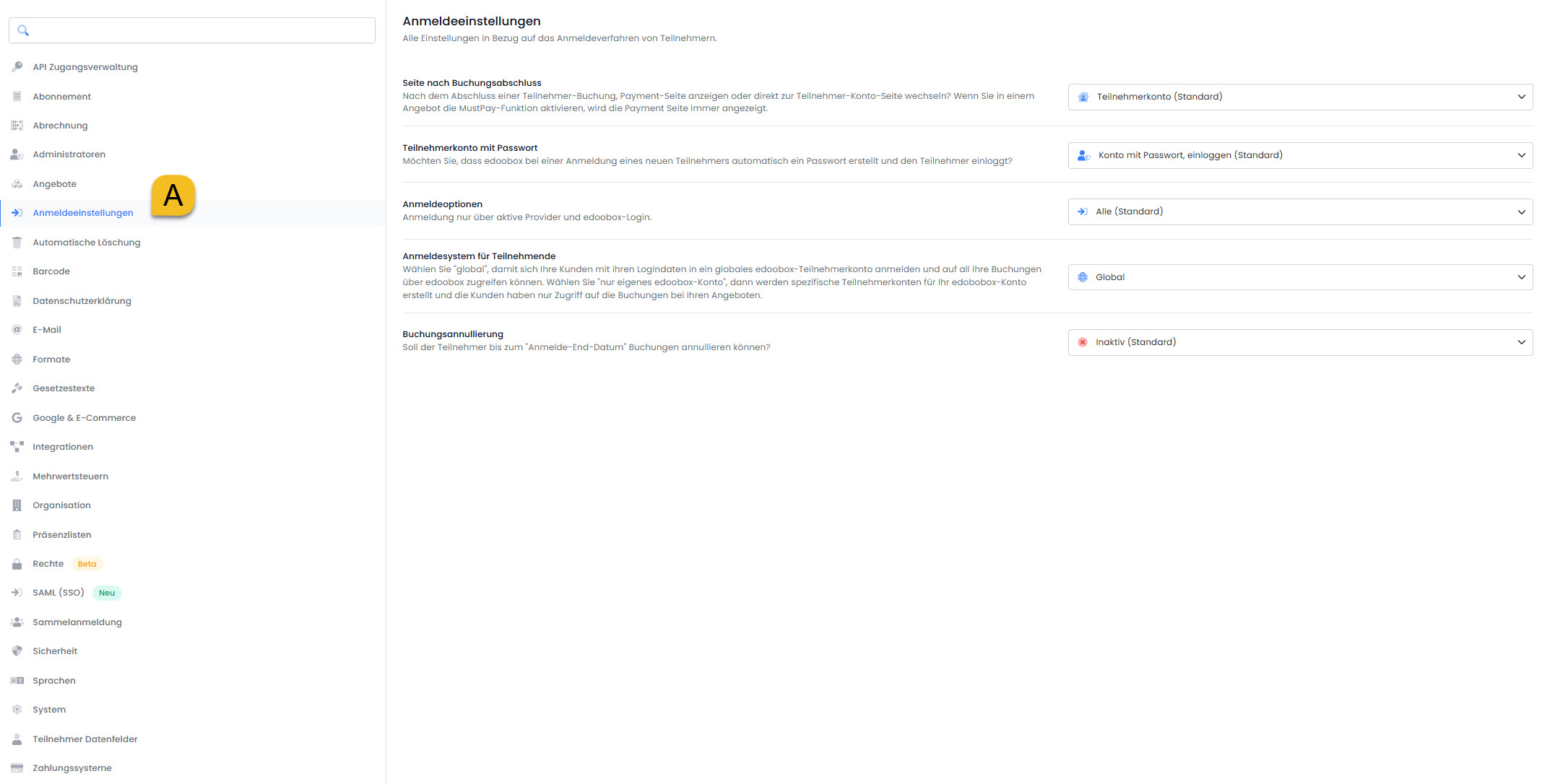
Displaying the Payment Page
After completing a participant booking, should the payment page be displayed, or should the system switch directly to the participant account page? On the payment page, the participant sees all available payment options.
If you activate the MustPay function in an offer, the payment page will always be displayed, even if you have enabled «Do not display (Standard)».
Participant Account with Password
Login
With login, participants do not have to fill out the participant form again for subsequent registrations, as it will already be pre-filled from their first registration. This prevents duplicates, and all bookings are saved under the same participant.
If a participant completes a registration/booking, they are subsequently logged in and can make further bookings. If this is not desired, there are additional options:
-
Account with password, not loggedin
The participant is not logged in after completing the booking, and a password is generated for this participant account.
The participant receives their login credentials along with the booking confirmation. -
Account without a password, no loginrequired
The participant is not logged in after completing the registration, and no password is created for this participant account.
This option is used when primarily one-time registrations are expected. The participant is not sent any login credentials with the registration confirmation.
Registration only via active providers and edoobox login
A participant who wishes to make a repeated booking can log in with their login credentials (email plus password). Additionally, it is possible to log in via an existing provider (e.g., Google, Windows-Live, etc.). The desired provider must first be activated in the «Login via external providers» settings box. If required, a new provider can be created, allowing participants to log in using their existing company-internal login credentials. The following options are available:
-
All(Default)
Participants can make a reservation by filling out the registration form or by logging in. -
Active providers and edoobox login only
Participants must log in using an existing account to make a booking. This option can be used to allow registered individuals in your system or in edoobox to make bookings. -
Provider Only
Participants must log in via a provider (e.g., a provider you have set up yourself) to make a booking. Use this option if you want to allow only people registered in your system to make bookings.
Registration System for Participants (Global or Local)
Determines how your customers should register:
Limited to the edoobox account: Customers receive a separate account linked only to their edoobox account and can view only transactions with you.
Global: Customers use a central edoobox account for all transactions with all edoobox providers.
-
Participants: With a single login, they can view all bookings across all edoobox accounts – provided the same login was used.
-
Providers: They continue to see only bookings within their own account. There is no insight into bookings from other accounts.
-
Duplicate Users (with the same email in the same account) can be merged via the duplicate search. When merging, connections to other accounts are lost.
-
The global login applies only to new participant profiles once the feature has been activated. Existing profiles can be migrated by support upon request.
Booking Cancellation Function for Participants (Cancel Booking)
This feature has been expanded and added to the Cancellation & Revocation section.
Related Guides
Keywords for this guide
Registration ¦ Cancellation ¦ Cancellation ¦ Login ¦ Completion Page