
Do you want to cancel or rebook an entire participant booking? This guide will walk you through the process step-by-step. You will learn how to correctly open a booking, cancel invoices, and then either cancel the booking or rebook it to a new offer. Additionally, you will find information on special procedures for group registrations and how removed participants from a group registration are handled.
Cancel Participant Booking
Cancel Invoice
Open the booking for the desired participant. If an invoice has already been generated for this booking, it must first be canceled. To do this, navigate to the right side of the booking dashboard and open the invoice to be canceled.
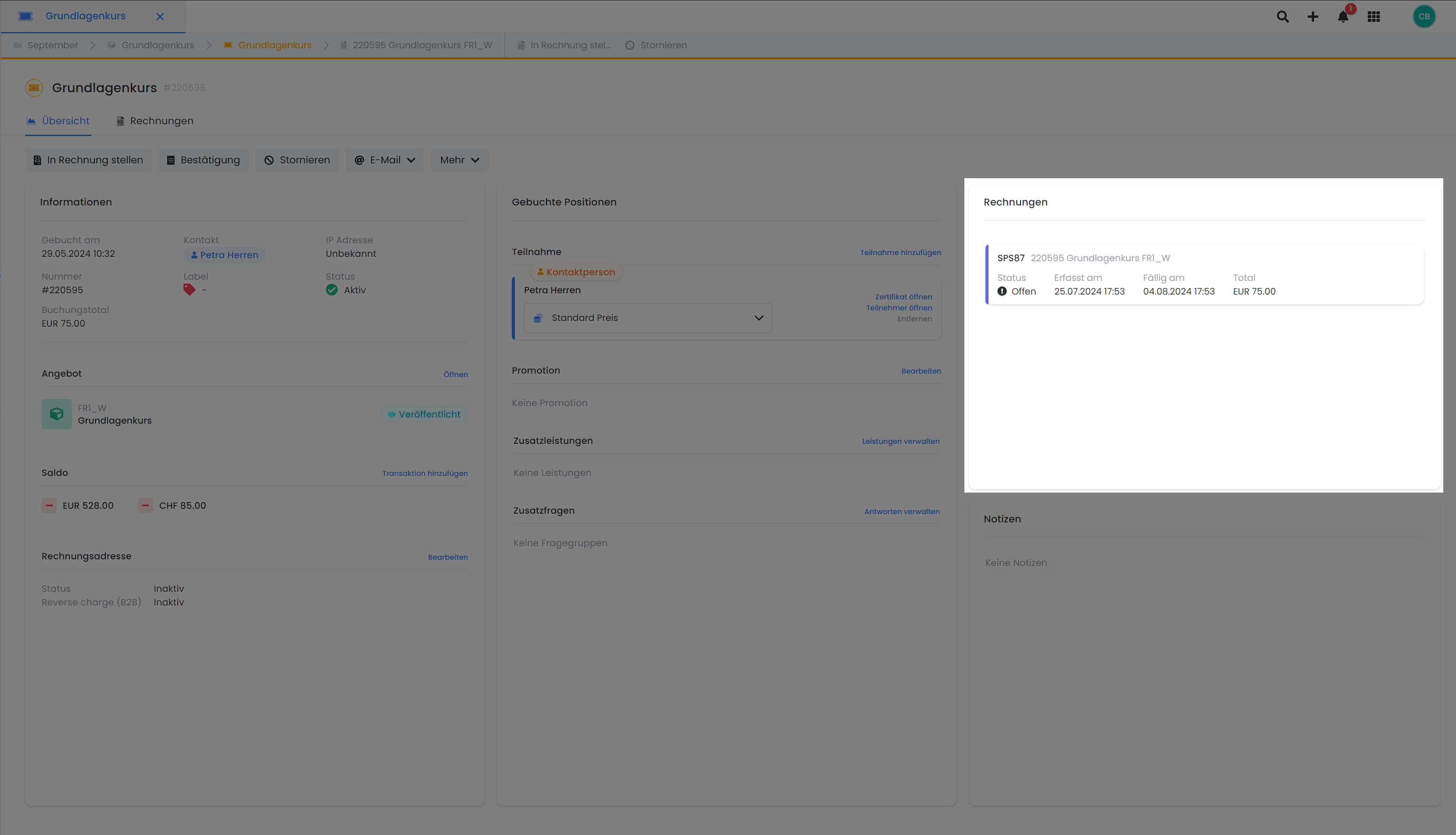
A new window will open displaying the relevant invoice. Click the "Cancel" button a to cancel the invoice.
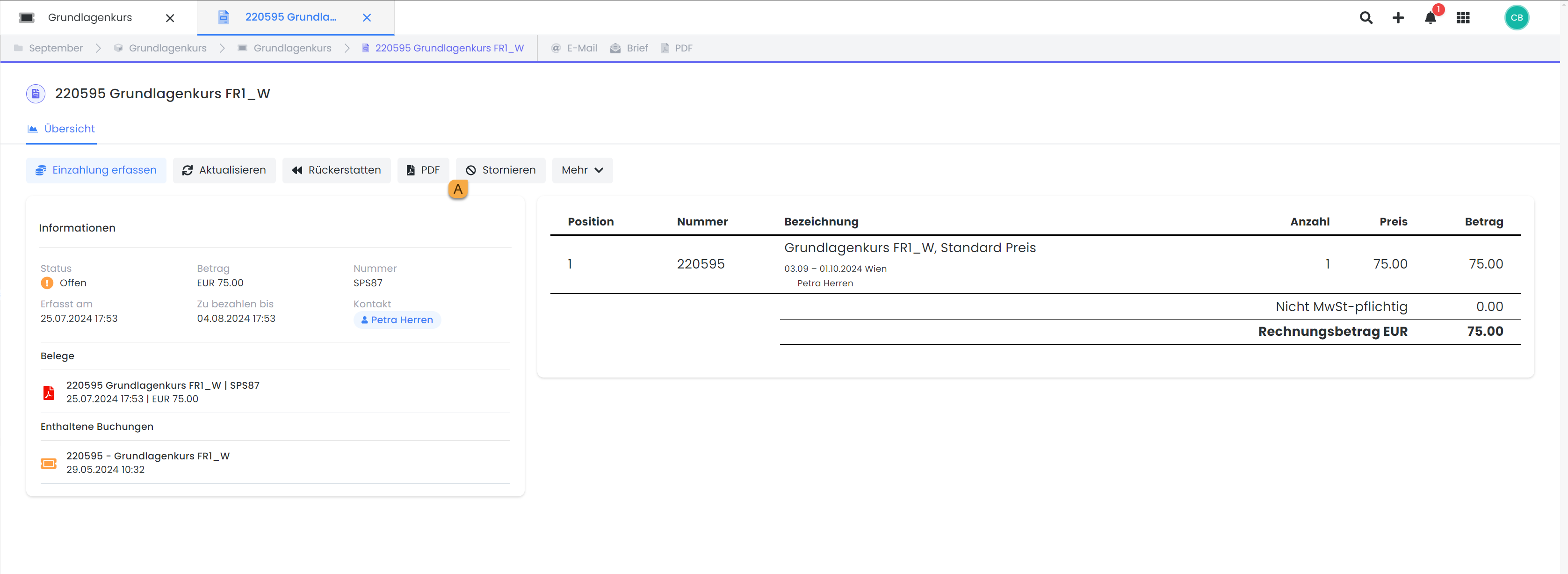
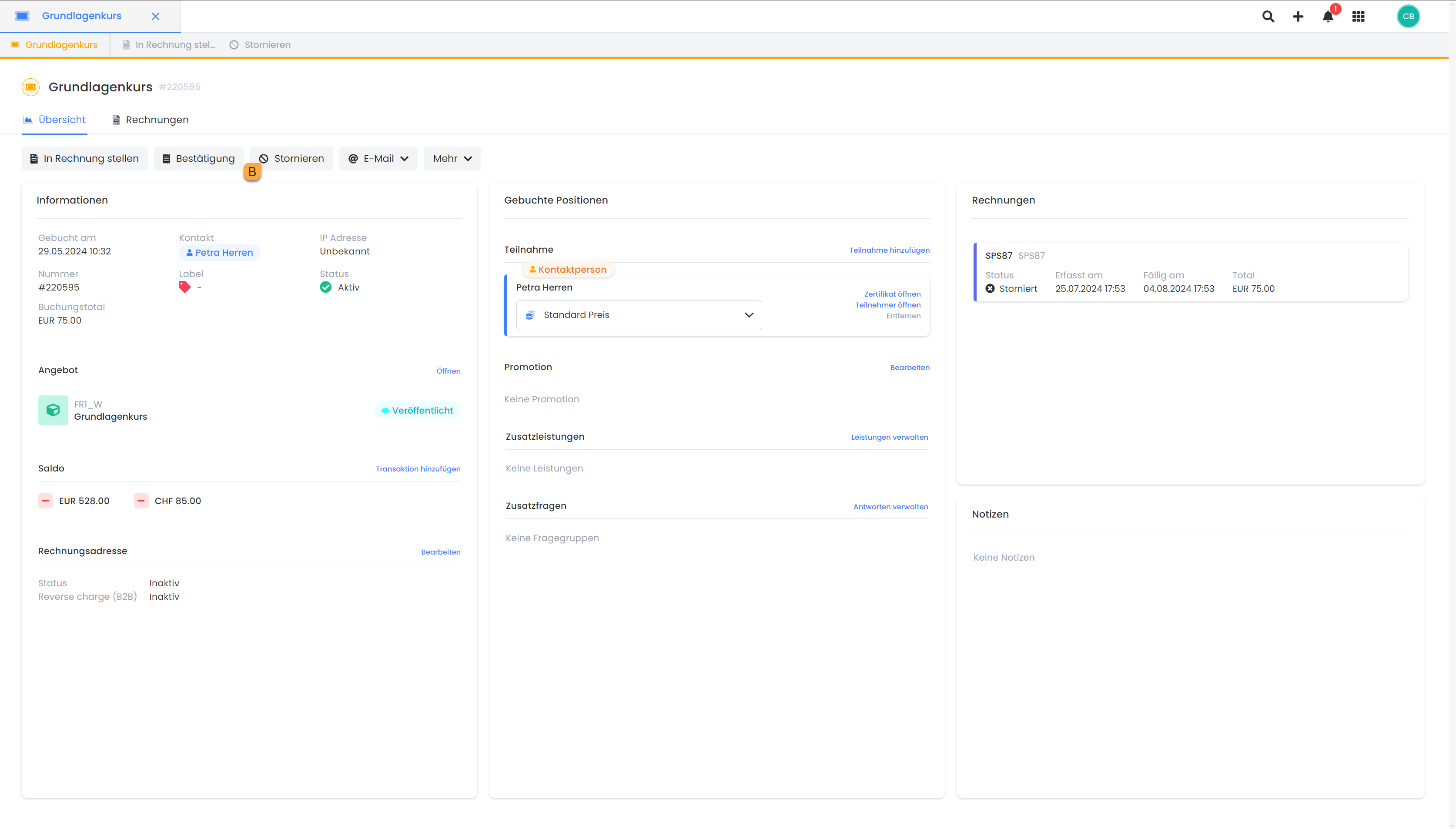
Close the invoice window and refresh the page. The invoice should now appear as canceled on the booking dashboard.
Cancel Booking
Navigate back to the booking you want to cancel. On the booking dashboard itself, you can now " Cancel" the booking.
Rebook Participants
Open the booking you wish to rebook. Click on More and select Rebook C.
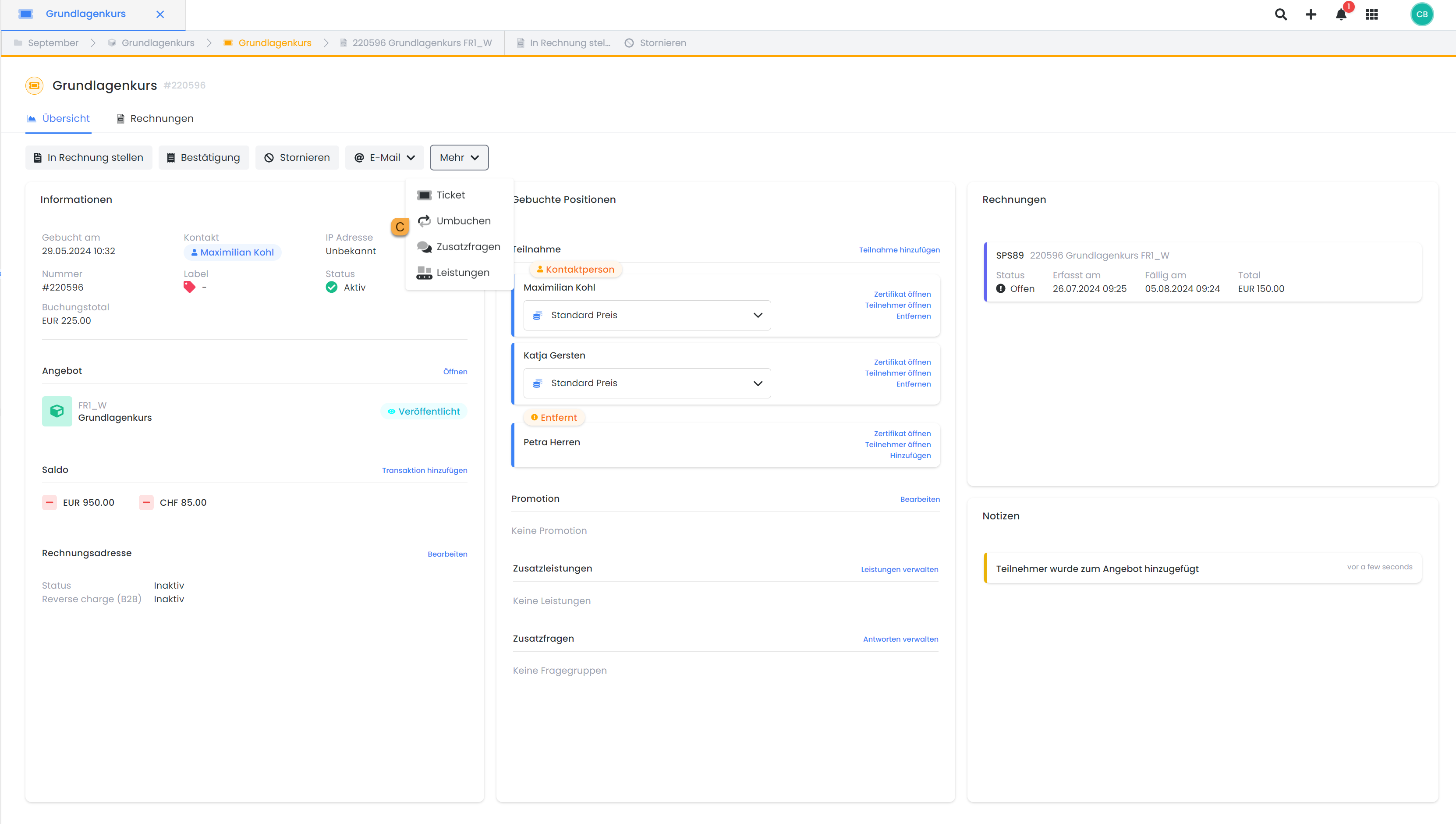
A new window will open. Select the desired offer to which the entire booking should be rebooked. Confirm your selection with the "Rebook" button. The new booking will be created and will open immediately after confirmation. If an invoice existed for the previous booking, it will be canceled, and a new invoice for the rebooked offer will be automatically generated.
Please note: Canceling/Rebooking Group Registrations
For a group registration, all active participants in the booking will be canceled or rebooked. If there are inactive participants in the booking who were removed prior to the rebooking, they will also be rebooked, but will remain marked as removed in the booking.
Related Guides
Keywords for this guide
Participants | Booking | Annul | Rebook | Cancel