
With tasks in edoobox, you can send emails – using both custom and system templates – targeted and manually to participants. This is particularly useful for individual follow-ups, additional reminders, or information that needs to be sent outside of automated email dispatch.
Schedule an Email Task
Tasks are created within an offer in the participant table. To do this, open the desired offer and navigate to the overview of booked participants.
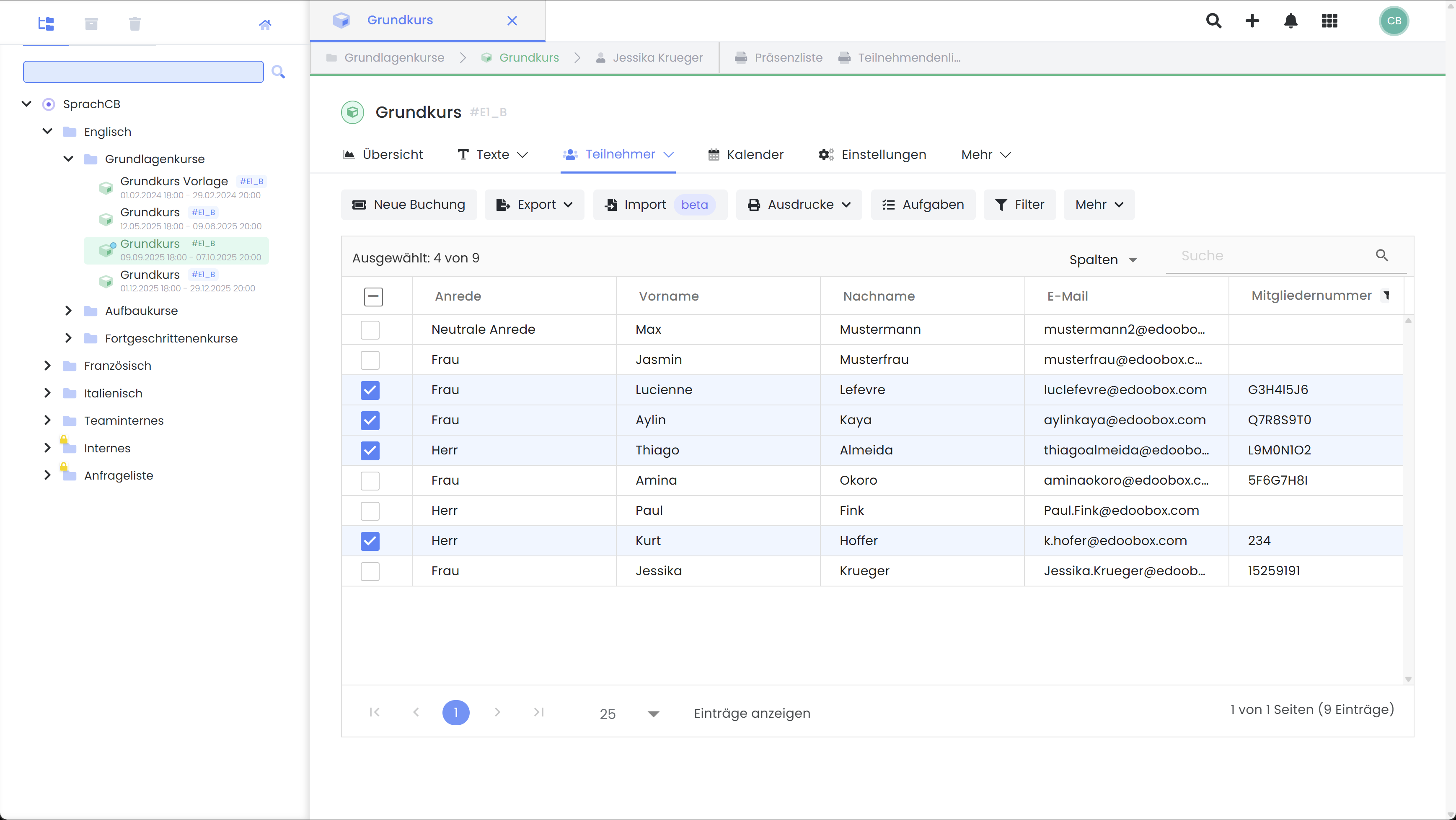
Step 1: Select Participants
Before sending, select who should receive the email:
-
Individual Participants: Check the box next to the desired individuals.
-
All Participants: Check all boxes; the email will be sent to everyone.
-
No Selection: Do not check any boxes; the email will be sent to everyone.
Info: Participants on the Waiting List
Participants on the waiting list do not receive emails via tasks – only confirmed bookings are considered.
Step 2: Create Task
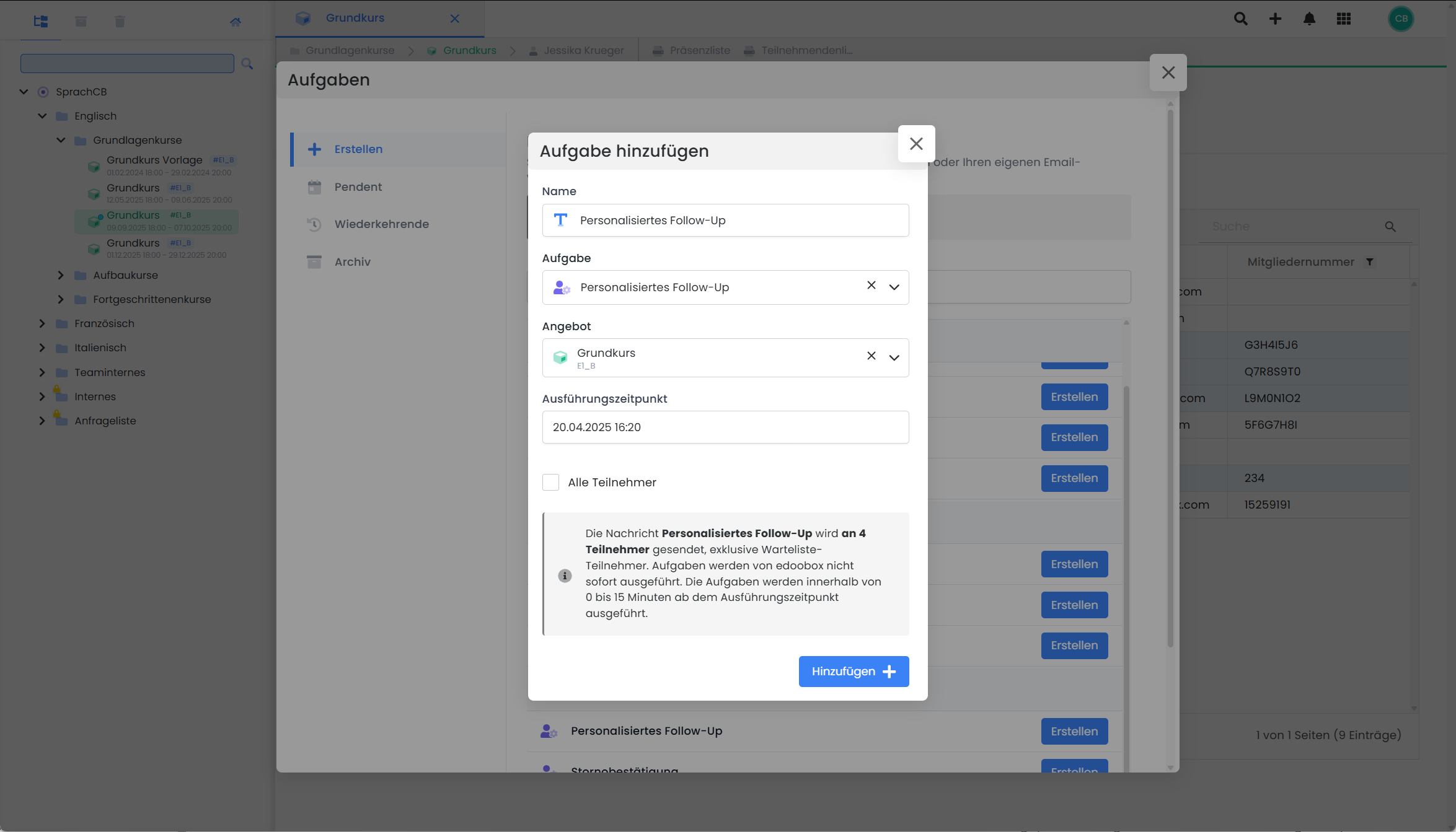
Click on «Task» in the participant table menu. Then select:
-
The desired email template
-
The sending time
-
Optional: Whether participants added in the future should also receive the email
Once the task is created, the email will be sent automatically within a time window of approximately 15 minutes around the selected time.
View or Cancel Registered Tasks
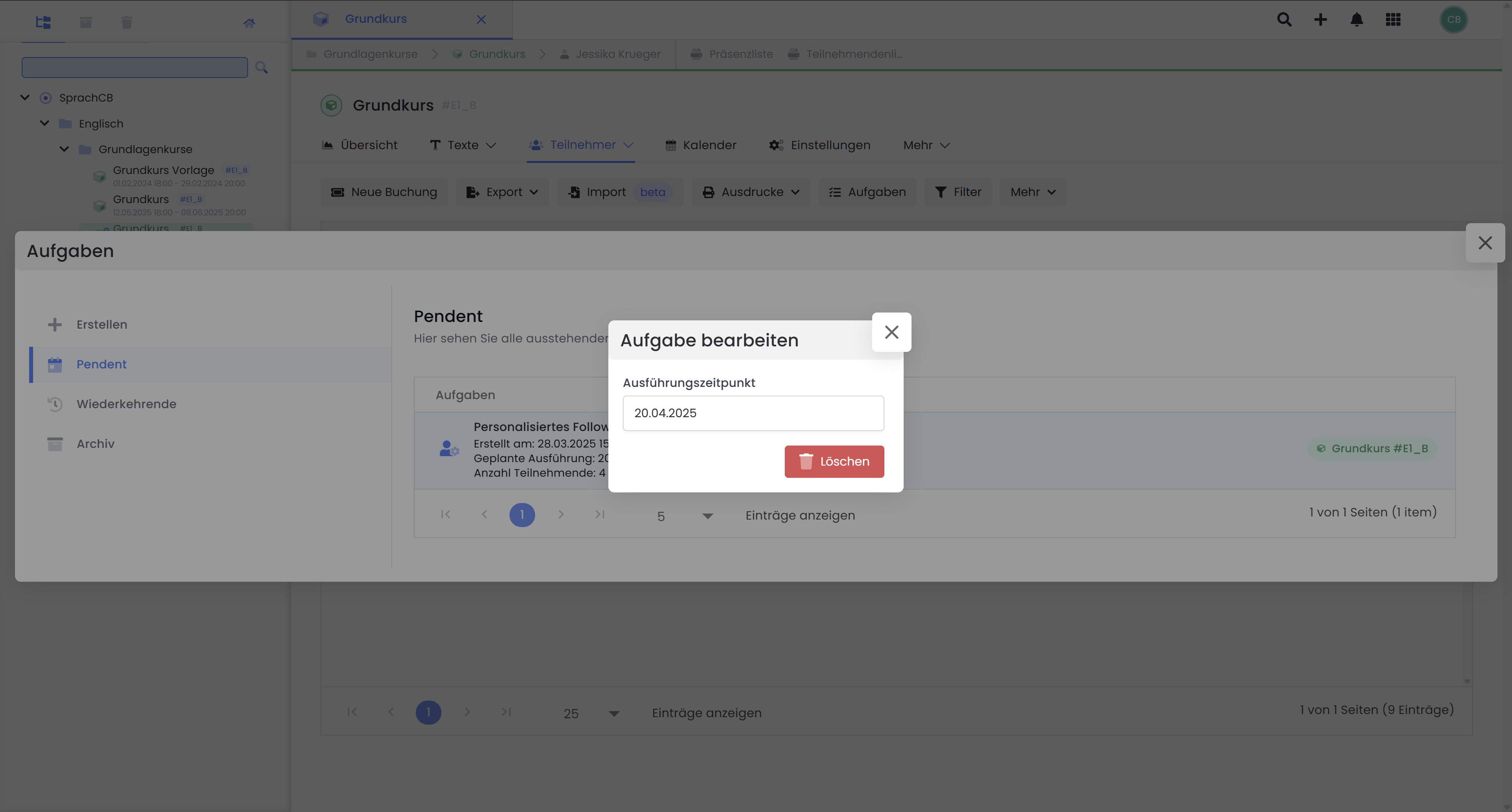
Under «Pending Tasks», you will find all scheduled tasks. Here, you can review, edit, or delete tasks as long as they have not yet been executed.
Important Notes and Supplementary Information
-
Observe Sending Volume: Be aware of your email provider's limits. For larger campaigns, we recommend services such as Mailjet.
-
Outbox Filter: The outbox filters by email address, not by participants.
-
Invoice Creation Task: Invoices are only generated if none exists yet or an existing invoice has been canceled.
-
Booking Confirmation Task: When manually sending the booking confirmation, no invoice.pdf is attached by default – instead, create a task for the invoice email.
-
Task for Payment Reminder:
-
Sent from Participant: Link to Completion Page (all bookings)
-
Sent from Booking: Link to Payment Page (only this booking)
-
Related Guides
Keywords for this guide
Mail ¦ Email ¦ Settings ¦ Placeholders ¦ Templates ¦ Cloud Mailing ¦ Create Task