
With edoobox, you can offer your booking process in multiple languages. This allows your participants to switch independently between the available languages during the booking process. Ideal for international audiences.

Available Languages
German, English, French, Italian, Spanish, Dutch, Czech, Polish, Chinese (Simplified), Arabic, Danish, Finnish, Japanese, Portuguese (PT & BR), Swedish, Slovak, Slovenian, Turkish, Hungarian, Romanian, Thai, Korean, Malay, Greek, Bernese German (Swiss German), Romansh, Indonesian, Vietnamese.
Activate or Deactivate Languages
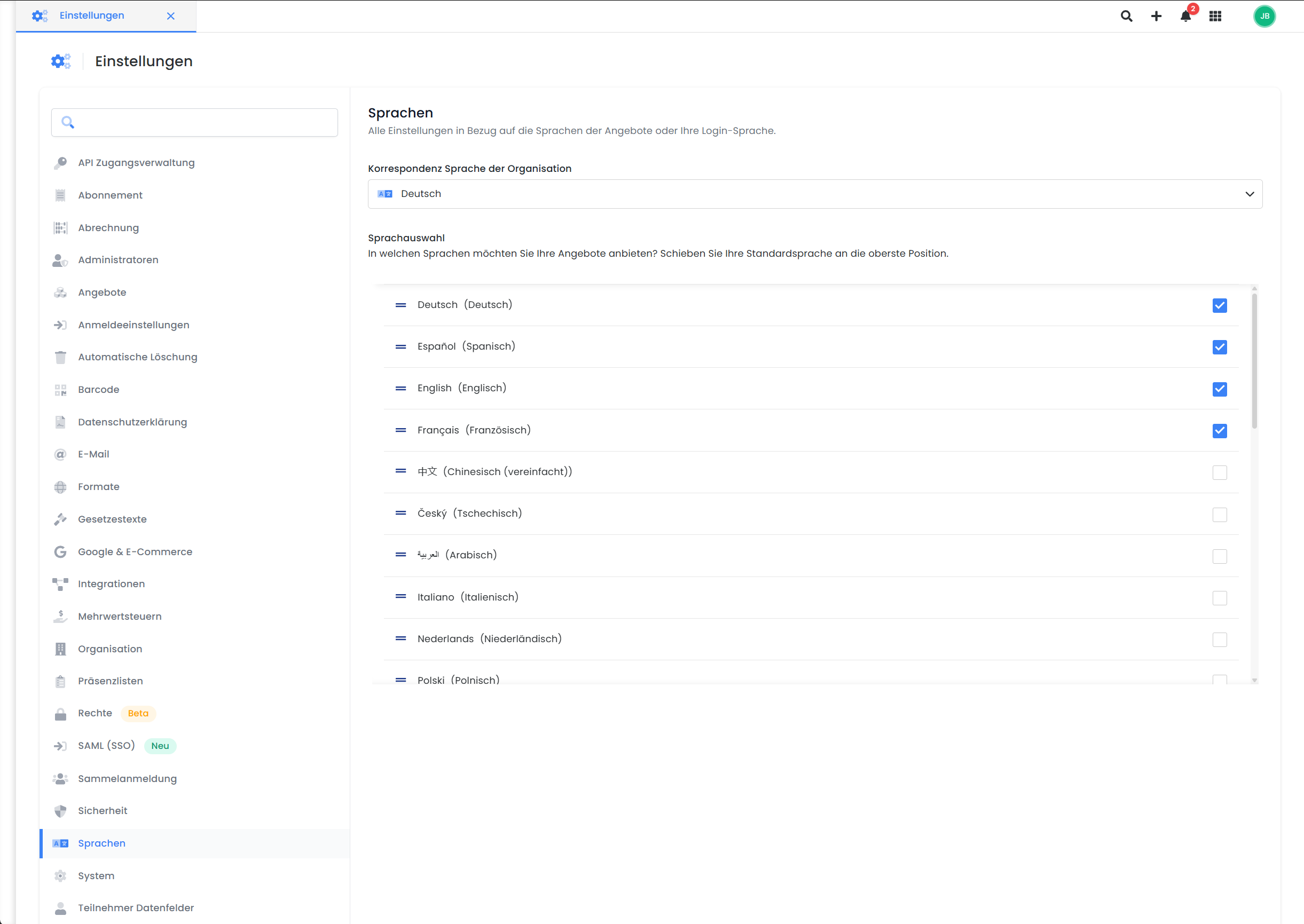
Activate all languages in which you wish to offer your booking process to your customers by navigating to the global settings via the app menu and then clicking on 'Languages'.
Checklist for Activating a New Language in edoobox
To ensure that nothing is overlooked when activating languages, we have created a checklist for you. This guide will walk you through all necessary steps required for language activation.
-
Activate the desired language(s) in the global settings
-
Temporarily hide language selection in the booking process (optional)
-
To prevent users from switching to the new language during the translation process, you can temporarily hide the language selection in the page header within the Design Manager.
-
-
Add Translations
-
As a general rule of thumb: wherever you have inserted text in edoobox, a translation is also required. The checklist serves as a guide, and it is possible that you may not use certain texts, thus not requiring translations for them.
-
Categories: Translate the category name and, if applicable, the category description.
-
Offers: Translate offer names, offer descriptions, additional texts, and price categories.
-
Design Manager: Translate all participant data fields, buttons, text blocks, and "Personal Messages" in widgets (e.g., Thank you for your booking). Review and translate widgets with filtering options (e.g., with tags) and voucher sales.
-
Settings:
-
Email Templates: Translate all relevant email templates.
-
Legal Texts: Add translations for all relevant legal texts (e.g., Terms and Conditions).
-
Other Settings: If used, translate additional questions, additional services, and inquiry list names.
-
-
-
Re-enable language selection in the Design Manager (optional)
-
If the language selection was hidden in step 2, re-enable it in the Design Manager.
-
-
Perform a test booking:
-
Perform a test booking in the new language to ensure that all translations have been correctly added and that the booking process in the new language meets your requirements.
-
Please note: Visibility in the Offer Tree
If the category names or offer names are not translated into the language in which the edoobox account is displayed to administrators, the categories and offers will not appear in the offer tree.
Related Guides
Keywords for this guide
Language ¦ Settings ¦ Language Settings ¦ System Languages ¦ Translation