
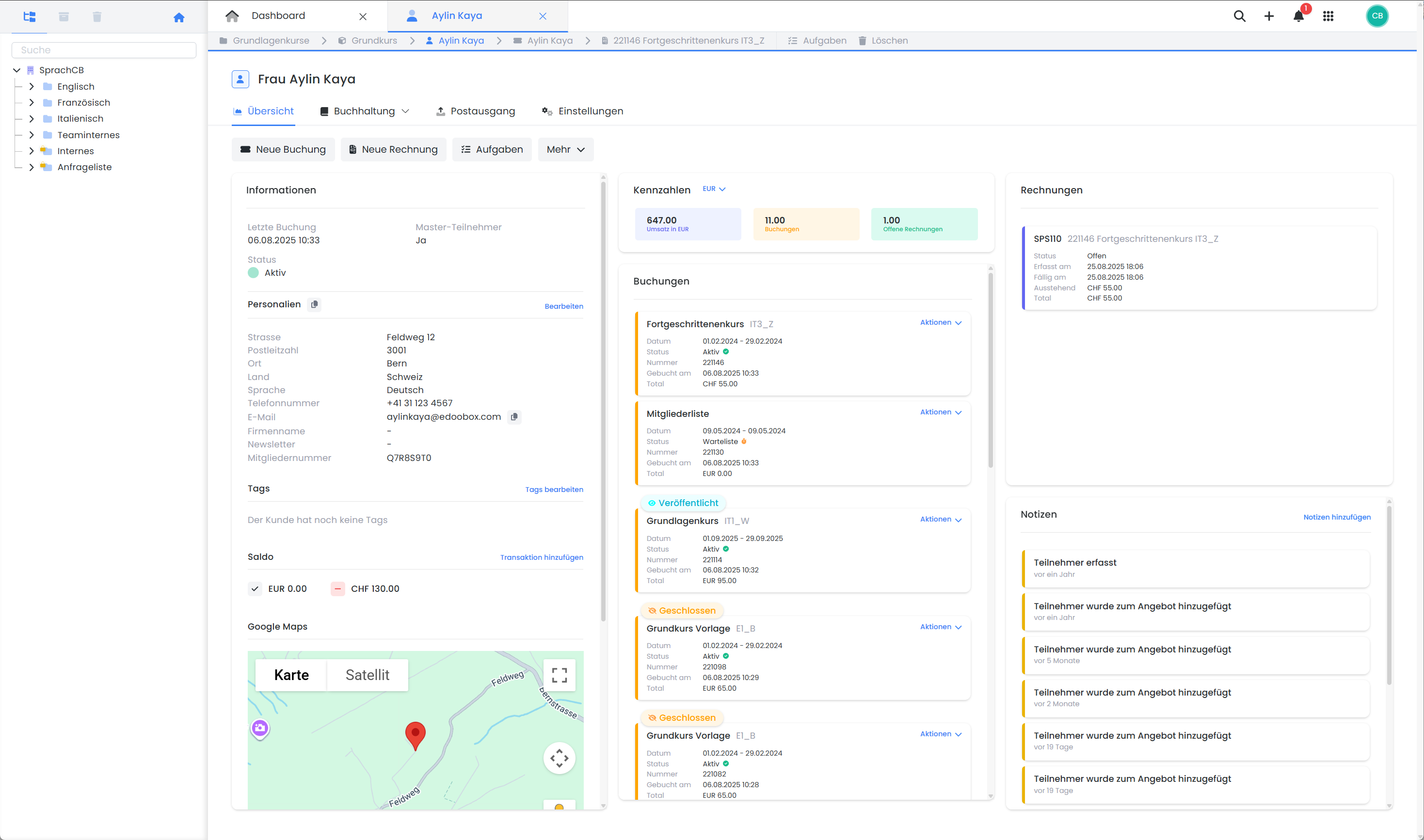
The participant dashboard offers a central overview of all relevant information and actions related to an individual. In addition to master data (address, language, email, etc.), you have access to bookings, invoices, balance, transactions, notes, and the complete email history. The dashboard serves as the starting point for all administrative processes at the participant level – from data entry to accounting.
Overview and Navigation
After a participant is accessed, the overview opens, displaying:
-
Personal Information (address, language, email, phone number, etc.)
-
Bookings
-
Invoices
-
Key Figures (revenue, number of invoices, outstanding items)
-
Tags
-
Balance
-
Map with Address (Google Maps)
-
Barcode
-
Notes
Edit Customer Data
All master data for an individual – such as address, language, or email – can be viewed, adjusted, or supplemented via the «Edit» button in the Information section or via the «Settings». These changes apply system-wide and overwrite existing data in the respective data field.
Duplicates
When participants are registered multiple times, the system automatically detects duplicates. These can then be merged.
Please note: Deleting Customers
If a participant with (completed) bookings is deleted, they cannot be restored. Therefore, please ensure that you have complied with legal retention obligations before completely removing a customer from the system.
Accounting
The 'Accounting' tab provides a structured overview of all accounting-relevant data, along with additional filtering and export options:
-
Bookings: e.g., booking date, offer, status
-
Invoices: e.g., number, amount, quote, status, payment information
-
Transactions: All automated and manually recorded balance movements
Record New Transactions
Manual transactions are useful for correcting the balance – e.g., for cash payments or difference adjustments:
-
'+ New Transaction'
-
Enter amount (with
–for negative amounts) -
Define booking text, currency, date, and VAT rate
-
Create
Please note: Manual Transactions
Manual transactions are not linked to specific bookings or invoices. For payments on invoices, use the 'Record Payment' function directly within an invoice, not the manual transaction.
Subsequently, separate invoices can be created from a manual transaction.
Outbox
The 'Outbox' tab allows you to view all email communication with the participant (or their email address):
-
All automated emails (e.g., booking confirmation, reminder)
-
Timestamp of dispatch
-
Preview and content of sent emails
This enables tracking of whether and when a specific message was dispatched. Attachments are not displayed.
Related Guides
Keywords for this guide
Balance ¦ Invoices ¦ Delete ¦ Transactions ¦ Participants ¦ Participants ¦ Participants ¦ Customers ¦ Master Data ¦ Data Fields ¦ Customer Data