
Please note: Limited 3
The option to use SAML in your edoobox account is available starting with the Limited 3 subscription. Free support for this topic is limited. Should you require more extensive assistance, we are pleased to offer paid services.
Implementing a SAML-based Single Sign-On (SSO) solution in edoobox enables users (Super Admins, Admins, and Managers) to navigate seamlessly and securely between their Identity Provider (Microsoft Azure) and edoobox without having to log in to edoobox again or use a new password each time. This integration helps save time and enhances the security of user accounts.
What is SAML?
SAML (Security Assertion Markup Language) Identity Provider (IdP) is a security service that allows users to log in to multiple applications with a single username and password. The IdP generates secure login credentials (SAML assertions) and sends them to the Service Providers (SP) that host the applications the user wishes to access. The IdP handles user authentication and permission verification, while the SP processes the user's credentials and controls access to the applications.
SSO Activation
In the edoobox settings under SAML (SSO) , you can add a provider.
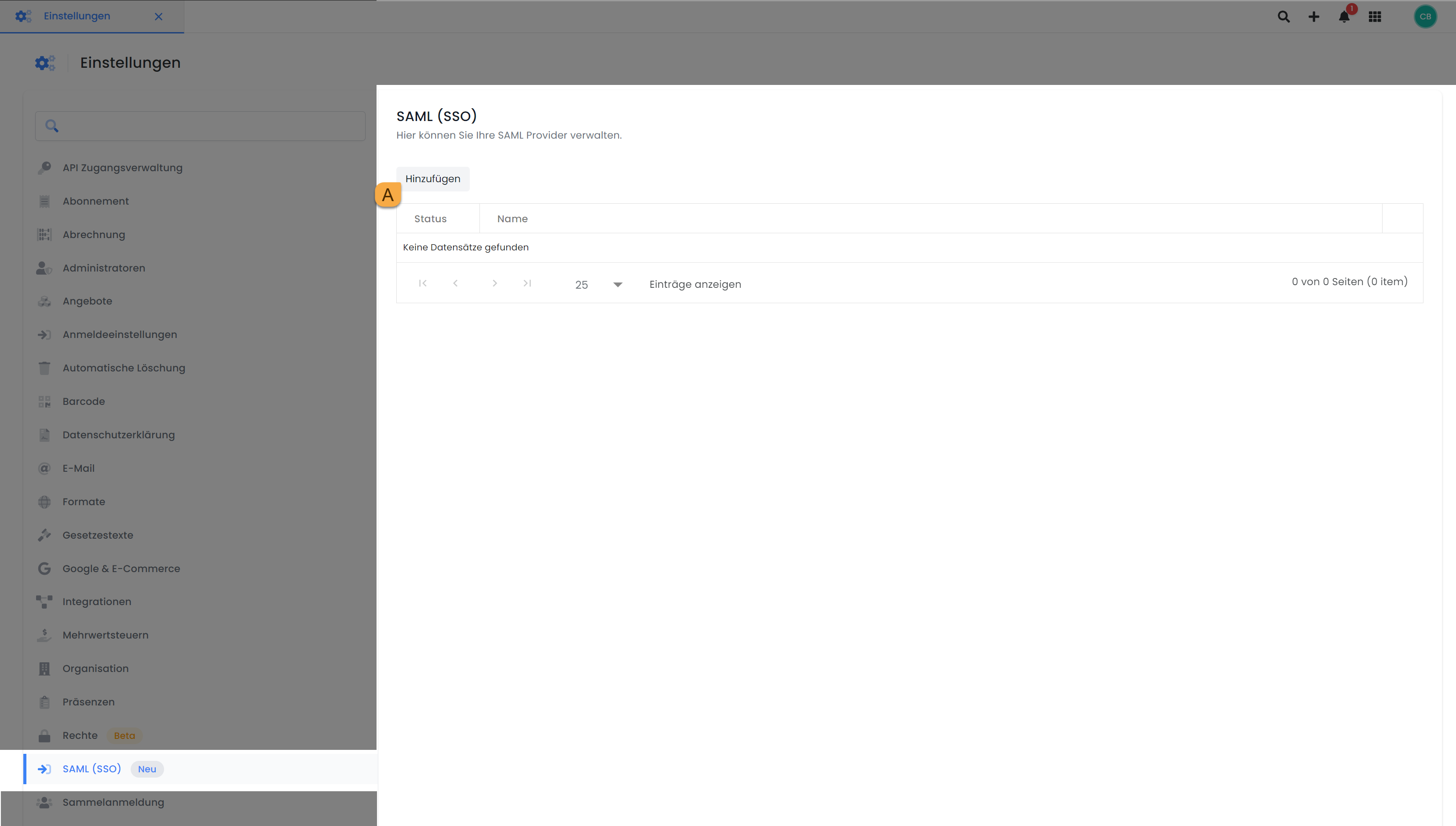
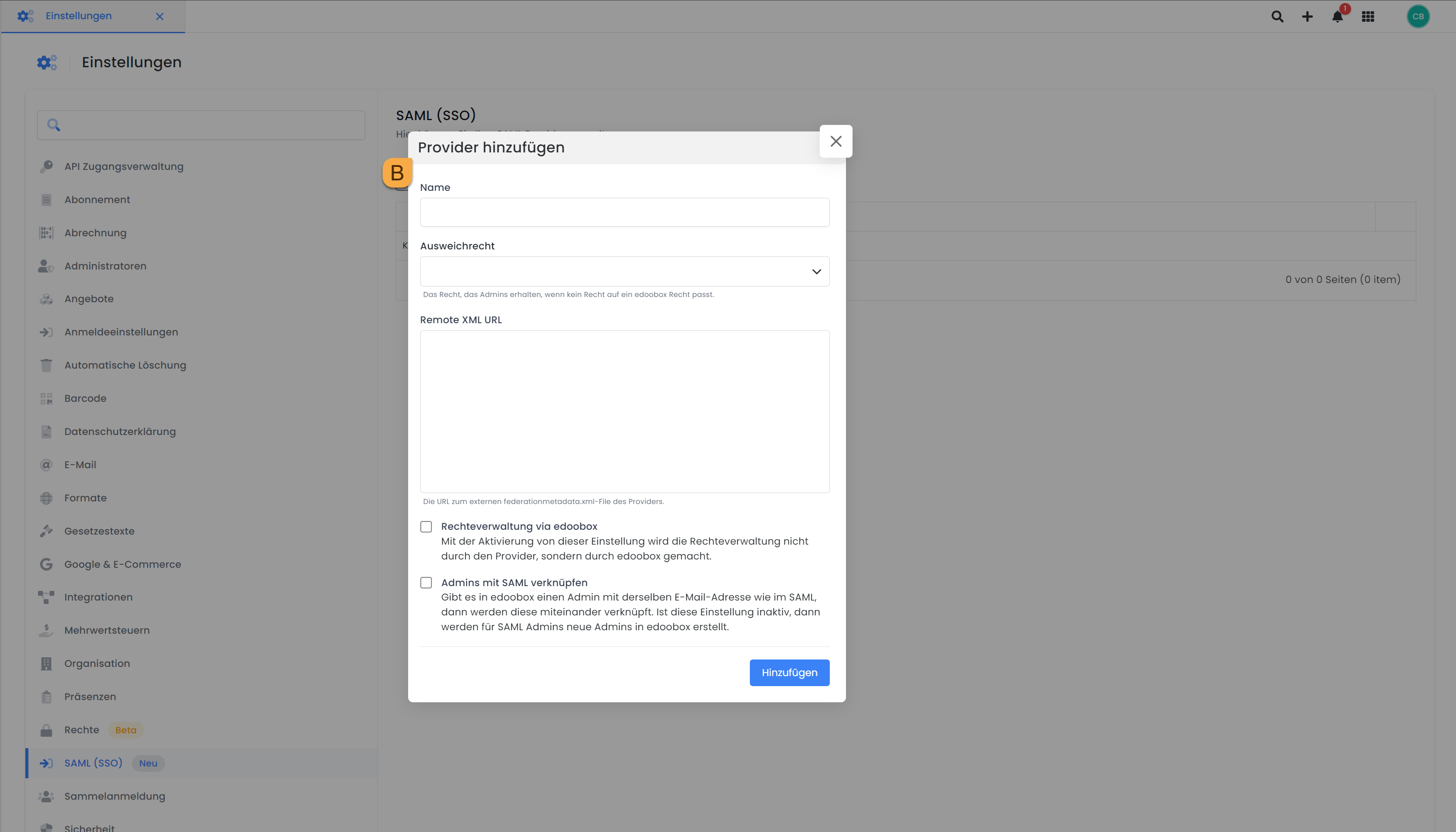
Add Provider B
Name
The name used for the login button could be, for example, "SSO Your Company Name". This naming convention serves as a clear indication to users that the button is for Single Sign-On (SSO) with your company's identity. This name can be adjusted at any time.
Fallback Rights
If you do not want to manage permissions through the authentication provider (Auth Provider), you can set the fallback permission to "No permissions " ( recommended ). This means that permissions are not automatically assigned by the authentication service, but are instead configured by edoobox.
Remote XML URL
For Remote XML URL, you must specify the provider's external federationmetadata.xml file. The APP Federation Metadata URL can be found in your Microsoft Azure account.
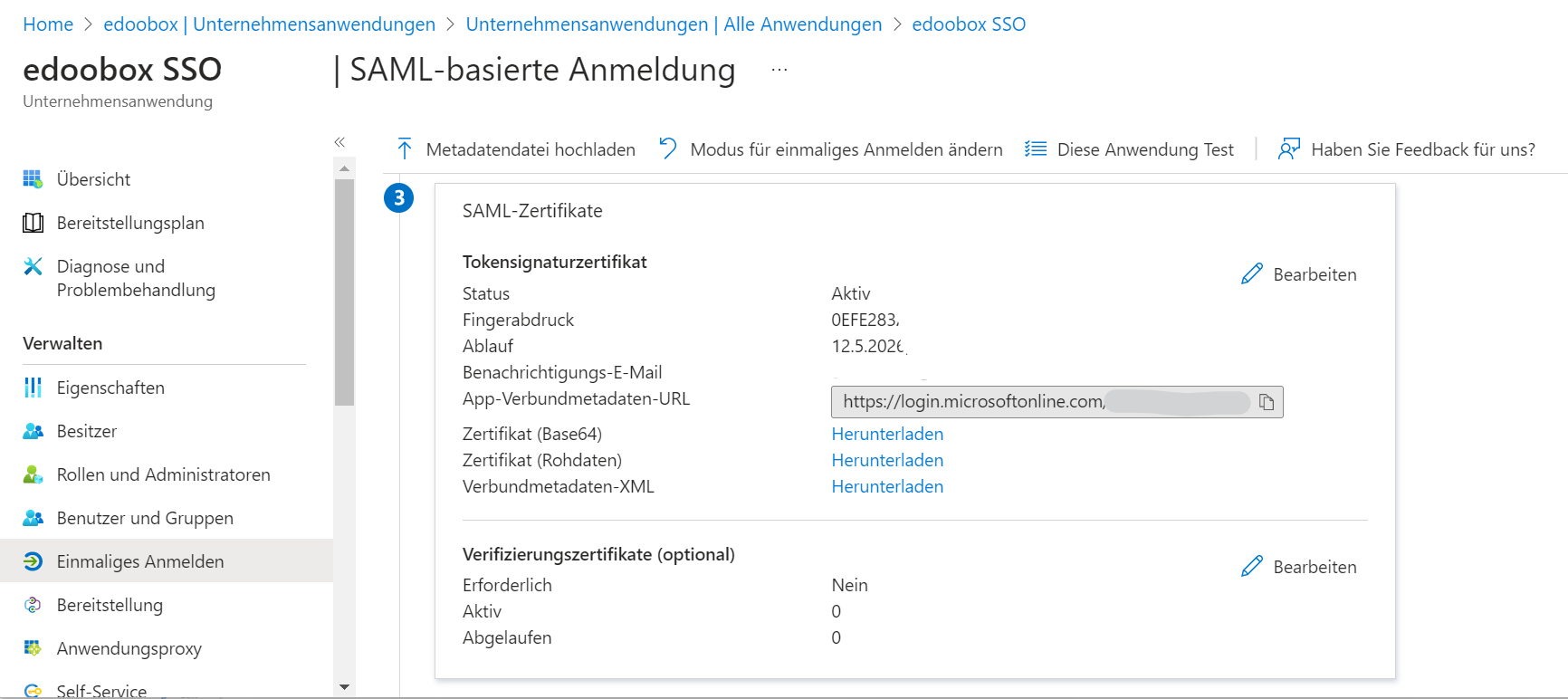
Rights Management
If you previously selected the option no rights under Fallback Rights, you must now activate rights management via edoobox.
Link Admin
If you select the " Link Admin " option, an admin account stored in edoobox will be linked via SAML. As soon as this person logs in via SAML, these accounts will be automatically linked. This simplifies the login process and ensures that the appropriate administrative privileges are available immediately after logging in via SAML.
Then click «Add» to add the provider.
Now open the configured provider:
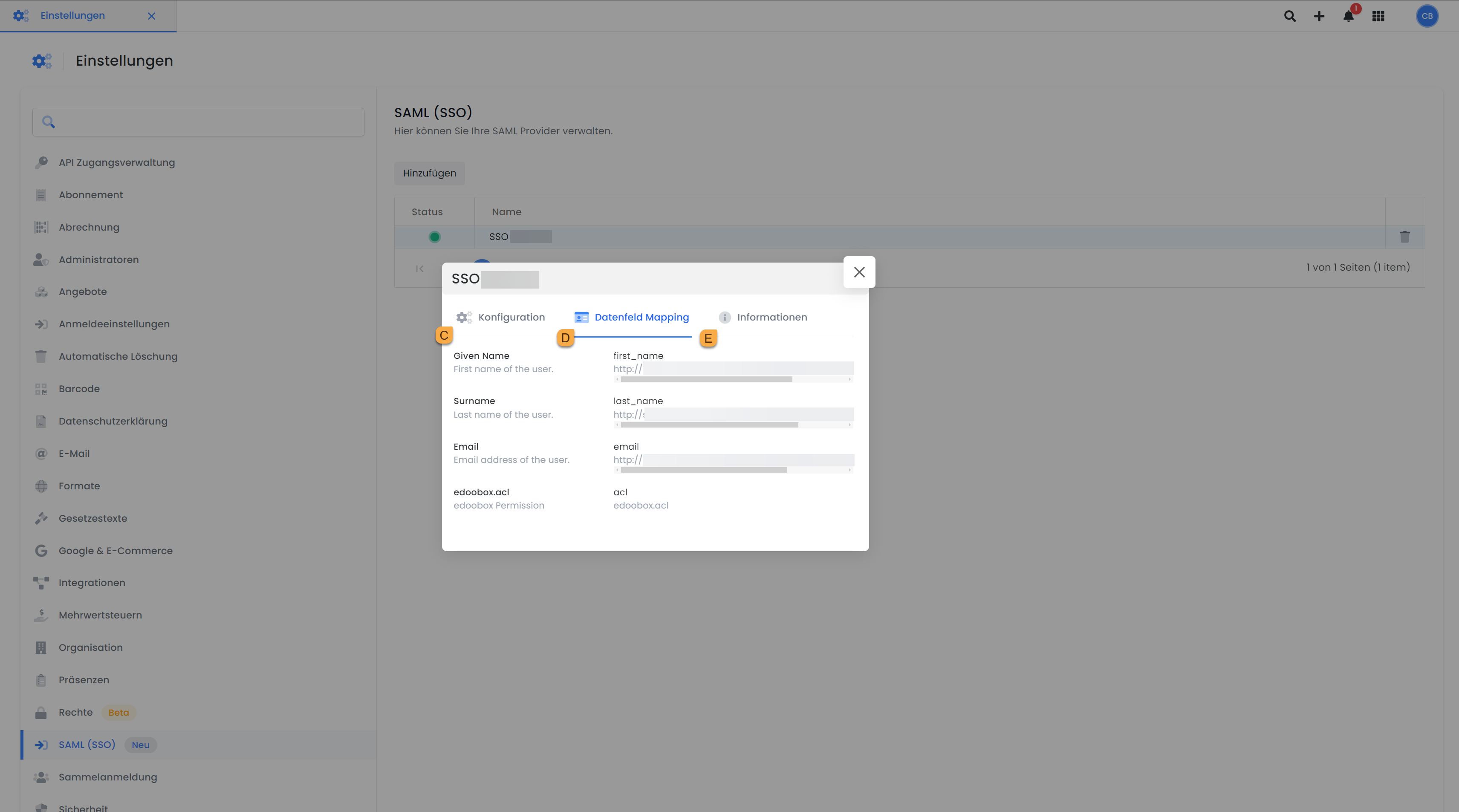
You will see a summary of the data you previously entered under the " Configuration c " section.
Under " Data Field Mapping, " first name, last name, email, and ACL permissions are mapped automatically. If you want to map additional data fields, you can do so via the API, where you can configure your own mappings.
In the information section, you will find details extracted directly from the URL. This data cannot be modified unless you delete the provider and set it up again. You can download the information as a federationmetadata.xml file.
Verify that the login functions by logging in at the following URLs:
edoobox V1 login URL: https://app2.edoobox.com/login/sso/IHR-EDOOBOX-KÜRZEL/
edoobox V2 login URL: https://app2.edoobox.com/ed-admin/pages/sso/IHR-EDOOBOX-KÜRZEL/
When you click the "SSO [Your Company Name]"login button, you may receive a message stating that you were unable to log in. If this window appears, you must enter the URL displayed in the window— —as the identifier (Entity ID) with your provider (such as Azure).
Note: Redirect to SSO
If an admin is logged in with SSO and logs out or is automatically logged out by edoobox, the logged-out admin will be automatically redirected to the SSO login page and not to the regular login page. For this to function, the admin must have logged in at least once previously.
Advanced user assignment and content control
Define Name ID A
You can specify which unique user identifier to use (e.g., an email address or another ID). This is used to uniquely identify and recognize the user.
Rights Management
Rights can be imported from the SAML provider or managed in edoobox. B
Existing administrators can be linked to the SAML provider. C
Automatic Assignment of Tags to Participants D
When a user logs in, a tag (e.g., "internal" or "external") is automatically assigned to them in the background. This assignment occurs behind the scenes and is not visible to the user. As a result, the user can only see the content and courses intended for that group.
Controlling content using tags E
You can use these tags to determine what content a user sees:
-
Users can only view the courses and content that correspond to their assigned day (e.g., for internal groups only)
-
Different price displays for different user groups
-
Show or hide content and information
-
Only listings with the tag can be displayed, or the otherwise public listing. F
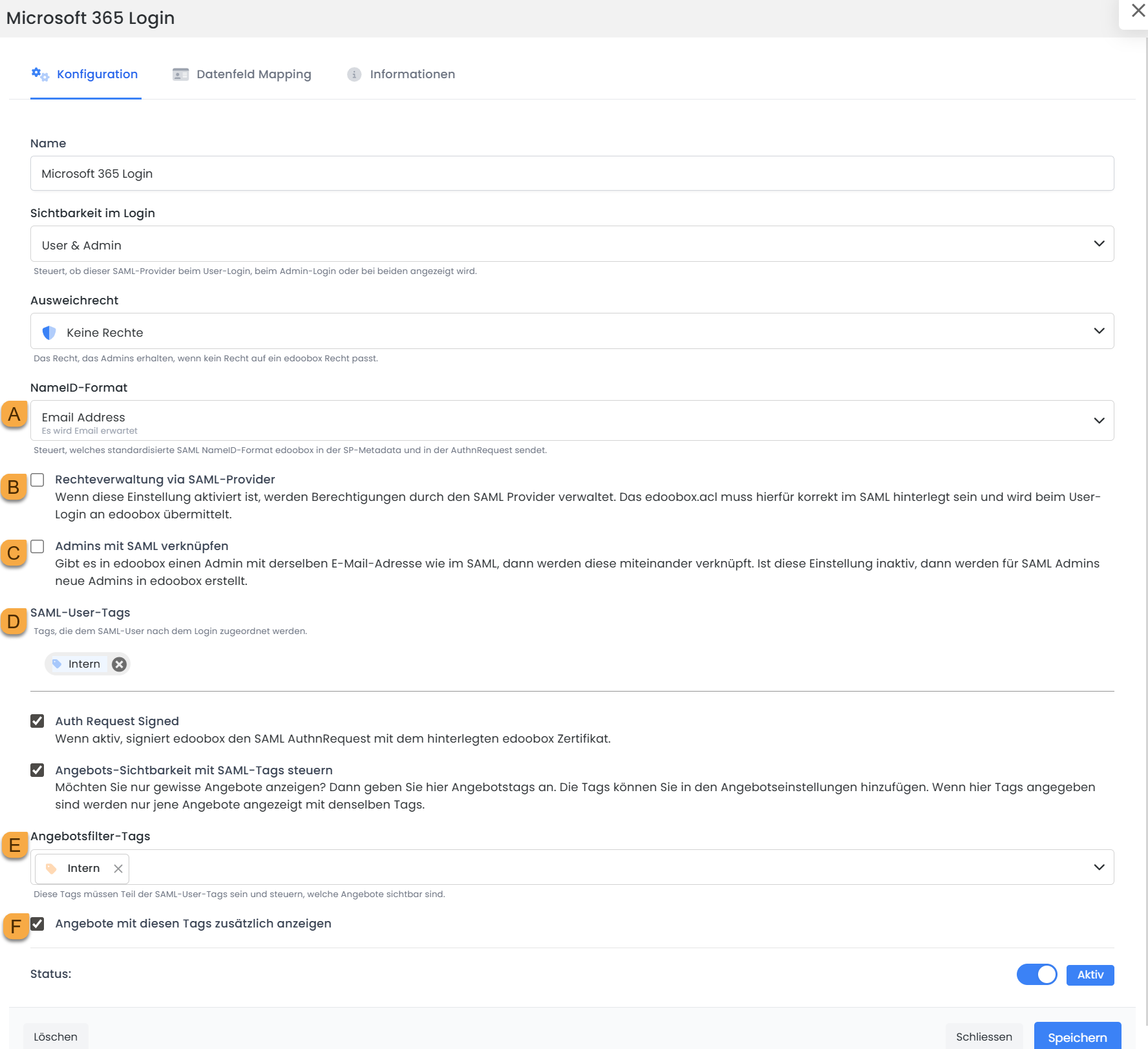
SAML configuration with settings for user mapping and content control
Use in Design Manager
In Design Manager, you can specify which user groups can view content for each widget. This is controlled via the visitor tags of logged-in users. This allows you to show or hide content specifically for certain groups.
Options:
-
Display a widget only for users with a specific tag (e.g., "internal")
-
Different content depending on the user group (e.g., display with or without price)
-
Display of additional information for specific groups
In addition, these settings can also be applied to individual form fields. This allows specific fields to be shown or hidden depending on the user group.
Control can be either positive or negative:
-
Pros: Content is displayed only to a specific group
-
Negative: Content is hidden from a specific group
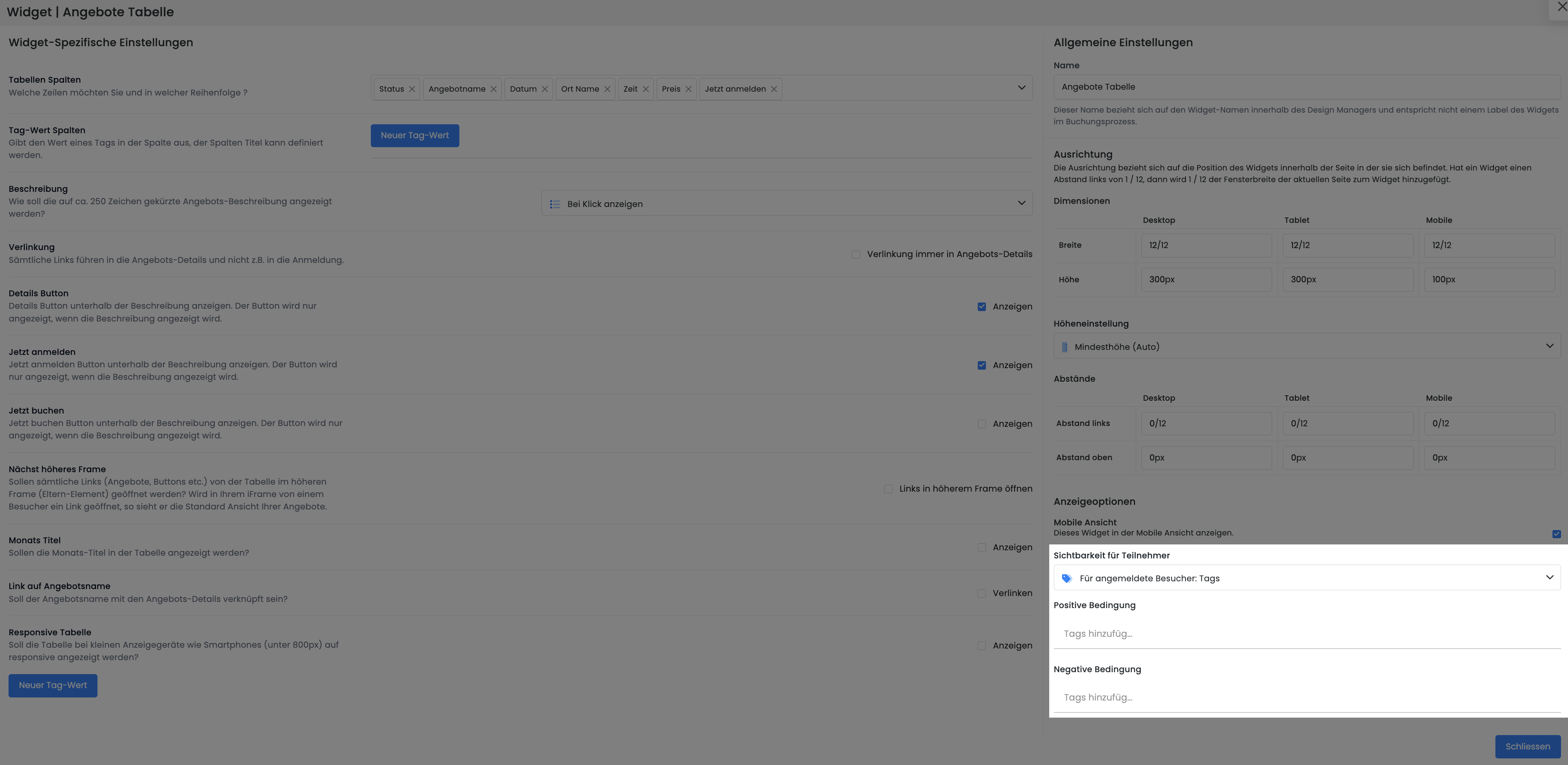
Example: Internal users see a table of offers without prices, along with a note regarding internal billing. External users see the same offers with prices, but without this note.
Related Guides
Keywords for this guide
SSO ¦ SAML ¦ APP Federation Metadata URL ¦ Provider ¦ Design Manager ¦ Tag