

Do you want to offer your customers an innovative and user-friendly payment method? Then edoobox combined with BitPay is the perfect solution for you! BitPay is a leading digital payment platform, enabling your customers to pay quickly and securely with cryptocurrencies such as Bitcoin.
BitPay Integration
Step 1: Registering with BitPay
To integrate BitPay into edoobox, you need an active BitPay Business Account. If you do not yet have an account, please visit the BitPay website and register for a Business Account https://bitpay.com/dashboard/merchant/api-tokens.
Step 2: Setting up a Token
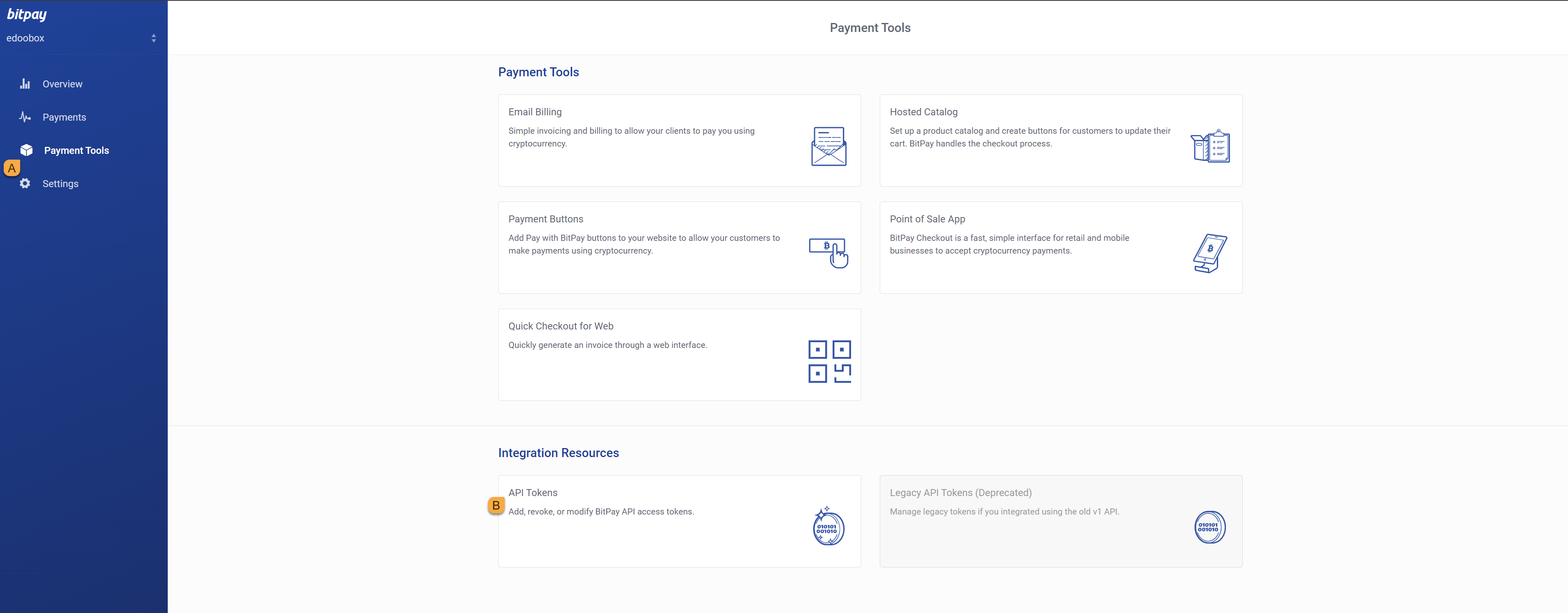
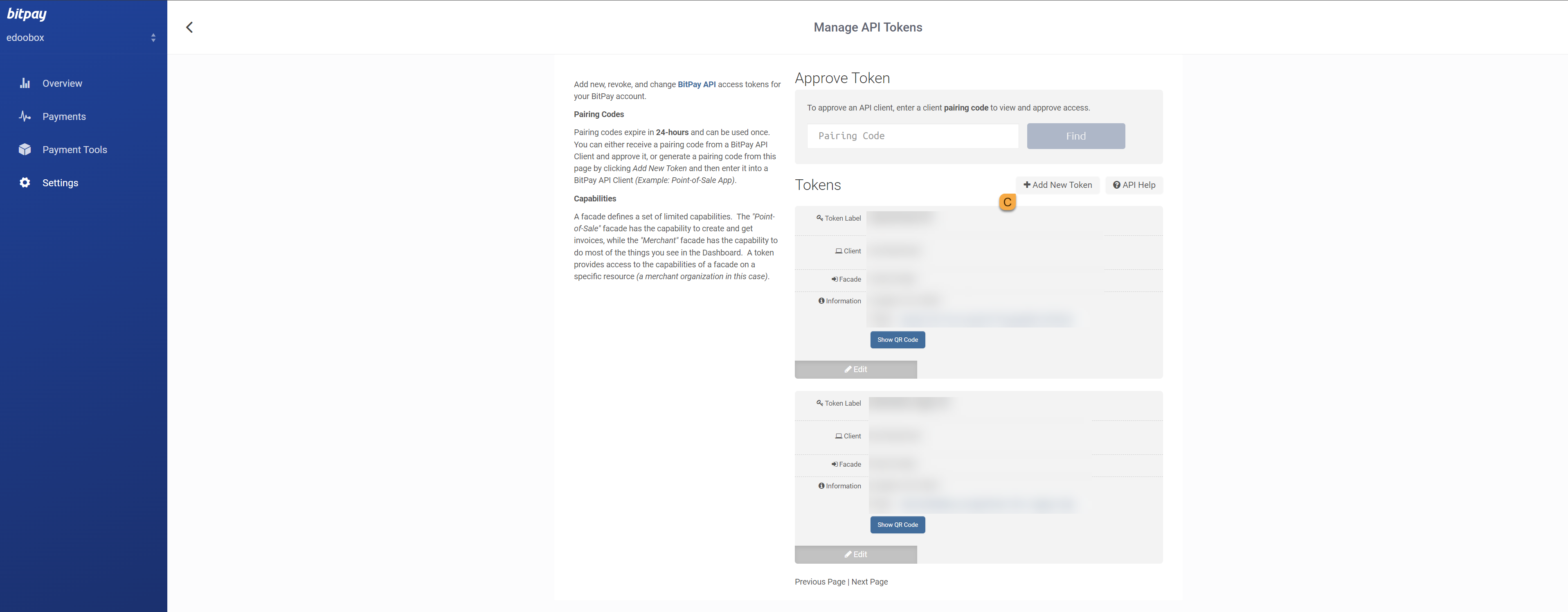
After logging into your BitPay account, navigate to Payment Tools A. Under Integration Resources B, you will find an option to add a new token. Click this option to continue. Then click the “+Add New Token” button C.
Step 3: Add Token Label
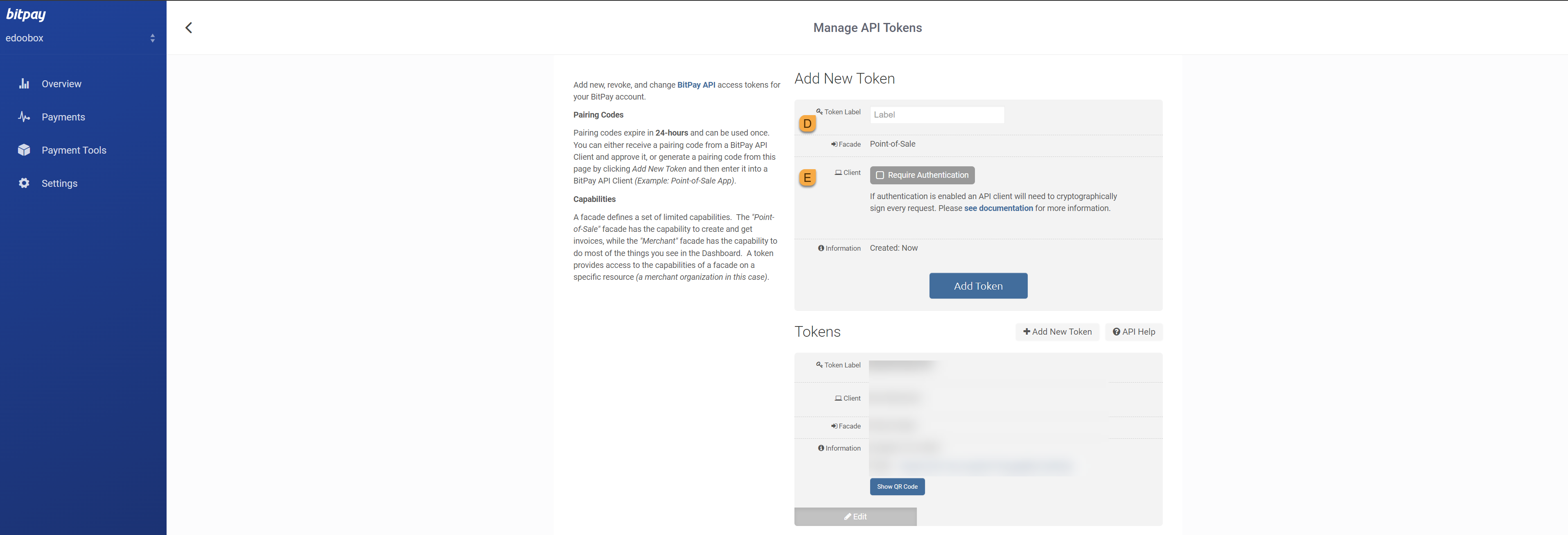
Enter a token label D that represents the integration with edoobox. For example, you can use 'edoobox' as the label. This label is used to identify and link the token.
Step 4: Disable Authentication
When creating the token, you have the option to enable or disable authentication E. Ensure that the authentication checkbox is not enabled, as edoobox does not require additional authentication.
Step 5: Save the Token in edoobox
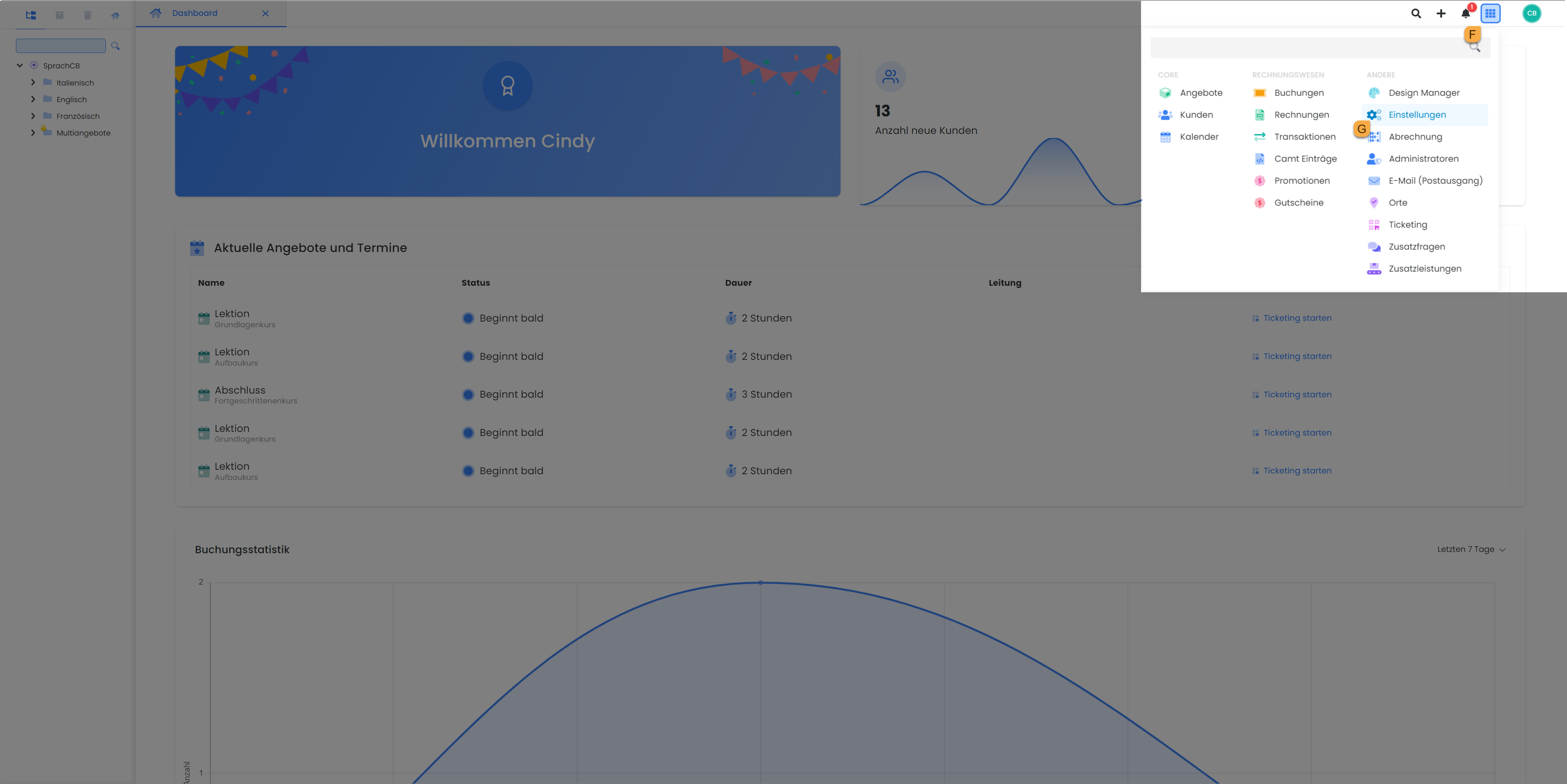
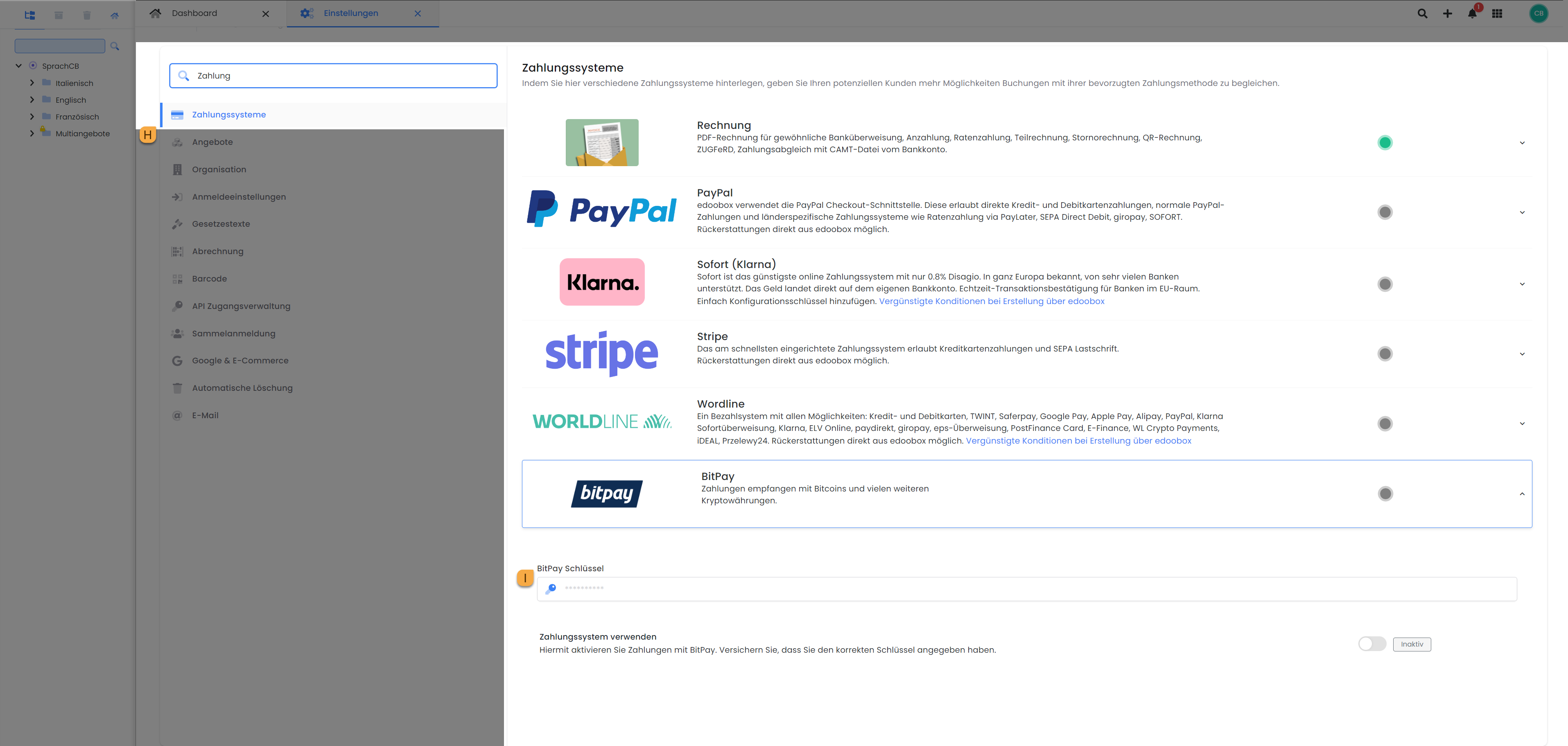
Copy the generated token from BitPay and save it in your edoobox account. To do this, log in to your edoobox account and navigate to Settings G via the app menu F. Use the search option to find “Payment Systems” H. Click on “bitpay” to open the corresponding settings. Paste the previously generated token into the “BitPay Key” I field; it will be saved automatically.
Step 6: Integration Complete
Congratulations! You have successfully integrated BitPay into edoobox. Once you have activated the payment system, your customers can use BitPay as a payment method to pay for bookings via edoobox.
Related Guides
Keywords for this guide
BitPay ¦ Bitcoins ¦ Crypto ¦ Cryptocurrency ¦ Token ¦ Cryptocurrency