

edoobox is an official Stripe SCA-Ready Partner
Stripe offers credit card payments, SEPA Direct Debit, and many other payment options on its platform, all without significant hassle. The Stripe account can be activated quickly and easily, ensuring you do not have to wait long for provider activation.
For more information about Stripe:https://stripe.com/ch/payments.
If you don't have a Stripe account yet, you can create one here:https://dashboard.stripe.com/register.
The account creation process is very straightforward, allowing immediate commencement of operations. If you reside in a country where Stripe is not yet available, please contact Stripe directly regarding the BETA program.
Your Advantages with Stripe
Credit card details can be entered directly on the payment page within edoobox, eliminating the need for redirection to an external payment gateway.
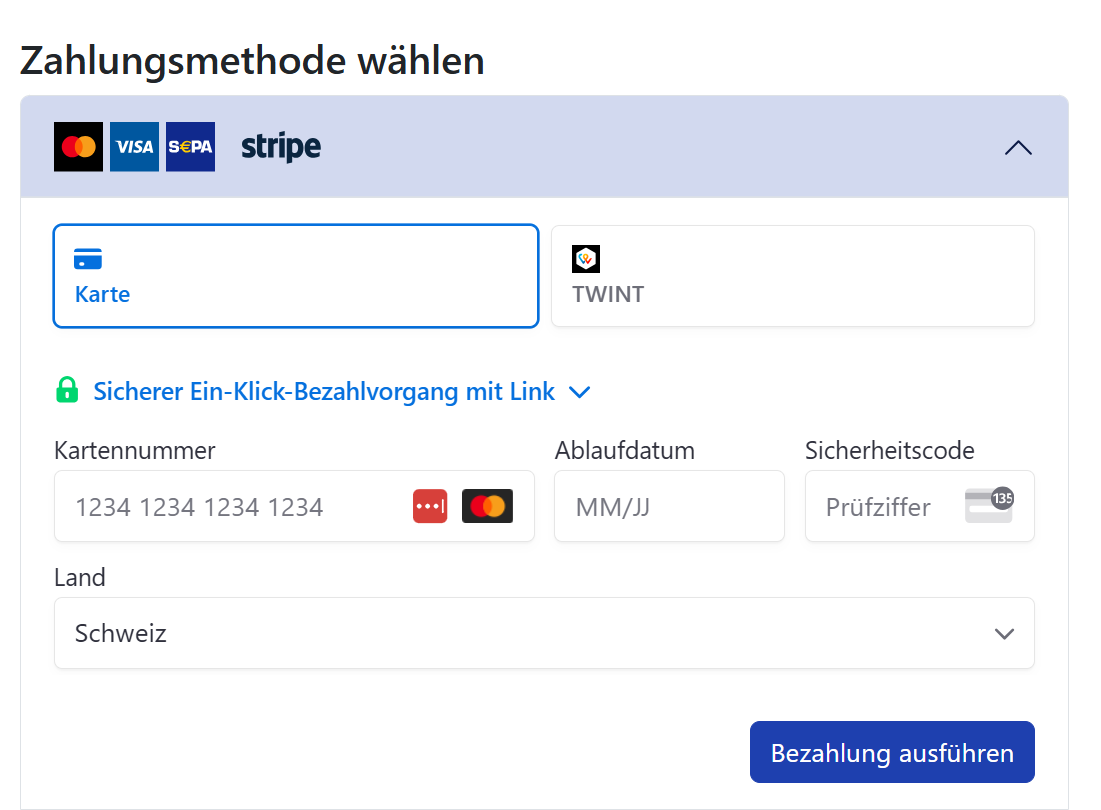
Connect Stripe Account with edoobox
-
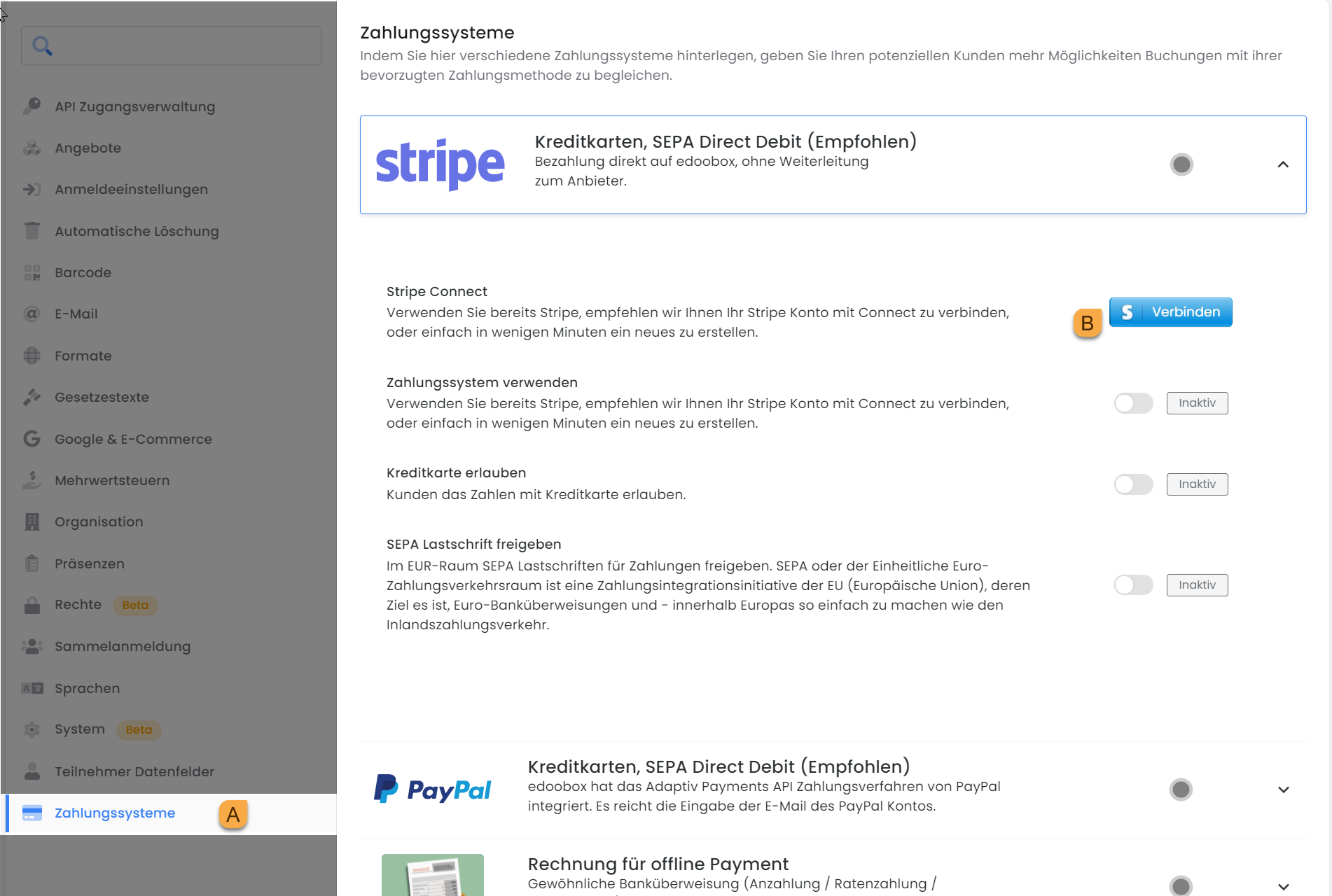
Navigate to the «Payment Systems» A settings and click the «arrow», then select «Connect» B.
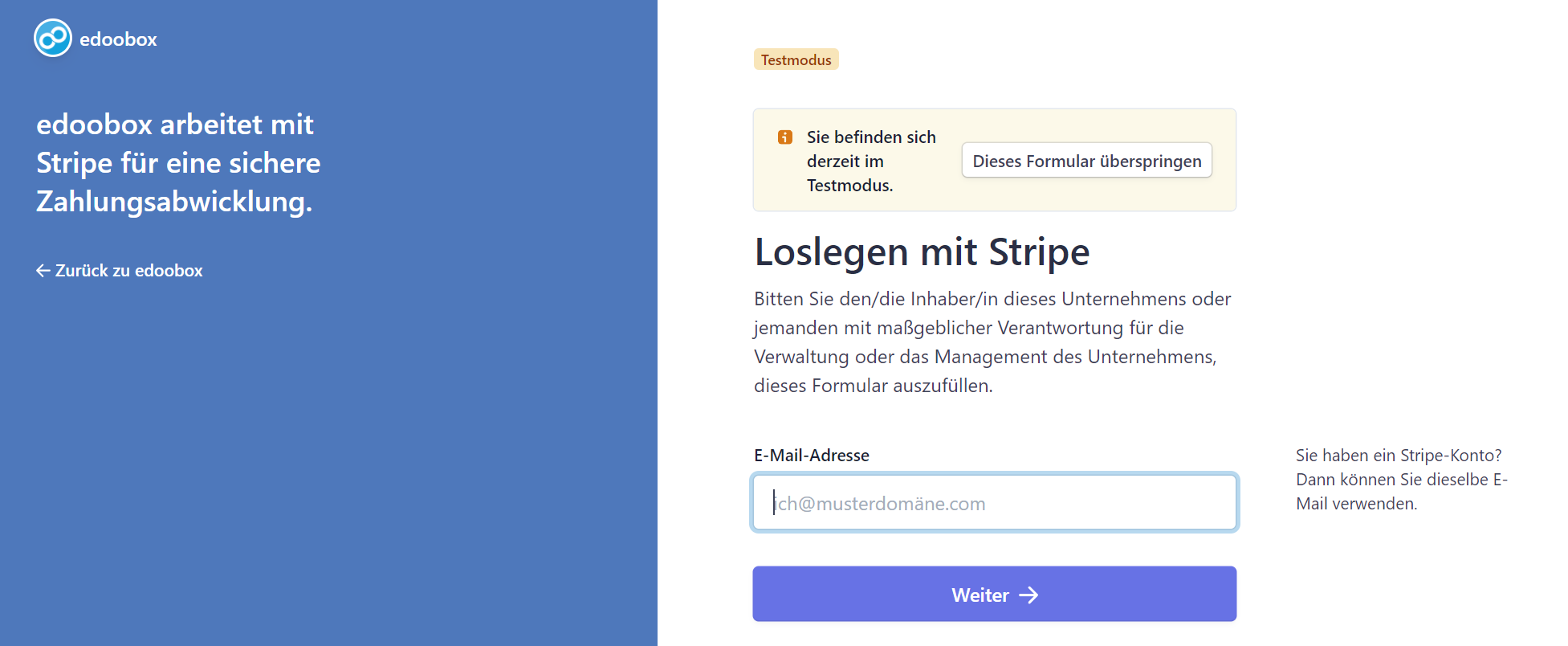
2. If you already have a Stripe account, you can log in with your email address. Otherwise, enter your email address and click «Continue».
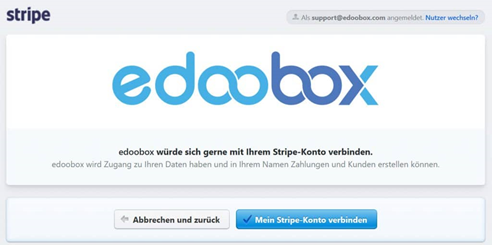
3. You can now connect edoobox with your Stripe account, or cancel and return.
4. Subsequently, you will receive confirmation that your account has been successfully connected.
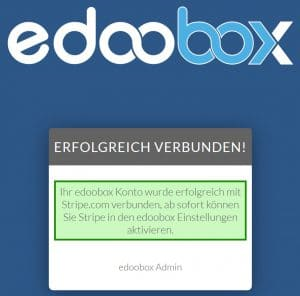
Info: Integration of SEPA Direct Debit in edoobox
Would you like to enable SEPA Direct Debit in edoobox? Here is the guide for the integration of SEPA Direct Debit.
Please note that funds can only be received after successful verification of the Stripe account.
Refunding Payments in Full or in Part
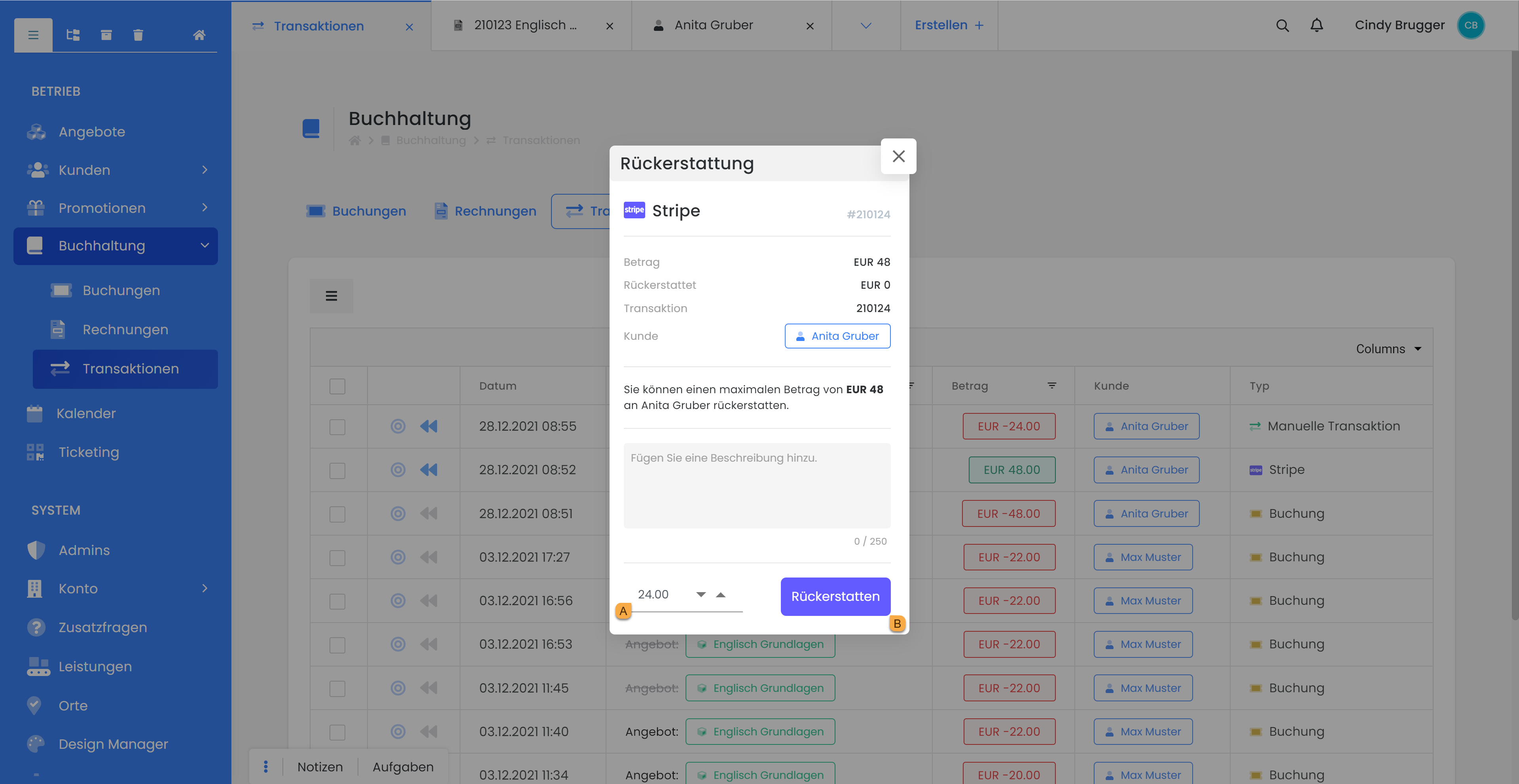
Refunds can be processed directly in the edoobox participant account. To do this, go to "Participants," then click on "Invoices" and open the desired invoice. Next, go to "Transactions," where you can click on the Stripe icon. You can now enter a refund description and specify the amount A. After clicking "Refund" B, the transaction is completed directly via Stripe.
Payment tokens are stored for each participant. This feature will enable one-click subsequent payments in the future.
Remove Stripe Account from edoobox
-
Log in to Stripe.
-
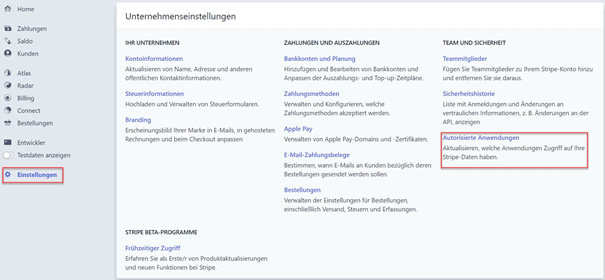
Navigate to «Settings». Under «Team and Security», you will find «Authorized Applications».
-
edoobox is listed here. Click «Revoke Access», and edoobox will no longer be connected to Stripe.

Define Payment Systems in Stripe
When using the latest Stripe interface in edoobox, define in your Stripe account which payment systems should be available to your customers in edoobox. Do you want to adjust the settings directly? Click this link and follow these three steps:
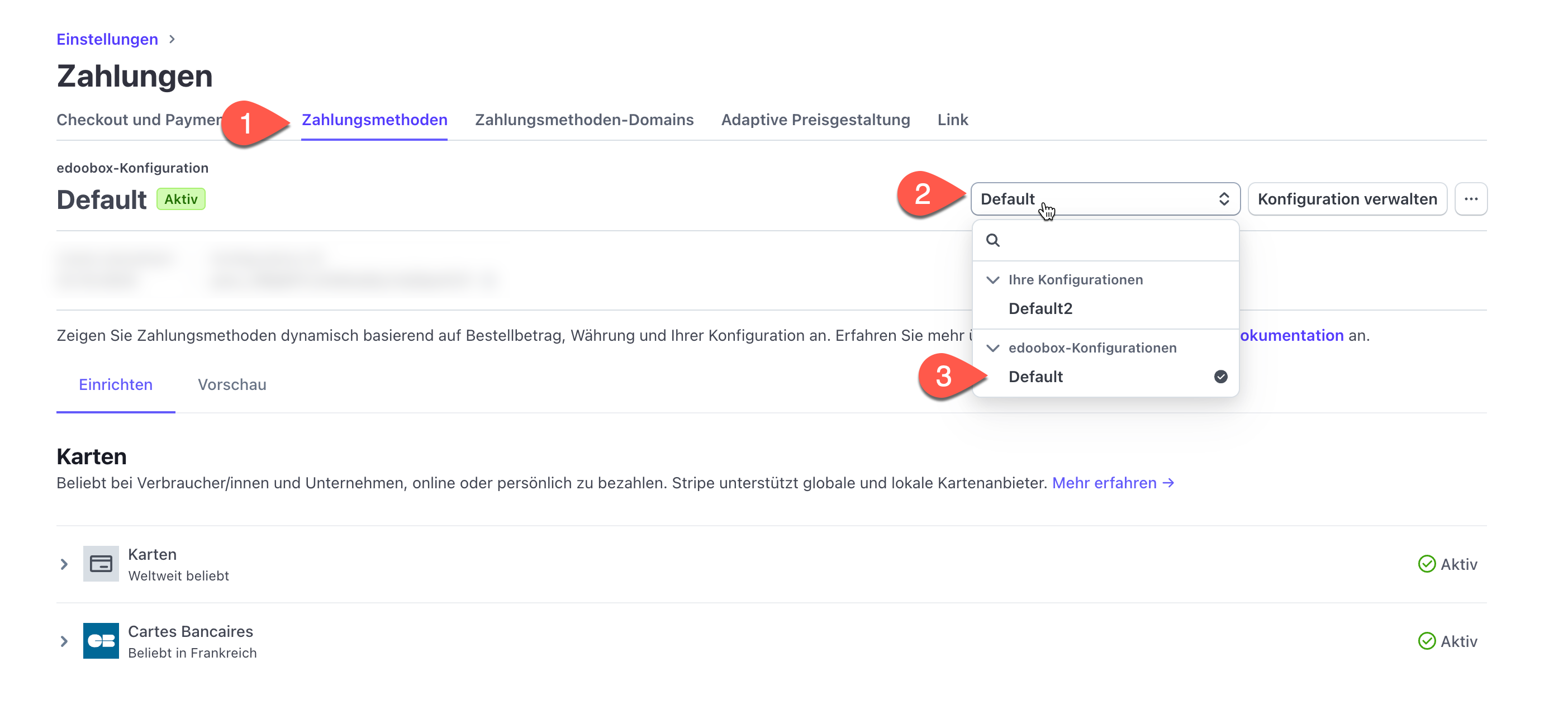
Once you have selected the edoobox configuration, you can then activate all payment systems below that you wish to offer your customers in edoobox. SEPA can be found under the Direct Debit option.
Related Guides
Keywords for this guide
Stripe ¦ Credit Card ¦ Payment ¦ Payment System ¦ Refund