
The Cancellation & Refund feature allows you to centrally manage cancellation policies and automatically apply them to new bookings. You can define multiple cancellation groups per account, such as " Standard," " Online," or custom groups for specific types of offers.
The function covers three areas:
|
Area |
Purpose |
|---|---|
|
Cancellation Policy |
Specifies which cancellation fee applies based on the start date. |
|
Right of Withdrawal |
Determines whether and until when the 14-day right of withdrawal takes precedence over cancellation fees. |
|
Fees, Billing, and Refunds |
Creates cancellation fees as a separate fee item and takes them into account during billing, payment, and refunds. |
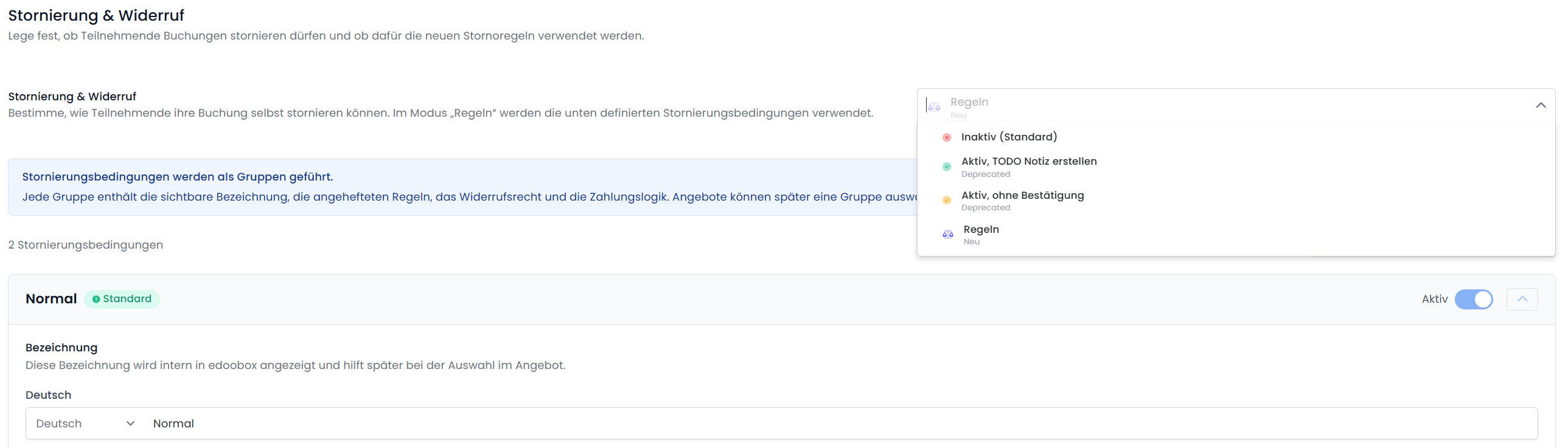
Cancellation & Return Settings
|
Option |
Effect |
|---|---|
|
Inactive |
Participants cannot cancel on their own. |
|
Active, without confirmation
|
The participant can log in and cancel a reservation on their own without you receiving a notification. |
|
Active, Create a TODO note |
The participant can submit a cancellation request. The request appears in the TODO notes and can be processed or carried out by the administrator. |
|
Rules |
The cancellation policy applies in accordance with the terms and conditions. |
Cancellation Policy
Cancellation policies are managed as groups. Each group contains all the rules and settings that should apply to a booking.
|
Group |
Typical application |
|---|---|
|
Normal (templates can be edited) |
Standard Rules for Traditional Offers |
|
Online (editable templates) |
Rules for online purchases with automatic refunds |
|
Custom |
Special rules for specific types of offers |
Each group can be active or inactive. There must always be a default cancellation policy. This is used if no specific group was selected in the quote.
An inactive group remains saved but cannot be pinned to new posts.
Cancellation Policy
A group can contain any number of cancellation rules. A rule consists of:
|
Field |
Description |
|---|---|
|
Days before the start |
How many days before the offer begins does this rule apply? |
|
Confirmation |
Automatic cancellation by participants or cancellation requiring admin approval. |
|
Cancellation fee |
Percentage charged as a cancellation fee. |
|
Active |
Inactive rules remain saved but are not applied. |
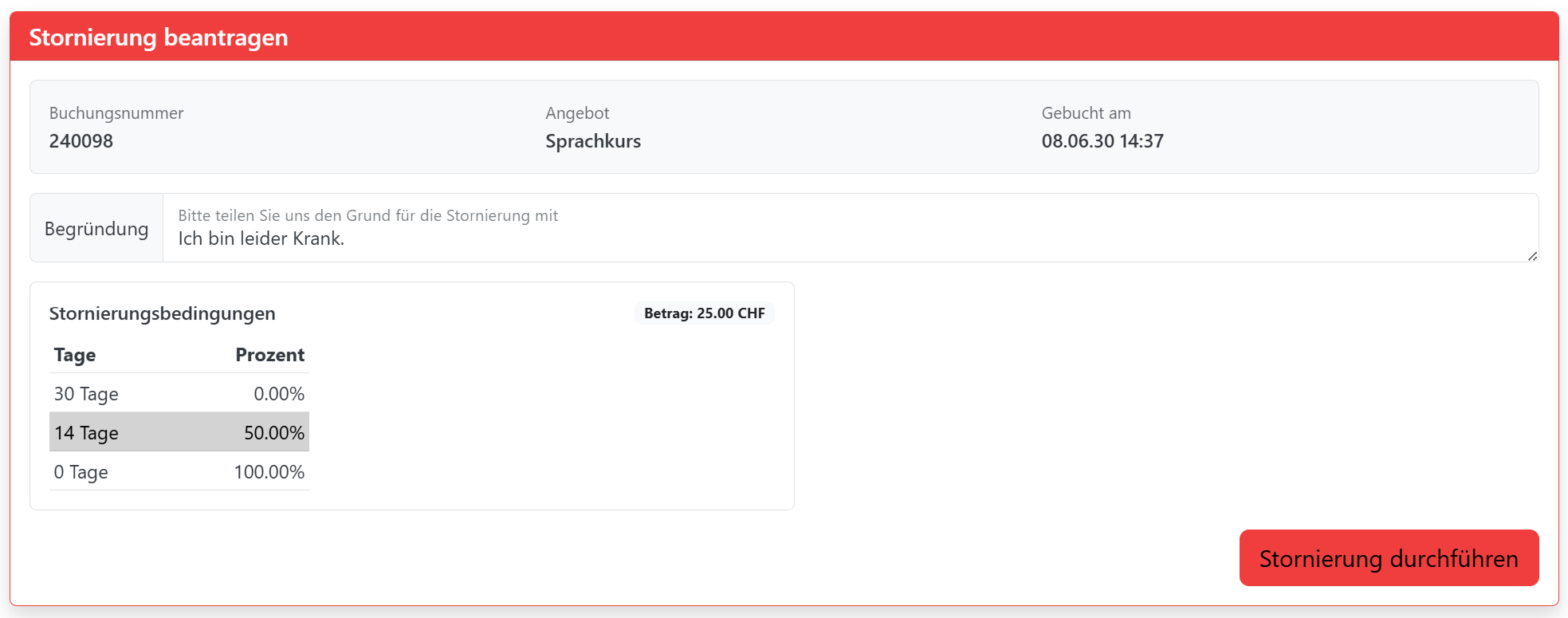
Possible example:
|
Days before the start |
Cancellation fee |
|---|---|
|
30 days |
0 % |
|
14 days |
50 % |
|
0 days |
100 % |
For participants, the cancellation table is intentionally displayed in a compact format. Internal information, such as automatic or manual admin confirmation, is not shown there.
Right of Withdrawal
The right of withdrawal can be enabled for each cancellation policy.
If enabled, the following applies:
-
The right of withdrawal is being verified for the booking.
-
No cancellation fee will be charged as long as the right of withdrawal is valid.
-
The right of withdrawal takes precedence over the cancellation policy.
-
The Booking Dashboard shows the deadline for exercising the right of withdrawal.
If the offer begins within 14 days and a linked legal text is available, an additional checkbox may appear during the booking process. The text for this checkbox is maintained in the cancellation policy. This checkbox is required if it is displayed.
Legal texts and widget
A cancellation policy can be linked to a legal provision.
If an offer uses this cancellation policy, the associated legal text will be expanded in the widget:
-
At the end of the legal text, there is a concise table listing the cancellation policy.
-
If the right of withdrawal is active and the start date is within 14 days, the withdrawal checkbox will also appear.
-
The checkbox is displayed in addition to the existing checkboxes in the legal text.
This allows participants to view the relevant cancellation information directly during the booking process.
Selection in the offer
A dropdown menu for cancellation policies appears in the listing settings as soon as:
-
the global setting is set to " Rules," and
-
there is at least one active cancellation policy.
|
Selection |
Effect |
|---|---|
|
Default |
This offer is subject to the account's standard cancellation policy. |
|
Specific group |
This offer applies to this selected group. |

When a cancellation policy is deleted, it is removed from the offers it applies to. These offers then revert to the standard cancellation policy.
Booking Dashboard
The following is displayed in the Booking Dashboard when a booking is made:
-
active cancellation policy
-
Current cancellation policy
-
Valid cancellation date, if cancellation is active
-
Note: If the right of withdrawal has been excluded
-
all fees associated with the booking
The rules can be expanded so that admins can directly review the underlying logic.
If no cancellation policy has been set, an admin can select an active group. The group from the offer will be displayed as the recommended option.
Admin cancellation
When an admin cancels a reservation, a preview is displayed first.
The admin can choose:
|
Option |
Effect |
|---|---|
|
Cancel with pinned rules |
edoobox calculates the fee based on the booking rules. |
|
No cancellation fee |
No outstanding fee will be charged. |
|
Manual cancellation amount |
The admin enters an amount and, optionally, a reason. |
If the right of withdrawal is still valid, the cancellation fee will automatically be set to 0.
Cancellation Request by Participants
If participants wish to cancel a booking, edoobox first reviews the booking:
-
Has a cancellation policy been set?
-
Is the right of withdrawal in effect?
-
Is the right of withdrawal still valid?
-
Was the right of withdrawal waived at the time of booking?
-
What are the current cancellation policies?
Depending on the result, the following will be displayed:
|
Situation |
Advertisement |
|---|---|
|
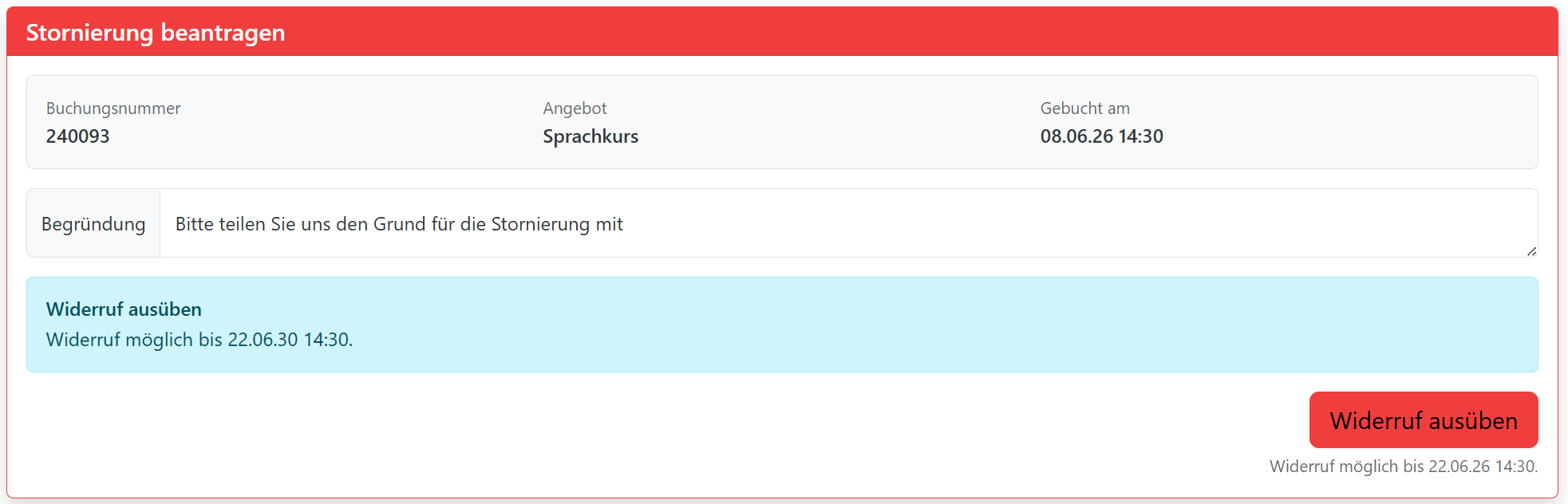
You may cancel |
Button: " Exercise right of withdrawal " with the date by which this is possible |
|
The right of withdrawal has been excluded |
Note with the accepted checkbox text |
|
Cancellation policy applies |
Table showing current policy and cancellation fees |
|
Administrator confirmation required |
The request is created and the administrator is assigned the task |
|
Automatic cancellation allowed |
The reservation will be canceled immediately |
Cancellation fee
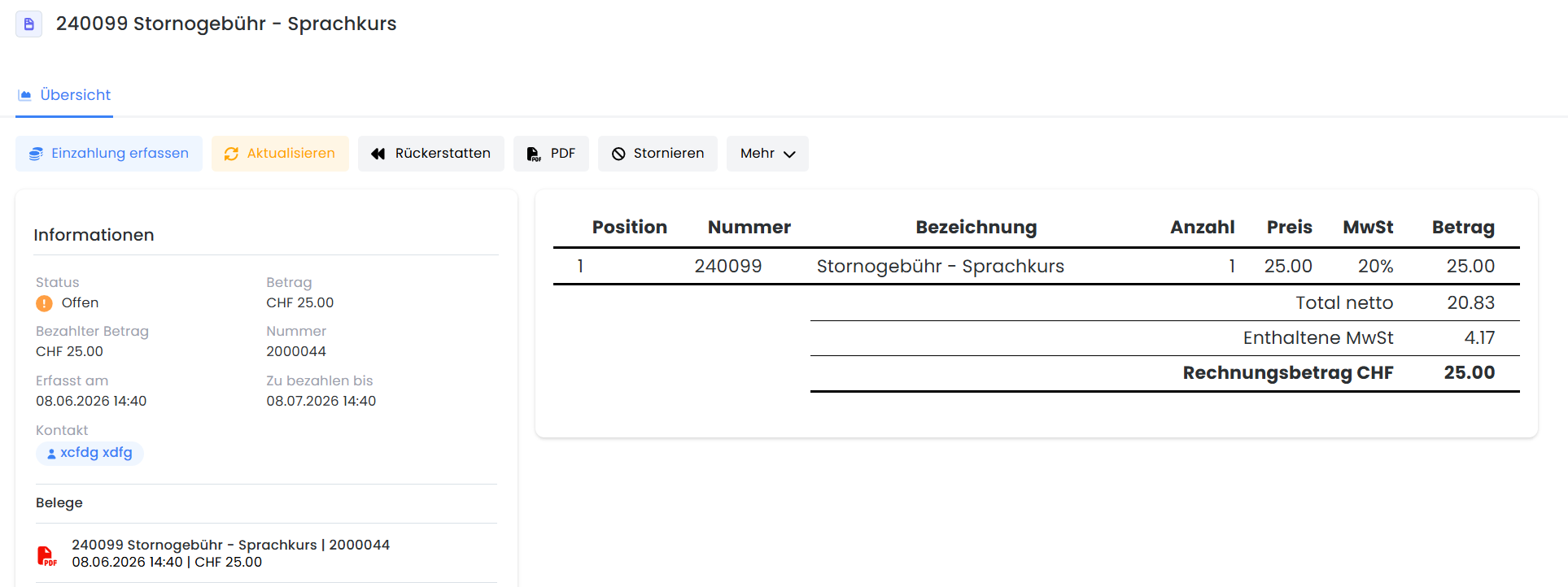
Cancellation fees are recorded as a separate transaction.
This makes it clear that:
-
Which booking does the fee apply to?
-
which rule it is based on
-
whether it is open, paid, settled, or canceled
-
whether it relates to an invoice, payment, or refund
Invoicing, Payment, and Refunds
If edoobox Invoicing is enabled:
-
The cancellation fee will be billed.
-
An invoice can be prepared or generated automatically.
-
The cancellation fee is clearly listed on the invoice.
If edoobox Invoicing is not active:
-
The cancellation fee appears as an outstanding charge on the participant's payment page.
-
The fee can be paid in the same way as other outstanding amounts.
For automatic refunds:
-
The cancellation fee will be deducted from the refund amount.
-
Example: Payment of CHF 100, cancellation fee of CHF 30 → Refund of CHF 70.
-
The cancellation fee is linked to the payment and refund.
-
If the fee exceeds the refundable amount, the difference remains as an outstanding balance.
Emails
There are two new system email templates:
|
Template |
Usage |
|---|---|
|
Automatic cancellation |
Sent when a reservation has been canceled directly. |
|
Cancellation requested |
Sent when a request is received and requires admin approval. |
The cancellation confirmation can be sent automatically when an administrator cancels or approves a request. To do this, the corresponding global setting must be enabled.
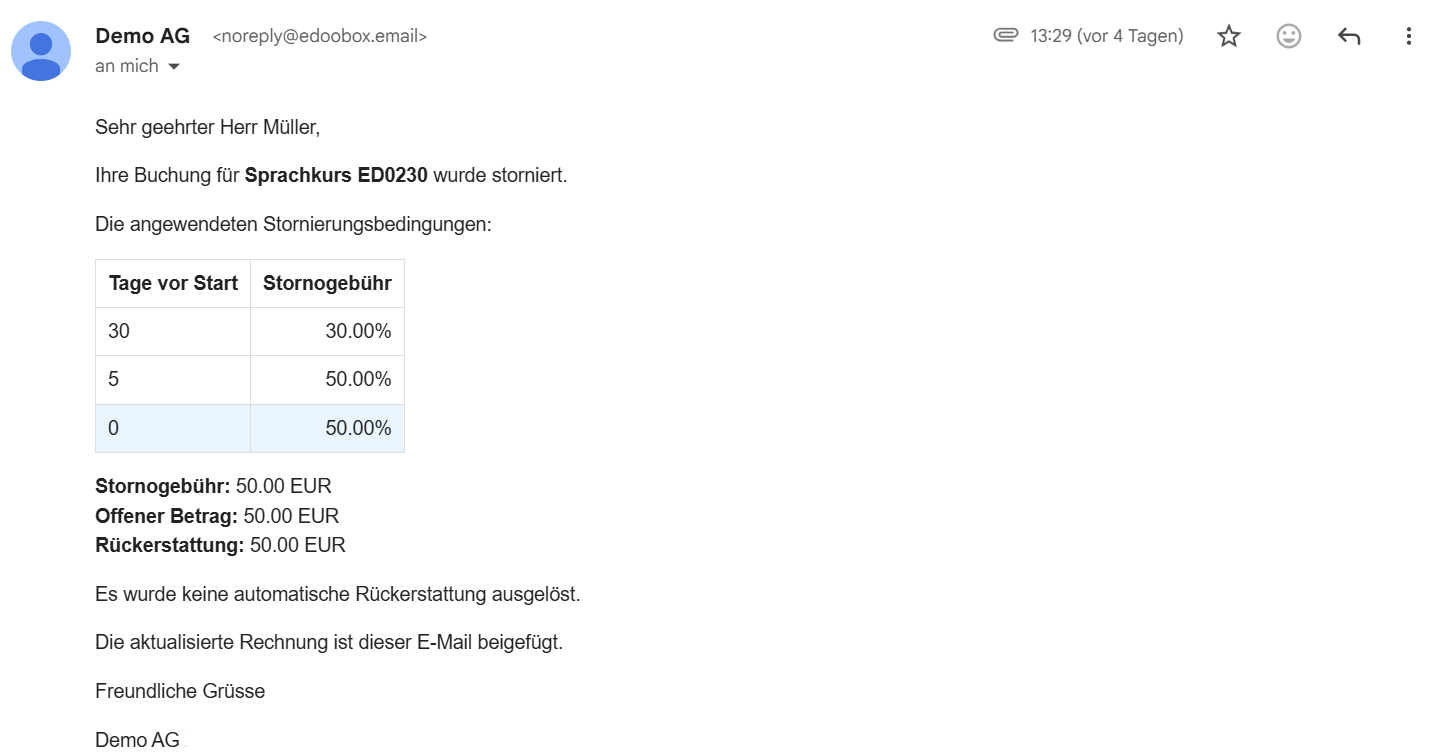
|
Placeholder |
Description |
|---|---|
|
|
Table of Cancellation Policies |
|
|
Cancellation fee |
|
|
outstanding fee amount |
|
|
Refund amount |
|
|
Refund Policy |
|
|
Note regarding the invoice |
|
|
Date of the cancellation request |
|
|
Participant's explanation |
|
|
Date by which cancellation is possible |
|
|
Link for Direct Booking Cancellation |
Widerruf-Button in die Webseite integrieren
-
Der Widerruf-Button kann im Design Manager im Header-Widget aktiviert werden. Nach der Aktivierung wird der Button standardmässig im Header der edoobox-Seite angezeigt. Über diesen Button A können Kunden direkt auf die Widerrufsseite zugreifen.

-
Alternativ kann der Widerruf-Button auch direkt an einer gewünschten Stelle auf der Webseite integriert werden. Dazu wird ein Link auf die Widerrufsseite B gesetzt, welche in den Widerrufsbedingungen hinterlegt ist.

-
Diese beiden Optionen bieten den Kunden neben dem Annullierungslink mit dem Platzhalte “
##UserAnnulmentURL##“ C in der Buchungsbestätigung eine zusätzliche direkte Möglichkeit, den Widerruf aufzurufen.
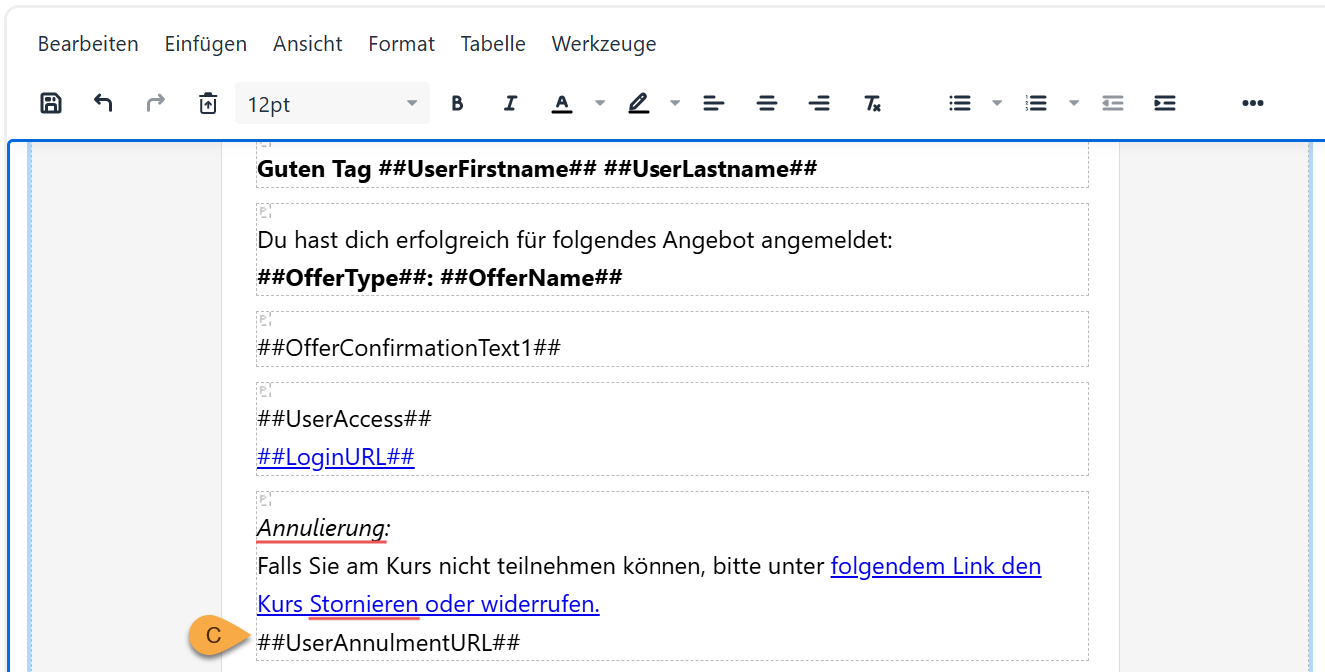
Empfehlung: Widerruf- oder Stornierungslink direkt in die Buchungsbestätigung einfügen
Für die beste Benutzerfreundlichkeit empfehlen wir, den Platzhalter ##UserAnnulmentURL## direkt in die Buchungsbestätigung zu integrieren. Dadurch gelangen Teilnehmende mit einem Klick direkt zur Seite, auf der sie ihre Buchung widerrufen oder – sofern gemäss den hinterlegten Bedingungen möglich – stornieren können. Dies reduziert den Aufwand für den Kunden und erleichtert die Abwicklung von Widerrufen und Stornierungen.
Recommended setup
-
Open Global Cancellation & Refund.
-
Enable mode rules.
-
Create at least one active cancellation policy.
-
Set a group as the default.
-
Enter rules with deadlines and percentages.
-
If necessary, enable the right of withdrawal.
-
Maintain checkbox text in all active account languages.
-
Review and link legal texts.
-
For each quote, check whether the standard option is sufficient or whether a custom group should be selected.
-
Create a test booking and check the widget, booking dashboard, cancellation, and email.
Related Guides
Keywords for this guide
Cancellation ¦ Cancellation ¦ Cancellation ¦ Cancellations ¦ Cancellation policies ¦ Right of withdrawal