
In edoobox, legally relevant texts such as General Terms and Conditions (GTC), Right of Withdrawal Information, Privacy Policy, etc. can be stored and integrated into the booking process. Which texts are displayed can be individually defined. Only actively stored texts and those used in the design are displayed to booking individuals for confirmation.
Manage Legal Texts
-
Open Settings → Legal Texts and click on New Legal Text. A
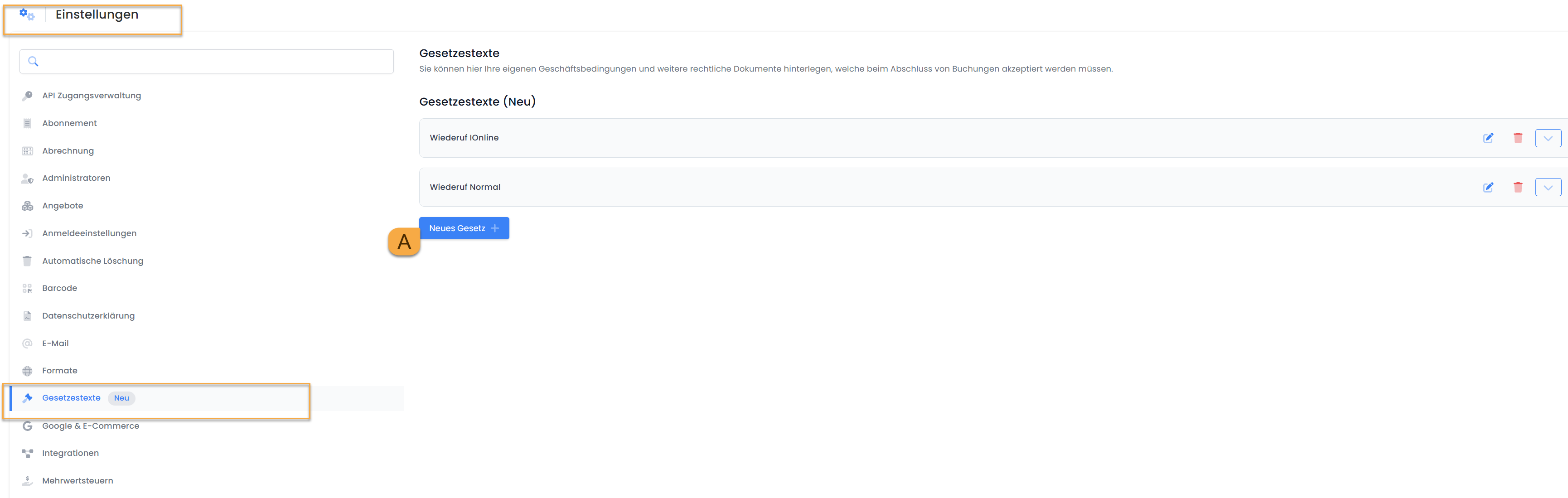
Navigating to "Legal Texts" Settings and Creating a New Legal Text
-
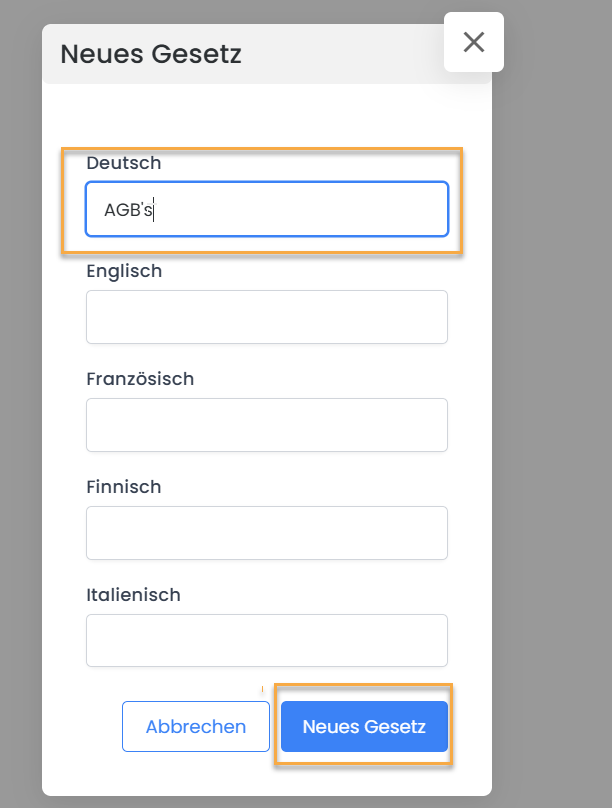
Assign a name to the legal text, for example, Terms and Conditions.
-
Insert the desired text into the editor and save the legal text. It will initially be stored with the status "Draft". Subsequently, change the status to "Publish" to activate the legal text.
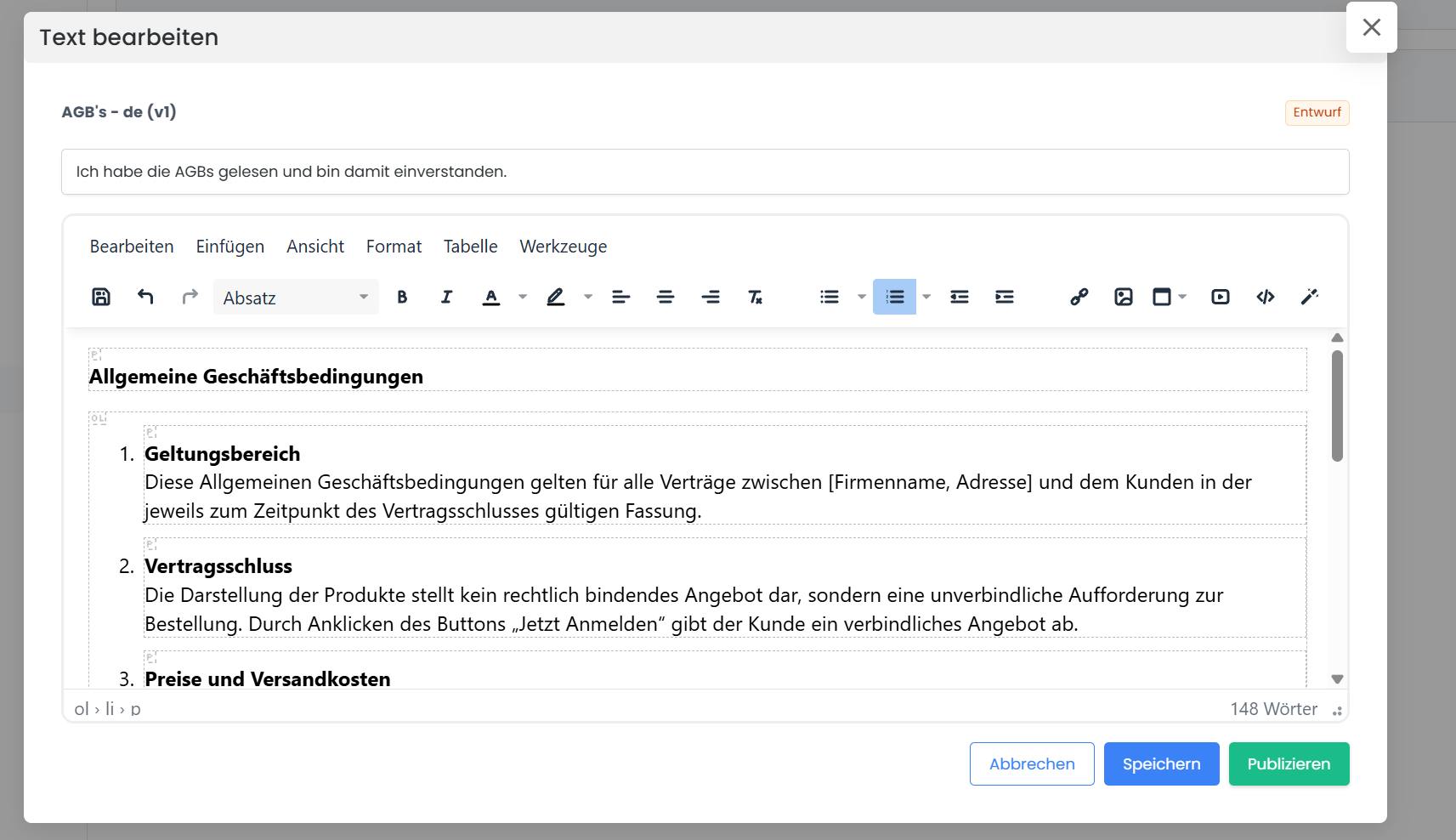
Manage Versions of Legal Texts
If an existing legal document needs to be updated, you can simply create a new version — for example, titled "Terms and Conditions Version 2"—and publish it.
This ensures that the previous version remains visible in the system while the new version is actively in use. This method allows legal texts to be continuously updated without losing earlier versions.

Display in the Booking Process
To ensure that the stored texts are displayed and confirmed upon booking completion, the corresponding widgets must be integrated into the Design Manager:
-
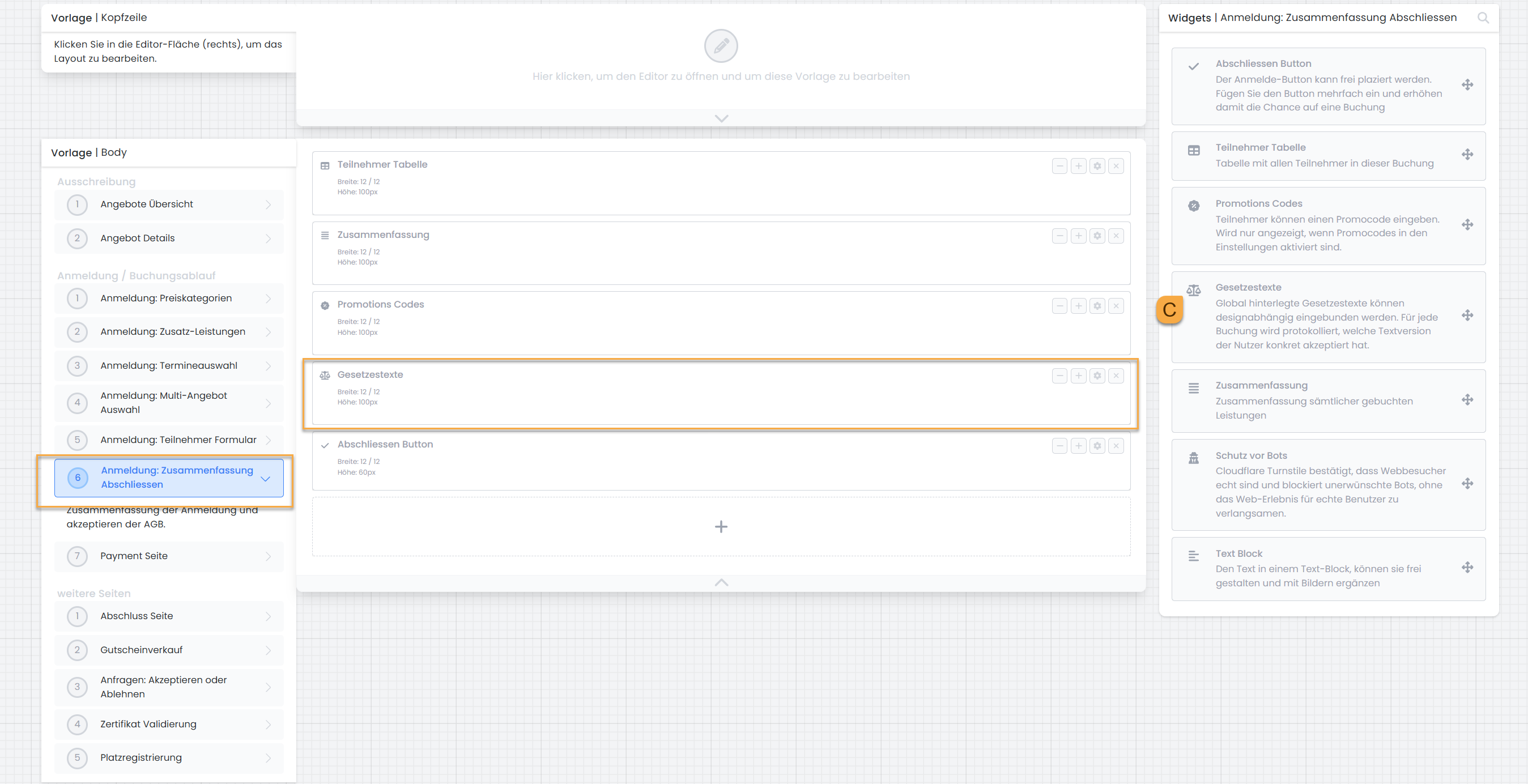
Open the Design Manager, navigate to the "Registration Summary" page, and add the Legal Texts widget C there.
-
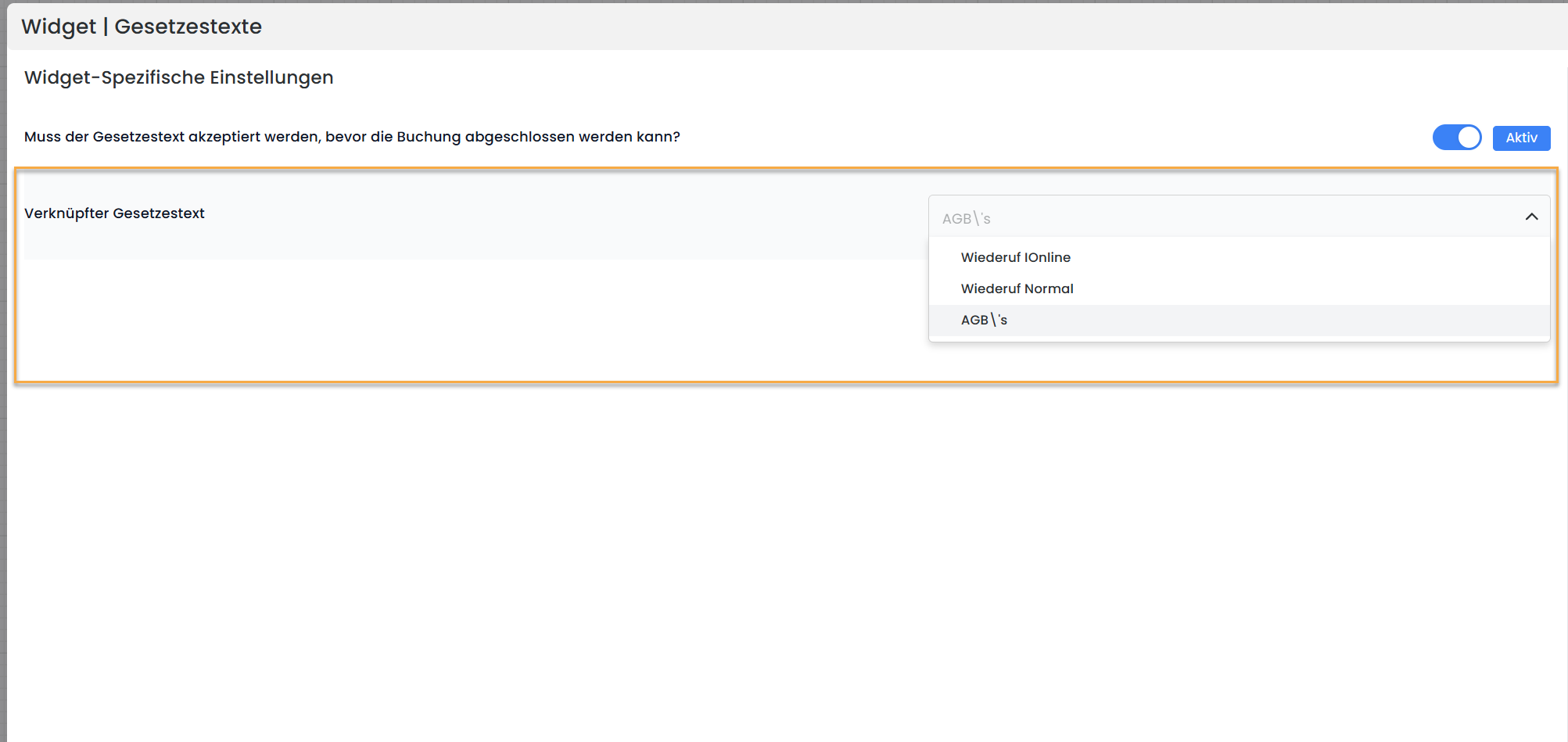
Open the widget and select the desired legal text. If multiple legal texts are used, such as Terms and Conditions and Right of Withdrawal, you can add the widget multiple times and assign a different legal text to each instance.
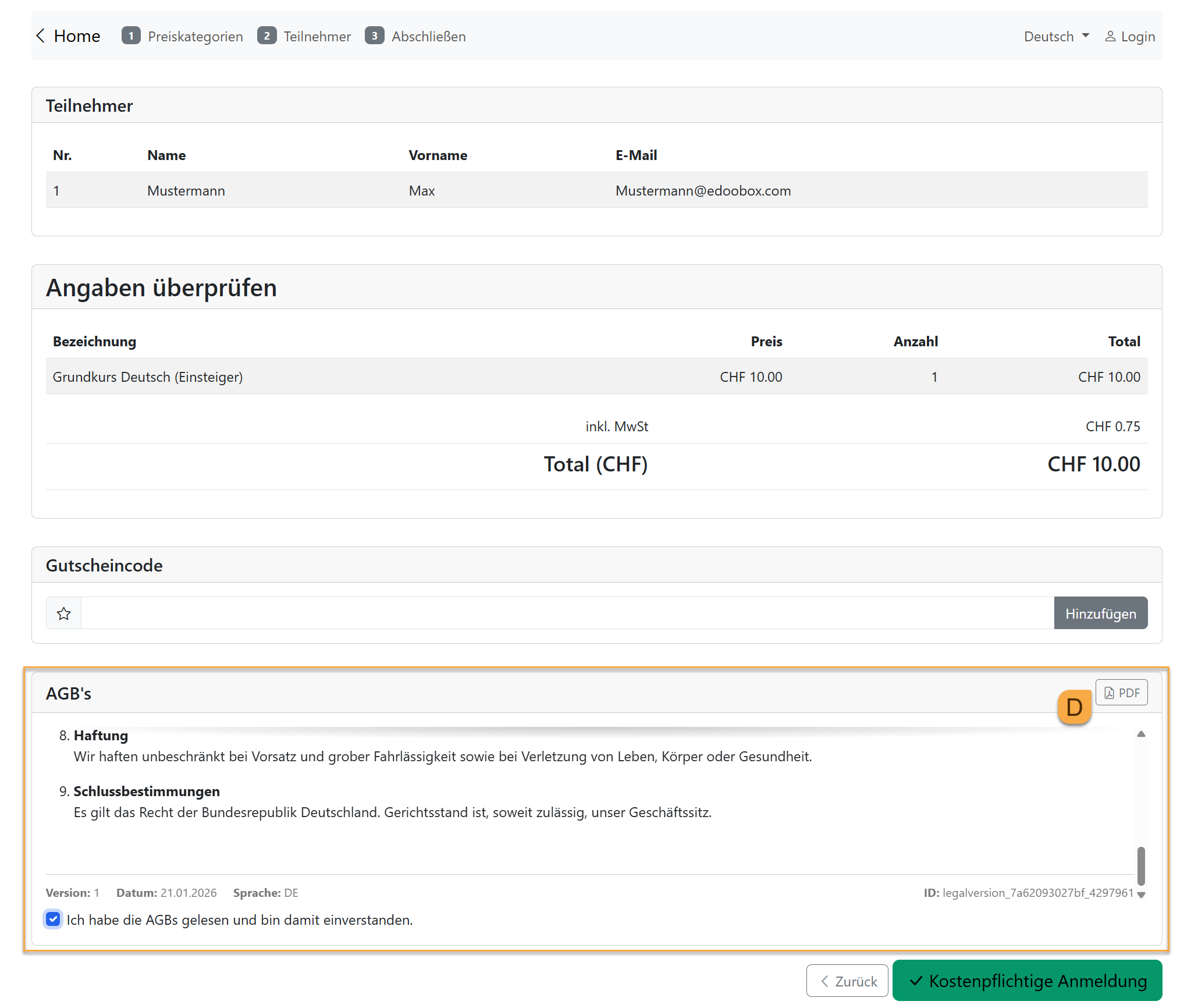
During the booking process, participants will see the stored legal texts, can download them as a PDF D, and must actively accept them. The current version and the stored date will be displayed.
View Accepted Legal Texts in the Backend
In the backend, for completed bookings, you can view in the booking details which legal texts were accepted by the participants. This documents which version of a legal text was valid at the time of booking.
Related Guides
Keywords for this guide
GTC | Privacy Policy | Cancellation Policy | Accept | Checkbox | Legal Texts