
Design Manager
Would you like to offer your customers the option to specify a different billing address? In the Design Manager, add the 'Billing Address' widget A to the 'Registration: Participant Form' template.
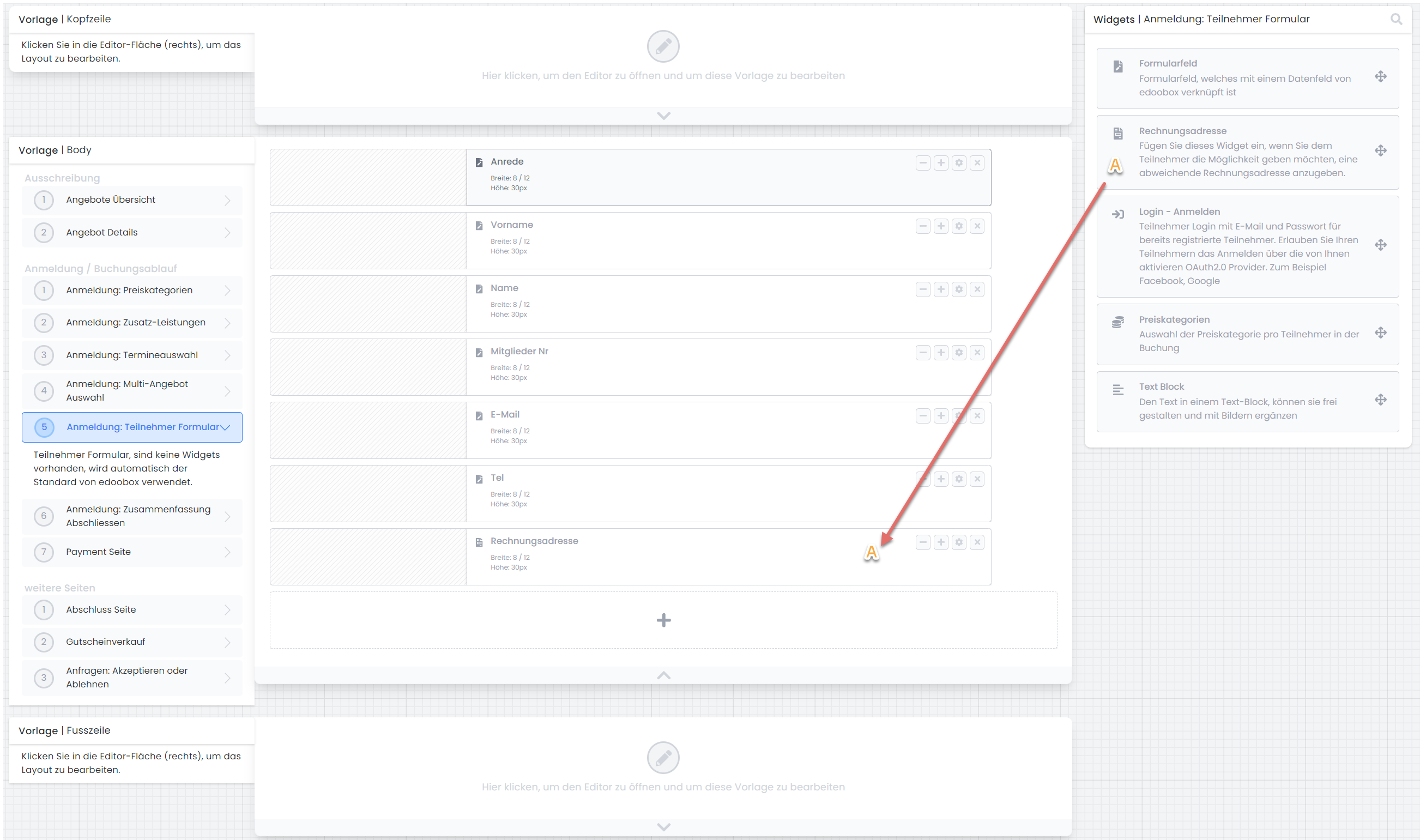
Open the settings for the"Billing Address" widget, where you can configure various specific settings for the individual form fields. Here, you can select which form fields you want to include, under what names, and which ones should be marked as required fields. Additionally, you can decide whether these form fields are always requested or only after the “Different billing address?” checkbox is selected in the participant form.
Here you will also find information on the individual form fields and their corresponding placeholders, i.e., which data is output when you use a placeholder in the 'Invoice.pdf' email template.
Email Template
You can insert these placeholders into the 'Invoice.pdf' email template. They will then be populated with the billing address. If no different billing address was entered, the placeholders will be populated with the participant data.
|
##InvoiceAddressVAT## |
VAT Number |
|
##InvoiceAddressCompany## |
Company |
|
##InvoiceAddressName## |
First and Last Name |
|
##InvoiceAddressStreet## |
Street and Number |
|
##InvoiceAddressCity## |
Postal Code and City |
|
##InvoiceAddressEmail## |
|
Related Guides
Keywords for this guide
Invoice ¦ Billing Address ¦ Billing Address