
The CAMT file import enables the reconciliation of your bank account transactions with your edoobox account. Deposits in your bank account are matched against bookings in edoobox. Should the invoice numbers correspond, the payment will be credited to the customer's account in the edoobox booking system.
Perform a payment reconciliation using the Camt file import
-
Camt file (camt.053.001.02, camt.053.001.03, camt.053.001.04, camt.052.001.06, and camt.052.001.08 – each in ISO 20022 format) from your bank and save them to your drive
-
In the Account the Participants Camt Entries Open
-
Click the blue area to select a Camt file, or drag the file from your file explorer into the blue area to upload it to the booking system.
-
Payments are then matched using the invoice number and automatically assigned.
-
If a partial payment is made, the amount will be credited to the participant's account.
-
When a payment is made in full, the invoice is marked as paid and thus removed from the list of outstanding invoices.
-
-
Payments that have been successfully assigned are highlighted in green in the system.
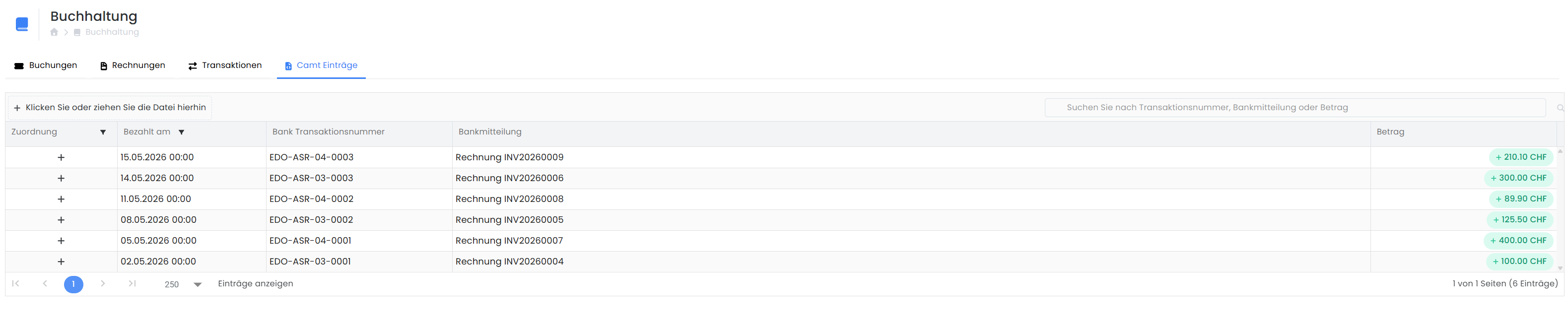
If payments cannot be automatically assigned:
Payments that cannot be automatically assigned are displayed in red at the bottom of the list view.
The edoobox system generates suggestions for matching invoices, which you can link using the Link Invoice button.
About the button Delete, the bank transaction can be completely deleted from the edoobox system; after that, the edoobox system will no longer search for possible assignments.
Notes
– Bank transactions are assigned to an open invoice based on the invoice number. The system searches for a match in the Reference Number () field or the Reference Text () field in the CAMT file.
– Negative payments are not imported or reconciled; edoobox imports only positive transactions into the system.
– A CAMT file can only be imported once.
Tip
– We recommend that you delete the Camt file from your drive after syncing or move it to a designated folder.
– Import a CAMT file without an image
– Set up a separate account at your bank for receiving payments from edoobox so that the Camt file contains only payment transactions.
Related Guides
Keywords for this guide
Sofort § Klarna § Payment Systems § Payment § Interface