
In edoobox, you can also set up Klarna Instant Transfers, allowing your customers to make payments with real-time transaction confirmations for banks within the EU. To create an account and try it free for 30 days, you canregister for edoobox hereand take advantage of more favorable terms (see the fees table).
|
Services |
edoobox |
|
|
Real-time
|
Yes |
Yes |
|
Automatic
|
Optional |
Yes |
|
Automated
|
Optional |
Optional |
|
Buyer Protection |
Optional |
Optional |
|
Deutsche Handelsbank Account |
Optional |
Optional |
|
Fees (net) |
via edoobox |
|
|
Transaction fee per
|
0.9% + 0.25 EUR |
0.8% + 0.00 EUR |
|
Monthly Base Fee |
4.90 EUR |
0.00 EUR |
|
One-time Setup Fee |
59.90 EUR |
0.00 EUR |
General Information
|
Minimum Contract Term |
– |
|
Notice Period |
4 weeks' notice by the end of each month |
With this link, you can test Sofort Überweisung free of charge for 30 days and receive 0.8% instead of 0.9% discount, without monthly base fees: Link to Sofort.com
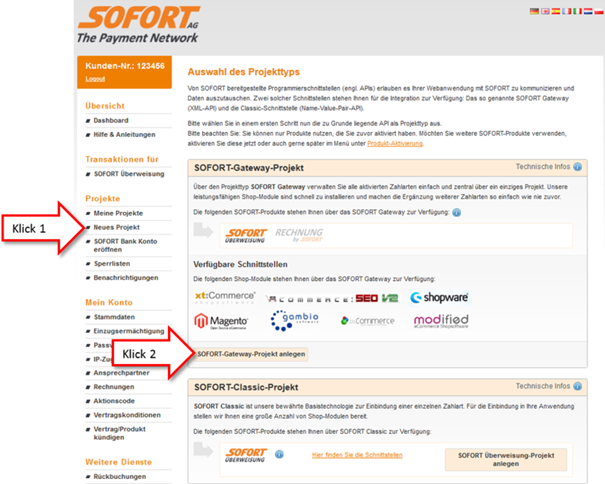
In the second step, you can choose whether you already have a SOFORT bank account or wish to open a new one. You can use Sofort Überweisung even without a SOFORT bank account.
Complete New Project
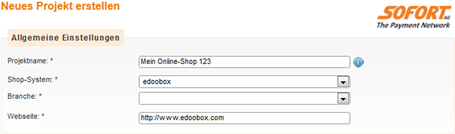
Select a project name for your project, e.g., „edoobox Shop“. For Shop System, you can choose „edoobox“ or the option „Custom Shop System“. Under «Website», you can enter your domain. Then, complete all details regarding your bank account.
Settings for All Payment Methods
Donotmodify this entire block! edoobox shares all information with http://sofort.com during a payment.
Linking a sofort.com Project with edoobox
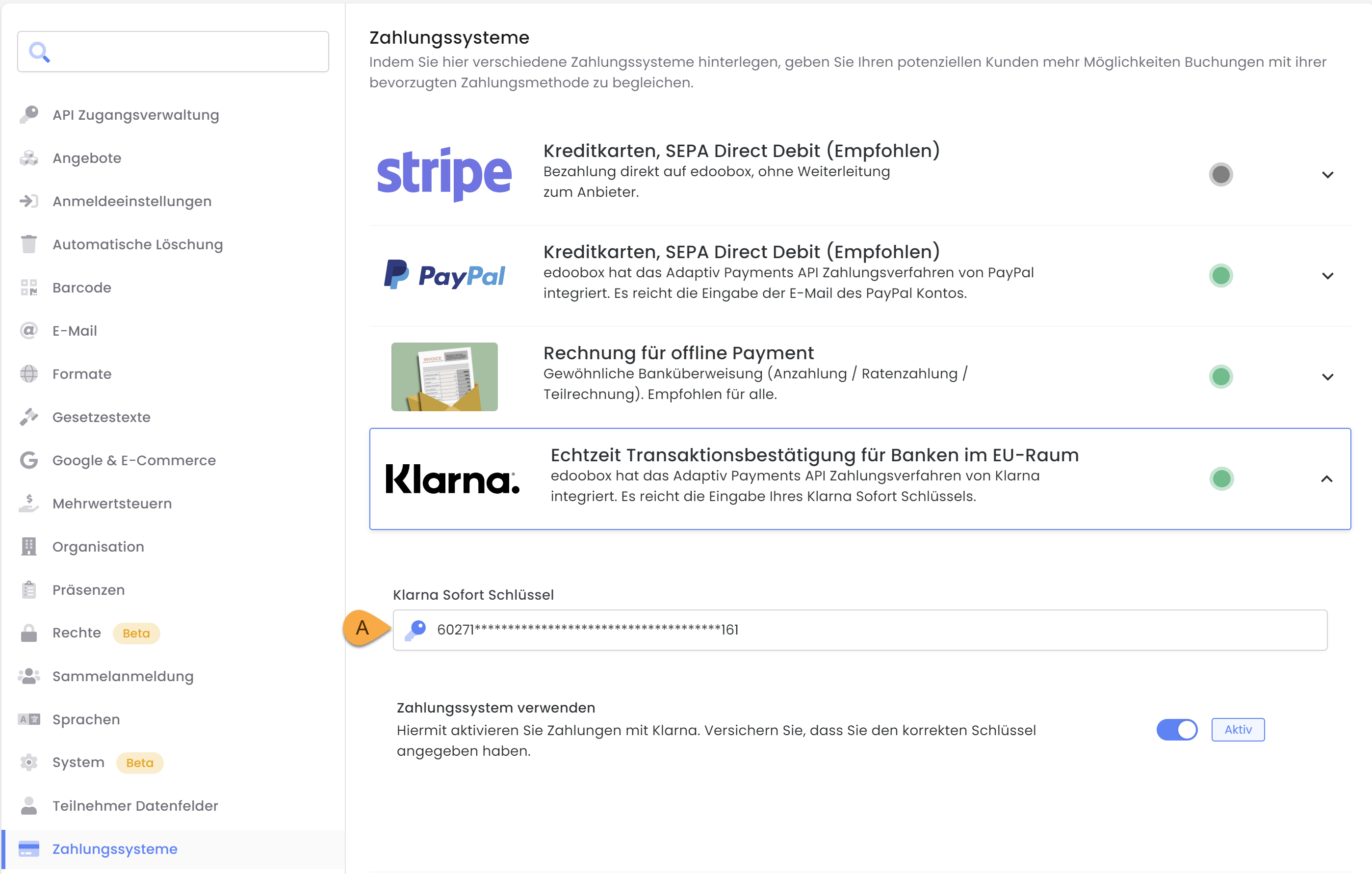
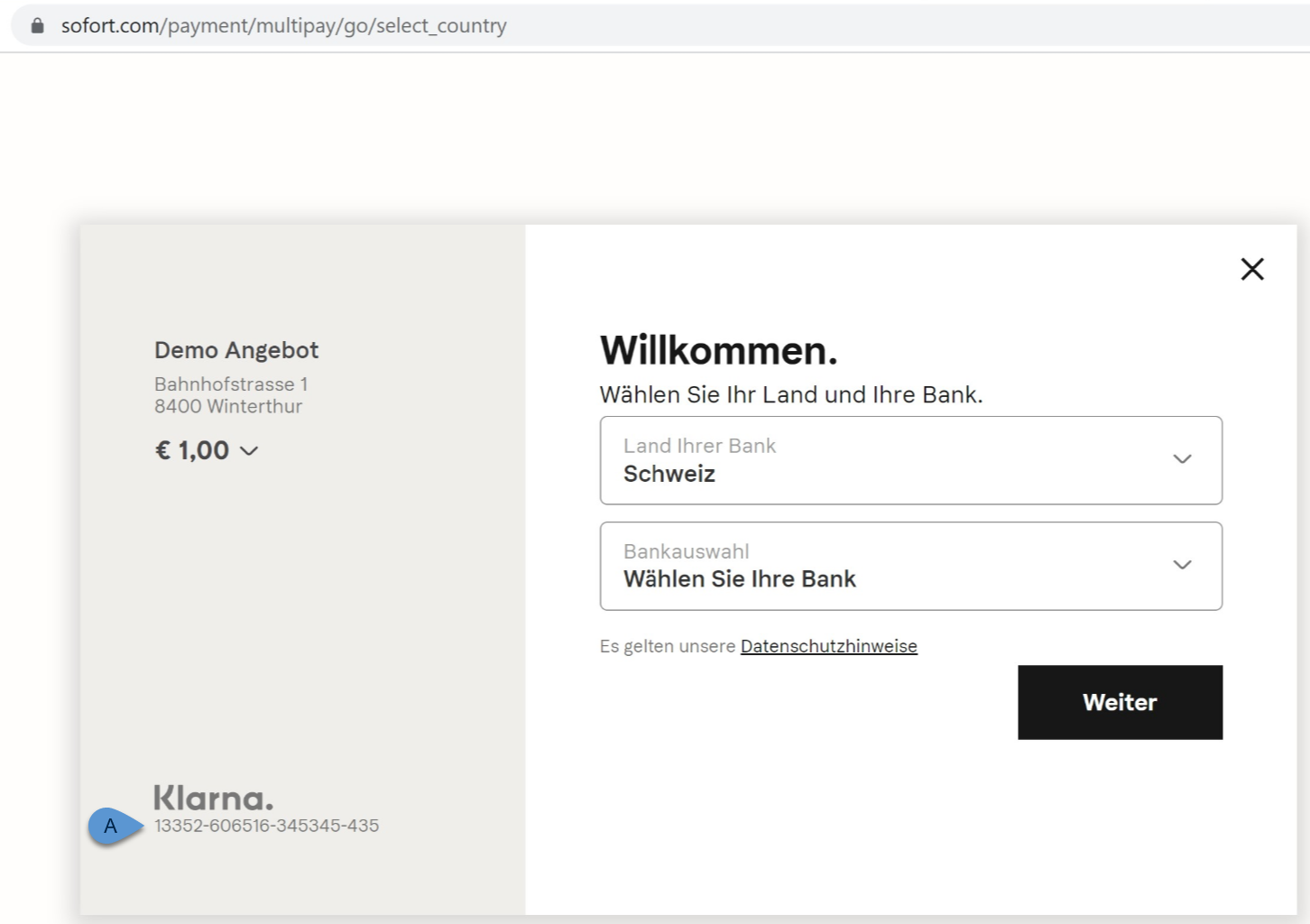
In your newly created project, copy the uniqueconfiguration key A. Paste it into the edoobox "Settings" under "Payment Systems" «Klarna» and activate this payment system.
Please note: Integration into edoobox
Do not add the project to edoobox until it has been reviewed and approved by Sofort.com!
Overview and Process (from Sofort.com)
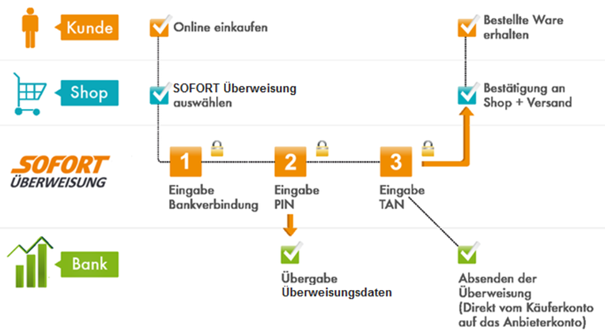
From your customers' perspective, a transaction with Sofort involves the following steps:
-
As soon as a customer wishes to pay via Sofort, they will be redirected to a page of Sofort GmbH.
-
Below the overview of transfer data (payee, purpose, amount) provided there, your customer will be prompted to enter their bank code.
-
Subsequently, your customer will be prompted to log in with their online banking credentials.
-
After successful login, your customer must confirm and authorize the transfer with a valid TAN.
-
If a valid TAN has been entered, the transfer is initiated, and your customer is directed to a summary of the completed transaction.
-
Finally, by clicking, they will return to your webshop.
Please note: potential sources of error
If error messages appear—for example, in the case of aborted payments—there may be various reasons for this. It is important to note that Klarna Support , it is important to provide thetransaction ID A; this allows Klarna to determine the specific reason why the transaction failed.
From the edoobox side, the displayed error message can have various origins, such as:
-
API key was incorrect or not stored in the edoobox account
-
The transfer amount is less than €1.00
-
The account in Sofort/Klarna has not yet been activated
Please independently rule out such causes first, as edoobox Support cannot access your Klarna account to assist you.
Info: Support – Sofort GmbH
The Sofort GmbH team is available to assist you should you require help.
You can send an email to service@sofort.com.
Or for technical questions, contact Sofort as follows:
Phone: +49 89 20 20 889-400
Email: integration@sofort.com
Additional Payment Systems for Participant Payments
You can find information about Klarna's PSD 2 compliance here:
https://www.klarna.com/de/presse/klarna-startet-open-banking-plattform/
Related Guides
Keywords for this guide
Sofort § Klarna § Payment Systems § Payment § Interface