
Please note: Limited 3
The option to use SAML in your edoobox account is available starting from the Limited 3 subscription. Free support for this topic is limited. Should you require more extensive assistance, we are pleased to offer paid services.
By implementing a SAML-based single sign-on solution in edoobox, users such as super admins, admins, and managers can log in to edoobox securely and seamlessly via Google Workspace for Business and Education. Login occurs via the Google Workspace Identity Provider, without requiring a separate login or an additional password for edoobox. This simplifies the login process and enhances the security of user accounts.
What is SAML?
SAML (Security Assertion Markup Language) Identity Provider (IdP) is a security service that allows users to log in to multiple applications with a single username and password. The IdP generates secure login credentials (SAML assertions) and sends them to the Service Providers (SP) that host the applications the user wishes to access. The IdP handles user authentication and permission verification, while the SP processes the user's credentials and controls access to the applications.
1. Create a custom SAML app in Google Workspace
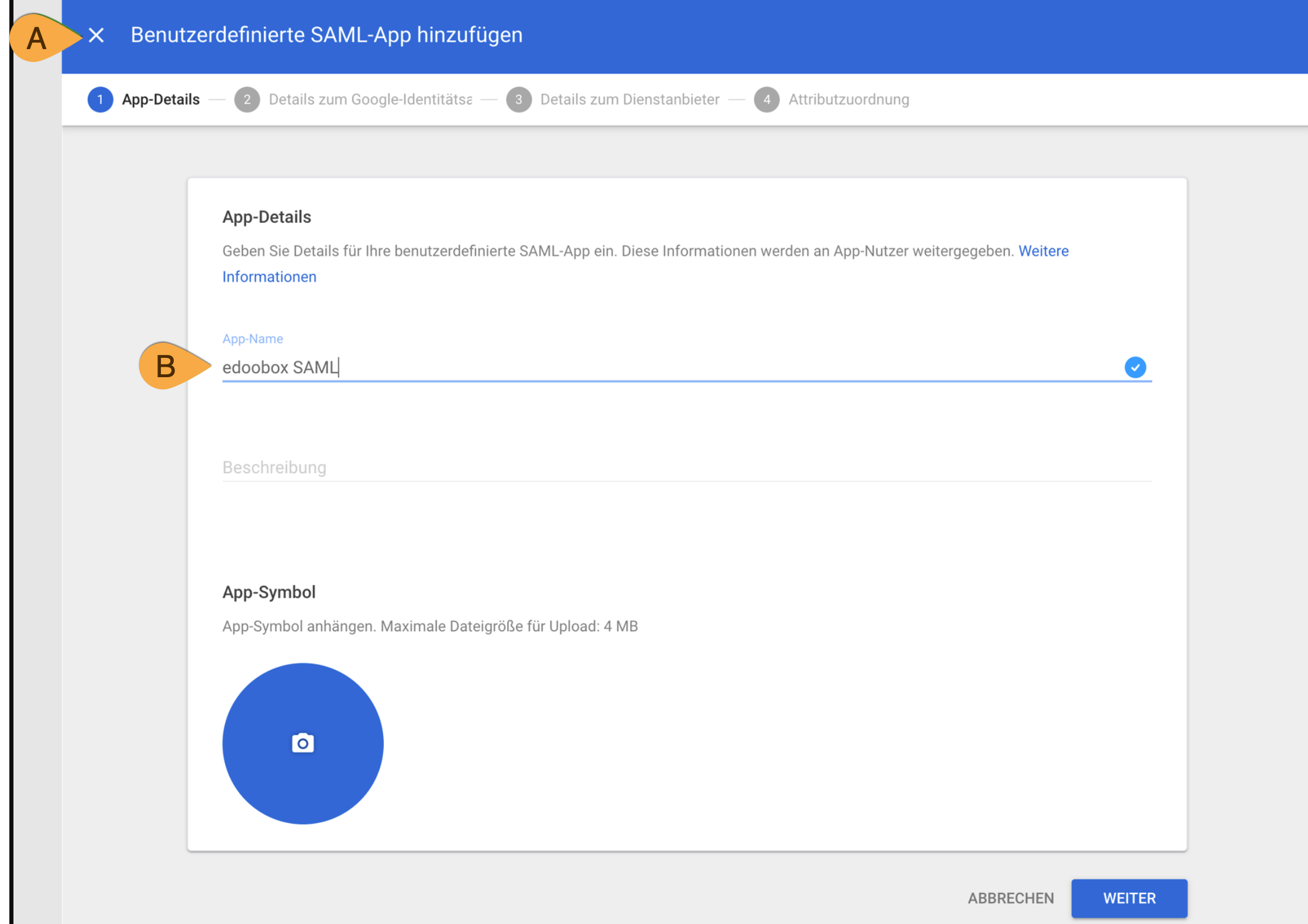
Create a new custom SAML app in Google Workspace. To do this, open the Google Admin Console and launch the wizard for adding a custom SAML app. In the app details, first specify that it is a SAML app a. Then assign an internal Google name for the application (e.g., edoobox SAML) B. This name is used exclusively for internal identification within Google Workspace.
2. Configure the App
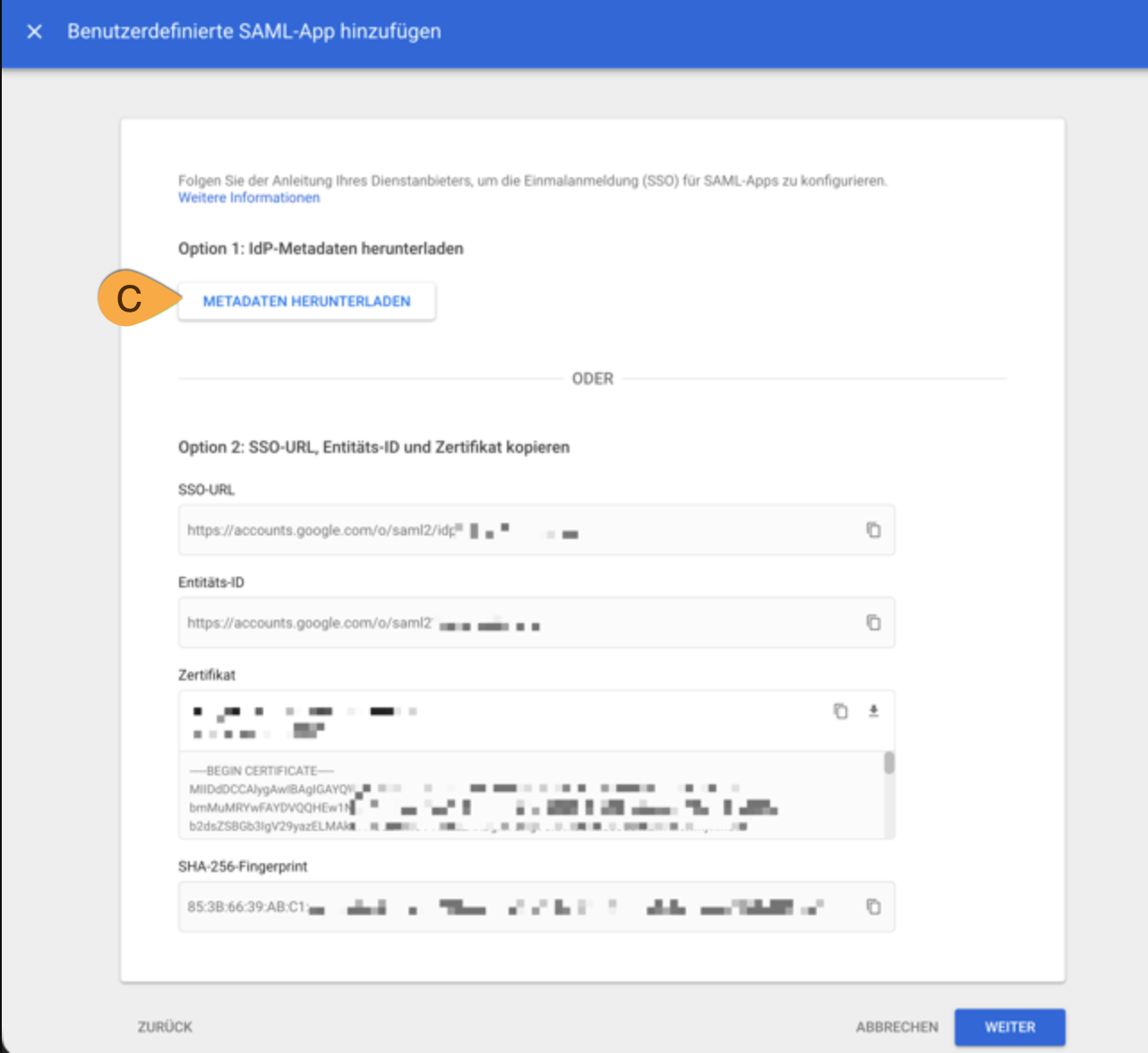
Next, download the SAML app's metadata XML. To do this, select the option to download IdP metadata C and save the metadata file locally. This XML will then be required to configure the SAML provider in edoobox.
3. Create a SAML provider in edoobox
Add a new SAML provider in edoobox and upload the metadata XML file you previously downloaded from Google Workspace. Then set the field mapping to the following standard to ensure that user data is imported correctly.
[
  {
    "name": "Email Address",
    "description": "E-Mail Adresse",
    "attr": "email",
    "field": "email"
  },
  {
    "name": "First Name",
    "description": "Vorname",
    "attr": "first_name",
    "field": "first_name"
  },
  {
    "name": "Last Name",
    "description": "Nachname",
    "attr": "last_name",
    "field": "last_name"
  }
]
4. Import parameters from edoobox into Google Workspace
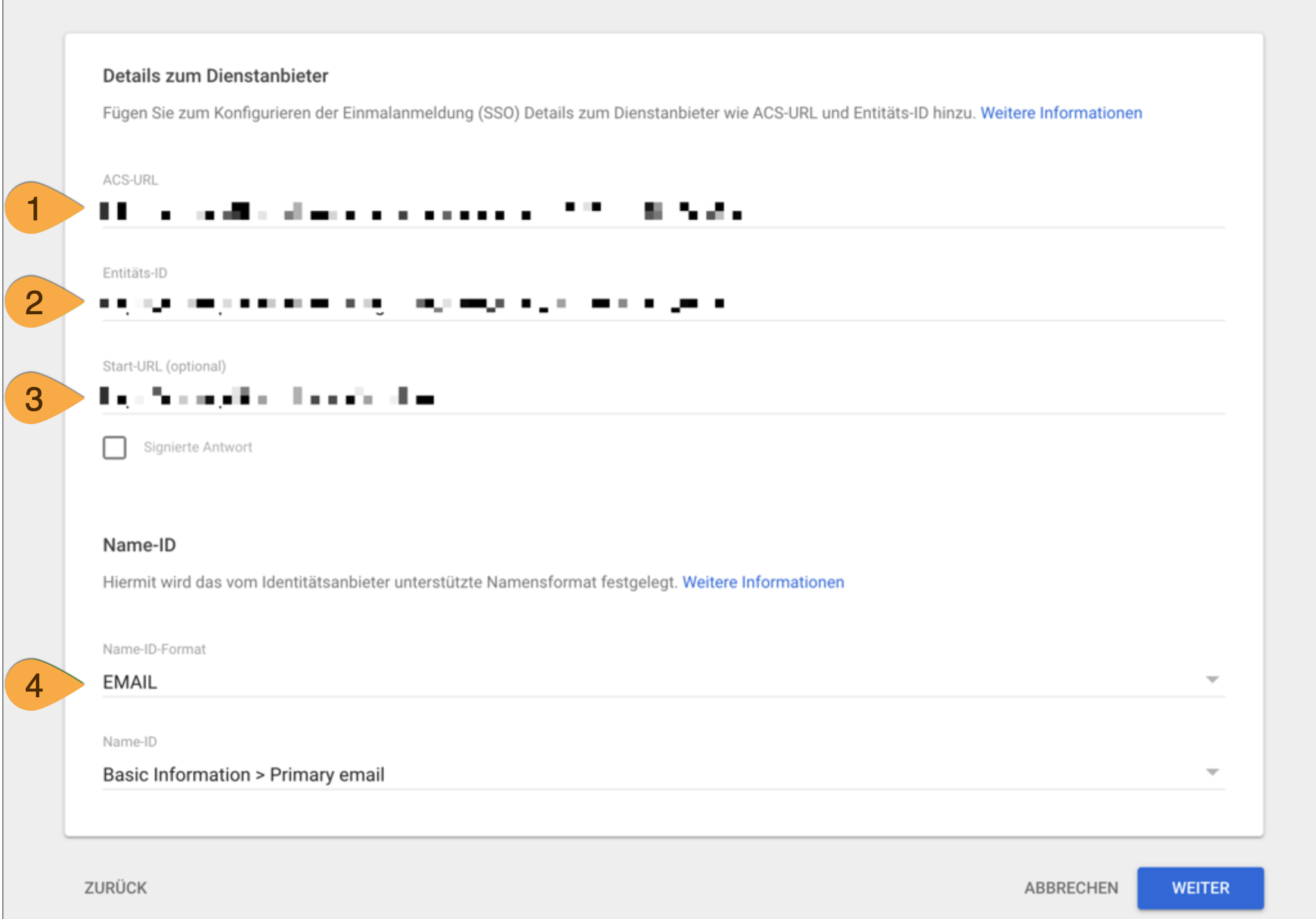
In the newly created SAML provider in edoobox, go to the last tab, download the federationmetadata.xml file, and open it in a text editor. The parameters contained in this file will then be needed in Google Workspace for further configuration.
-
ACS URL
The ACS URL is taken from the federationmetadata.xml file. To do this, use the AssertionConsumerService element in the XML with the Location attribute, and enter this value in the ACS URL field.
Example for APP2:
https://app2.edoobox.com/v2/auth/saml/reply
-
Entity ID
The entity ID is taken from federationmetadata.xml. To do this, use the EntityDescriptor element in the XML with the entityID attribute, and enter this value in the Entity ID field.
Example for APP2:
https://app2.edoobox.com/login/sso/[Account]/[SAML ID]
-
Start URL
The start URL is not included in the federationmetadata.xml file and must be entered manually in the Start URL field.
Example for APP2:
https://app2.edoobox.com/ed-admin/
-
Name ID Format
Set the Name ID format to EMAIL so that users log in using their primary email address.
5. SAML Attribute Mapping
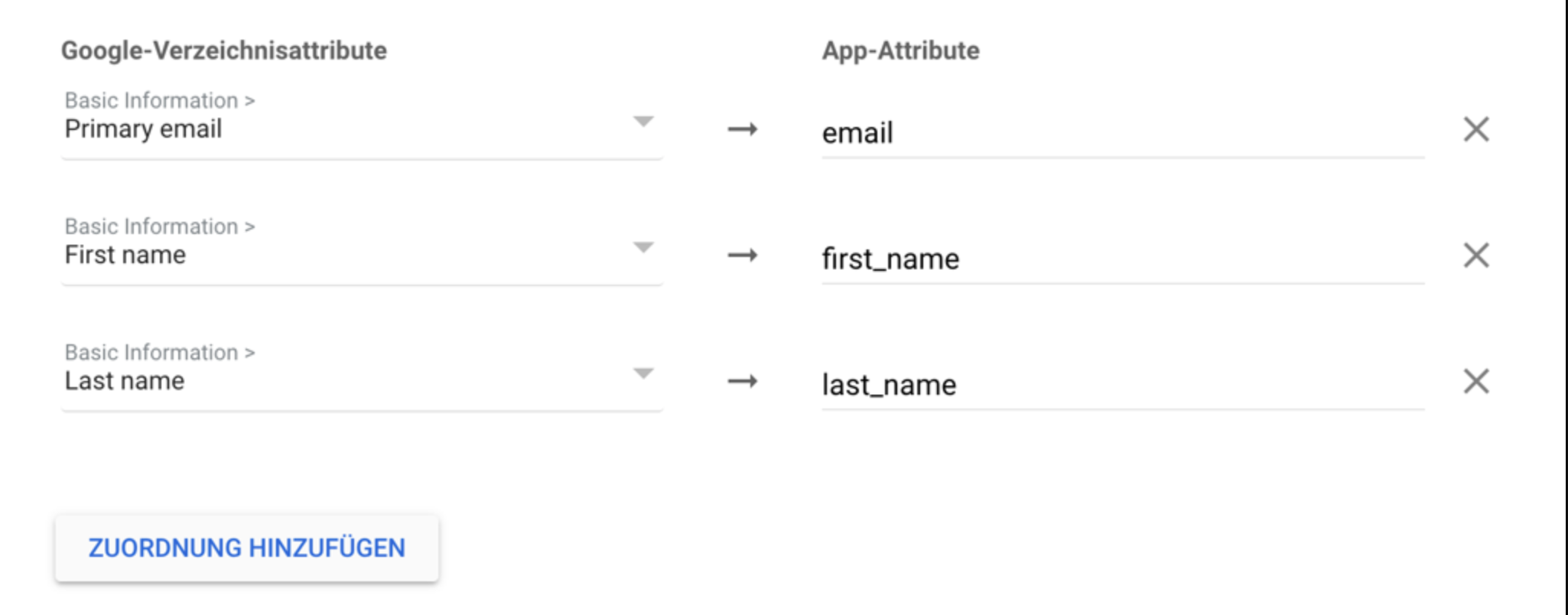
This is where user attributes are mapped between Google Workspace and edoobox. Add the three default fields to ensure that user data is transferred correctly. The primary email address is mapped to the email attribute, the first name to the first_name attribute, and the last name to the last_name attribute.
6. SSO Activation
Allow users to access the app by enabling the application for the desired users or organizational units.

Note: Redirect to SSO
If an admin is logged in with SSO and logs out or is automatically logged out by edoobox, the logged-out admin will be automatically redirected to the SSO login page and not to the regular login page. For this to function, the admin must have logged in at least once previously.
Related Guides
Keywords for this guide
SSO ¦ SAML ¦ Google Workspace ¦ Business ¦ Education